Affiliates: partners who refer customers to your business
What it is
Section titled “What it is”An affiliate is someone who promotes your studio and brings in new customers—a social media influencer, a business partner, or a loyal customer who refers friends. Each affiliate gets their own link, and the system tracks who came through it. When a customer referred by an affiliate books an appointment and pays, the commission is calculated automatically and added to the affiliate’s statement.
When to use it
Section titled “When to use it”- An influencer is going to promote your studio on Instagram and has agreed to receive 10% of each full-arm tattoo sale that comes from her. Add her as an affiliate with a 10% commission and give her the booking link.
- A partner, such as a nearby store or gym, refers customers, and you want to pay commission only on each customer’s first three purchases.
- You want to see how many customers each partner referred and how much you owe them at the end of the month.
Before you start
Section titled “Before you start”-
The affiliate module must be enabled on your studio’s account. If the Affiliates menu doesn’t appear, contact support.
-
If you can’t add, edit, or delete affiliates, ask the studio owner to grant you access under Access → Roles.
-
Commission is earned on sales that come from an appointment. To have customers come through the affiliate’s link, your booking page must be active (see Booking link).
Step by step
Section titled “Step by step”Step 1 — Add an affiliate
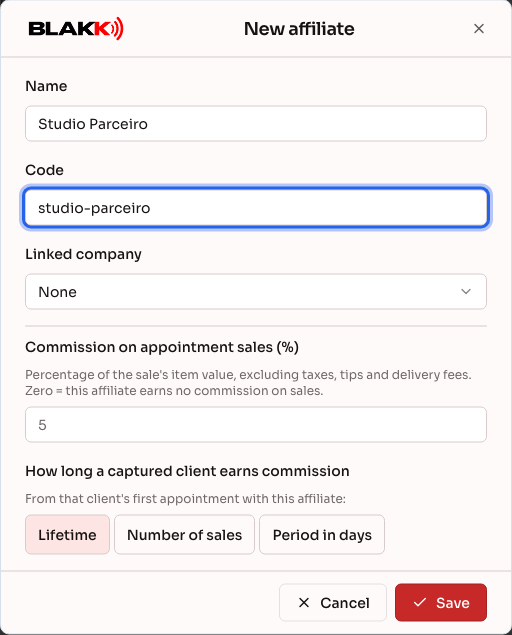
Section titled “Step 1 — Add an affiliate”Open Affiliates from the Affiliates menu and click Add. Fill in the following:
- Name: the affiliate’s name as you want it to appear in the list;
- Code: the end of their link, using lowercase letters and no spaces (e.g.,
maria-parceira). Each code must be unique. If another affiliate is already using that code, the system will let you know and you’ll need to choose another one; - Linked company: leave this as None. Use this only if the affiliate is another business that you also manage in the system.
Step 2 — Set the commission
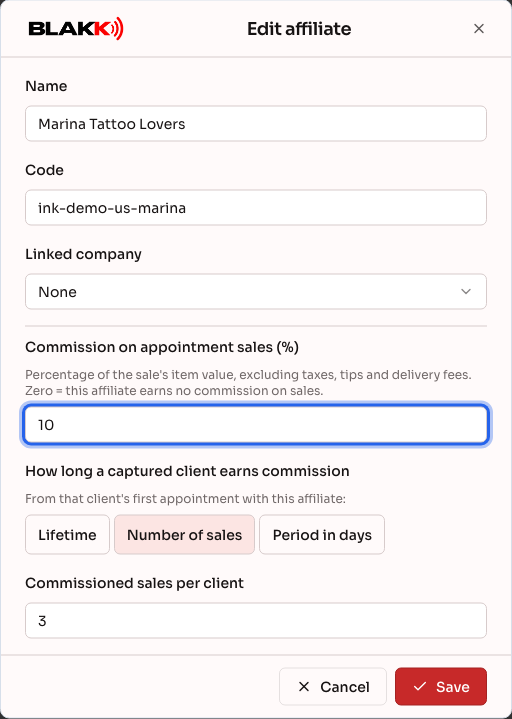
Section titled “Step 2 — Set the commission”In the same form, enter Commission on appointment sales (%): the percentage the affiliate earns on the items in the sale, excluding taxes, tips, and delivery fees. Enter 0 if the affiliate won’t earn commission.
Under How long a captured client earns commission, choose:
- Lifetime: every sale to that customer earns commission, indefinitely;
- Number of sales: only the customer’s first few purchases (e.g., 3) earn commission;
- Period in days: only sales made within a certain number of days after the first appointment earn commission.
The count starts with the customer’s first appointment with the affiliate. Click Save.
Step 3 — Share the link with the affiliate
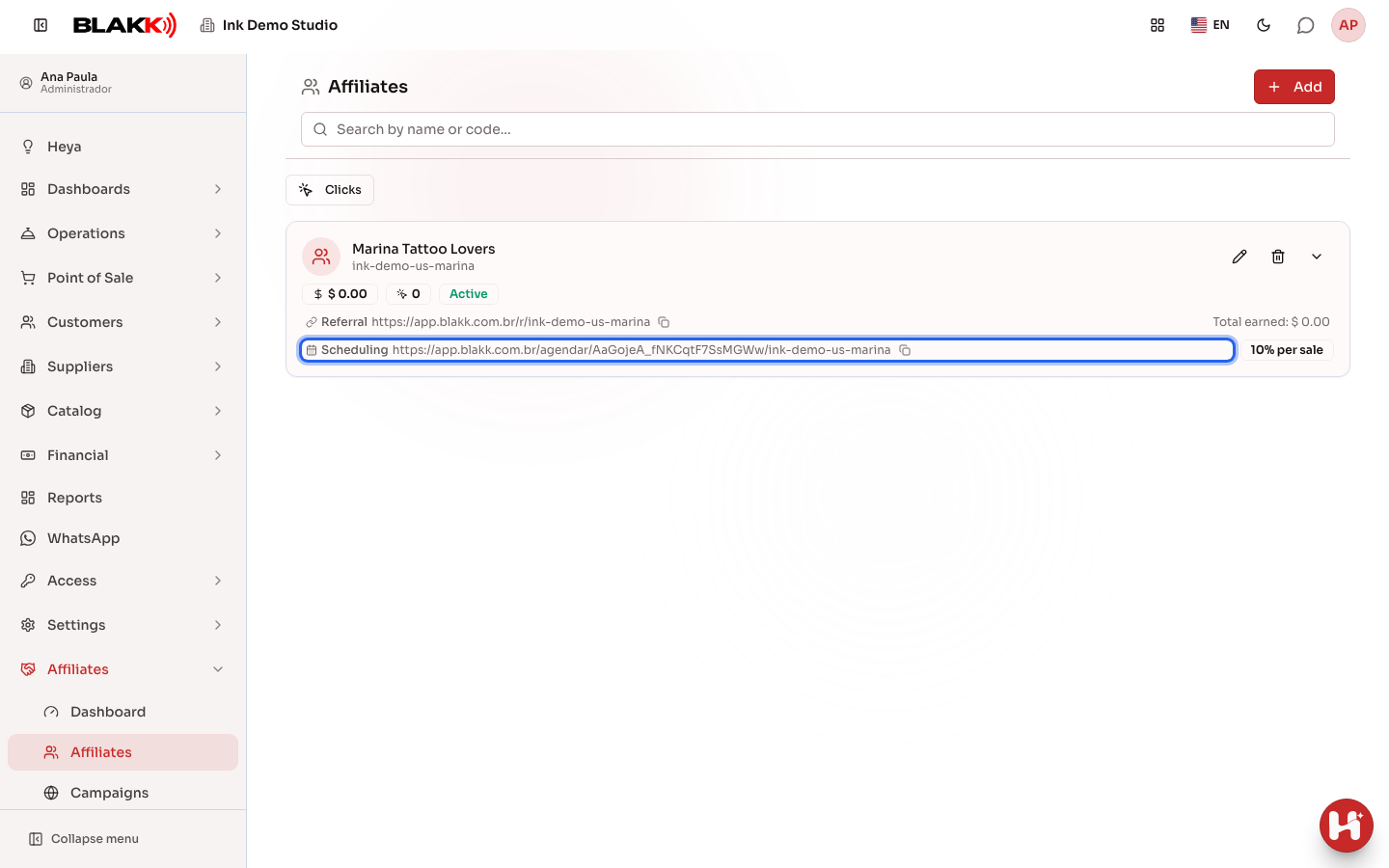
Section titled “Step 3 — Share the link with the affiliate”The affiliate will appear in the list. On their card, the Scheduling row is the link they share. Click it to copy the link, then send it to the affiliate. Customers who book through this link will be associated with them. Their commission percentage appears next to per sale.
The Referral row links to the system’s home page, not your booking page. To bring in customers, always use the Scheduling link or a campaign (see Affiliate campaigns), which creates a short link and a QR code.
Step 4 — Review the statement
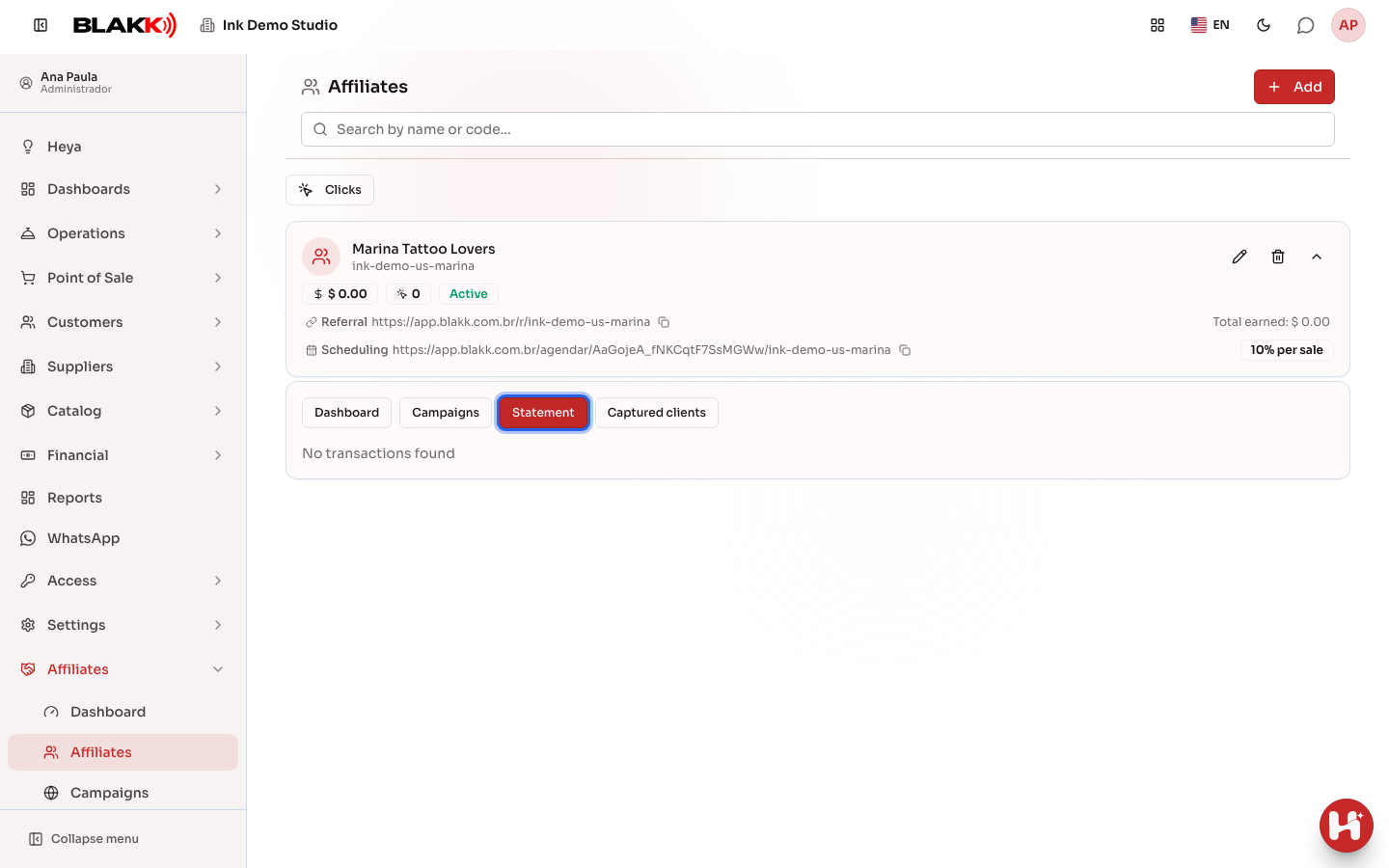
Section titled “Step 4 — Review the statement”Click the arrow on the card to expand it. The tabs show what the affiliate has generated:
- Dashboard: clicks and results for the selected period (see Affiliate dashboard);
- Campaigns: campaigns associated with the affiliate;
- Statement: each commission credited, with the Date, Description, Value, and Balance.
- Captured clients: customers who came through the affiliate’s link, including when they were captured, their visits, total sales, and the commission earned.
Step 5 — Delete an affiliate
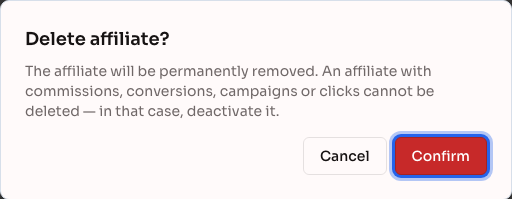
Section titled “Step 5 — Delete an affiliate”Click the Delete icon on the card, then click Confirm. You can only delete an affiliate with no activity. If they already have a commission, campaign, or click, the system won’t allow deletion so you don’t lose the history.
What happens next
Section titled “What happens next”- Anyone who books through an affiliate’s link or campaign will be associated with that affiliate. If the customer is new, their profile will show that affiliate as the referral source. Their future appointments—including those booked by reception without using the link—will continue to earn commission according to the rule you chose in Step 2.
- Commission is credited when the sale for that appointment is completed, and appears in the Statement as “Sales commission.” Sales made directly at the counter without an appointment don’t earn commission.
- The system doesn’t pay the affiliate. The Balance on the statement shows how much they’ve earned, and you pay them separately (by Pix, bank transfer, or cash), as agreed.
Common mistakes and questions
Section titled “Common mistakes and questions”Q: Can I pay a flat amount per customer instead of a percentage? A: No. Commission on sales is always a percentage of the items in the sale.
Q: A customer who was already mine came through an affiliate’s link. Does that generate commission? A: The appointment made through the link does generate commission. However, the customer’s profile won’t show the affiliate as the referral source, so future appointments made without the link won’t earn commission. The customer also won’t appear under Captured clients, which only counts customers whose profiles were created through the link.
Q: How do I pay an affiliate commission? A: Outside the system. The Statement shows each commission and the running balance, so you can use it to keep track of what you owe them.
Q: The customer canceled after paying. Is the commission reversed? A: The commission remains on the statement. Deduct it when you settle up with the affiliate.
Q: Can the affiliate log in to see their own results? A: No. Affiliates don’t have a login. Send them the statement details or export them from the Affiliate dashboard.
Q: I changed the affiliate’s code. Will the old links still work? A: No. Links and QR codes already shared with the old code will stop working. Send the affiliate the new link.
Q: I want to stop working with an affiliate who already has commissions. What should I do? A: Affiliates with activity can’t be deleted, and there’s currently no option to deactivate them. Set their Commission on appointment sales (%) to zero, turn off their campaigns, and ask them to stop sharing their link.
Q: I entered the wrong code, and the system says an affiliate with that code already exists. Why? A: Codes are unique across the entire system, not just your studio. Choose another code, such as one that includes your studio’s name.