Connect Grok to Your Studio (Web Browser and Mobile)
What it is
Section titled “What it is”With the AI connector, Grok can look up your studio’s data when you ask about sales, customers, appointments, or finances. You only need to connect once by signing in to the system at grok.com. The connection will then also work in the mobile app. Grok can only look up information; it can’t make changes to the system.
When to use it
Section titled “When to use it”- You use Grok and want to ask about your studio’s activity without opening the system.
- You want summaries and comparisons based on your studio’s actual numbers.
Before you start
Section titled “Before you start”The AI connector must be enabled for your studio (see the AI Connector article). Copy the connector address from Settings → Company → API Key, in the Connect your AI card, by clicking Copy address. You don’t need to create an API key.
On Grok Business and Enterprise plans, an administrator adds the connector in the xAI console. Then each person connects using their own login.
Step by step
Section titled “Step by step”Step 1 — Add the connector in Grok
Section titled “Step 1 — Add the connector in Grok”In your web browser, go to grok.com/connectors, click New Connector, and choose Custom. Paste the connector address and continue.
Step 2 — Sign in and authorize
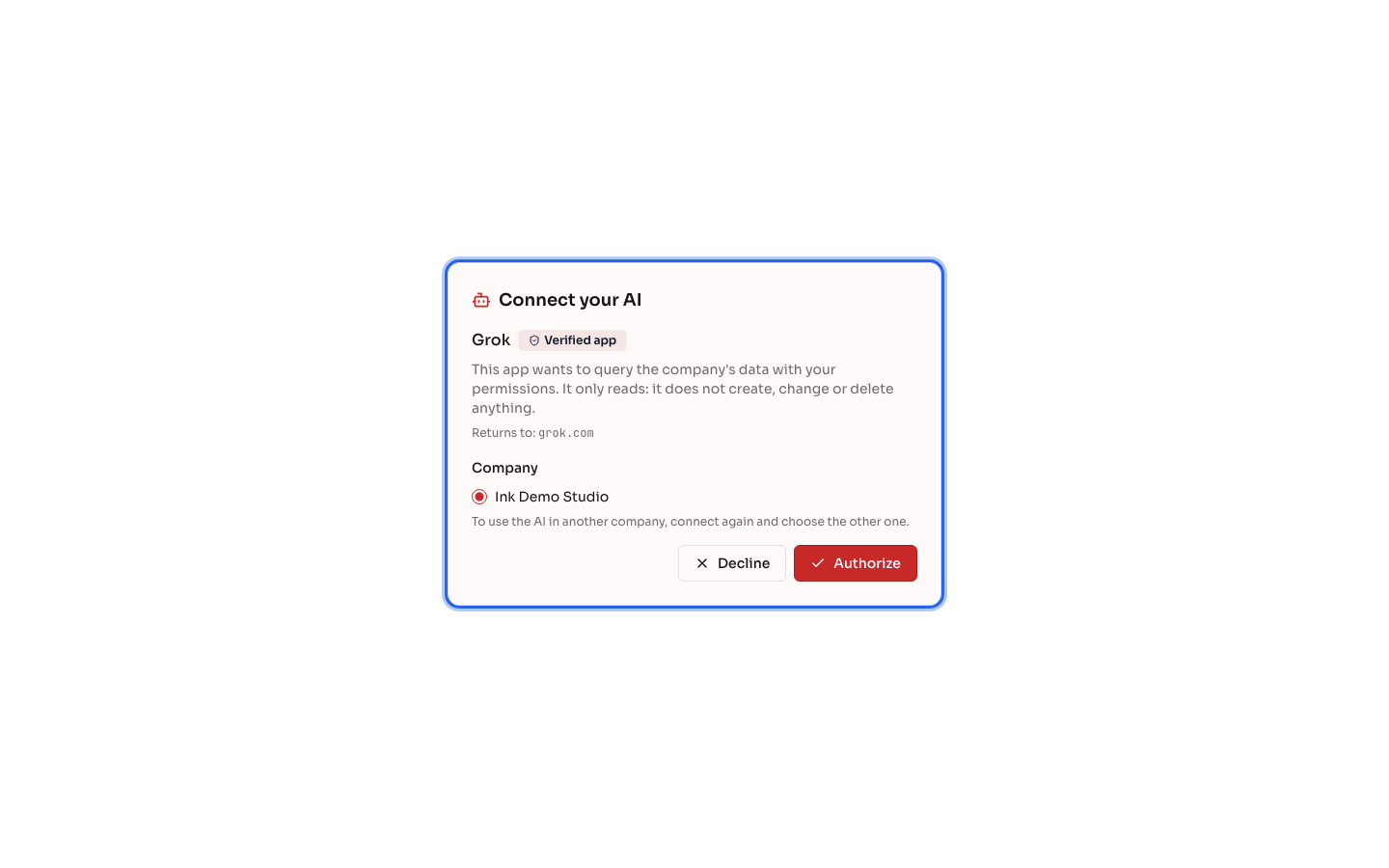
Section titled “Step 2 — Sign in and authorize”The system’s login screen will open. Sign in with your username, select your Company, and click Authorize. The screen will show Grok with the Verified app badge. After you authorize, you’ll return to Grok, connected.
Step 3 — Use Grok on the web and on your phone
Section titled “Step 3 — Use Grok on the web and on your phone”For example, ask: “What expenses are due this week at the studio?” On your phone, the connector you added in your browser will appear in the Grok app for the same account.
What happens next
Section titled “What happens next”- Grok finds the right query, runs it, and responds with numbers from the system, based on your user permissions.
- The connection appears in your Profile, under Connected AIs, and in the studio’s API Key tab for administrators.
- The connection applies to ONE company. To use another company, add the connector again and select that company.
Common mistakes and questions
Section titled “Common mistakes and questions”Q: Grok says it couldn’t register the connector. A: Grok may have changed the return address it uses during sign-in. Contact system support and share the error message you saw.
Q: The login screen says no company is available. Why? A: The AI connector isn’t enabled for your studio, or your user isn’t a member of it. Contact the person who administers the system.
Q: How do I disconnect Grok? A: In the system, open your Profile and click Disconnect AI next to the Grok connection. Grok will lose access within 30 seconds.
Q: Can Grok change data in the system? A: No. The connector can only look up information. Make changes in the system.
Q: Can I add the connector from my phone? A: Add it at grok.com in a web browser. After that, it will also work in the app.