Anamnesis Questions: Build Your Health Questionnaire
What it is
Section titled “What it is”This is a bank of reusable questions for building the anamnesis form—the health questionnaire a client fills out before a tattoo session to check for allergies, health conditions, and contraindications. The questions you add here are the building blocks. To create the actual questionnaire, choose and arrange those questions in the Anamnesis Templates screen.
When to use it
Section titled “When to use it”- Add a new question to the bank (for example, about a specific health condition or a previous procedure).
- Create a conditional question—for example, “Which one?”—that appears only if the client answers “Yes” to a previous question.
- See which templates already use a question before editing or deleting it.
Before you start
Section titled “Before you start”- Anamnesis must be included in your plan. If the menu Settings → Anamnesis Questions doesn’t appear, contact support.
- If you can’t create or edit a question (the New Question button and the edit and delete icons don’t appear), ask the studio owner to grant you access under Access → Profiles.
Step by step
Section titled “Step by step”Step 1 — View the question list
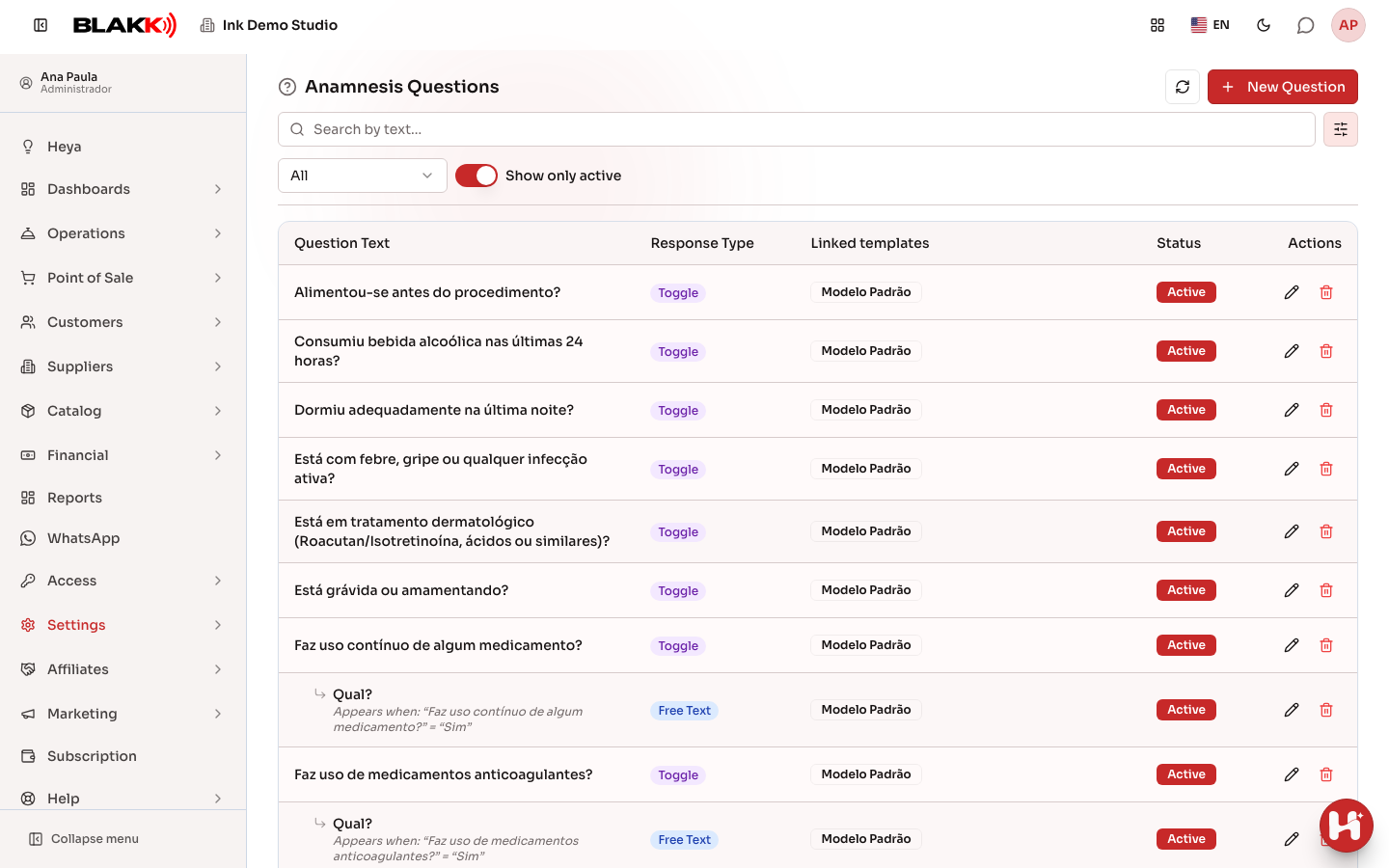
Section titled “Step 1 — View the question list”Go to Settings → Anamnesis Questions. Each row shows the Question Text, Response Type, Linked templates, and status. A conditional question appears indented below the question it depends on, with Appears when indicating the question and option that trigger it.
Use search to find a question by its text, and the Response Type filter to show only one type. Show only active is on by default. Turn it off to see inactive questions, too.
Step 2 — Create a question with answer options
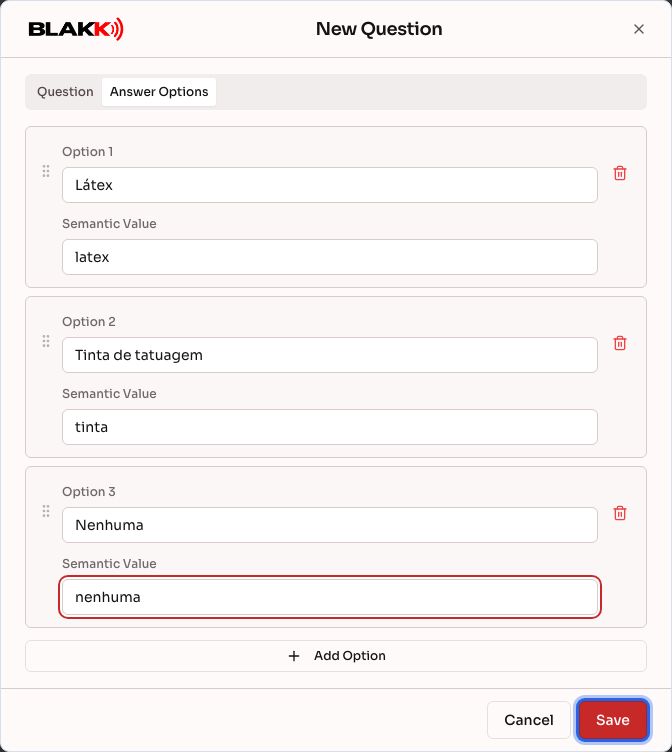
Section titled “Step 2 — Create a question with answer options”Click New Question, enter the Question Text (the only required field), and choose the Response Type: Free Text, Short Input, Toggle, Selection, Multi-Selection, Date, or Number. The Selection, Multi-Selection, and Toggle types open the Answer Options tab. Click Add Option for each answer the client can choose, then drag the options to change their order. Semantic Value is optional for each option. Click Save.
Step 3 — Create a conditional question
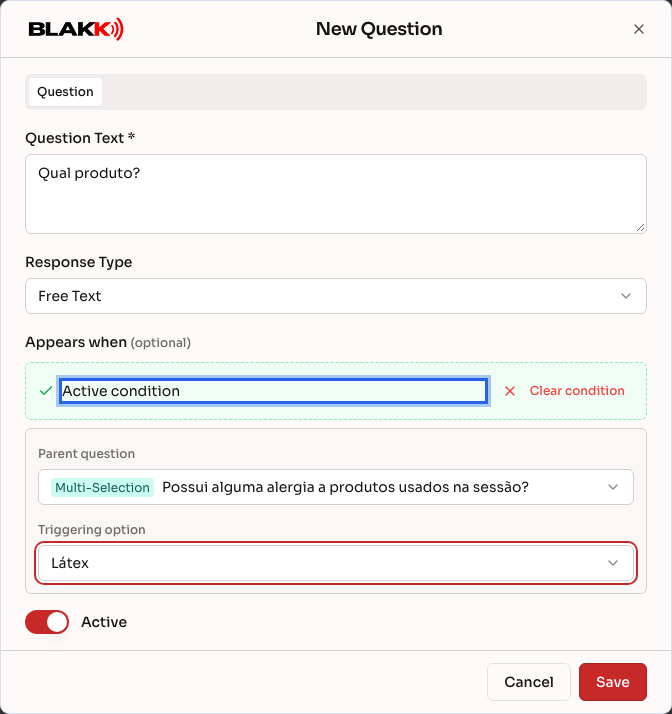
Section titled “Step 3 — Create a conditional question”When creating another question, use the optional Appears when section in the Question tab. Choose the Parent question, then the Triggering option. The screen displays **Active condition, and the question appears to the client only if they answer the parent question with that option. Only active questions with the Toggle, Selection, or Multi-Selection type can be parent questions. To remove the condition, click Clear condition.
Step 4 — See which templates use a question
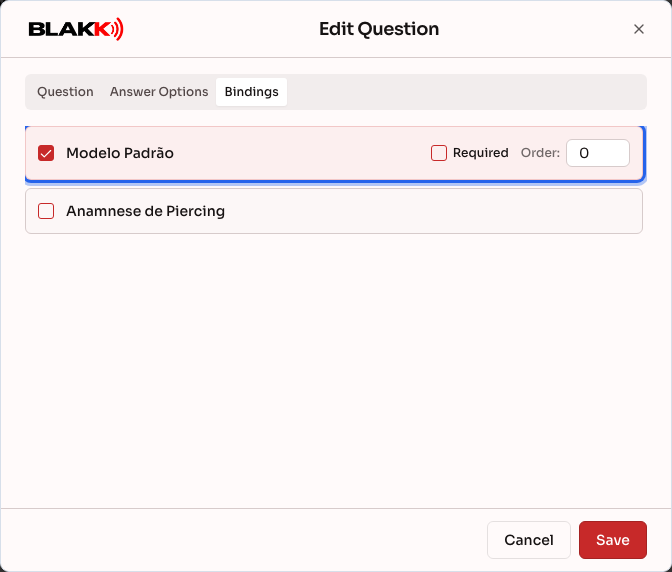
Section titled “Step 4 — See which templates use a question”The Bindings tab appears only when editing a saved question. Each anamnesis template has a checkbox. When checked, the template uses that question. For a selected template, you can also set whether the question is Required and its Order. The link is saved when you click Save for the question, so you don’t need to open each template.
Step 5 — Delete a question
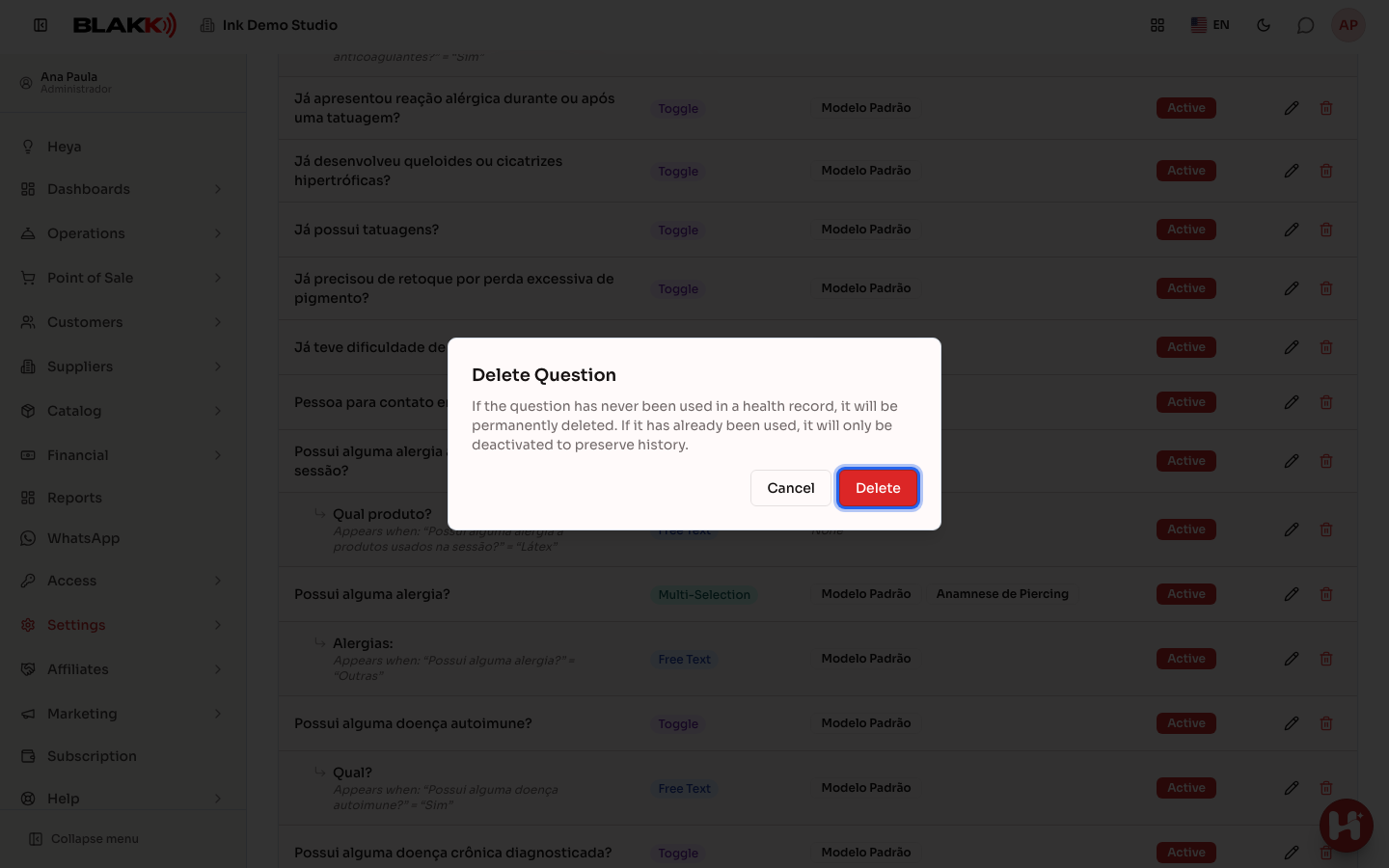
Section titled “Step 5 — Delete a question”Click the Delete icon, then confirm by clicking Delete. What happens depends on the question’s history (see below).
What happens next
Section titled “What happens next”- If the question has never been answered in any anamnesis, doesn’t appear in any completed form (even as a blank question), and none of its options trigger a conditional question, it is permanently deleted and removed from any template that used it, without a separate warning. If it has been answered before, appears in a completed form (even as a blank question), or has a conditional question attached to one of its options, it is only deactivated to preserve the history. The on-screen message tells you which action was taken.
- A deactivated question disappears from the list (because Show only active is on) and is no longer available when building templates. To bring it back, turn off the filter and click Reactivate in its row.
- Removing an answer option that a client has already selected, or that appears in a completed form, also only deactivates the option. Previous anamneses continue to show the answer.
- Editing a question’s text or options changes it in every template that uses it. It’s the same shared question, not a separate copy for each template. Completed forms don’t change: each one keeps the questions, response format, and options as they were when it was submitted.
- Answers never trigger an automatic alert on another screen. For example, marking “Yes, I’m allergic to latex” doesn’t highlight anything or display an alert in the Appointment screen. This differs from client tags, which have an “alert” mode that’s prominently displayed. Staff must open and read the completed anamnesis to see the answers.
Common mistakes and questions
Section titled “Common mistakes and questions”Q: Can I use the same question in more than one anamnesis template? A: Yes—that’s how it’s normally used. The Bindings tab is specifically for managing this. For example, the same allergy question can be included in both the tattoo and piercing templates.
Q: Does a Toggle type need to have exactly two options? A: That’s recommended. If more than two options are active, the Answer Options tab shows the yellow warning **Toggle must have exactly 2 options, but it doesn’t prevent you from saving.
Q: What happens if I delete a question that’s in a template? A: If it has never been answered, it’s permanently deleted and removed from the template without another warning. It’s a good idea to check the Bindings tab before deleting to see if any templates depend on it.
Q: Can a conditional question depend on another conditional question? A: Yes, as long as the parent question is active and has the Toggle, Selection, or Multi-Selection type (only these types appear under Parent question). Even so, we recommend using just one level (main question → “Which one?”). Longer chains are harder to follow both when building the form and when clients fill it out.
Q: Why doesn’t a question sometimes appear in the list of options when I’m building a template? A: The list of questions available to add to a template shows only questions marked Active that aren’t conditional. Conditional questions are added along with their parent question, so they can’t be selected separately.
Q: I deleted a question, and it disappeared from the list. How do I bring it back? A: If it had already been answered, it was only deactivated. Turn off Show only active, find the question, and click Reactivate. If it had never been answered, it was permanently deleted, so you’ll need to add it again.