Service invoice (NFS-e): issue an invoice for a closed tab
What it is
Section titled “What it is”A service invoice (NFS-e) is the tax document your studio issues to a customer for services provided. In the system, you issue the invoice directly from the tab after it has been closed (paid): the customer, services, and amount come from the tab, and the invoice is sent to the city government using the national NFS-e standard.
This feature is only available to businesses in Brazil.
When to use it
Section titled “When to use it”- A customer paid for an Arm tattoo and asked for an invoice: open the closed tab and issue one.
- Your accountant asked for the month’s invoices: review them in the Issued Invoices report.
- A tab includes an Arm tattoo and Healing ointment: the invoice includes only the service, so you don’t need to remove the product yourself.
Before you start
Section titled “Before you start”Issuing invoices must be configured once by the person who manages the business in the system (see Step 1). You’ll need the company’s A1 digital certificate (a .pfx or .p12 file and its password), the municipal registration, and the city’s IBGE code. The tax codes and tax rate for each service are listed in the Taxes tab of the service settings. If you’re not sure which ones to use, check with your accountant.
If the Issue invoice button doesn’t appear on the tab, ask the studio owner to give you access to Issued Invoices under Access → Roles.
Step by step
Section titled “Step by step”Step 1 — Configure invoice issuing (once)
Section titled “Step 1 — Configure invoice issuing (once)”Under Settings → Business, open the Service Invoice (NFS-e) section. Upload the A1 Digital Certificate and enter the Certificate password, fill in the Municipal registration and **City IBGE code, and choose the Issuing environment: Testing is for testing and has no tax value, while Production issues real invoices. Click Test configuration and, if everything is correct, turn on NFS-e issuing for this company and save.
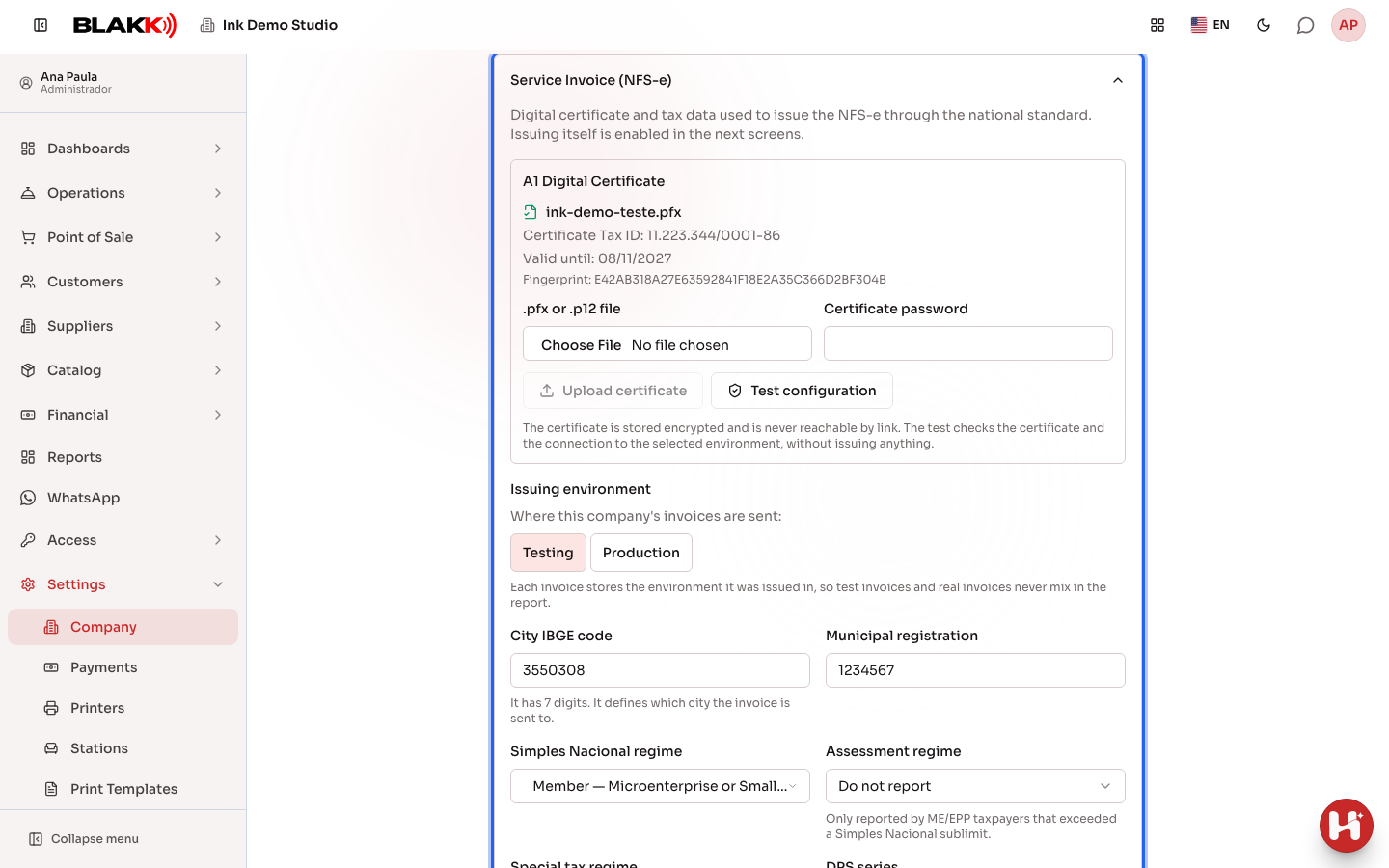
The Business article explains the rest of the screen.
Step 2 — Find out why the button is disabled
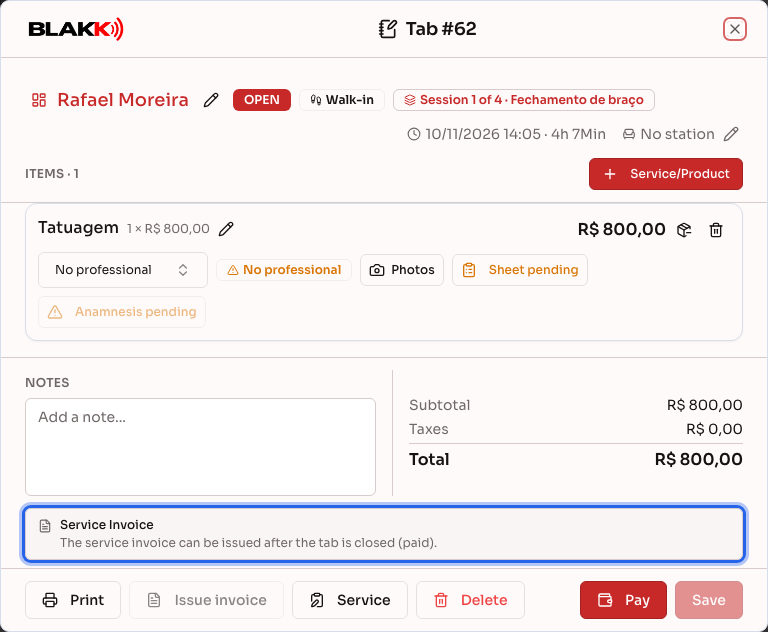
Section titled “Step 2 — Find out why the button is disabled”Open the tab. The Issue invoice button is at the bottom (on a phone, in the ⋮ menu). Until an invoice can be issued, the button is disabled and the tab shows the reason under Service Invoice: on a computer, just above the bottom of the screen; on a phone, at the end of the tab, after the totals:
- NFS-e issuing hasn’t been configured and enabled yet (Step 1);
- the tab hasn’t been closed (paid) yet;
- the tab was canceled, has no services, or the services amount is zero.
Step 3 — Issue an invoice for a closed tab
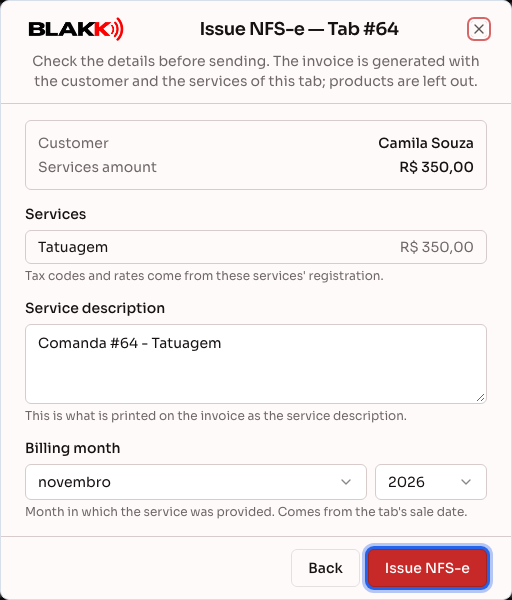
Section titled “Step 3 — Issue an invoice for a closed tab”When the final payment is recorded, the tab closes automatically. To issue an invoice, open the Tabs screen, change the status filter to Closed, and open the tab. Click Issue invoice. The window shows:
- the tab’s Customer. If the customer doesn’t have a profile, the invoice is issued without a recipient (unidentified consumer);
- the Services amount and the list of Services. Products aren’t included;
- the Service description, which is printed on the invoice and can be edited;
- the Billing month, the month the service was provided. It’s based on the tab’s sale date.
Review the details and click Issue NFS-e.
The message that appears after you click tells you whether the invoice was approved by the city government, is waiting to be issued, or was rejected, and gives the reason.
Step 4 — Download the invoice or send it to the customer
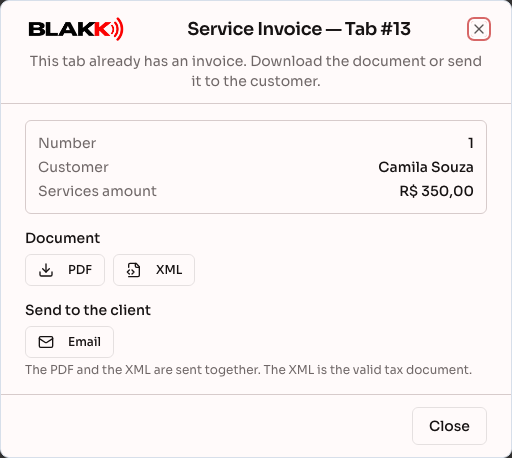
Section titled “Step 4 — Download the invoice or send it to the customer”After it’s issued, the button on the tab changes to View invoice. It opens the invoice with buttons to download the PDF (DANFSe) and XML, and to Send by e-mail or Send by WhatsApp (the latter is available only when the studio’s WhatsApp is connected). The sending buttons are available to users who can issue invoices; users who can only view invoices can only download them. The PDF and XML are sent together; the XML is the valid tax document.
What happens next
Section titled “What happens next”- The invoice appears in the Issued Invoices report, with Tab as its source. You can check its status, cancel it, or reprocess it there.
- Each tab can have at most one valid invoice. If the city government rejects or cancels the invoice, you can issue a new one for the tab.
- Closing the tab doesn’t issue the invoice automatically: you always issue it using the button.
Common mistakes and questions
Section titled “Common mistakes and questions”Q: I voided the tab. What happens to the invoice? A: A voided tab can’t generate a new invoice. If the invoice was still in the queue, voiding the tab removes it from the queue. If it was already issued, cancel it in the Issued Invoices report.
Q: Why is the Issue invoice button disabled? A: The reason appears on the tab (on a computer, just above the bottom of the screen; on a phone, at the end of the tab). Usually, NFS-e issuing hasn’t been configured and enabled under Settings → Business, or the tab hasn’t been closed (paid) yet. A canceled tab or one without any services can’t generate an invoice either.
Q: Are products from the tab included on the invoice? A: No. A service invoice only lists services. Healing ointment sold on the same tab isn’t included on the invoice.
Q: Why is the invoice amount less than the tab total? A: The invoice includes only the price of the services. Products and taxes included in the total aren’t included. If the tab had an overall discount, it’s split between services and products in proportion to their amounts, and the invoice includes the services’ share. For example: R$ 300 in services, R$ 100 in products, and a R$ 40 discount result in an invoice for R$ 270.
Q: The customer doesn’t have a profile. Will the invoice show their name? A: No. Without a profile, the invoice is issued without a recipient (unidentified consumer), even if the name was entered on the tab. To issue the invoice in the customer’s name, add them as a customer and select them on the tab before receiving payment: once the tab is closed, it can’t be changed.
Q: The city government rejected the invoice. What should I do? A: The city government’s message appears on the screen and in the report, in the Reason it is pending column. A common reason is that the tab has services with different tax codes: check the Taxes tab in each service’s settings. After correcting the issue, reprocess the invoice through the report or issue it again from the tab.
Q: I clicked Issue NFS-e twice. Were two invoices issued? A: No. Each tab can have at most one valid invoice; the second attempt tells you that the tab already has an invoice.
Q: Can I issue a test invoice? A: Yes. With the Issuing environment set to **Testing, invoices go to the testing environment and have no tax value. Switch to Production when you’re ready to issue real invoices.