Home Page: Your Daily Overview When You Log In
What it is
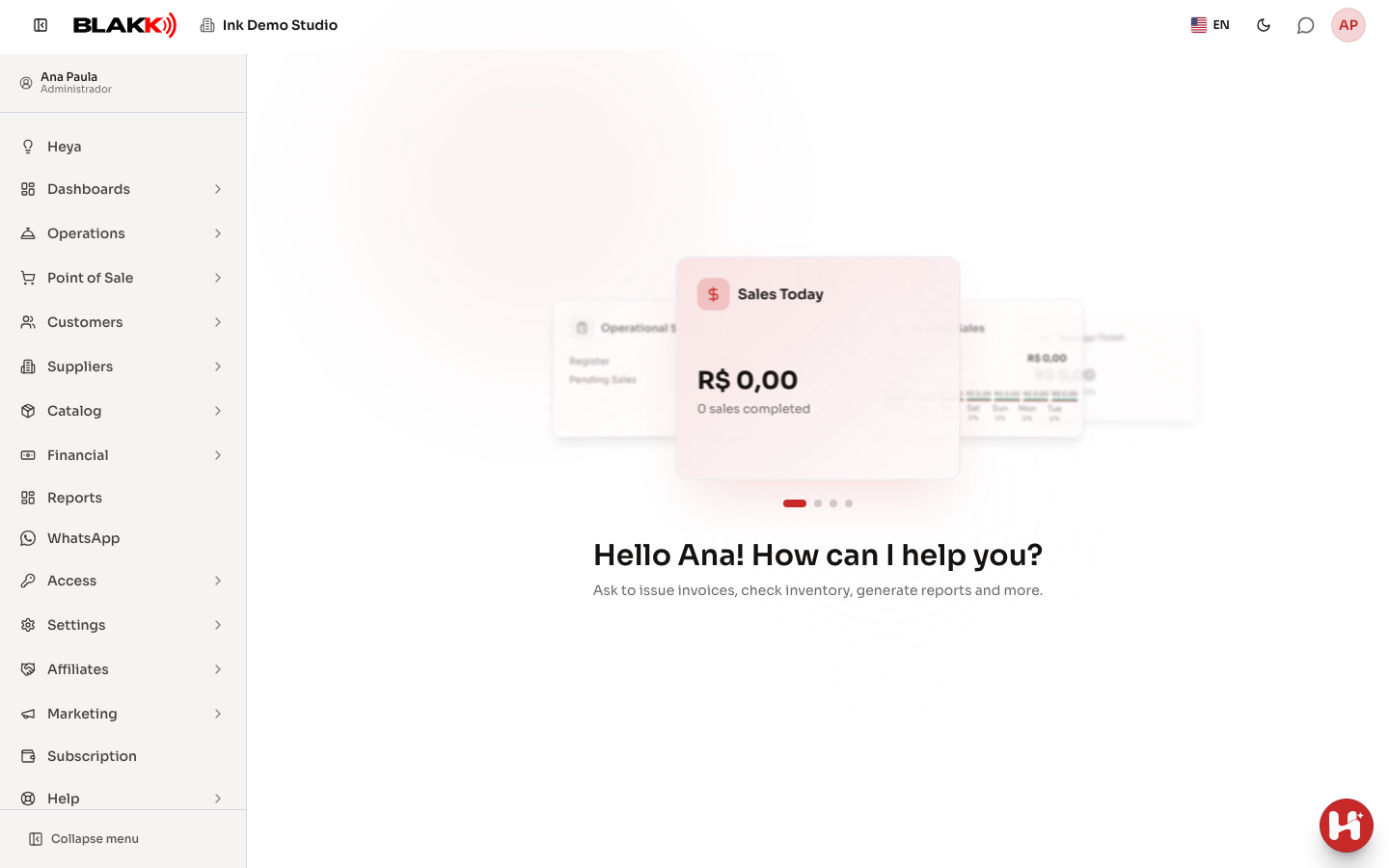
Section titled “What it is”The Home Page is the first thing you see when you log in to the system—and the screen you return to whenever you click the Blakk logo in the upper-left corner. It shows a quick overview of the day in a carousel of cards—today’s sales, this week’s sales, average ticket, and what’s still pending (open cash register and open sales)—followed by a greeting.
When to use it
Section titled “When to use it”- When you open the system, to get a quick overview of the day’s activity without opening a specific screen.
- To quickly return to this overview at any time, from any screen—just click the Blakk logo at the top.
- If your studio has the AI assistant enabled, to quickly ask a question about your business without leaving the screen you’re on.
Before you start
Section titled “Before you start”Every logged-in user lands on the Home Page, regardless of their access profile—there’s no permission setting for viewing the screen itself. Access to the card carousel is separate: if you don’t see any cards, see the first question under “Erros comuns e dúvidas” below.
Step by step
Section titled “Step by step”Step 1 — First time logging in: the “Start here” guide
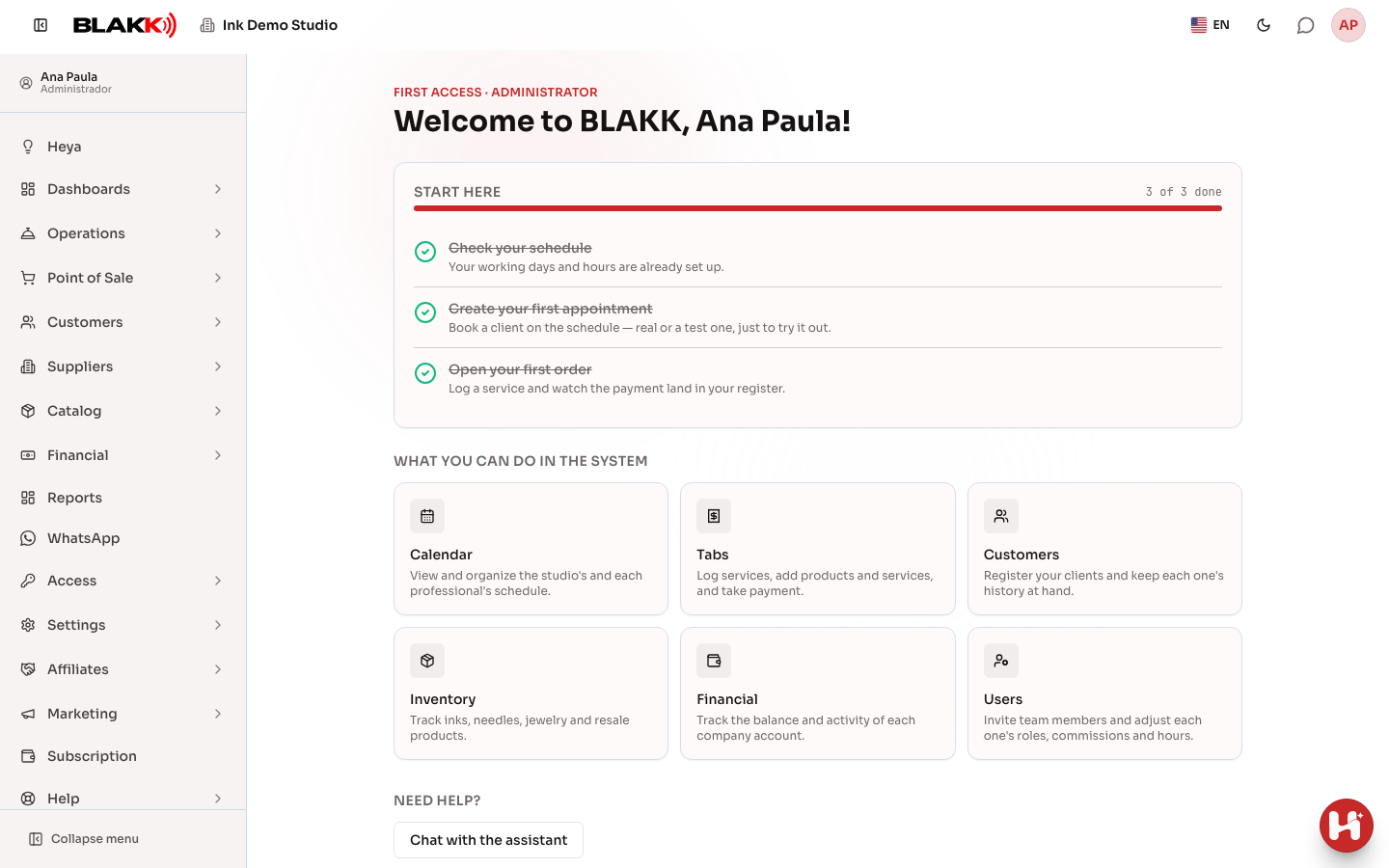
Section titled “Step 1 — First time logging in: the “Start here” guide”While your studio is new, the Home Page shows the first-time setup guide instead of the cards. The Start here list shows what you still need to try (check the appointment calendar, create your first appointment, open your first tab), with a Go button that takes you directly to each screen. Below that are What you can do in the system, with shortcuts to the main screens, and Need help?, with Chat with the assistant (and the Help Manual when there’s an article in this Help Center for the guide).
The guide disappears automatically when you finish the list. To dismiss it sooner, select Don’t show this screen again at the bottom of the screen, then click Go to the dashboard—if you don’t select the option, the guide will appear again. To reopen it later, go to Help → Getting Started in the side menu.
Step 2 — View your daily overview
Section titled “Step 2 — View your daily overview”After the guide is complete, the carousel shows up to four cards when you log in—Today’s Sales, Weekly Sales, Average Ticket, and Operations Summary. Swipe left or right (or use the dots underneath) to view each one.
Step 3 — Open a card to see more details
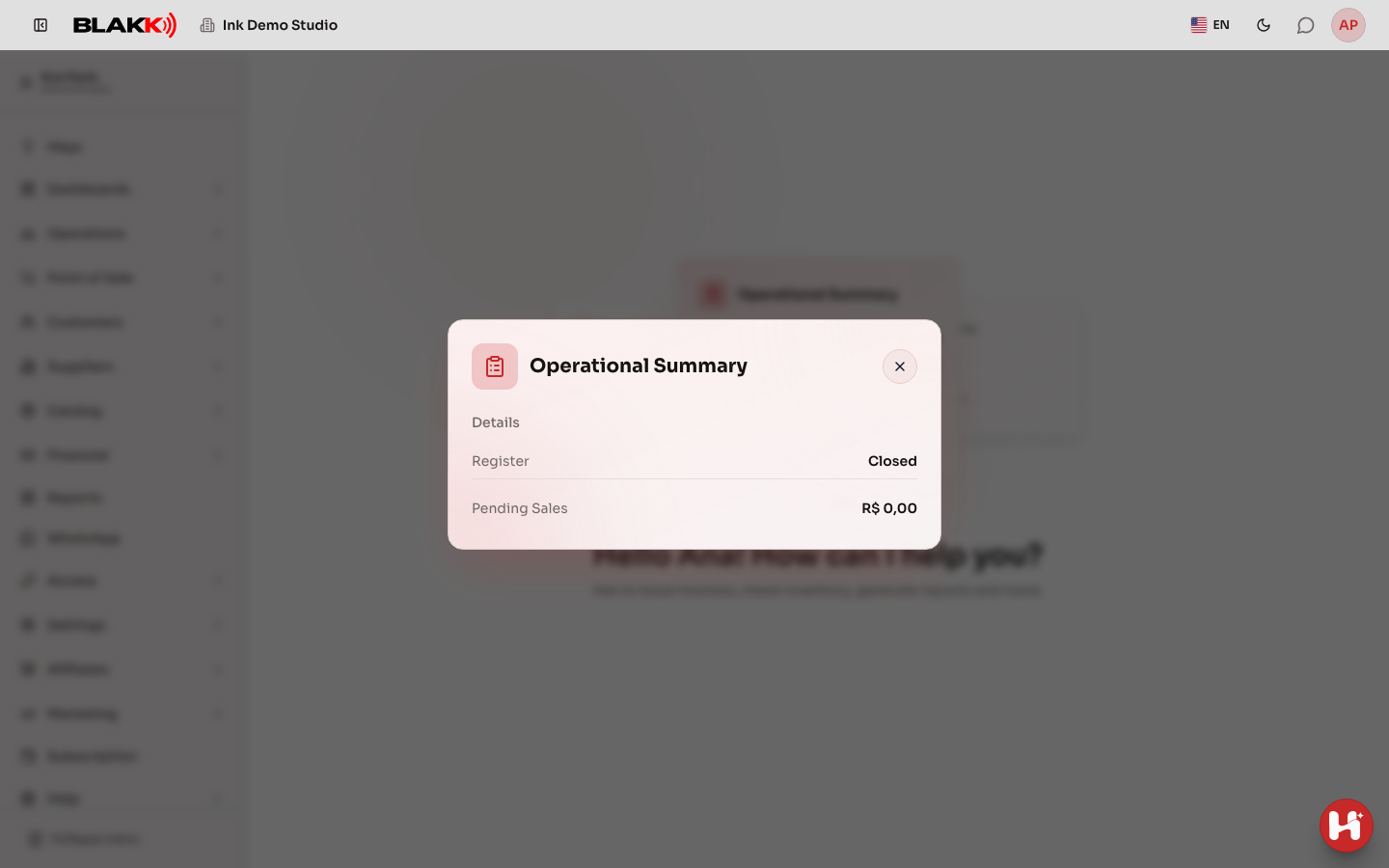
Section titled “Step 3 — Open a card to see more details”Click any card to expand it in a larger window with more details about the same metric. For example, the Operations Summary card shows the cash register status and the total number of sales still pending.
What happens next
Section titled “What happens next”- The cards are fixed—you can’t remove them or customize which ones appear. They update automatically without needing to reload the page.
- Only users with access to the Sales Report see the card carousel. Other users see only the greeting, without the cards.
- The Heya assistant (when AI chat is enabled for your studio) answers questions about your business and can also perform actions that are enabled for it, such as recording an expense or adding a vendor. Whenever an action saves something, Heya shows a summary and waits for you to click Confirm before proceeding. Heya follows your access profile: if you can only view a screen, it lets you know it can’t make changes. You can type, send a photo, or record audio. Audio recordings can be up to 30 seconds long and are sent as soon as you stop recording, along with any text you’ve written. When the platform uses its own audio model, what Heya understood from the recording appears right below it, after Transcription:—so if it misheard something, you’ll notice right away and can correct it in writing.
- The Heya chat stays closed until you want to use it. It’s a round button in the lower-right corner of the screen. Click it to open the chat window and close it when you’re done. Your conversation is saved: when you open the chat, you’ll see your most recent conversations and can scroll up to see older ones. New conversation starts a new topic without deleting your previous conversations.
- The Heya option at the top of the side menu, or Heya mode in your user menu (upper-right corner), opens Heya mode: the conversation with Heya fills the screen, without the menu. It’s the same conversation as the one opened by the round button, and any response in progress will still arrive if you switch modes. At the top, the Classic mode button takes you back to the screen with the menu. The More options menu includes New conversation, Switch company (if you have more than one company), Profile, and Exit.
- The name of your current company appears below the logo at the top. If you have more than one company, click the name to Switch company. In the list, the flag before each company name shows its country, and you can search by company name or country (type “Brazil” to see only companies in Brazil). The company list at the top of the screen with the menu works the same way.
- After your first request, the home button (Back to home) next to the logo takes you back to the welcome screen and starts a new conversation, just like New conversation. If voice chat is on, it will stop.
- The first time you open Heya mode, you’ll see Want to always start here?. Select Yes to go straight to Heya mode whenever you log in, on any device. Select Not now and you won’t see the question again. To change your choice later, open Profile, choose Start screen in the Heya mode section, and click Save Changes.
- When you open Heya mode, the Your day section shows up to three numbers for the day, depending on what your access profile can see: today’s appointments, your next client, and the remaining available time for today; then open tabs, today’s sales, and the number of clients served today. Providers (users with availability set up) see their own schedule; everyone else sees the company’s schedule.
- Heya mode always opens to the welcome screen: the greeting, Your day, and shortcuts. Your previous conversation won’t appear. To see it, tap See earlier conversations at the top. After you send a request, the screen shows only the conversation from your current visit, and the same button remains at the top so you can view the rest.
- Shortcuts are the actions you use most often over the past 30 days (for example, recording an expense or scheduling a client). They disappear after you send your first request and return when you select New conversation. Tapping a shortcut sends the request to Heya as if you had typed it. Select More… to see other shortcuts, organized by topic. Only actions allowed by your access profile and used by your company will appear.
- The folder button at the top of Heya mode opens Made by Heya, where you can find items you’ve saved from Heya’s responses. In Heya mode, the PDF report card and each table Heya displays have a Save to folder button. After you tap it, the button changes to Saved to folder, and the notification includes Open folder. Tables are saved to the folder as images (a long table may be saved as multiple images). A saved PDF is a copy that stays in the folder until you remove it, even after the 30 days during which the chat card lets you download the file. Saving the same item again won’t create a duplicate; you’ll see It’s already in the folder.. Items you don’t save won’t be added to the folder. You can filter by All, PDF, or Images. Under More options, Remove from list only removes the file from the list (the notification includes Undo), and removed items appear under Removed files. PDFs that were already in the folder before Save to folder was available stay there for 30 days; after that, they appear as Expired.
- At the bottom of Heya mode, you’ll find the message box: the Write what you need… field at the top and three buttons below it, always within reach (including when your phone’s keyboard is open):
- The image button on the left attaches a photo. On a phone, it lets you choose a photo from your gallery or take one with your camera.
- Talk by voice, in the middle, starts a voice conversation (see below).
- The round button on the right is a microphone when the field is empty. When you type something or attach a photo, it changes to a send arrow. After you send your message, it changes back to a microphone.
- The field starts at three lines (two on short screens or when the keyboard is open) and grows to six as you type. Beyond that, you can scroll inside the field. Pressing Enter starts a new line; it doesn’t send your message. To send it, tap the arrow (on a computer, Ctrl+Enter also sends it).
- In Heya mode, you can talk instead of typing at no extra cost:
- Microphone, like in WhatsApp: press and hold the button, speak, and release to send. While you speak, the recording time and what Heya is understanding appear in place of the message field. Drag your finger up to the lock icon to lock the recording and keep talking without holding the button. The Discard recording (trash) and send arrow buttons will appear. Drag your finger sideways (Slide to cancel) to cancel. A quick tap won’t record anything; Heya will prompt you to Hold to talk. If you release without saying anything, Heya will let you know it couldn’t hear you. Heya responds and reads its reply aloud. A recording can last up to 1 minute; when it reaches 1 minute, it sends automatically.
- Talk by voice: the conversation works like a phone call. After each response, Heya starts listening again until you tap End voice chat (the same button in the middle), say “stop,” or stay silent three times in a row. While Heya is speaking, tap the microphone to interrupt it and have it start listening again.
- When you open Heya mode, Heya greets you aloud without turning on the microphone. The greeting changes each time and follows your company’s local time (“Good morning, Ana! Heya here. Let’s make today count!”). If there’s schedule information in Your day, Heya may mention it (“You have 6 appointments today”). The first greeting of the day is the full greeting. If you leave Heya mode and return after 30 minutes, you’ll hear a short greeting (“Hi again, Ana!”). Returning sooner, reloading the page, or switching tabs won’t trigger another greeting. You’ll hear no more than 3 greetings a day across all your devices, and the 3 most recent phrases won’t be repeated.
- Some browsers only let the page speak after you tap (this is always the case on iPhone). In these cases, the greeting plays the first time you tap Talk by voice, and Heya starts listening right after. After you’ve been greeted, tapping the button goes straight to “Listening…” If Spoken replies is off, there is no greeting.
- During a voice conversation, Heya speaks a shorter version of its response: amounts and times are spoken as people say them (“7,475 reais and 33 cents,” “8 o’clock”), and it gives only a summary of a table, which stays on the screen. If you need to confirm an action, Heya briefly says what it’s going to do (“Schedule a men’s haircut for Cleverson with Ana Paula on Monday, October 12 at 8 a.m.”) and asks you to confirm.
- Talk by voice also turns on Spoken replies: the speaker button at the top is highlighted while the voice conversation is active, and Heya reads its responses aloud. Tap it to turn off the read-aloud feature. Voice chat will continue—you can speak, the response will appear on the screen, and Heya will start listening again—but it will be silent. When the speaker icon is crossed out, spoken replies are off. Tap it again to turn them on. This setting is saved on this device.
- Under More options (⋮), Voice speed lets you choose how fast Heya speaks: Normal, Fast (the default), or Very fast. After you choose, Heya says a phrase at the new speed so you can hear how it sounds. This setting applies to responses, Listen, and the greeting, and is saved on this device.
- The abbreviation beside it (for example, BR) is the Language setting. Changing it switches the language of the entire screen, just like the language selector on the screen with the menu, and also changes the language Heya listens and speaks in (including the Listen button and the spoken summary). On a phone, Classic mode is under More options.
- To confirm a summary, answer aloud (“yes,” “confirmed,” “go ahead and schedule it,” “go ahead and save it,” or “no”), or tap Confirm. A response with new information (“schedule it for 9”) counts as a new request, and Heya prepares another summary. correct lets you adjust your request.
- Deletions, cancellations, and deactivations can only be confirmed by tapping Confirm. A spoken “yes” will never delete or cancel anything.
- The microphone and Talk by voice appear only in browsers with voice recognition (Chrome, Edge, and Safari). In other browsers, the button on the right is always the send arrow. Speech is recognized by the browser’s own service (Google or Apple); the audio isn’t saved.
- To change the photo for a product, service, or product group, send the image in the chat (JPG, PNG, or WEBP, up to 10 MB) and say where it should go. For example, “put this photo on Hair Botox.” In the summary, the photo appears as “Image sent in chat.” The image is sent to the system only after you click Confirm, with the same processing used on the product screen (the background is removed if your company’s Remove background by default option is selected). In a list with photos, the table shows each item’s photo instead of a link.
- Heya can also generate a PDF of a report. For example, ask “send me the PDF of September’s sales” or “PDF of this month’s accounts payable.” Heya understands filters by name (table, cash register, client, payment method) and lets you know right away when it’s generating the file. The conversation shows a card with the report name and date range. When the file is ready, the card displays Download PDF and Share. The PDF contains the same table, totals, and summaries as the PDF button on the Reports screen, using the currency and date format for your studio’s country. Heya only generates reports that your access profile can view, and the file is available from the card for 30 days.
- Every Heya response has a thumbs-up and a thumbs-down button. Select the thumbs-down button when a response wasn’t helpful—the platform team reviews this feedback to improve Heya. Click the same option again to remove your rating.
- Next to the thumbs-up and thumbs-down buttons is Listen. Heya reads the response aloud using your browser’s voice. Tap it again to stop the speech. If your browser doesn’t support read-aloud, the button won’t appear.
- If a response doesn’t come through, Heya shows you why and provides a button to continue:
- Try again appears only when your request wasn’t sent (for example, if your device has no internet connection). It sends the same request again.
- Refresh conversation appears when the response was lost along the way and the action may have gone through. It reloads the conversation so you can check before trying again.
Common mistakes and questions
Section titled “Common mistakes and questions”Q: Why don’t I see any cards on the Home Page? A: The cards require the same access as the Sales Report. If you don’t have that access, you’ll see only the greeting. Ask the studio owner to give you access under Access → Profiles.
Q: Why didn’t Heya greet me when I opened Heya mode? A: You won’t hear a greeting if you returned to Heya mode in less than 30 minutes, have already heard 3 greetings today, reloaded the page, or turned off Spoken replies (the speaker button at the top). On iPhone and in browsers that only speak after a tap, the greeting plays the first time you tap Talk by voice.
Q: Heya’s voice is too slow (or too fast). How do I adjust it? A: In Heya mode, open More options (⋮) and choose Voice speed: Normal, Fast, or Very fast. The setting applies only to the device you’re using, since each device has its own voice.
Q: A “Start here” screen appeared instead of the cards. What is it? A: It’s the first-time setup guide (see Step 1). It stays in place of the cards until you finish the list or select Don’t show this screen again and click Go to the dashboard.
Q: Do the cards update automatically? A: Yes. If all the numbers briefly appear as zero, that’s just a temporary update—they’ll correct themselves within a few seconds.
Q: Can I remove a card I don’t use? A: No—the four cards are fixed and always appear in the same order for everyone.
Q: Why don’t I see anything about “Open Tables” in the Operations Summary? A: That row only appears for businesses that use tables and tabs for in-person service. It doesn’t apply to a tattoo or piercing studio, so it won’t appear here.
Q: Can the Heya assistant record an expense or add a vendor for me? A: Yes, if the action is enabled for Heya and your access profile allows it. Before saving anything, Heya shows you a summary of the information and waits for you to confirm. If the action isn’t enabled, Heya will let you know it doesn’t have permission and suggest that you do it on the system screen.
Q: Which reports can Heya generate as PDFs? A: The reports on the Reports screen: Sales, Accounts Receivable, Accounts Payable, Paid Accounts, Daily Ledger, Sales Tax, Table Audit, User Time Clock, Commission, and Tabs—if they’re available to your access profile and used by your studio. Invoices still have a PDF for each invoice.
Q: I asked for a PDF, but Heya said there are no records. Why? A: There are no records to print for the date range and filters you requested, and Heya doesn’t generate empty PDFs. Try again with a different date range or without a filter.
Q: Does the PDF include everything I see on the screen? A: It includes the table, totals, and footer summaries, like the simplified PDF option—but not the details for each row. If there are more than 5,000 rows, the PDF includes the first 5,000 and displays a notice at the top.
Q: The PDF card says the file is no longer available. A: PDFs are stored for 30 days. After that, ask Heya to generate the PDF again.
Q: Where is the Heya chat? I don’t see the message bar. A: It’s a round button in the lower-right corner of the screen. Click it to open the conversation, or click Heya at the top of the side menu to use Heya full screen (Heya mode). If the button doesn’t appear, AI chat isn’t enabled for your studio yet.
Q: Why don’t I see a microphone in Heya mode? A: Your browser doesn’t support voice recognition (Firefox, for example, doesn’t). Use Chrome, Edge, or Safari, or type as usual—Heya works the same way with text.
Q: I chose to start in Heya mode. How do I go back to starting on the screen with the menu? A: Open Profile, choose Classic mode under Start screen, and click Save Changes. If Heya isn’t enabled for your company, the system will open the screen with the menu even if Heya mode is selected.
Q: Why don’t I see a shortcut for an action I use in Heya mode? A: Shortcuts only show actions allowed by your access profile and used by your company. For example, if you don’t have access to the appointment calendar, the shortcut for scheduling won’t appear. If you can’t use an action, ask the studio owner to give you access under Access → Profiles. You can always type or say what you need, too.
Q: Why does “Your day” show only my schedule, not everyone’s? A: Users with availability set up see their own appointments, next client, and available time. Users who don’t provide services (such as receptionists and owners without a schedule) see the company’s numbers.
Q: A PDF appears as “Expired” in Made by Heya. Can I recover it? A: No. It was a PDF that was automatically added to the folder before Save to folder was available, and those files are kept for only 30 days. Ask Heya to generate it again—for example, “send me the PDF of September’s sales”—and tap Save to folder on the card. The saved copy won’t expire.
Q: How do I add my own file to the Made by Heya folder? A: The folder only stores items from Heya’s responses. Tap Save to folder on the PDF or table in the response. You can’t upload a file from outside the system.
Q: How do I exit Heya mode? A: Tap Classic mode at the top of the screen. You’ll return to the screen with the menu without losing your conversation or needing to log in again.
Q: Are my conversations with Heya saved? A: Yes. When you open the chat, you’ll see your most recent conversations and can scroll up to see earlier ones—including conversations with Heya on WhatsApp and Telegram, marked with the channel name. Each person can see only their own conversations.
Q: What are the thumbs-up and thumbs-down buttons under the responses for? A: They let us know whether a response was helpful. Selecting the thumbs-down button sends the conversation to the platform team to review and improve Heya.
Q: Heya said the response didn’t come through. Should I try again? A: First, tap Refresh conversation and check whether the action appears in the conversation or on the system screen. The action may have gone through even though the response didn’t arrive, and trying again could repeat it (for example, recording an expense twice).
Q: How do I get back to the Home Page after opening another screen? A: Click the Blakk logo in the upper-left corner from any screen in the system.