Access Profiles: control what each person can do
What it is
Section titled “What it is”This is where you set which screens each tattoo artist on your team can see and what they can do on them — from “just view the schedule” to “change everything.” A profile is a set of permissions (Ticket, Appointments, Finance, Customers…) that you assign to each person on the Users screen. This is the screen all Blakk documentation refers to when it says, “ask the studio owner to grant you access.”
When to use it
Section titled “When to use it”- A new tattoo artist joins your team, and you want them to use only the Ticket and Appointments, without seeing Finance.
- Someone at the front desk needs to add an arm sleeve to the ticket, but shouldn’t be able to delete a customer or change a payment method.
- You want to quickly check who currently has full access to the system.
- Heya is enabled at the studio, but a profile (for example, “Front Desk”) shouldn’t be able to chat with it.
Before you start
Section titled “Before you start”If you can’t create, edit, or delete a profile, ask the studio owner to grant you access under Access → Profiles. Creating and renaming profiles and saving permissions require the Edit level on this screen; deleting a profile requires the Total level.
Every new studio starts with an Administrator profile that has full access, assigned to whoever created the account. Profiles with the System profile badge can’t be renamed or deleted.
Step by step
Section titled “Step by step”Step 1 — View existing profiles
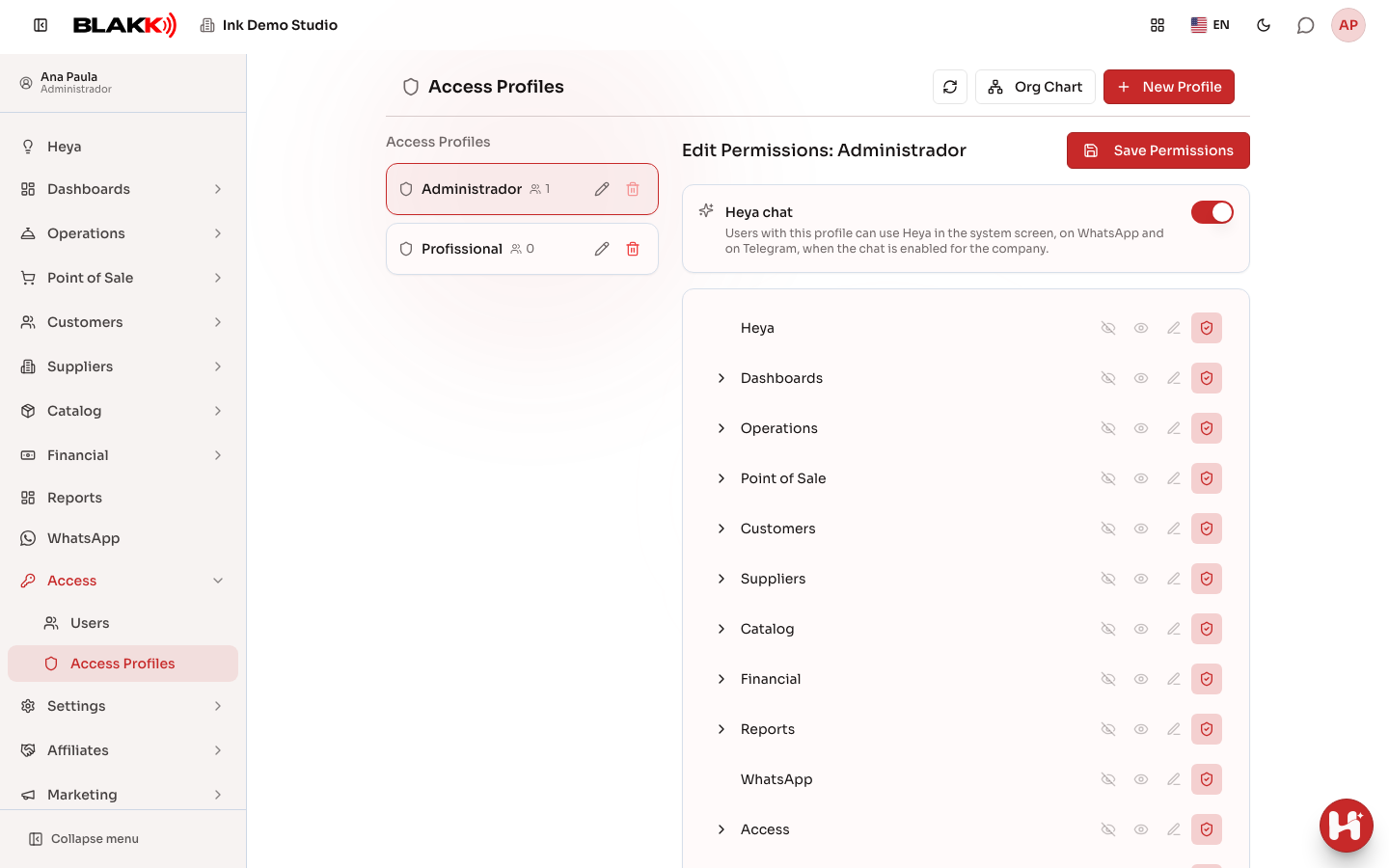
Section titled “Step 1 — View existing profiles”Open Access Profiles from the Access menu. The list on the left shows each profile and, next to its name, how many active users have it. Click a profile to open its permissions editor on the right. The Org Chart button at the top displays the same information as an org chart: the business, its profiles, and the people assigned to each one, along with each person’s city, state, and the country flag for their last login.
Step 2 — Create a new profile
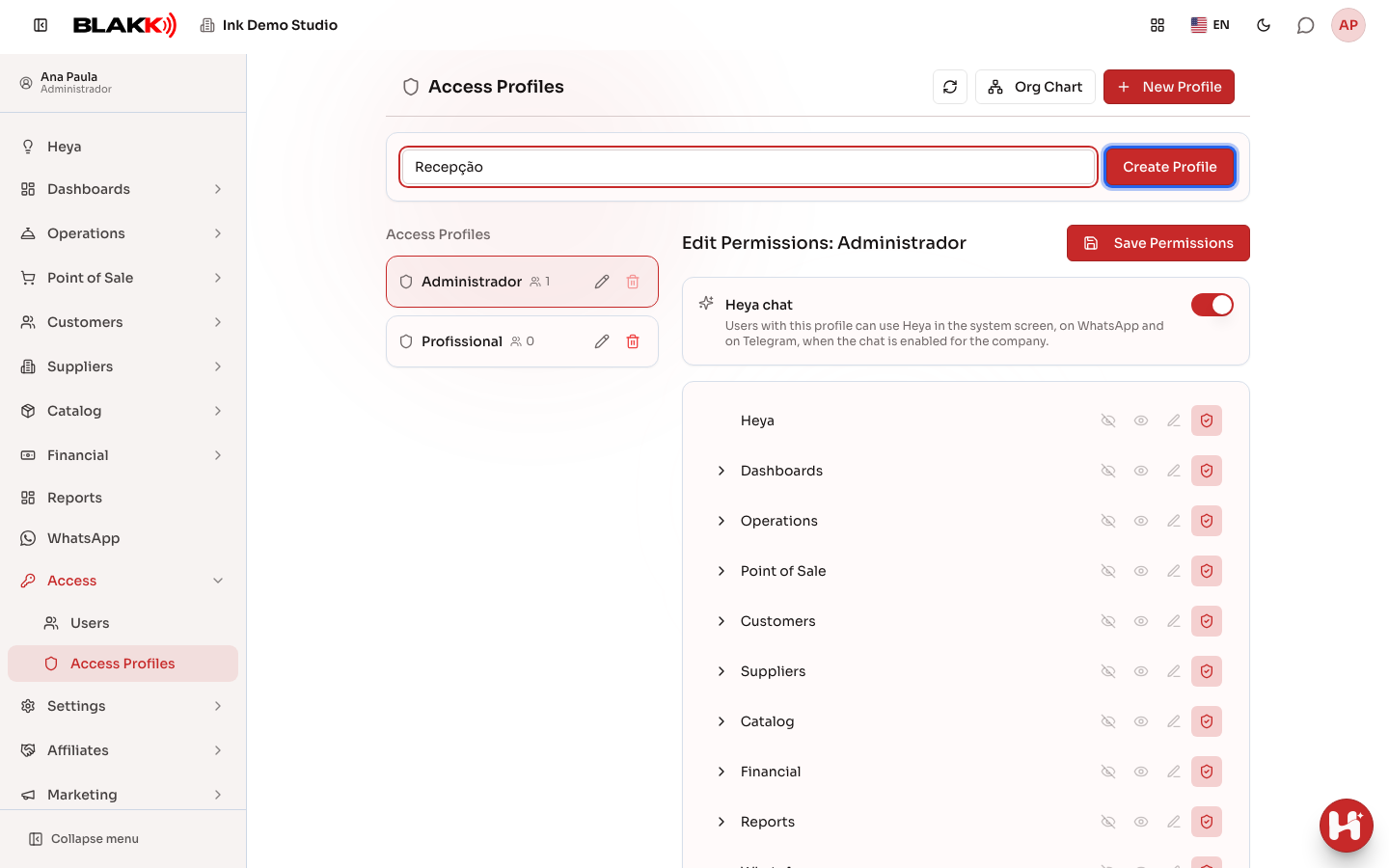
Section titled “Step 2 — Create a new profile”Click New Profile, enter a name (for example, “Front Desk”), and click Create Profile. The profile starts with no access, so the next step is to grant access screen by screen. To rename a profile later, click the pencil icon (Rename) next to it.
Step 3 — Set access for each screen
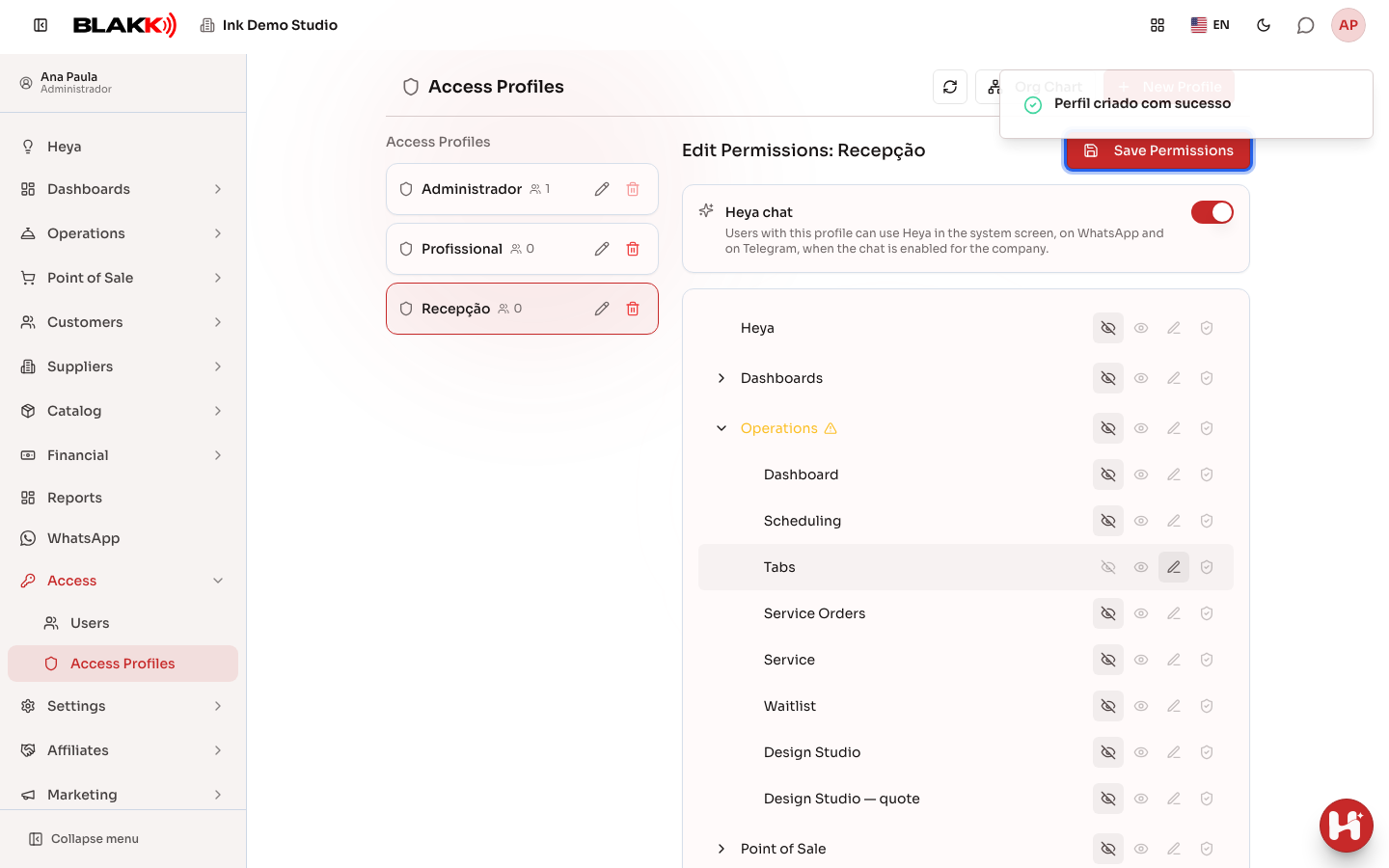
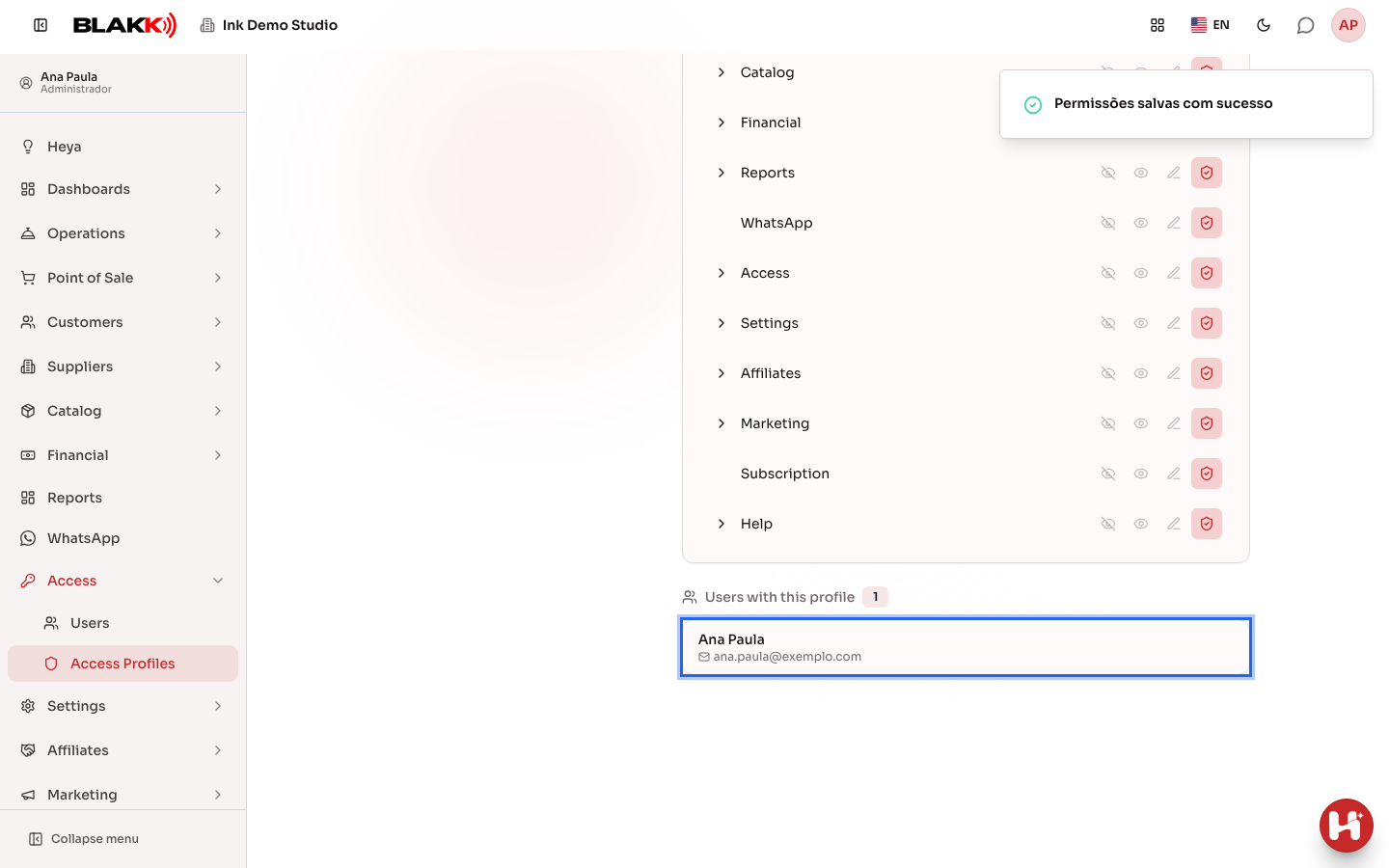
Section titled “Step 3 — Set access for each screen”Screens are grouped to match the side menu (Operations, Finance, Settings…). Click the arrow next to a group to view its screens. For each screen, choose one of four levels (hover over an icon to see its name): None (hidden from that person’s menu), Read (can view the screen but can’t save anything), Edit (can create and edit), or Total (includes delete access).
Choosing a level for a group applies that same level to every screen in it. The reverse is also true: when you set None for every screen in a group, the group automatically changes to None. When the screens in a group have different levels, the group name turns yellow and displays a warning (Sub-items with different permissions). Nothing is saved until you click Save Permissions. If you switch profiles before saving, your changes will be lost.
Step 4 — Enable or disable Heya for a profile
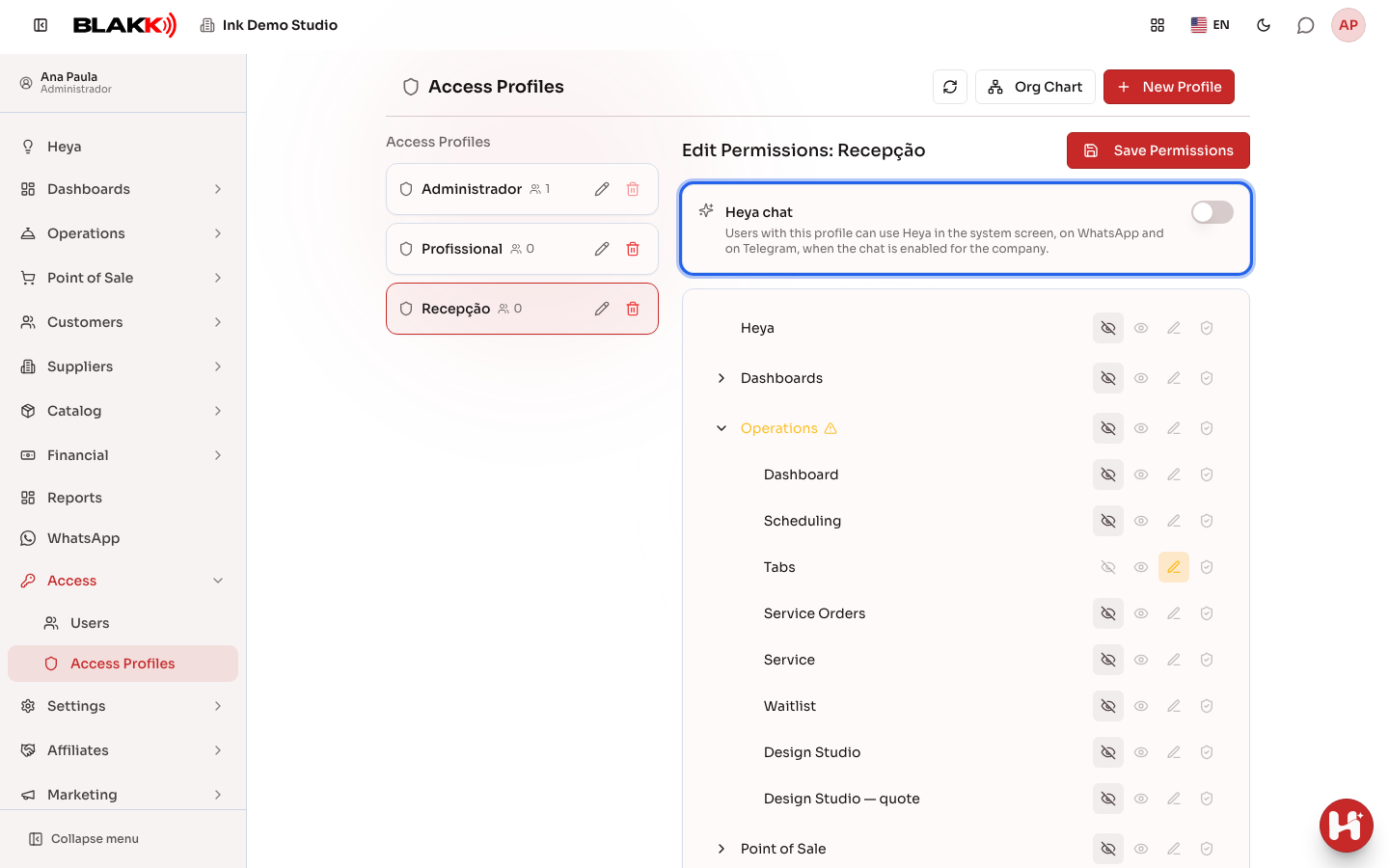
Section titled “Step 4 — Enable or disable Heya for a profile”At the top of the editor, above the screens, you’ll find the Heya chat card. When it’s on, people with this profile can chat with Heya in the system (including Heya Mode), on WhatsApp, and on Telegram. When it’s off, Heya is unavailable to them in all three places: on WhatsApp and Telegram, starting with the next message; and in the system, after the page is reloaded (until then, Heya won’t respond). Heya is enabled by default for every profile.
This setting only takes effect when Heya is enabled for the studio. If it isn’t enabled, no one can see it, whether the setting is on or off. Save your changes with the same Save Permissions button.
Step 5 — See who has this profile
Section titled “Step 5 — See who has this profile”The Users with this profile list at the bottom of the editor shows everyone who has been assigned that profile. To change someone’s profile, go to the Users screen.
Step 6 — Delete a profile
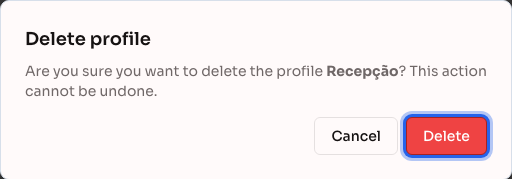
Section titled “Step 6 — Delete a profile”Click the trash icon next to the profile and confirm by clicking Delete. Profiles with the System profile badge don’t have a trash icon.
You can’t delete a profile that still has active users. The number next to the name shows how many users have it, and the trash icon is disabled as long as that number is greater than zero. Change those users’ profiles on the Users screen, then come back to delete the profile.
What happens next
Section titled “What happens next”- Permission changes take effect immediately on the server. No need to ask anyone to log out and back in: the new level applies the next time they take an action in the system. Their side menu updates when they reload the page.
- Deleting a profile removes it from the list and from the options for assigning profiles to new users. Since you can only delete a profile with no active users, no one currently using the system will be left without a profile.
- Turning off Heya chat also takes effect immediately: the person’s next message on WhatsApp or Telegram won’t get a reply for this studio, and Heya will disappear from the system after the page is reloaded. Anyone with access to other studios where Heya is enabled can still chat with Heya about those studios.
- The Read level is also enforced on the server, not just in the interface. Even if someone tries to bypass the interface, the system will reject any attempt to save changes.
Common mistakes and questions
Section titled “Common mistakes and questions”Q: What’s the difference between Read, Edit, and Total? A: Read only lets you view the screen. Edit lets you create and make changes — it’s the most common level for day-to-day work. Total also lets you delete, and that applies across many screens in the system (deleting an expense, a customer, a profile, and so on), not just Profiles. Grant Total as carefully as you would grant delete access on any screen.
Q: Why can’t I delete a profile? A: Because active users still have that profile. The number next to the name shows how many. Hover over the trash icon to see the warning. Change those users’ profiles on the Users screen, and the trash icon will become available. Deactivated users don’t count.
Q: Do I need to ask someone to log out and back in after changing their permissions? A: No — the change takes effect the next time they take an action in the system, with no need to log out. To update their side menu and show or hide the new screens, they just need to reload the page.
Q: Heya is enabled at the studio, but someone can’t see it. Why? A: Check their profile. If Heya chat is turned off for that profile, Heya won’t appear for them anywhere (in the system, on WhatsApp, or on Telegram). Turn it on, click Save Permissions, and ask them to reload the page.
Q: Can I disable Heya for just one person without changing the rest of the profile? A: The setting applies to the profile, not the person, so it affects everyone with that profile. To disable Heya for just one person, create an identical profile without Heya and assign it to that person on the Users screen.
Q: Can I change someone’s profile directly here? A: No — here you only configure what each profile CAN do. You assign a profile to a specific person on the Users screen.
Q: Can the Administrator profile be edited? A: It starts with full access to everything. You can rename it and change its permissions, but be careful: it’s the profile of the person who created the account, and removing its access also removes yours. It can’t be deleted while anyone with that profile is active.
Q: I changed a group’s level, and all the screens in it changed too. Is that normal? A: Yes. The level you choose for a group is copied to all its screens. Then, expand the group using the arrow and adjust only the screens that need a different level. The group name turns yellow to remind you that some screens in it have different levels.
Q: I removed access to every screen in a group, and the group also changed to “None.” Is that normal? A: Yes. A group with no screens enabled doesn’t grant access to anything, so it also changes to None. If you later enable one of its screens, the group will reappear in the person’s menu with that screen.