Chart of Accounts: Organize Your Business Accounts
What it is
Section titled “What it is”This is your studio’s chart of accounts—the source of the account options that appear anywhere you’re asked to choose an “account” (Expenses, Financial Hub, payment methods, products). Each account has a hierarchical code (such as 5.1.07), a type (Asset, Liability, Revenue, Expense, and so on), and, for bank accounts, bank details and a Pix key. Your studio comes with a default chart of accounts already set up (Cash, Bank, Vendors, Rent, Salaries, and so on). You only need to make changes here to add an account that doesn’t exist yet or update a bank account.
When to use it
Section titled “When to use it”- You’ve opened a new bank account and need to add it so you can receive payments into it.
- A category for an expense you use isn’t on the list (for example, a specific type of supply), and you want to create a dedicated account instead of recording everything under a generic account.
- You want to understand why you can’t delete an old accounting account you no longer use.
Before you start
Section titled “Before you start”If you can’t see the Chart of Accounts in the menu or can’t create or edit an account, ask the studio owner to grant you access under Access → Profiles. Deleting an account requires a higher access level (Full) than creating or editing one (Edit): with Edit access, the delete icon won’t appear.
You don’t need to make changes to the Chart of Accounts for day-to-day use. Your studio comes with a default chart that’s sufficient for recording expenses, adding payment methods, and viewing the Financial Hub without any extra accounts. Use this article only when you need an account that isn’t in the default chart.
Step by step
Section titled “Step by step”Step 1 — View the chart of accounts
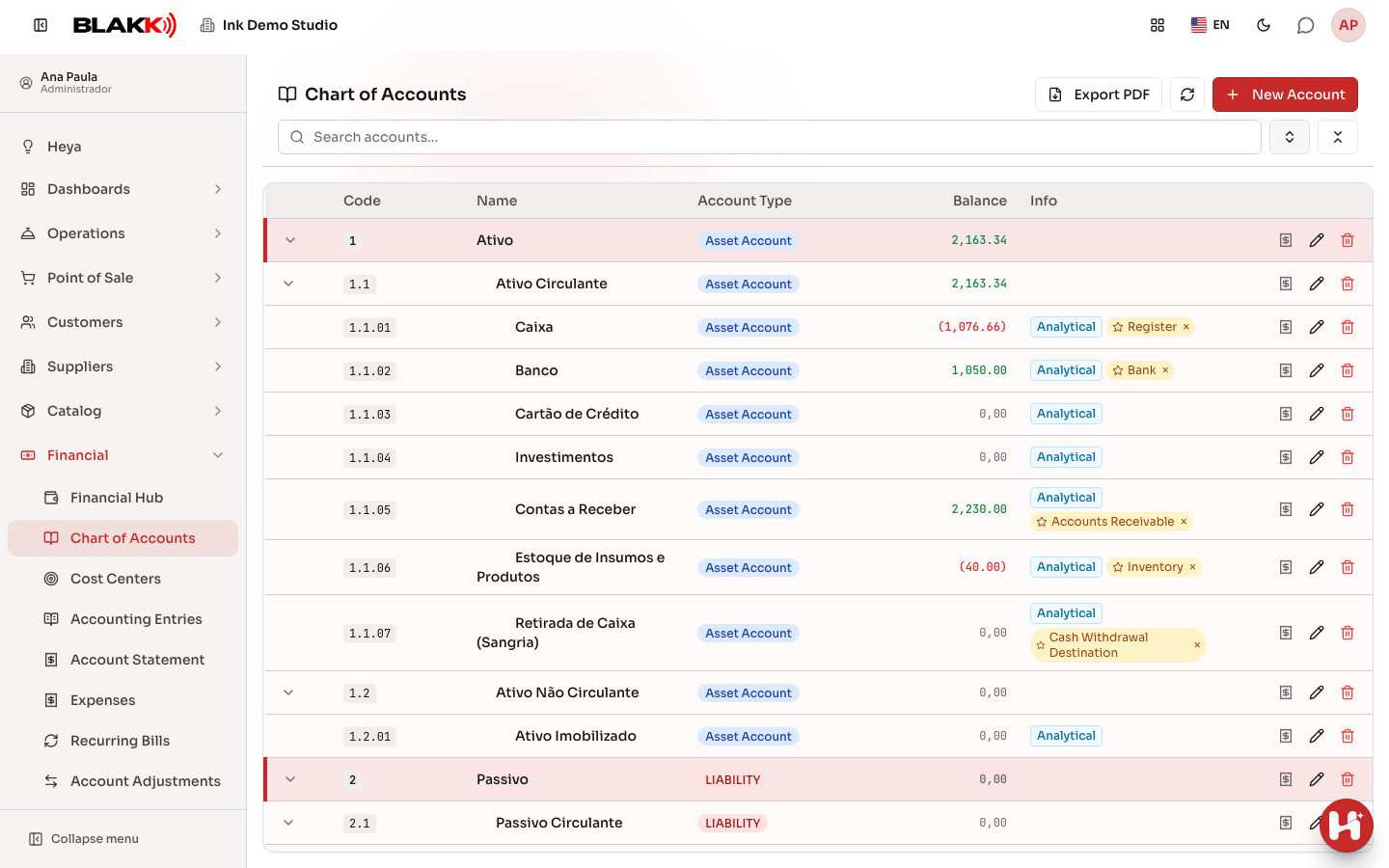
Section titled “Step 1 — View the chart of accounts”The list shows the complete hierarchy. Click the arrow next to an account to expand its subaccounts, or use the Expand All/Collapse all icons next to the search bar to view everything at once. The Balance column shows the current balance for each bank account or cash account; accounts that don’t hold a balance (such as an expense account) show no value. The Info column identifies Analytical and Inactive accounts. In each row, the View Statement icon opens the account statement, and the Export PDF button at the top downloads the entire chart as a PDF.
Step 2 — Create an accounting account
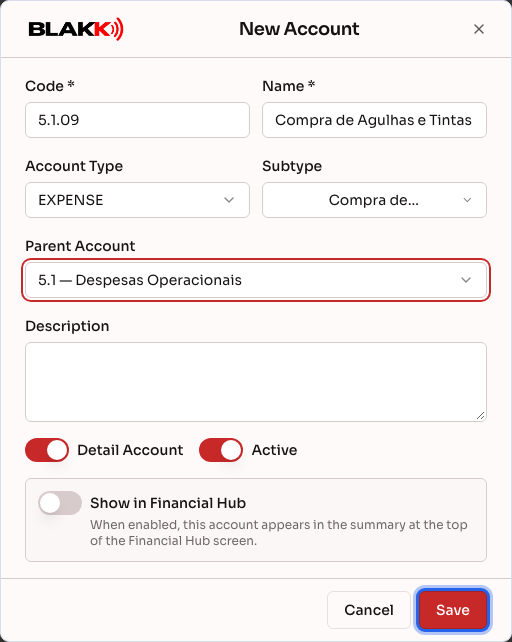
Section titled “Step 2 — Create an accounting account”Click New Account, enter the Code and Name (both are required), select the Account Type and, if applicable, a Subtype. Then choose the Parent Account to place the new account in the chart. Below that, you’ll find Description and the Detail Account, Active, and Show in Financial Hub toggles. Click Save.
Step 3 — Add a bank account with Pix
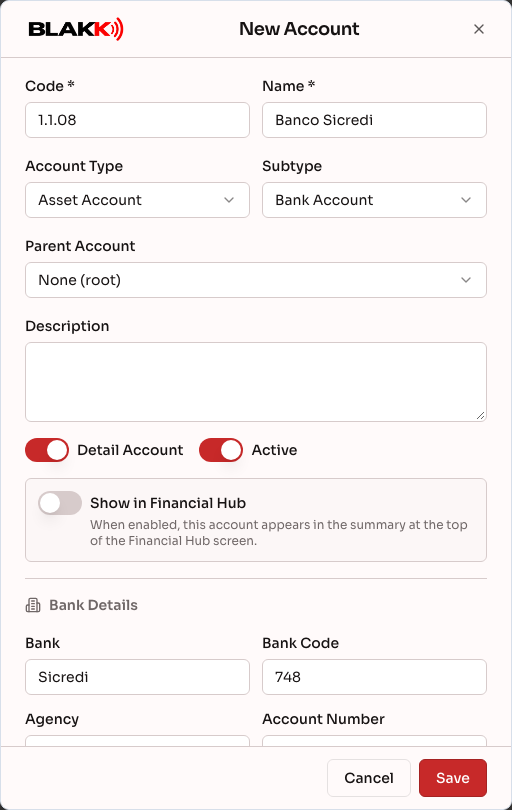
Section titled “Step 3 — Add a bank account with Pix”When you select the Bank Account (or Cash) subtype, the form opens a Bank Details section (bank, bank code, branch, account number, account holder, account type, and Initial Balance) and, for these two subtypes only, a PIX Key section. Adding these details lets you select the account as the debit or credit account for payments in the Financial Hub.
Step 4 — Why you may not be able to delete an account
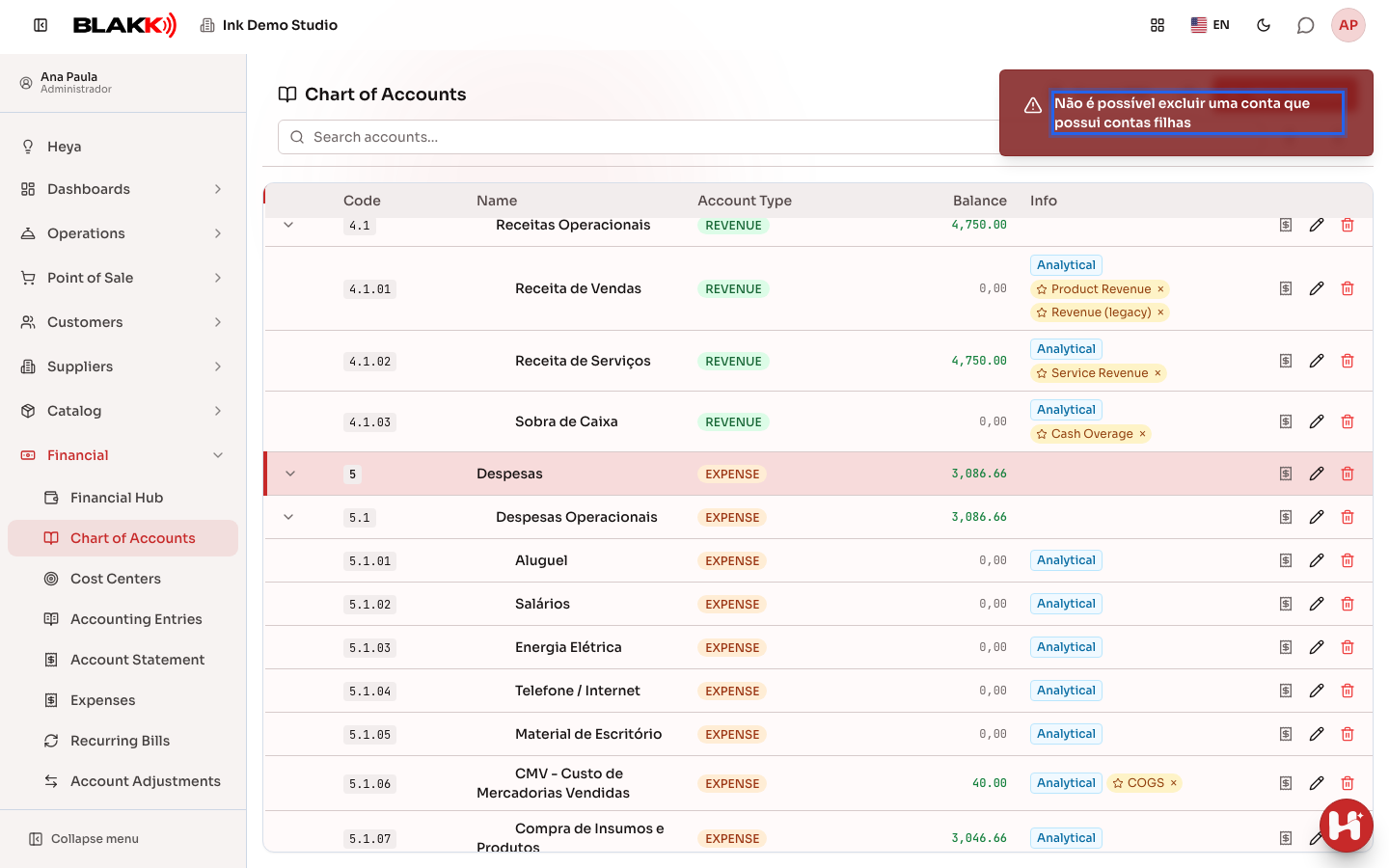
Section titled “Step 4 — Why you may not be able to delete an account”Click the Delete icon for an account that has subaccounts (such as an “Operating Expenses” group) and confirm. The system will decline and explain why. You’ll get the same message if the account has no subaccounts but is already being used by a product, payment method, default mapping, or accounting entry.
What happens next
Section titled “What happens next”- An account marked Analytical is an account that can receive entries (for example, it appears in the “Accounting Allocation” options for Expenses). Group accounts, such as “Operating Expenses,” which only group other accounts, are usually left unmarked.
- Turning on Show in Financial Hub makes the account appear in the balance summary at the top of the Financial Hub. The account will still work normally if this option is off; it just won’t be included in that summary.
- The yellow star in the Info column (for example, “Cash,” “Bank,” “COGS,” “Taxes”) marks the account the system uses by default for automatic entries of that type, such as sales, cost of goods, taxes, tips, and cash drops. The Set as default button appears for accounts that can be assigned one of these roles. Click the star’s “×” to remove the assignment (Remove default mapping). Only change this setting with guidance from your accountant.
- An account that’s already in use (linked to a product, payment method, or recorded entry) can’t be deleted, but it can be deactivated by turning off Active. It will no longer appear as an option on new screens, but its history will remain.
Common mistakes and questions
Section titled “Common mistakes and questions”Q: Do I need to create an accounting account for every expense I record? A: No. Your studio comes with enough accounts for day-to-day use (Rent, Salaries, Supplies and Products, and so on). Create a new account only when you need to separate something that currently goes into an account that’s too generic for your needs.
Q: What’s the difference between a group account and a “Detail” account? A: A group account, such as “Current Assets,” only organizes other accounts within it—it can’t receive entries directly. A Detail account is an account you can select when recording an expense or setting up a payment method.
Q: Can I change an account’s type after I create it? A: Yes, by editing the account. However, changing the Account Type clears the selected subtype because each type has different subtype options (an Asset account can have subtypes such as “Bank Account,” while an Expense account can have subtypes such as “Rent” and “Payroll”).
Q: Why do only Bank Account and Cash accounts show the Pix key field, and not Credit Card or Investment accounts? A: Because only those two account types receive Pix payments in day-to-day use. The others have the same bank details (bank, branch, and balance), but no Pix section because it doesn’t apply to them.
Q: I can’t delete an account, even though it doesn’t have any visible subaccounts. Why? A: In addition to accounts with subaccounts, the system also blocks deletion if the account has been used by a product, payment method, default mapping, or recorded accounting entry. In that case, deactivate the account by turning off Active instead of deleting it.
Q: Does the account code (such as “5.1.07”) need to follow a specific format? A: The system only requires each code to be unique. If you try to save a code that’s already in use, you’ll see the message “An account with this code already exists.” Other than that, the format is up to you. Following the default chart’s convention (group.subgroup.account) is a good way to keep the hierarchy readable, but the Parent Account you choose—not the code itself—is what determines how the chart is organized.
Related
Section titled “Related”- Financial Hub: Track and record payments and receipts
- Expenses: Record, split into installments, attach documents, and pay
- Cost Center: Organize expenses by business area
- Accounting Entries: Review the ledger for all account activity
- Account Statement: Track the running balance of an account
- Financial Dashboard: Understand your studio’s financial health over time