Minimum Stock: Get Notified When a Product Is Running Low
What it is
Section titled “What it is”Minimum stock is the quantity at which you want to restock a product. Set a number for each product—for example, 5 units of healing ointment—and when the available quantity reaches that number or drops below it, the system marks the product in red with a Low Stock alert. This helps you see what you need to order before you run out.
When to use it
Section titled “When to use it”- You sell aftercare products (such as healing ointment) and don’t want to find out you’re out only when a customer asks for one.
- You sell jewelry or use materials that take a while to arrive from your supplier, so you need enough time to place an order.
- You have more than one studio location, and each one needs a different minimum.
Before you start
Section titled “Before you start”- The product must be added and saved. The Inventory tab only appears after the product exists. Services (such as a full arm piece) don’t have inventory.
- If you can’t change the minimum stock or adjust the quantity, ask the studio owner to grant you access in Access → Roles. You need editing permission for Catalog.
Step by step
Section titled “Step by step”Step 1 — Open the product’s Inventory tab
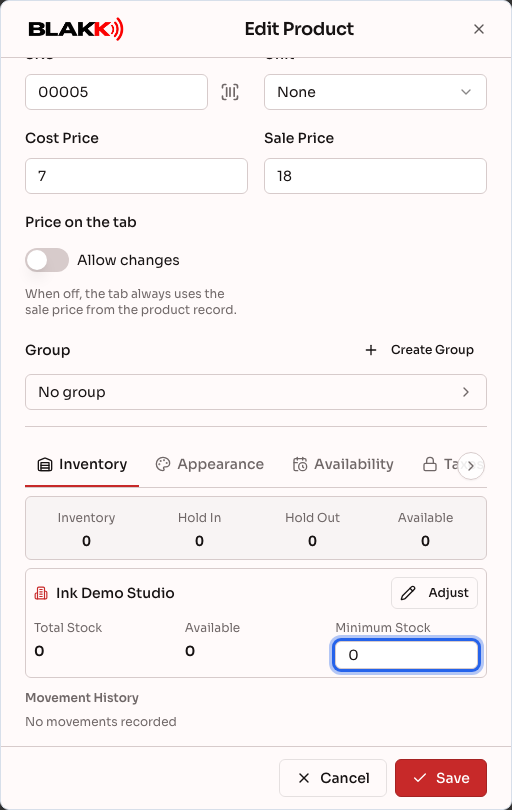
Section titled “Step 1 — Open the product’s Inventory tab”Go to Catalog → Products, click the product (or click the Edit button in its row), and open the Inventory tab. At the top, you’ll see the totals: Inventory, Hold In, Hold Out, and Available. Below that is your company card, with Total Stock, Available, and Minimum Stock.
On a phone, the tabs in the product details appear as buttons below the main fields. Tap Inventory to open the tab full screen, and tap Done to return to the product details. Going back doesn’t save anything: the minimum is only saved when you tap Save in Step 2.
Step 2 — Set the minimum stock and save
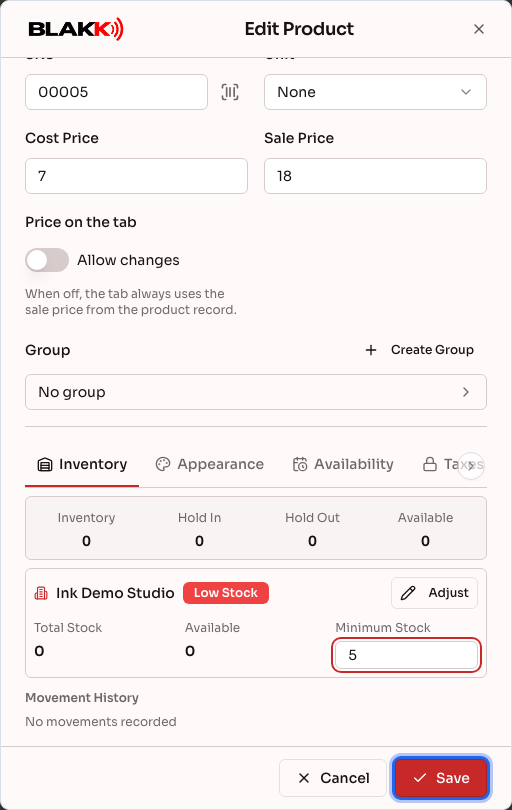
Section titled “Step 2 — Set the minimum stock and save”Enter the quantity in the Minimum Stock field and click Save at the bottom of the product details. The minimum is saved along with the rest of the product information. If you close the page without saving, it won’t be saved.
If you have more than one location, click View by company. Each location has its own card, with its own stock and minimum.
Step 3 — Correct the stock quantity
Section titled “Step 3 — Correct the stock quantity”When new inventory arrives or after you count your stock, click Adjust on the company card. In the Adjust Stock window, enter the New Quantity (the system shows the Difference compared with the Current Quantity), add a reason in Notes if you want, and click Confirm.
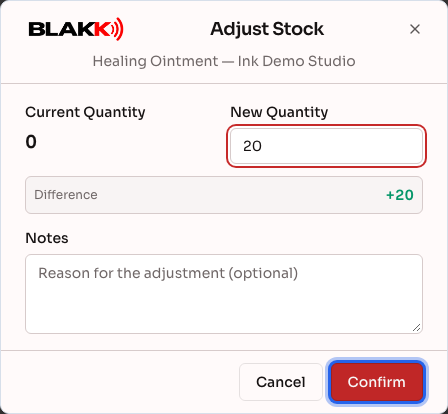
Each adjustment is recorded in the Movement History tab, along with sales that reduce stock.
What happens next
Section titled “What happens next”- When a location’s Available quantity is equal to or below the minimum, the product details show a red Low Stock label on that location’s card. The Catalog → Products list also shows that location’s stock row in red, with an alert icon. The product also appears in the Products Below Minimum Stock panel in the Dashboard Overview, which lists all products that need restocking.
- A product with a minimum stock of zero isn’t monitored for minimum stock. It never gets an alert or appears in the Dashboard panel, even if its stock is zero or negative. To get an alert, set a minimum greater than zero.
- The alert is visual only and appears on these screens. The system doesn’t send an email, WhatsApp message, or notification.
- Minimum stock doesn’t block sales. If a product runs out, you can still complete the sale, and its stock can go negative. The minimum is there to help you restock before that happens.
- Sales automatically reduce stock when you close a ticket, make a sale through the POS, or receive orders from your website. You don’t need to deduct stock manually.
- A stock adjustment also creates the corresponding accounting entry. If an account is missing from your Chart of Accounts, the adjustment window will alert you and offer Create accounts automatically.
Common mistakes and questions
Section titled “Common mistakes and questions”Q: I don’t see the Inventory tab in the product details.
A: The tab is only available for products. Services don’t have inventory. If the item is a product and the tab says “Save the product first to manage inventory,” save it and open the product again.
Q: I entered a minimum stock quantity, closed the window, and it went back to zero.
A: The minimum is only saved when you click Save at the bottom of the product details. Closing the window discards what you entered.
Q: Will the system alert me by WhatsApp or email when stock is low?
A: No. The alert only appears in the product details, the product list, and the Dashboard’s Products Below Minimum Stock panel. Make a habit of checking this panel before placing supplier orders.
Q: The product ran out, but I was still able to sell it. Is that normal?
A: Yes. Minimum stock doesn’t block sales, and stock can go negative. When the product arrives, use Adjust to correct the quantity.
Q: What’s the difference between Total Stock and Available?
A: Total Stock is the recorded quantity. Available is the recorded quantity minus what’s in Hold Out and plus what’s in Hold In. When both are zero, the two numbers are the same. The low-stock alert compares the minimum with the Available quantity.
Q: I have two locations. Do I need to set a minimum for each one?
A: Yes. Click View by company. Each location has its own card, stock, and minimum, and alerts appear separately for each location.
Q: The adjustment window says accounts are missing from the Chart of Accounts.
A: The adjustment also records the stock movement in your accounting. Click Create accounts automatically to have the system create the missing accounts, or ask the person who manages your finances to add them to the Chart of Accounts.