Stations: Set Up Your Studio's Workstations
What it is
Section titled “What it is”Stations are the work areas in your studio — chairs or rooms — used in the Calendar (which can show one column per station and suggest an available station when you schedule an appointment), at the Point of Sale, and on tickets. Each station determines who can work there, which services it offers, and the days and hours it’s available.
When to use it
Section titled “When to use it”- Set up a new chair when you add another service area.
- Limit a station to a specific type of service (for example, a room used only for micropigmentation).
- Set which days a chair is available — separately from each professional’s schedule.
Before you start
Section titled “Before you start”If you can’t create or edit a station, ask the studio owner to grant you access under Access → Profiles. Deleting a station requires a higher access level (Full) than creating or editing one (Edit).
Step by step
Section titled “Step by step”Step 1 — View the list of stations
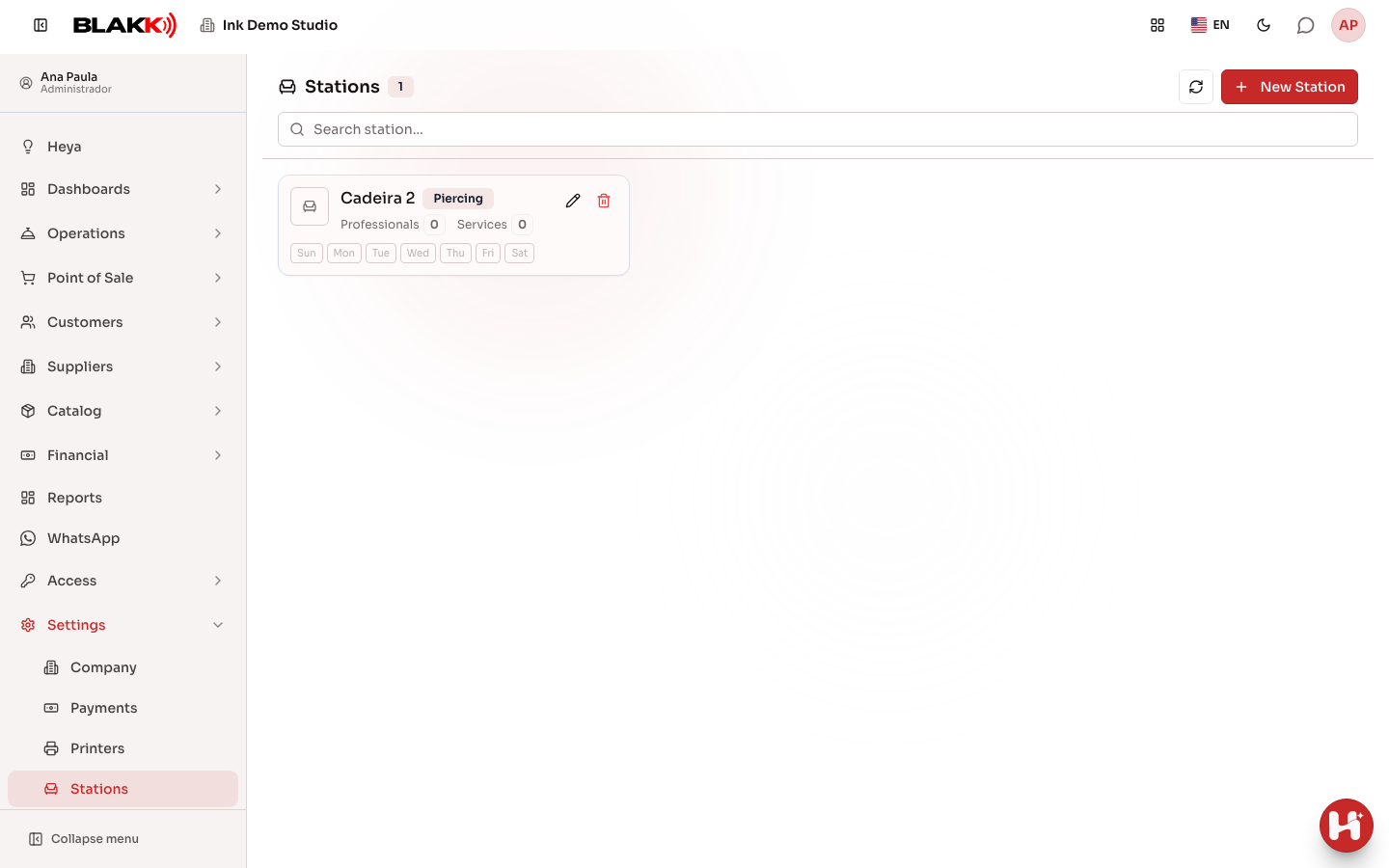
Section titled “Step 1 — View the list of stations”From the menu, open Settings → Stations. Each card shows the name, area, how many professionals and services are linked to it, and which days of the week the station has hours configured. Inactive stations display the Inactive badge. Use the search field to find a station by name, or click the pencil icon on a card to edit it.
Step 2 — Create a station (basic details)
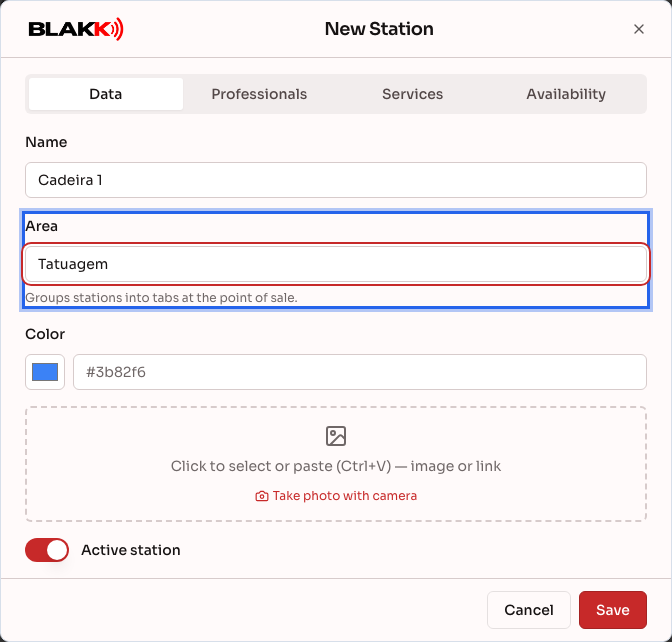
Section titled “Step 2 — Create a station (basic details)”Click New Station and enter the Name and Area — both fields are required and can contain up to 20 characters. The area groups stations into tabs at the Point of Sale. Choose a Color to identify the chair visually, and add a photo if you like. The Active station toggle is on so the station can be used.
Step 3 — Assign professionals
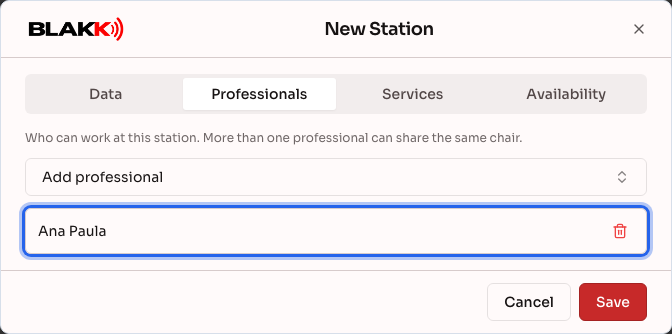
Section titled “Step 3 — Assign professionals”On the Professionals tab, click Add professional and choose who can work at this station. More than one professional can share the same chair on different days or shifts.
Step 4 — Assign services
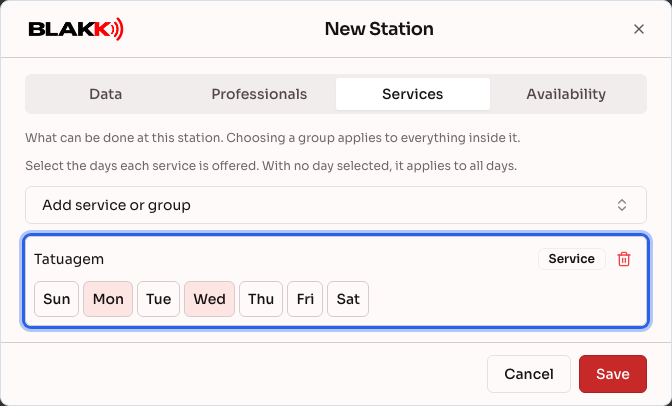
Section titled “Step 4 — Assign services”On the Services tab, click Add service or group and choose which services can be performed at this station — an individual service or an entire group — then select the days each one is offered there. If you don’t select any days, the service is available every day.
Step 5 — Set availability
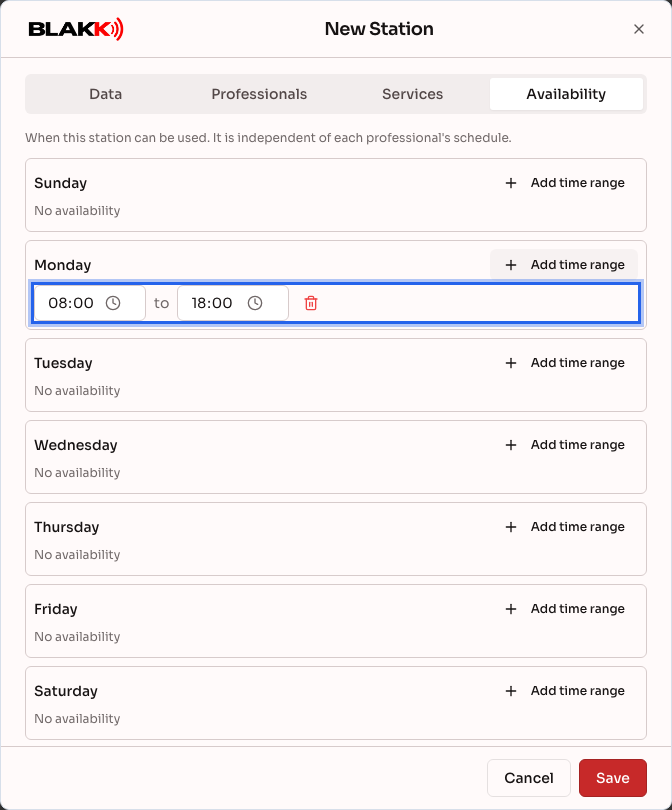
Section titled “Step 5 — Set availability”On the Availability tab, set the days and hours when the station can be used. This is separate from the schedule of each professional who works there.
What happens next
Section titled “What happens next”- All four tabs (Details, Professionals, Services, Availability) are saved together when you click Save — you don’t need to save each tab separately.
- You can delete a station only if it has never been used. An open sale, a completed sale, a ticket, or a linked appointment will prevent deletion. In those cases, deactivate the station by turning off Active station instead.
- A station’s Availability and each professional’s schedule are separate: both must overlap for an appointment time to appear as available.
- In the Calendar, the By station button displays one column per station, and a new appointment is prefilled with an available station for the tattoo artist. See the Appointment article under Related.
Common mistakes and questions
Section titled “Common mistakes and questions”Q: Can more than one tattoo artist use the same chair? A: Yes — the Professionals tab lets you assign multiple professionals to the same station. This is common when the chair is shared across different shifts or days.
Q: What happens if I don’t select any days of the week for an assigned service? A: If you don’t select any days, the service is available at that station every day of the week. Selecting specific days is a restriction, not a requirement.
Q: Why is “Area” required when the other fields aren’t? A: The area organizes stations into separate tabs at the Point of Sale. Without it, the system wouldn’t know which tab to show the chair in.
Q: What’s the difference between choosing an individual service and an entire group on the Services tab? A: Choosing a group applies to everything in that group, including services added to the group later. Choosing an individual service applies only to that item.
Q: Why can’t I delete a station even though it seems unused? A: Check whether it’s linked to an appointment (even an old one, as long as it hasn’t been canceled), a ticket, or a completed sale — any of these will prevent deletion. Deactivate the station instead.