Service Invoice Report: Track, Download, and Send Issued Invoices
What it is
Section titled “What it is”This report lists all the service invoices (NFS-e) issued by your studio. It includes the invoice number, customer, description, billing month, value, ISS, status with the tax authority, and the invoice source (tab, recurring contract, or one-time issuance). Use it to download the PDF and XML files, send an invoice to a customer, cancel an invoice, or resubmit a rejected invoice.
This feature is only available to businesses in Brazil.
When to use it
Section titled “When to use it”- Close out the month with your accountant: list invoices for the period and their total value and ISS.
- Find invoices rejected by the tax authority so you can correct and resubmit them.
- Resend an invoice to a customer who lost the email.
- Cancel an invoice issued by mistake.
Before you start
Section titled “Before you start”The report only shows invoices after issuance has been set up and the first invoice has been issued. See Service invoice (NFS-e) to set up and issue an invoice from a tab.
If you can’t view this report, cancel an invoice, or resubmit one, ask the studio owner to grant you access under Access → Profiles.
Step by step
Section titled “Step by step”Step 1 — Open the report
Section titled “Step 1 — Open the report”Under Reports, click Issued Service Invoices. The report opens with the month’s invoices, sorted by issue date. Each row shows Issue Date, Number, Customer, Description, Billing month, Value, ISS, Status, and Source. The footer totals the value and ISS for the filtered period.
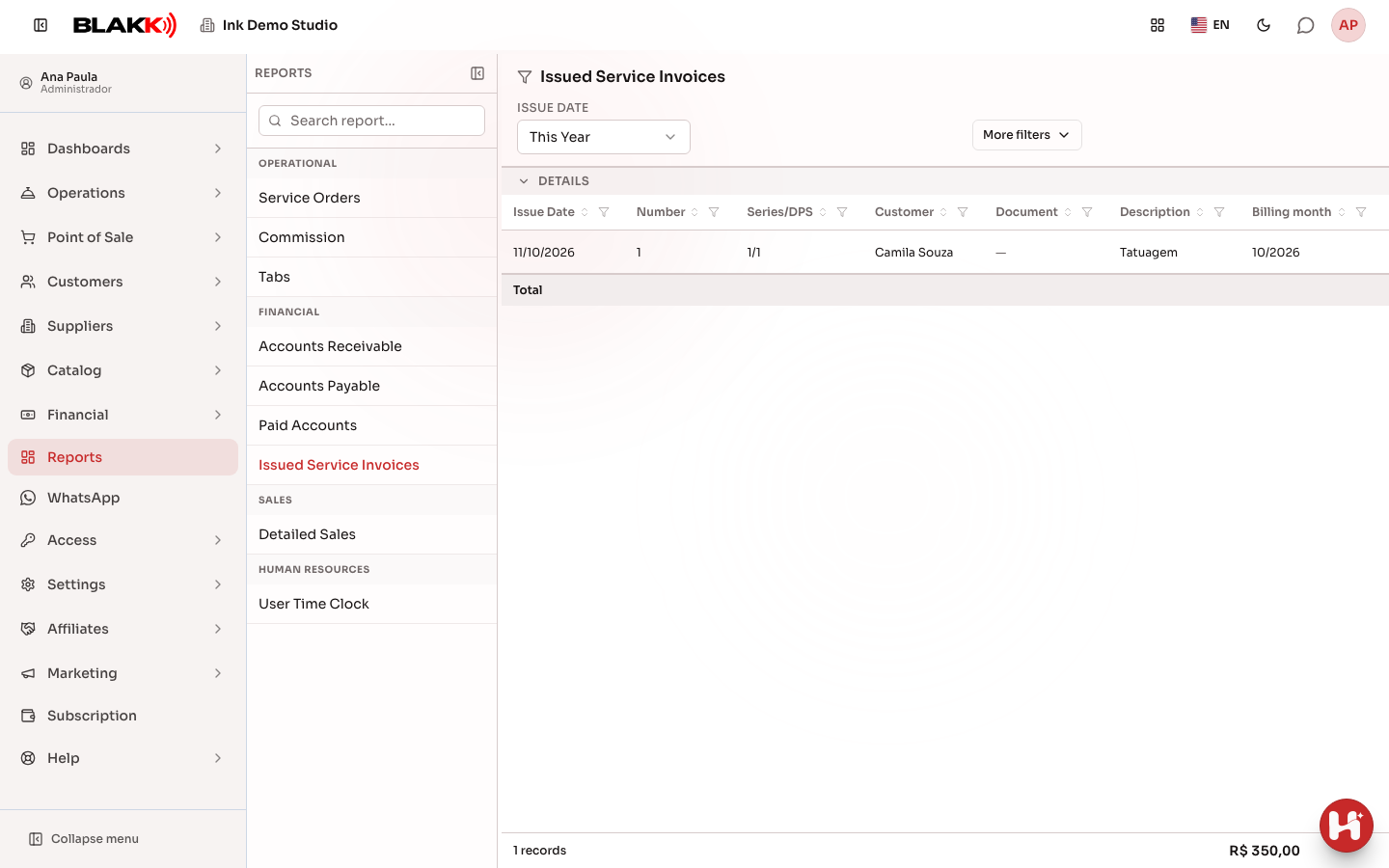
Statuses include Awaiting issuance (the invoice is queued for the tax authority), Authorized, Declined (the reason appears under Reason it is pending), Cancellation in progress, and Cancelled.
Step 2 — Filter by status, source, or customer
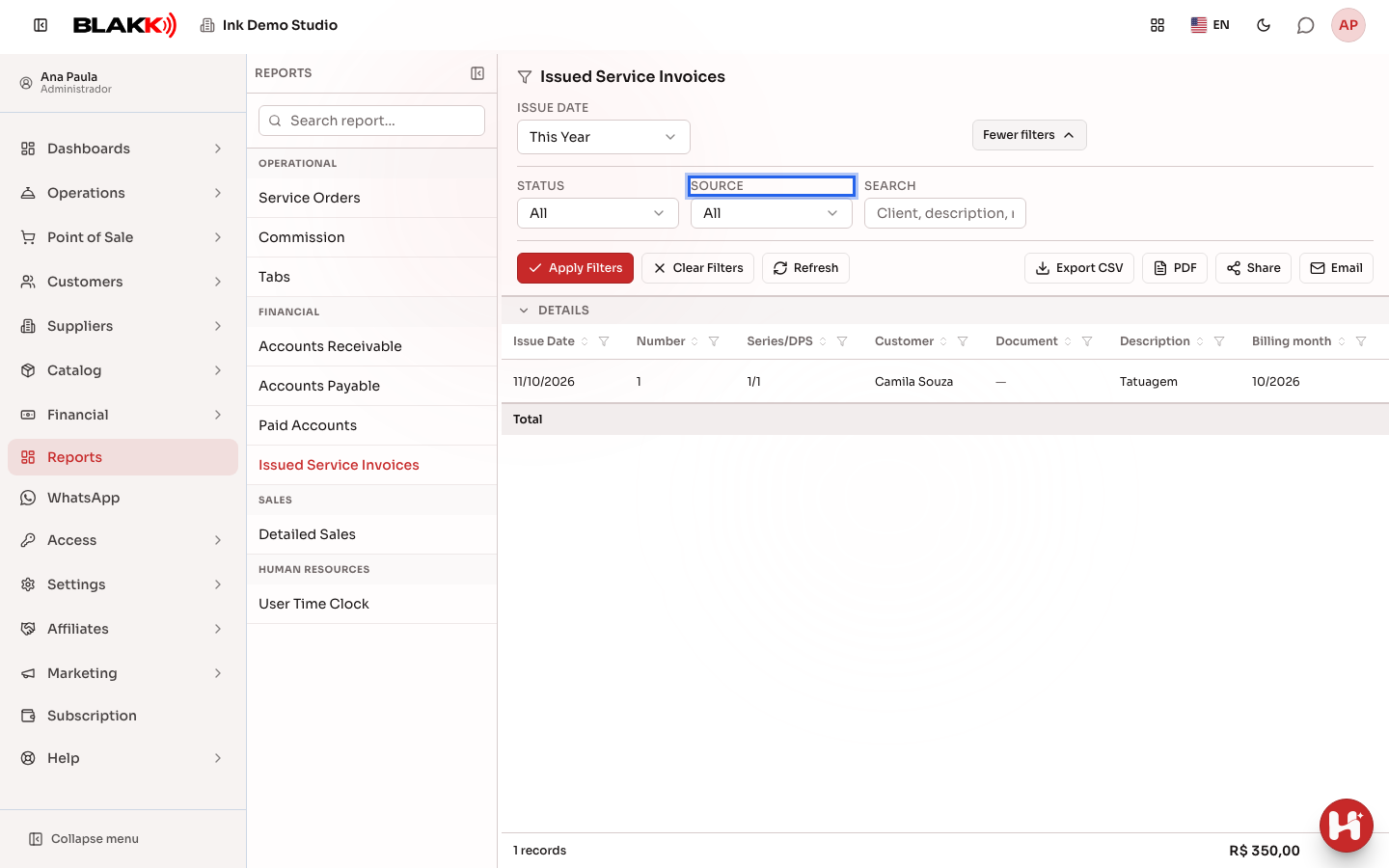
Section titled “Step 2 — Filter by status, source, or customer”Open More filters to select a Status or Source (for example, only invoices issued from a Tab) or search by customer, description, number, or key. Click Apply Filters. Export buttons are also available here.
Step 3 — View an invoice’s details
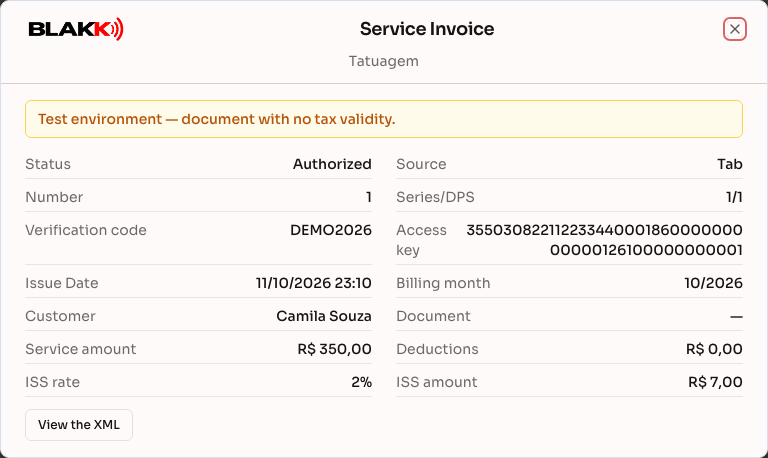
Section titled “Step 3 — View an invoice’s details”Click View details in the invoice row. The window shows the number, customer, values, status, source, and, when available, What the tax authority answered. The View the send history icon shows Who received it the invoice, when they received it, and which channel was used.
Step 4 — Download, send, cancel, or resubmit
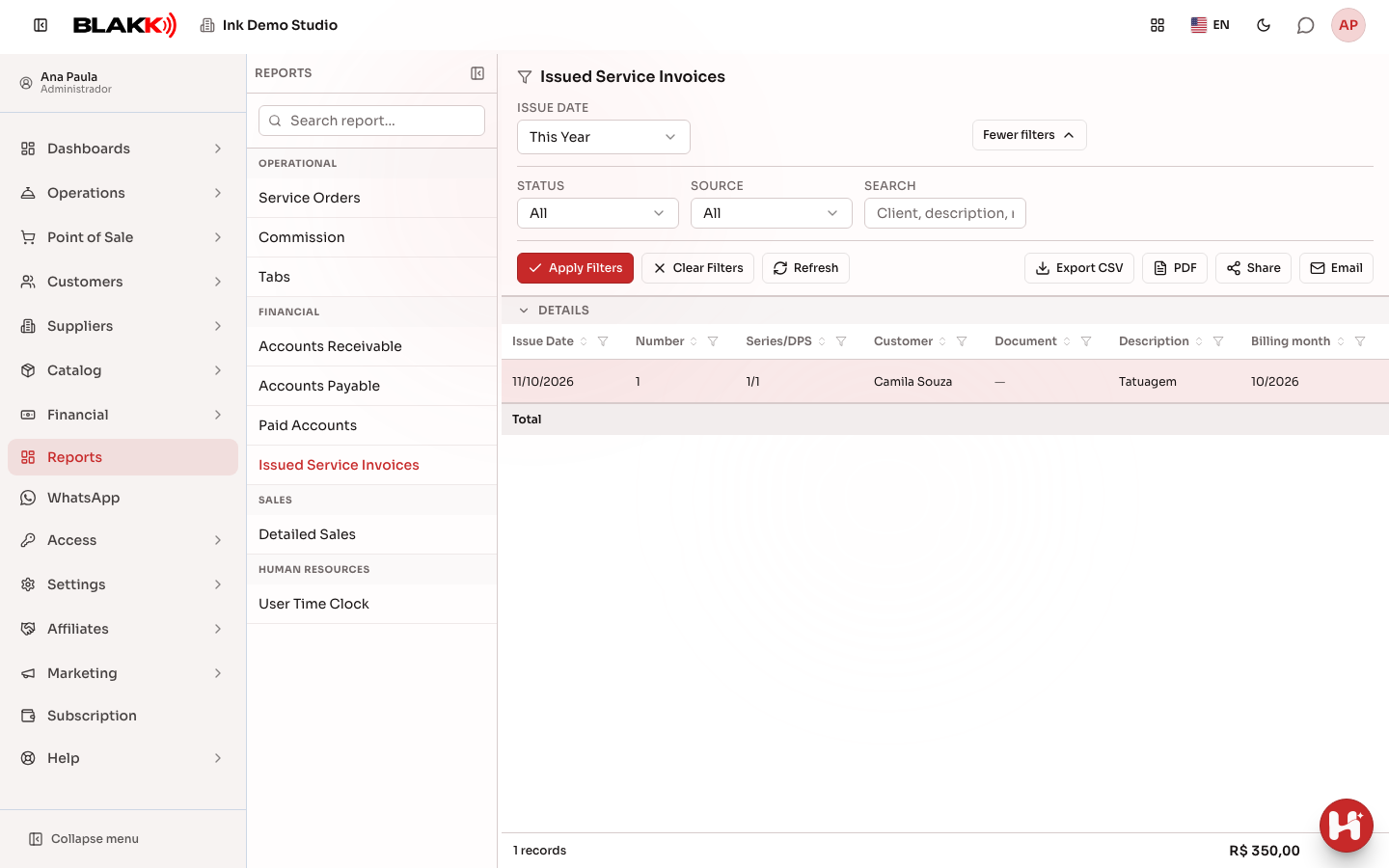
Section titled “Step 4 — Download, send, cancel, or resubmit”In the row for an authorized invoice, use the icons to download the PDF (DANFSe) or XML, or to Send by e-mail or Send by WhatsApp. The XML is the valid tax document; the PDF is a readable version.
To cancel an invoice, click Cancel the invoice, select the Cancellation reason, and enter a Justification (the tax authority requires at least 15 characters). The cancellation takes effect only if the tax authority accepts it, and the legal deadline varies by municipality.
For a rejected invoice, correct the account information and use the resubmit icon. It sends the invoice to the tax authority again with the same service and customer details.
What happens next
Section titled “What happens next”- Cancelling an invoice or having it rejected makes the source tab available for a new invoice.
- Emails and WhatsApp messages are recorded in the invoice’s send history.
- Invoices issued in Testing are marked in the Environment column. These are test documents with no tax value.
Common mistakes and questions
Section titled “Common mistakes and questions”Q: Why has the invoice been “Awaiting issuance” for a long time? A: The invoice is in the queue for the tax authority. If the tax authority’s service is down, the system tries again automatically. If the invoice still isn’t issued, check the Reason it is pending column.
Q: The tax authority rejected the invoice. What should I do? A: Read the reason under Reason it is pending or in the invoice details, correct the issue (usually the customer’s account information or the service’s tax codes), and resubmit the invoice.
Q: Why can’t I resubmit an invoice? A: Only rejected invoices can be resubmitted. If another valid invoice already exists for the same tab, the resubmission is rejected to prevent duplicate invoices.
Q: I cancelled the invoice in the system, but is it still valid? A: The cancellation is sent to the tax authority and only takes effect when it is accepted. Until then, the invoice status is Cancellation in progress. If the municipality’s legal deadline has passed, the tax authority will reject the cancellation.
Q: How can I see only invoices from tabs? A: Under More filters, select Tab for Source and click Apply Filters.
Q: Do the totals include only the invoices shown on the screen? A: No. The value and ISS in the footer include all invoices matching the filter, not just the ones visible as you scroll.