Marketing: Connect Your Studio’s Instagram Account
What it is
Section titled “What it is”The Settings page in the Marketing section is where you connect your studio’s Instagram account to Blakk. Once connected, the system can publish your scheduled posts without you needing to open Instagram at the scheduled time. This is also where you’ll find publishing defaults and a list of who can manage Marketing.
When to use it
Section titled “When to use it”- You want to schedule studio posts in advance (a new sleeve tattoo, a weekly promotion) and let the system publish them at the right time.
- The account appears in orange with a reconnection notice—the access has expired or was removed on Instagram.
- You’ve switched your studio’s Instagram account and need to disconnect the old one and connect the new one.
Before you start
Section titled “Before you start”If Marketing doesn’t appear in your menu, the social media module isn’t enabled for your business type—contact Blakk support.
- Your Instagram account must be a professional account: Business or Creator. Personal accounts can’t be connected. To switch, open the Instagram app and go to Settings › Account type and tools.
- You’ll need the username and password for the Instagram account you want to connect. You’ll sign in directly on Instagram, and Blakk never asks for or stores your password.
- If you can’t connect or disconnect the account, ask the studio owner to grant you access under Access → Profiles.
Step by step
Section titled “Step by step”Step 1 — Open Marketing settings
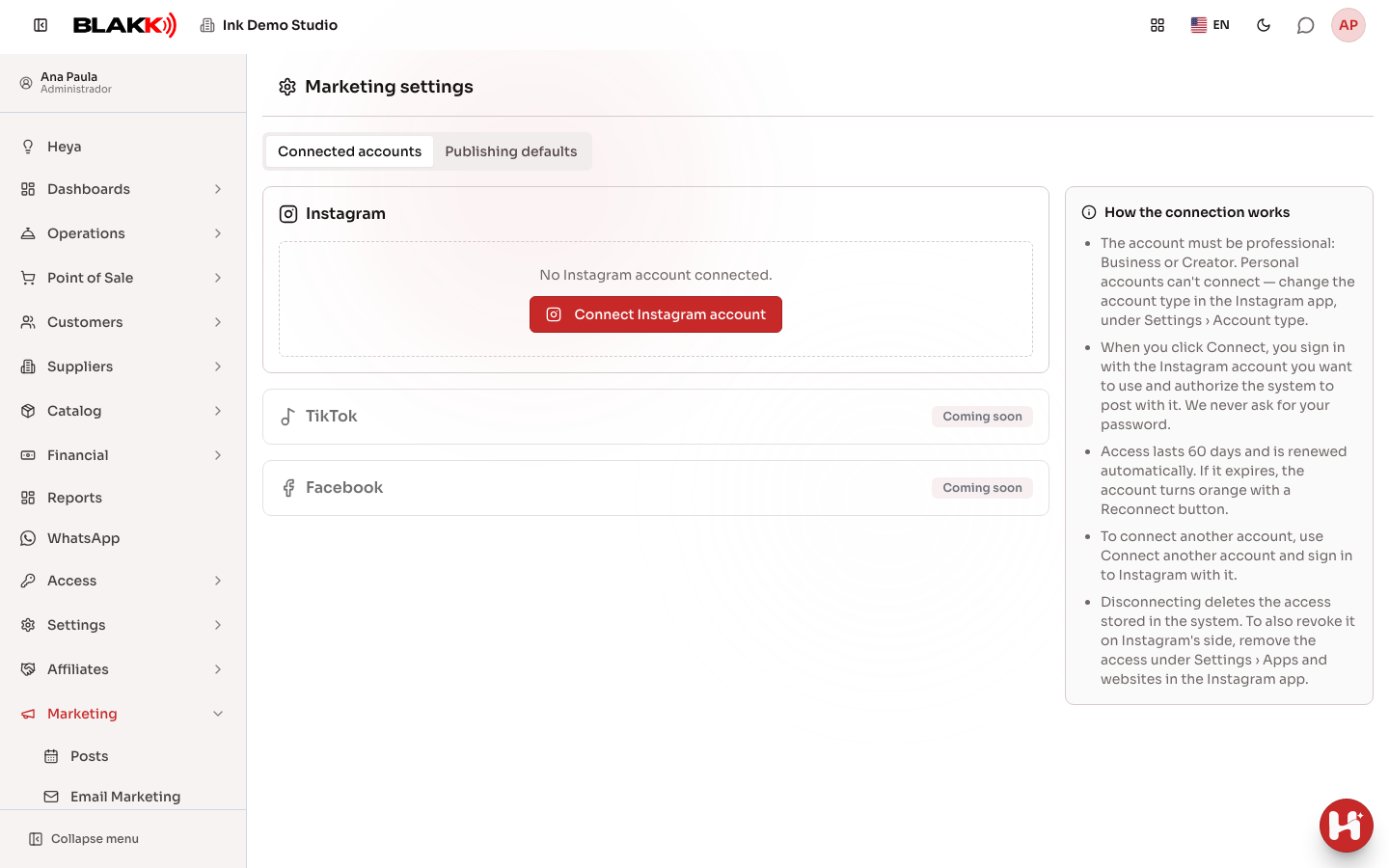
Section titled “Step 1 — Open Marketing settings”From the menu, open Marketing, then Settings. The page opens on the Connected accounts tab, with one card for each social network. Instagram is currently available; TikTok and Facebook are marked “Coming soon.”
Step 2 — Connect your Instagram account
Section titled “Step 2 — Connect your Instagram account”On the Instagram card, click Connect Instagram account. An Instagram window opens. Sign in with the studio’s account and approve the requested permissions (basic profile, content publishing, and comment management). When you’re done, the window will show “Account connected” and can be closed. The account card will appear on the Settings page with the account’s @handle, account type (Business or Creator), connection date, and access expiration date.
Step 3 — Connect another account (if your studio has more than one)
Section titled “Step 3 — Connect another account (if your studio has more than one)”Once an account is connected, click Connect another account and sign in to Instagram with the other account. Each account gets its own card.
Step 4 — Reconnect when the card turns orange
Section titled “Step 4 — Reconnect when the card turns orange”Access lasts 60 days and renews automatically. If it expires or someone removes access directly on Instagram, the card turns orange with a reconnection notice, and the person who connected the account gets an email. Click Reconnect now and sign in again with the same account. Signing in with a different account won’t work, so posts aren’t published to the wrong profile.
Step 5 — Set publishing defaults
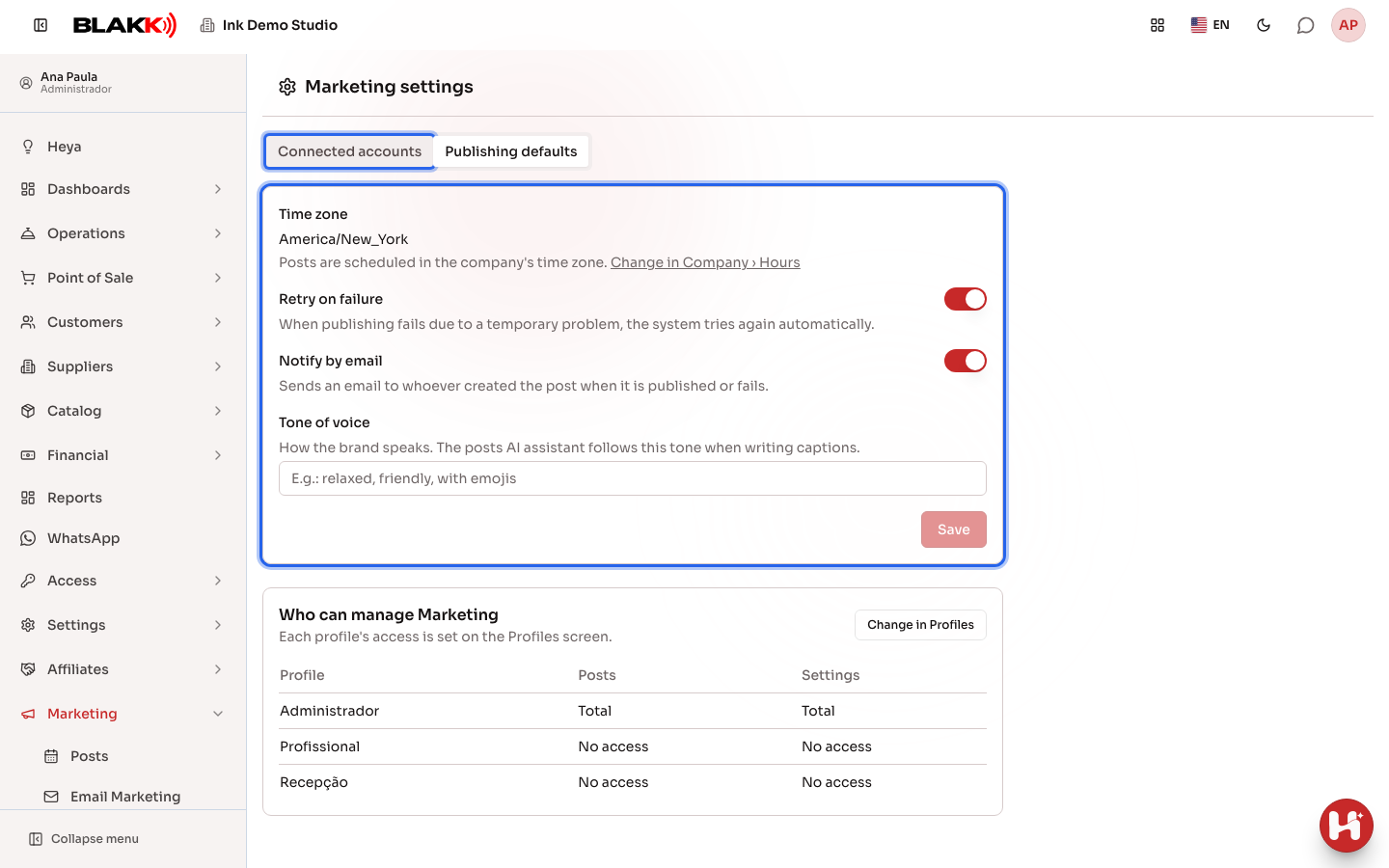
Section titled “Step 5 — Set publishing defaults”On the Publishing defaults tab, choose whether the system should Retry on failure and whether to Notify by email the person who created the post when it’s published or fails. Under Tone of voice, describe how your brand speaks (for example, “casual, with emojis”). The AI assistant uses this tone when writing post captions. Click Save. Scheduled posts use your business’s time zone. To change it, use the link to Business › Hours.
Step 6 — See who can manage Marketing
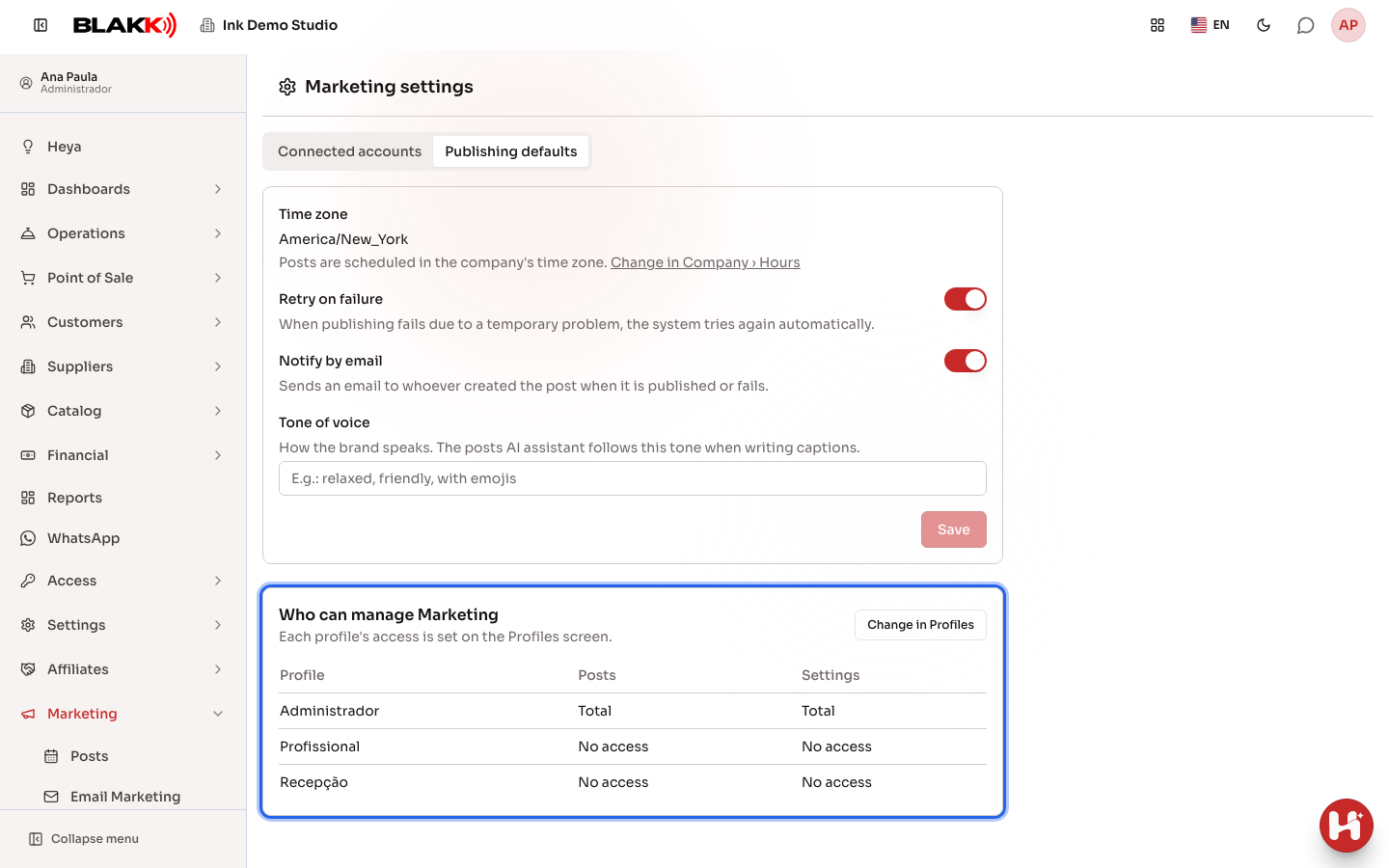
Section titled “Step 6 — See who can manage Marketing”Still on the Publishing defaults tab, the list shows each profile and its access level for Posts and Settings. This list is for reference only. To make changes, click Change in Profiles.
Step 7 — Disconnect
Section titled “Step 7 — Disconnect”On the account card, click Disconnect and confirm. The system will stop publishing to that account and delete the saved access. To also remove permission on Instagram, open the Instagram app and go to Settings › Apps and websites, then remove access.
What happens next
Section titled “What happens next”- While the account is connected, access renews automatically before it expires—you don’t need to come back to this page.
- If access expires or is removed on Instagram, nothing will be published to that account until it’s reconnected, and the person who connected it will get an email notification.
- Even if the module is turned off for your studio, you can still disconnect any accounts that remain connected.
Common mistakes and questions
Section titled “Common mistakes and questions”Q: I got a message saying the account is personal. What should I do? A: The system can publish only to professional accounts. In the Instagram app, change the account type to Business or Creator (Settings › Account type and tools), then connect again.
Q: The Instagram card says “The Instagram integration is not configured on this server.” What should I do? A: The Blakk team hasn’t enabled the Instagram connection on the server you use, so the connect button doesn’t appear. Contact support. In the meantime, you can create drafts under Marketing → Posts.
Q: I clicked Connect, but nothing opened. A: Your browser may have blocked the window. Allow pop-ups for the Blakk website or try again. Without the pop-up, Instagram sign-in opens in the current tab and returns you to this page when you’re done.
Q: I got the message “The connection request has expired or has already been used.” Why? A: A connection request is valid for 10 minutes and can only be used once. Go back to Settings and click Connect again.
Q: Does Blakk store my Instagram password? A: No. You sign in directly on Instagram. Blakk only receives an encrypted authorization to publish, which you can disconnect at any time.
Q: I signed in with a different account when reconnecting, and got an error. A: Reconnection only works with the same account, so scheduled posts aren’t published to a different profile. To use the other account, click Connect another account.
Q: I opened the completion link on my phone, and it asked me to sign in to the system. A: This happens when Instagram sign-in opens in a different browser (for example, in Safari from the installed app on an iPhone). Sign in with your Blakk username in that browser, and the connection will be completed.