Digital Anamnesis Form Signatures: Clients Fill Out and Sign on Their Phones
What it is
Section titled “What it is”This is the last step of the anamnesis form a client fills out using your studio’s link (or QR code): after answering the questions, they read the consent form, check the acceptance box, and sign with their finger (or a mouse on a computer) in a box right on the screen. The completed, signed form is added to the client’s profile—no paper, clipboard, or re-entering information at the front desk.
When to use it
Section titled “When to use it”- Before an arm sleeve session: send the link on WhatsApp so the client arrives at the studio with the form already completed and signed.
- At the front desk: print a QR code and leave it at the counter for clients who haven’t filled out the form yet. They scan it, fill it out on their phone, and sign it right there.
- At an event or convention: use one QR code per event (the link’s Category) so you can see where each client came from.
Before you start
Section titled “Before you start”- Your studio needs at least one active anamnesis template. See Anamnesis Templates. Each link opens the questionnaire for a specific template.
- If you can’t generate a QR code for a template, ask the studio owner to grant you access under Access → Profiles.
- If you can’t see a client’s anamneses, ask the studio owner to grant you access under Access → Profiles.
Step by step
Section titled “Step by step”Step 1 — Generate a link (QR code) for the template
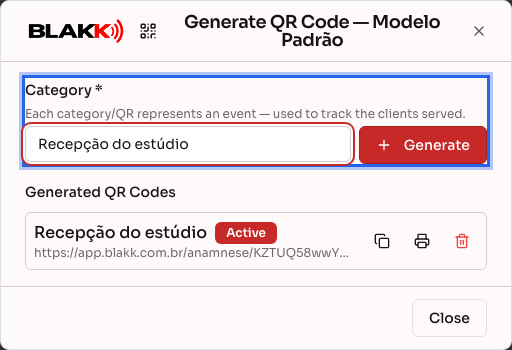
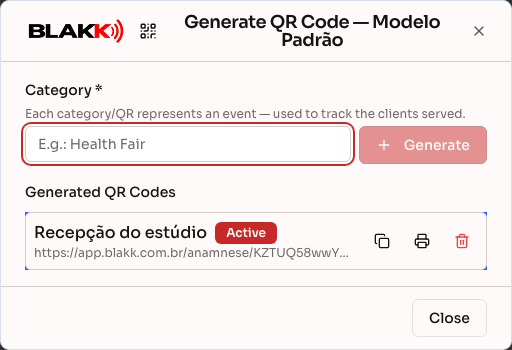
Section titled “Step 1 — Generate a link (QR code) for the template”Go to Settings → Anamnesis Templates and click the Generate QR Code icon on the row for the template the client will fill out. In the window that opens, enter a Category (for example, “Front desk” or the name of an event) and click Generate. The new link appears under Generated QR Codes.
Step 2 — Send the link or print the QR code
Section titled “Step 2 — Send the link or print the QR code”On the link’s row, Copy link copies the URL so you can paste it into WhatsApp, a direct message, or wherever you prefer. Print opens a card with your studio’s logo, the title Anamnesis Form, the category, the QR code, and the system URL below it, ready to place at the front desk.
You can also send the link from a client’s profile: under Customer Summary → Anamneses, the Send link to sign button appears when a service in the client’s upcoming appointments requires a form they haven’t filled out yet (if the template has an active link and the client has a phone number on file). The button opens WhatsApp with a prewritten message and the template link.
Step 3 — The client opens the link and enters their details
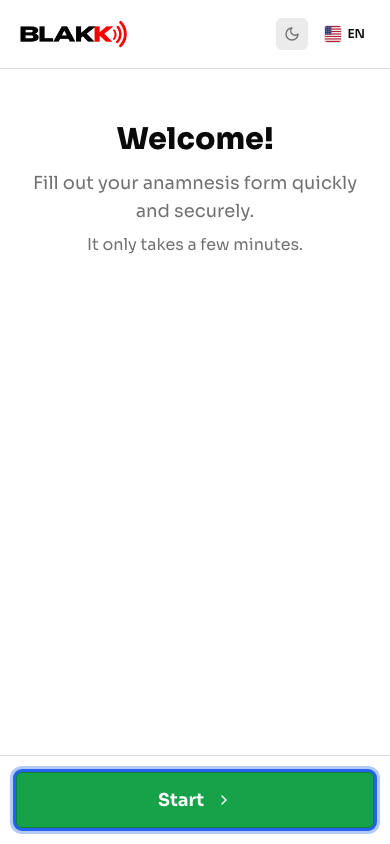
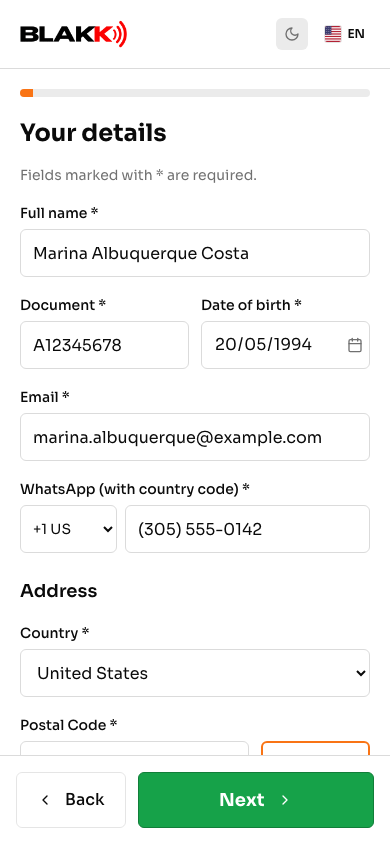
Section titled “Step 3 — The client opens the link and enters their details”The client opens the link (or scans the QR code), taps Start, and fills out Your details: full name, ID (CPF for businesses in Brazil), date of birth, email, WhatsApp, and address. Fields marked with an asterisk are required. If any are blank, tapping Next displays Fill in all required fields.
Step 4 — The client answers the questions
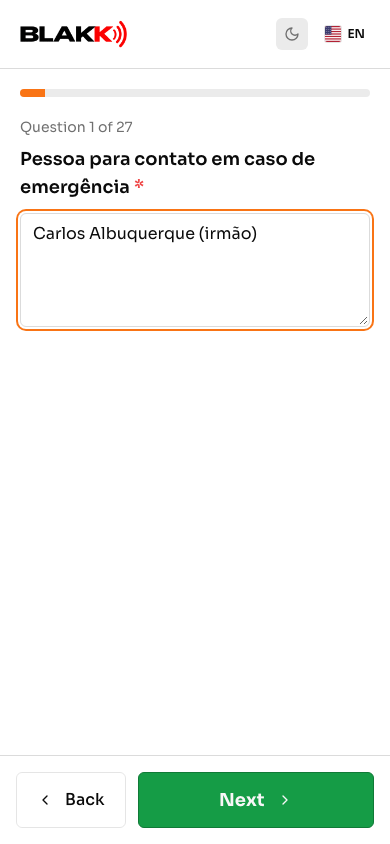
Section titled “Step 4 — The client answers the questions”Questions appear one at a time. Required questions are marked with an asterisk, and the client can’t continue without answering them (This question is required). After the questions, the Photos screen appears. It’s optional, so the client can attach photos or continue without them.
Step 5 — The client reads the consent form and accepts
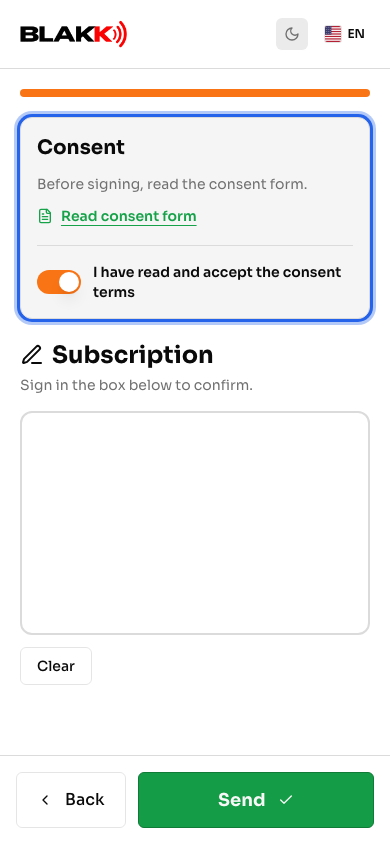
Section titled “Step 5 — The client reads the consent form and accepts”In the last step, the client reads the consent form in the Consent section and checks I have read and accept the consent terms. If the template has its own consent form, it appears under the Read consent form link. This opens the text in a window with the I have read and accept button.
Step 6 — The client signs in the box
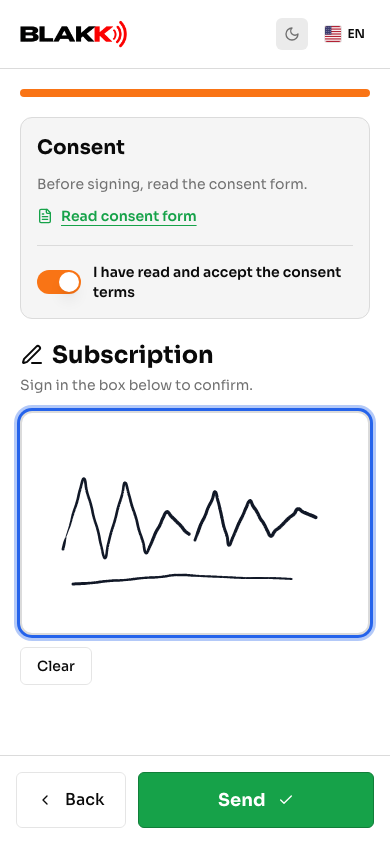
Section titled “Step 6 — The client signs in the box”Right below, under Subscription (Sign in the box below to confirm.), the client draws their signature with a finger on their phone—or with a mouse on a computer. If it doesn’t look right, Clear clears the box so they can sign again.
Step 7 — The client submits the form
Section titled “Step 7 — The client submits the form”The client taps Send. The form is submitted only if the client has checked the acceptance box and signed in the box. Without acceptance, You must accept the consent terms appears; if the box is blank, The signature is required appears. The server also rejects forms that are missing acceptance or a signature image, even if submitted outside the page. If everything is complete, the screen displays Thank you! and Your form was submitted successfully.
If you change the template’s consent form while the client is filling it out, submission is rejected with The consent form has been updated. Read the new form and accept it again.. The page loads the updated form, clears the acceptance checkbox, and keeps the answers and signature. The client can read and accept the updated form, then submit again.

Step 8 — Find the signed form in your studio
Section titled “Step 8 — Find the signed form in your studio”Under Customers, open Customer Summary and go to Anamneses. Each form displays a Signed or No signature badge. The same list appears under Anamnesis in the client’s profile (with the Client Signature column) and in the anamnesis button on the Service screen.
Step 9 — Open the form and view the signature
Section titled “Step 9 — Open the form and view the signature”Click a form to open it in read-only mode. The answers appear one question at a time, and the Patient Signature section at the end shows the image of the client’s signature. Below the image, the Signature details box shows where the signature came from: Date and time, Source (the public link, filled out by the client, or a device at your studio), Collected by (the team member who was logged in when the signature was collected at the front desk), IP Address, Device (phone, tablet, or computer), Operating System (iOS, Android, Windows, macOS, and more), Browser and version, language, time zone, screen resolution, whether the screen is touch-enabled, the accepted Consent term version, and the Signature code (SHA-256), which identifies the exact signature image. Next, Consent form accepted on shows the date and time the client accepted the form, and the View accepted form button opens the form the client accepted at that time. If the template didn’t have its own consent form, the saved copy is the standard consent form in Portuguese, even if the client viewed the page in another language.
What happens next
Section titled “What happens next”- The form is added to the right client profile. The system looks for an existing client with the same ID, email, or WhatsApp number. If it finds one, the form is added to that client’s profile, and the information entered only fills in blank fields—existing information isn’t overwritten. If no match is found, the system creates a new client with the submitted details, address, and link category.
- Form type: The client’s first form is saved as Initial Anamnesis. Subsequent forms are saved as Follow-up Anamnesis.
- Pending status cleared: If a service in the checkout or appointment required this template, the Anamnesis pending notice disappears from the client’s profile. It will appear again when the form expires, if the template has a validity period in months.
- How the signature is stored: The signature is stored as a PNG image alongside the form in the system’s database. Optional photos are stored privately.
- What the form records: The answers, signature image, submission date (in your studio’s time zone; the screen displays the day), link category, and consent acceptance: a copy of the accepted text (the template’s consent form or, if there isn’t one, the standard consent form) and the acceptance date and time. The signature also includes information about the signer: IP address, IP country (when available), device type, operating system, browser and versions, language, time zone, and device screen details, as well as the consent form version and a code (SHA-256) for the signature image. For signatures collected at the front desk, the system also records which team member was logged in. The form also saves the questions and options in the template as they were when the form was submitted. This saved version is used to display the form later, not the current template.
- Forms signed before this version still have their signatures, but don’t have saved consent acceptance. The View accepted form button won’t appear on those forms. Forms signed before October 2026 also don’t have Signature details; the box simply won’t appear.
- Signed forms can be edited. Anyone with access to edit a client’s anamneses can open a form using Edit, change answers and the date, and even replace the signature (Sign again). Editing uses the questions that were on the form when it was filled out. Questions added to the template afterward aren’t included. A new signature requires the client to accept the consent form again, saves a copy of the form as it is at that time, and replaces the signature details with information from the device used for the new signature. The system doesn’t keep previous versions of the form.
Common mistakes and questions
Section titled “Common mistakes and questions”Q: Is an anamnesis signature legally valid as a certificate-based digital signature? A: No. It’s an electronic signature drawn on the screen and saved as an image with the form, along with a copy of the accepted consent form and information about the signer (IP address, device, browser, date, and time). However, it isn’t a digital signature with an ICP-Brasil certificate. If you need to know its legal validity for your situation, consult your attorney.
Q: Is the device information reliable? A: The server reads the IP address, browser, operating system, and device type at the time of submission. The browser provides the time zone, language, and screen resolution as additional information. If the client is on a shared network (such as event Wi-Fi), several phones may show the same IP address. On Android, Chrome reports a shortened operating system version (for example, “Android 10” even on a newer device). On iPad, the operating system version isn’t shown because Safari on iPad doesn’t provide it.
Q: Can a client submit the form without signing or accepting the consent form? A: No. Send rejects the form if the client hasn’t checked the acceptance box or if the signature box is empty. The server checks again, too: a form without acceptance or a signature image won’t be saved, even if submitted outside the page.
Q: Do I need to generate a link for each client? A: No. The link belongs to the template, not the client. The same link (or QR code) works for everyone and can be used as many times as needed. Each submission creates a new form in the profile of the person who filled it out.
Q: The client opened the link and saw “Invalid or expired link.” Why? A: This happens when the link was deactivated (check the Active/Inactive badge in the QR Code window), deleted, or when the anamnesis template was deactivated. Reactivate the link or generate a new one for an active template.
Q: Can I collect a signature at the front desk without sending a link? A: Yes. From the checkout, the Service screen, or the Anamnesis tab in the client’s profile, click New Anamnesis. The form also has a Patient Signature box (Sign below, with Clear Signature). The same Consent section as on the link appears right above the box. The client reads the consent form and checks I have read and accept the consent terms before signing, and their acceptance is saved in the same way. The difference is that a signature isn’t required here: you can save the form without one, and it will appear as No signature. However, if someone signs, acceptance is required.
Q: Can I download or print a signed form? A: There’s currently no PDF or print button for forms. You can view the form and signature image in the client’s profile, as described in Step 9.
Q: If I change the consent form text later, will old forms change? A: No. Each signed form saves a copy of the text the client accepted, and it won’t change if you edit the consent form later. Open the form and use View accepted form to review it.
Q: If I add, change, or remove questions in the template, will forms that have already been signed change? A: No. Each form saves the questions and options that were in the template when the form was filled out, and it will always be displayed that way. Changes to question text, response format, options, order, whether a question is required, or its conditions only apply to new forms. If the template goes from 10 to 20 questions, the old form will still have 10, with no new blank questions. A question removed from the template or a deactivated option will still appear on forms that included it. New forms will have all 20 questions.
Forms filled out before October 2026 didn’t save a copy of the template. A copy was created for all of them at once in a system update, and they won’t change after that either. These forms show the questions they answered and questions that were confirmed to be in the template at the time because another form for the same template had answered them by that date. Questions added to the template afterward won’t appear. As a result, an optional question that no one had answered by then will also be left out. The response format is the one saved when the form was filled out, and options created after the form won’t appear. However, question or option text changed BEFORE that update appears as it was on the day of the update, because the original text wasn’t saved.
Related
Section titled “Related”- Anamnesis Templates: Build the health form for appointments
- Anamnesis Consent Form: Write Your Own Consent Form
- Anamnesis Questions: Build Your Health Question Bank
- Customers: Add Customers, Assign Tags, and View Their History
- Checkout: Open a Checkout, Add Items, and Accept Payment
- Service: Record Work Completed, with Photos and Checkout Details