Booking link: find the address to share with clients
What it is
Section titled “What it is”It’s the address you share with clients so they can book an appointment on their own, without calling or sending a message — right from their phone, any time of day. Every studio gets one automatically. You just need to enable the page.
When to use it
Section titled “When to use it”- Add the link to your Instagram bio, WhatsApp Business, or Google Business Profile.
- Reply quickly when a client asks if they can book a sleeve tattoo without calling.
- Share it in a campaign or promotion so anyone who sees the ad can book right away.
Before you start
Section titled “Before you start”This article covers the public booking page in the Scheduling module. If you can’t find the screen described below, ask the studio owner to enable the Scheduling module for your type of business.
If you can’t open Settings → Business, ask the studio owner to grant you access under Access → Roles.
Step by step
Section titled “Step by step”Step 1 — Open the booking link page
Section titled “Step 1 — Open the booking link page”Go to Settings → Business, open the Public Pages tab, and expand the Scheduling section. The Enable public booking page switch needs to be turned on — it controls whether the page is actually available to clients. If you just turned it on, click Save at the bottom of the tab. It’s a single button that saves the colors and booking settings at the same time. The address appears right below, under Booking page address.
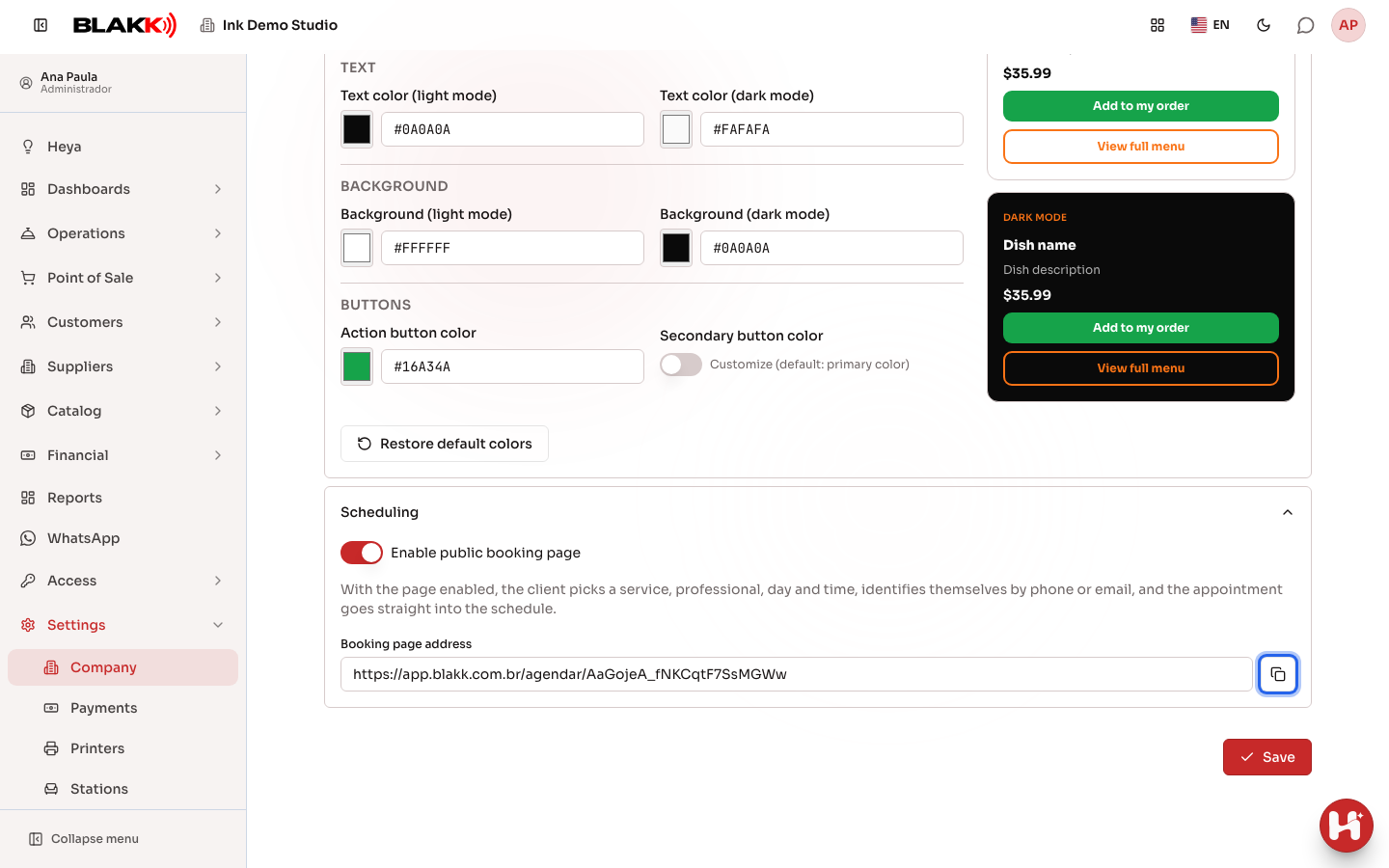
Once the page is active, clients choose a service, tattoo artist, date, and time, enter their phone number or email, and the booking goes straight into your schedule — no one at the front desk needs to enter it.
Step 2 — Copy the link
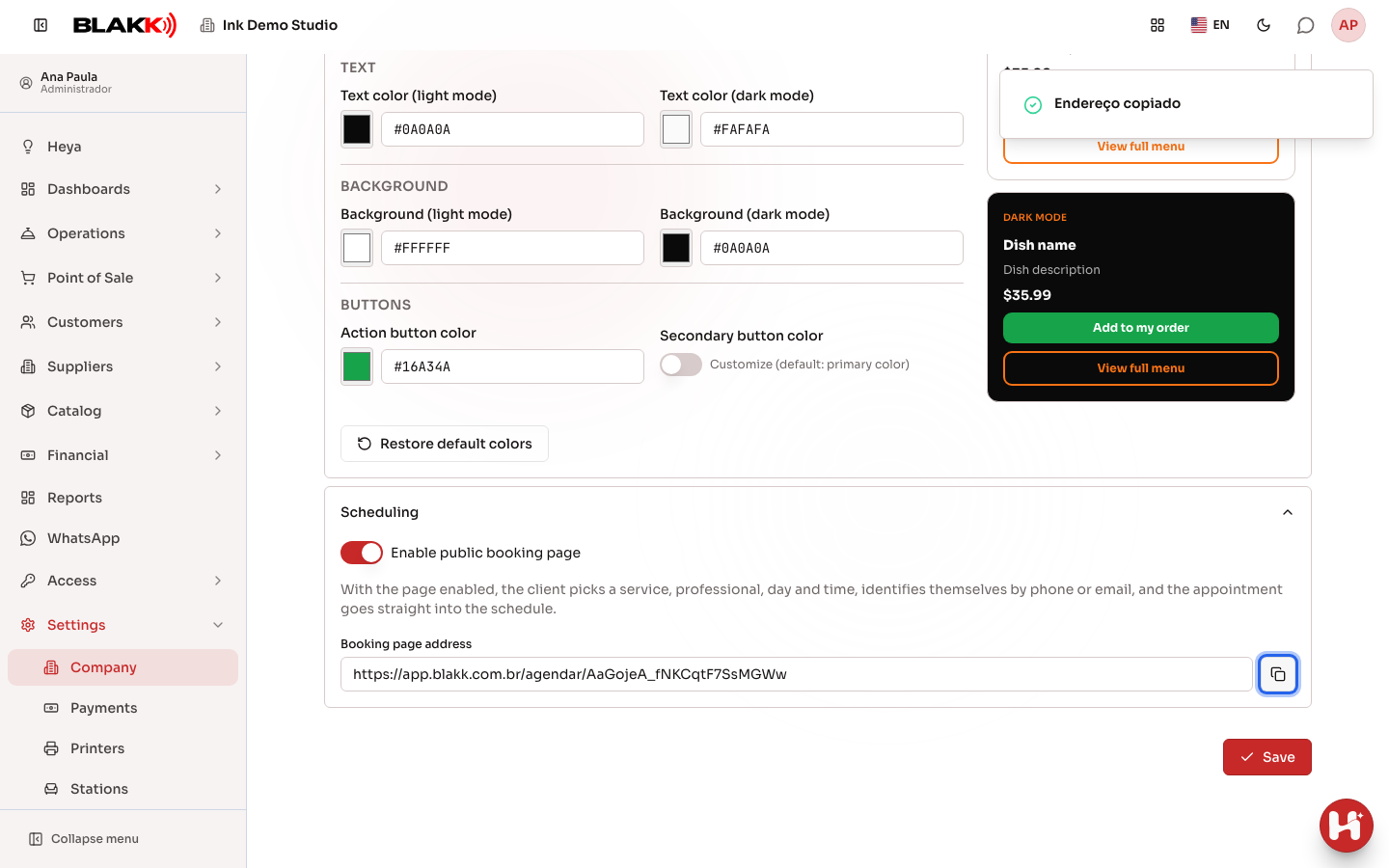
Section titled “Step 2 — Copy the link”Click the copy icon (Copy) next to the address — you’ll see the Address copied confirmation. Paste the link wherever you want to share it — your Instagram bio, WhatsApp, or anywhere else.
What happens next
Section titled “What happens next”- Every studio gets an automatic link. You don’t need to set up a domain or anything else — the link works as soon as you activate the page.
- If your studio has its own domain configured, the link uses that domain instead of the default address — making it shorter and including your brand. This is optional; without your own domain, the default link works as usual.
- Each affiliate who promotes your studio has their own booking link, different from this one — it goes to the same page, but identifies who referred the client for commission purposes. This link is on the affiliate’s own screen, not here (see Affiliates).
- Turning off the switch takes the page offline immediately — anyone who tries to access the link will see that online booking isn’t available. This won’t affect appointments that have already been booked.
Common mistakes and questions
Section titled “Common mistakes and questions”Q: Do I need to set anything up to get a booking link? A: No — every studio with the Scheduling module gets an automatic link. You just need to turn on the switch on the screen and click Save to make it work.
Q: Can I add this link to my Instagram bio or WhatsApp Business? A: Yes — that’s what it’s for. Copy and paste it wherever you want to share it.
Q: Does the link change if I deactivate and reactivate the page? A: No — the address is always the same for your studio. Deactivating the page only takes it offline temporarily; when you reactivate it, the same link works again.
Q: I have my own domain — does the booking link change? A: Yes — once your own domain is configured, the link uses that domain instead of the system’s default address, making it shorter and including your brand.
Q: Does each affiliate who promotes my studio have a different link? A: Yes — the affiliate’s link is similar, but identifies who referred the client so the system can calculate the right commission. You can find this link on the affiliate’s own screen (see Affiliates).
Q: Does the booking page show up on Google? A: Yes — the public booking page can be found and indexed by search engines. Other system screens (login, records, reports) remain hidden from Google.
Q: What does a client need to provide to book through the public page? A: Just a phone number or email address to identify themselves, then their preferred service, tattoo artist, date, and time.