Anamnesis Templates: Build the Client Intake Form
What it is
Section titled “What it is”This is where you build the actual intake questionnaire by choosing and arranging questions from the Anamnesis Questions question bank to create the form clients fill out before their appointment. You can also add a consent form for them to accept before signing. Each service can use a different template: tattoo and piercing services, for example, can have completely different health intake forms.
When to use it
Section titled “When to use it”- Create an intake form for a type of procedure that doesn’t have one yet.
- Adjust which questions are required or the order they appear in.
- Add your studio’s consent form so clients can read and accept it before signing.
- Preview exactly what clients will see before publishing the questionnaire.
Before you start
Section titled “Before you start”If you can’t create or edit a template, ask the studio owner to grant you access in Access → Profiles.
Tattoo services come with a ready-to-use “Default Model” for the intake form, created automatically when your studio is set up. Piercing services do not—if your studio offers piercing, it’s a good idea to create a separate template for those procedures. If the Default Model isn’t in the list, click Create Default Model to create one with sample questions and a sample consent form.
Step by step
Section titled “Step by step”Step 1 — View the template list
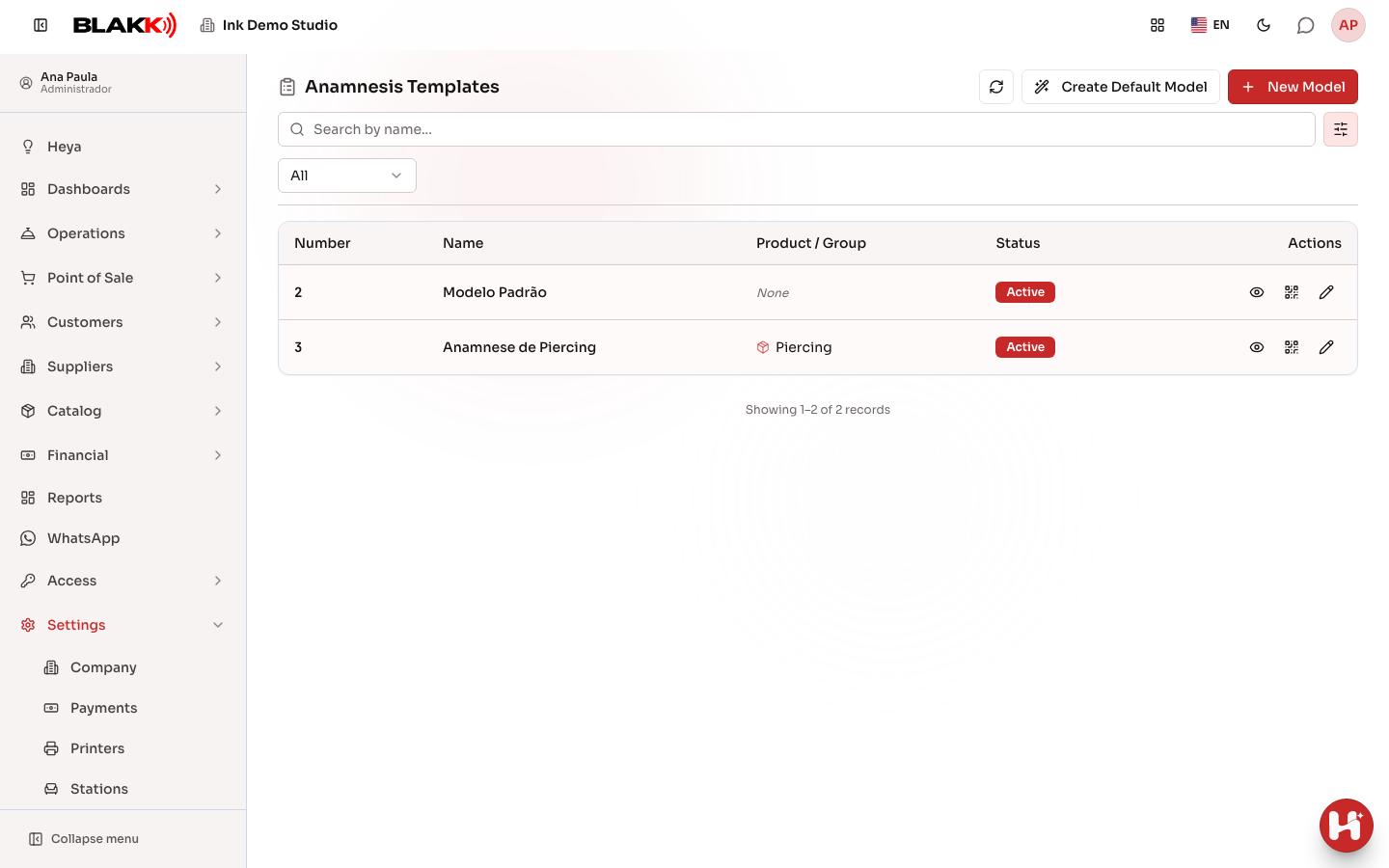
Section titled “Step 1 — View the template list”Go to Settings → Anamnesis Templates. Each row shows the template Number, Name, the Product / Group it’s linked to (or None if it’s a general template), and its status. The Actions column has the Preview, Generate QR Code, and Edit buttons.
Step 2 — Create a new template
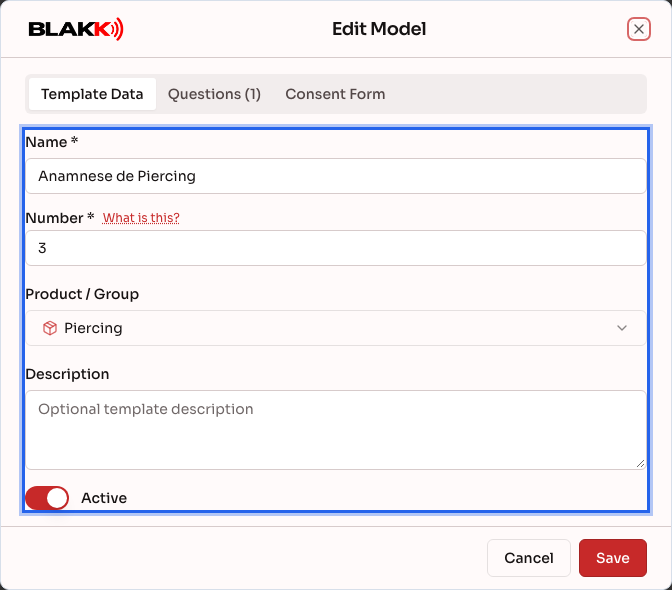
Section titled “Step 2 — Create a new template”Click New Model, fill in the Name and Number—click What is this? to see the convention (0 = Initial Anamnesis, 1 = Reassessment, 2 and up = templates by procedure)—and choose the Product / Group this template will belong to. The window has three tabs: Template Data, Questions, and Consent Form.
Step 3 — Add questions
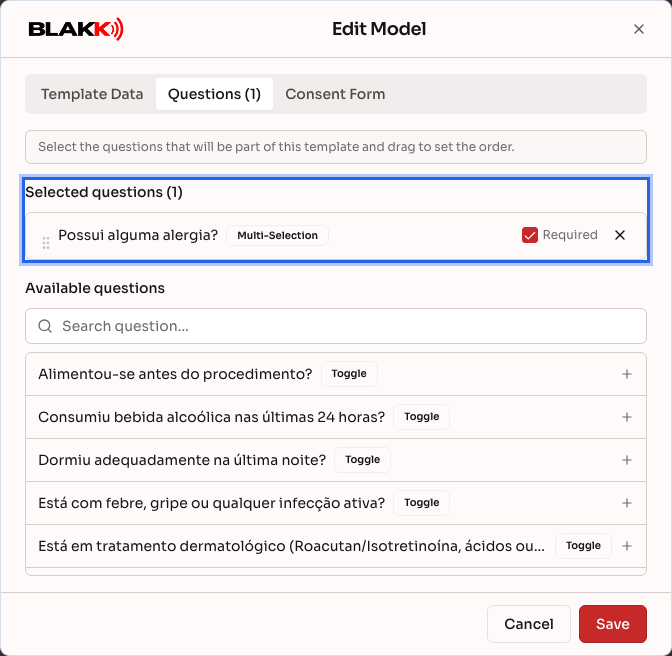
Section titled “Step 3 — Add questions”On the Questions tab, click questions in the Available questions list to add them to the template. They’ll appear under Selected questions, where you can drag them to reorder them and mark any questions that must be answered as Required.
Step 4 — Add a consent form (optional)
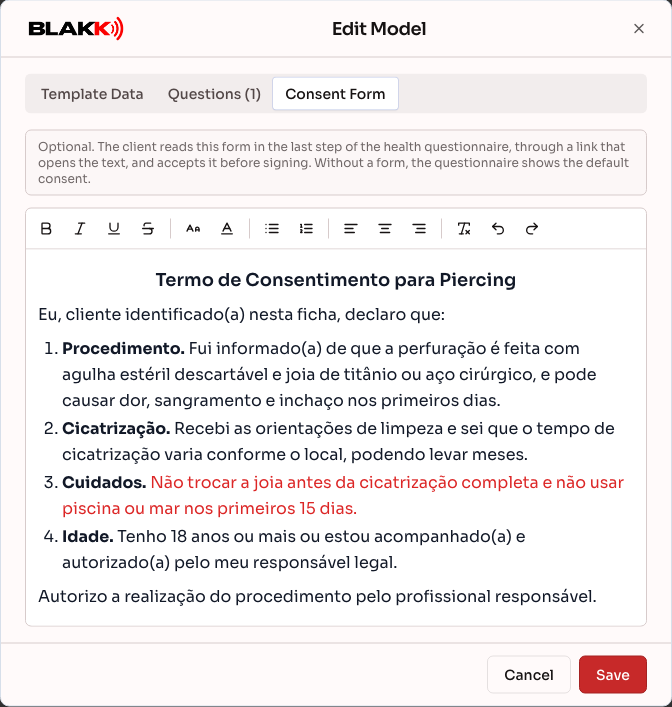
Section titled “Step 4 — Add a consent form (optional)”On the Consent Form tab, write or paste the consent form clients will read and accept in the last step of the intake form, before signing. The editor toolbar includes bold, colors, font size, lists, and alignment. If you don’t add a consent form, the intake form will show the system’s default consent language. Then click Save to save the questions and consent form together. For the full walkthrough, see Anamnesis consent form.
Step 5 — Preview the template
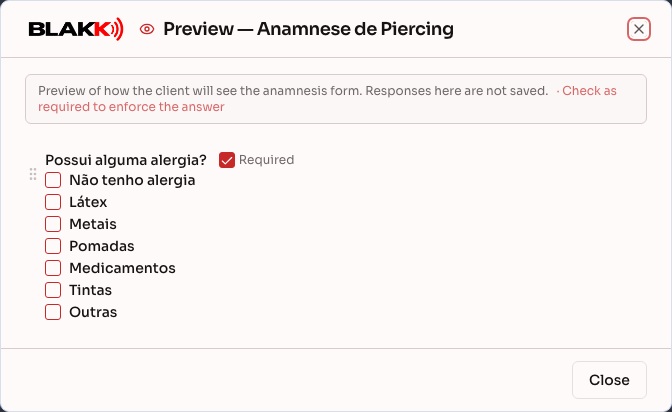
Section titled “Step 5 — Preview the template”Click the Preview icon in the list to see exactly what the client will see in the questionnaire, including conditional questions. These appear in the preview only after you answer the question they depend on.
Step 6 — Deactivate a template
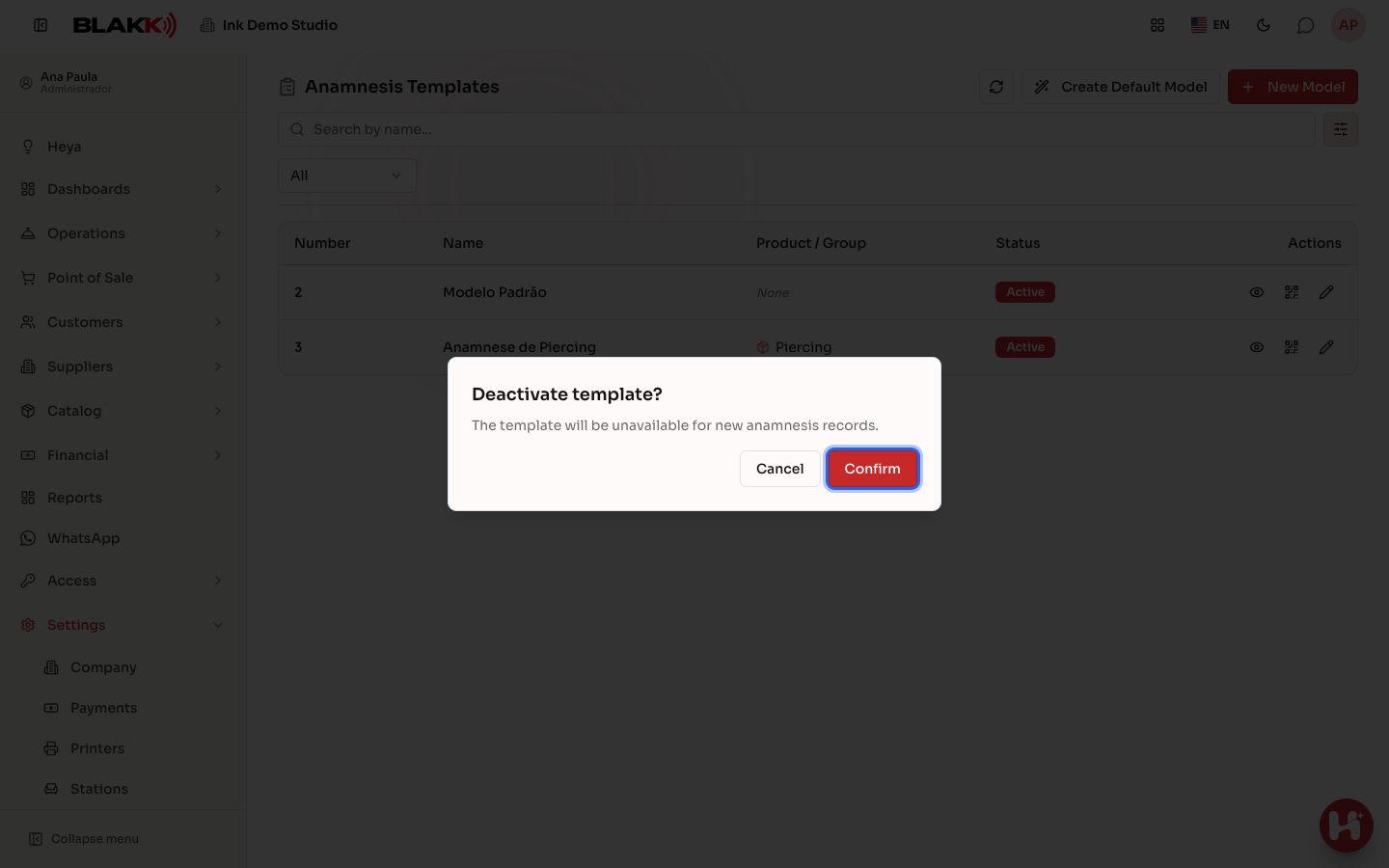
Section titled “Step 6 — Deactivate a template”Click the status badge (Active/Inactive) to deactivate a template that’s no longer in use.
What happens next
Section titled “What happens next”- You can’t delete an anamnesis template; you can only deactivate it. A deactivated template is removed from the options for new services, but the history of clients who already filled it out is preserved.
- Deactivating a template doesn’t automatically unlink the service that uses it. If a service is still set to use that template, appointments will continue to require that intake form. You must change the service’s template separately on the service’s tab in the Catalog.
- You link a template to a service in the service’s own setup in the Catalog, not here. This page is only for building the questionnaire; the service is where you specify which template it uses.
- The Generate QR Code icon creates a code clients can use to fill out the intake form on their phone before arriving at the studio.
- The consent form on the Consent Form tab appears in the last step of the form, whether clients access it by link or QR code or your team fills it out with them. Each signed form keeps a copy of the consent form the client accepted, so changing the consent form later won’t affect completed forms.
- Changes to a template’s questions apply only to new forms. Each completed form keeps the questions and options that were in the template when it was submitted. Adding, reordering, or removing questions won’t change existing forms or leave new questions blank on them.
Common mistakes and questions
Section titled “Common mistakes and questions”Q: Can each service (tattoo, piercing, micropigmentation) have a different anamnesis template? A: Yes. Templates are linked to individual services, not the entire studio. You can create completely different templates for each type of procedure, or have multiple services share the same template.
Q: What does the template number mean? A: It’s just an organizational convention, not a system requirement: 0 for the initial intake (first visit), 1 for periodic reassessment (follow-up), and 2 and up for procedure-specific templates. You can use a different numbering system, but following this convention helps keep templates organized as your studio grows.
Q: How do I delete an anamnesis template I no longer use? A: You can’t delete a template; you can only deactivate it. Deactivated templates no longer appear as an option for new services, but you can still access the history of completed forms that used them.
Q: Can each template have a different consent form? A: Yes. The consent form is part of the template, on the Consent Form tab. Your tattoo and piercing templates can have different consent forms. See Anamnesis consent form.
Q: Does the preview save any test answers? A: No. It’s only for visual review, and any answers you enter there aren’t saved. The preview shows only the questions. To review the consent form, open the template by clicking Edit, then go to the Consent Form tab.
Q: Can I add a new question here without going to Anamnesis Questions? A: No. The Questions tab only lets you choose from questions that already exist in the question bank. To create a new question, go to Anamnesis Questions first.