Quick Fit: Find an Open Time Slot Starting with the Customer, Not the Schedule
What it is
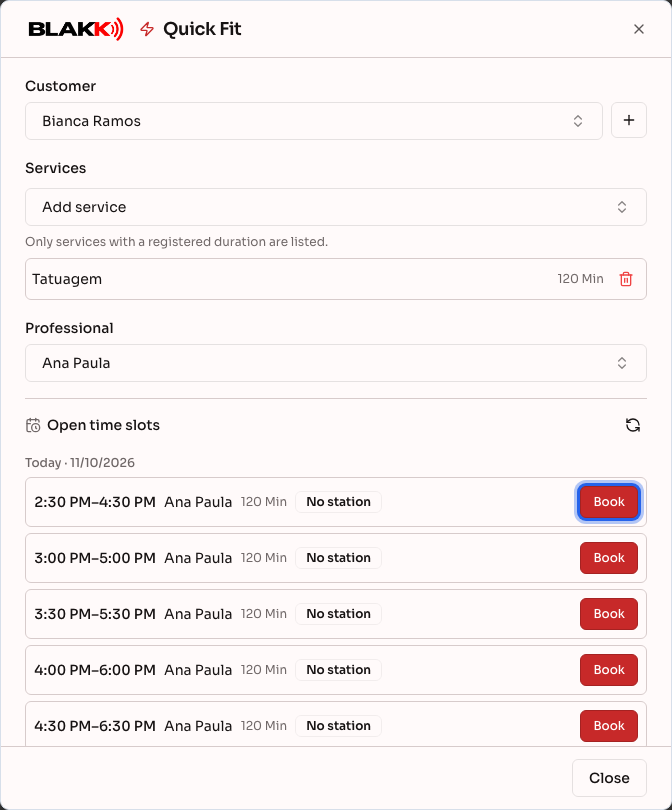
Section titled “What it is”Quick Fit turns the usual scheduling process on its head: instead of looking for an open slot on the schedule, you choose the customer and the sleeve tattoo service, and the system shows you available times—either with any tattoo artist or a specific one. Click a time slot to create the appointment right away, without entering the date and time manually.
When to use it
Section titled “When to use it”- A customer walks up to the front desk without an appointment and asks if they can get a helix piercing today.
- Someone calls asking for the earliest available time, without caring which tattoo artist will provide the service.
- You already know which tattoo artist you want to fit the customer in with, but don’t know their next available time offhand.
Before you start
Section titled “Before you start”This article covers Quick Fit. If you don’t see this button on the Scheduling screen, ask the studio owner to enable the module for your type of business.
If you can’t use Quick Fit, ask the studio owner to grant you access to the Scheduling screen under Access → Roles. This is the same permission that lets you create and edit appointments directly on the schedule.
Step by step
Section titled “Step by step”Step 1 — Open Quick Fit
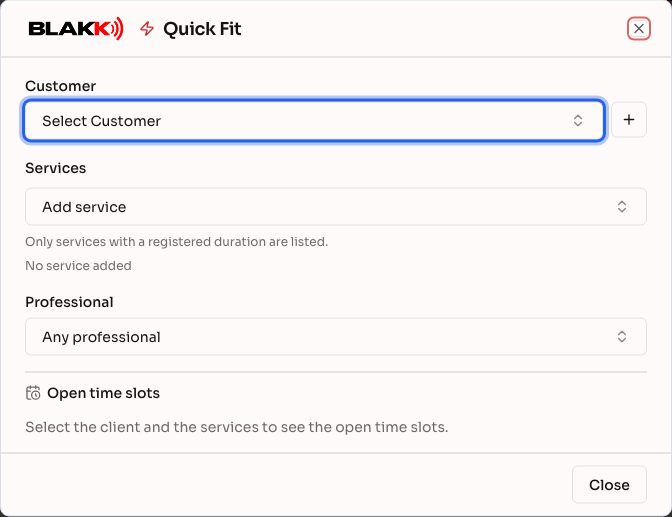
Section titled “Step 1 — Open Quick Fit”On the Scheduling screen, click Quick Fit. On mobile, the button is on the row below the title, next to Block time. You can also open the same dialog from the Quick Fit shortcut on the Dashboard.
Step 2 — Choose the customer
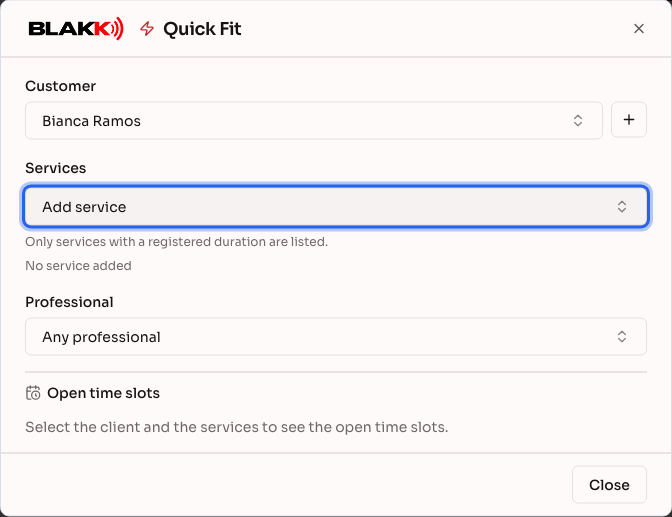
Section titled “Step 2 — Choose the customer”Under Customer, search for an existing customer or add a new one right there using the + button next to the field (Register customer). If you only have a name and don’t want to create a customer record, enter the name in the search field and select Use without registering—you don’t need to register someone to fit them in.
Step 3 — Choose the services
Section titled “Step 3 — Choose the services”Click Add service and search for the sleeve tattoo service. As soon as you add the first service, the Open time slots list appears automatically.
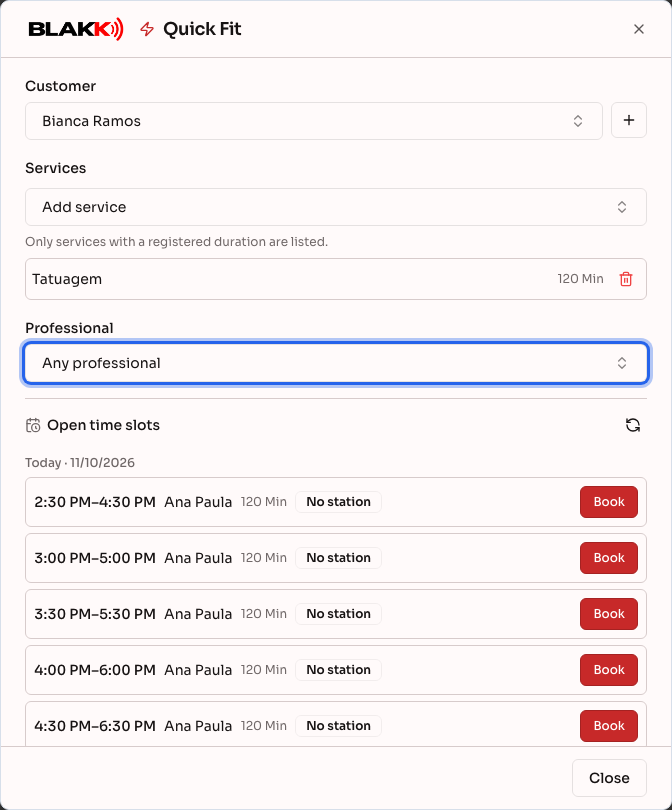
Only services with a duration set up appear—the system uses the duration to determine whether the service fits into an open slot. Services without a configured duration won’t appear in the search. Set the duration under Catalog → Services.
Step 4 — Filter for a specific professional (optional)
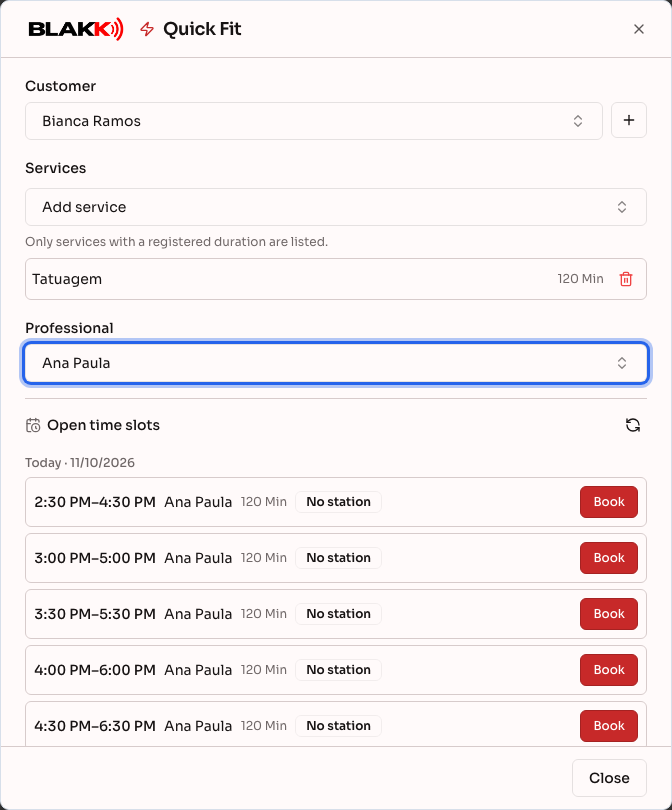
Section titled “Step 4 — Filter for a specific professional (optional)”By default, the search is set to Any professional. If the customer has a preference, select the professional’s name under Professional. The open time slot list updates automatically to show only that tattoo artist’s availability.
Step 5 — Choose a time and book
Section titled “Step 5 — Choose a time and book”The Open time slots list covers the next 7 days, grouped by day (Today, Tomorrow, and the following days), with up to 12 time slots per day. If there are more, the end of the day shows “+N time slots.” Each row shows the start and end times, the tattoo artist, the duration, and—if your studio uses stations—which station is available at that time (or No station). Click the refresh button next to the list title to check for availability again. Click Book for the time slot you want. The appointment is created right away, with no extra steps.
What happens next
Section titled “What happens next”- An appointment created with Quick Fit is a regular appointment. It appears on the Schedule just like any other appointment, and you can confirm it, mark the customer as a no-show, create a ticket, start the service, or cancel it the same way.
- The dialog closes automatically and shows a success message. The customer, services, and professional you selected aren’t saved for next time—each time you open Quick Fit, you start from scratch.
- When more than one tattoo artist is available at the same time with Any professional selected, the row shows the artist with the lightest schedule that day, giving preference to someone with an open station. The others appear as “+N professionals” on the same row. The appointment is created with the tattoo artist shown in the row.
Common mistakes and questions
Section titled “Common mistakes and questions”Q: Does Quick Fit replace New appointment? A: No, both options lead to the same place. Use Quick Fit when you want to start with the customer and service and go straight to the nearest available time. Use New appointment when you already know the exact date, time, and tattoo artist you want to book.
Q: Why doesn’t a service I know exists appear in the Quick Fit search? A: It doesn’t have a duration set up. Quick Fit only shows services with a duration because the system uses it to determine whether the service fits into an open slot. Set the duration under Catalog → Services, and the service will appear.
Q: Why don’t I see a Save button in Quick Fit? A: There are no drafts here. The customer, service, and professional are just search filters. The appointment is only created when you click Book for a time slot in the list.
Q: The time slot list was full, but when I clicked Book, I got an error saying the slot was no longer available. What happened? A: Someone booked another customer for that exact time between when you opened the list and when you clicked. The screen will let you know and refresh the list automatically—just choose another time.
Q: Can I change the quantity or adjust the service price in Quick Fit? A: No. The price comes directly from the service record, and the quantity is always 1. If you need to adjust the price or add more than one unit, do so later on the ticket created from the appointment.
Q: Does Quick Fit also honor the availability set by the professional? A: Yes. It only shows times within the availability each tattoo artist set under My Availability, excluding schedule blocks, company holidays, already-booked times, and times reserved for someone on the waitlist.
Q: I see “No open time slots in the next few days.” What now? A: Quick Fit only checks the next 7 days. If there are no available slots during that period, try selecting Any professional instead of a specific tattoo artist, or add the customer to the Waitlist so they can be notified when a slot opens up.