Daily Journal: day-to-day cash flow, with corrections right in the row
What it is
Section titled “What it is”This is your day-to-day cash flow: one row for each transaction, with a running balance. You can see where the money came from and where it went, and correct an incorrect entry right in the row. It’s different from Accounting Entries: that’s the full accounting ledger (every entry the system has ever posted, for reference only); this is your cash flow, with a running balance and the ability to edit entries directly.
When to use it
Section titled “When to use it”- Track your cash balance day by day, transaction by transaction.
- Compare what has actually been paid or received with what is expected on an accrual basis.
- Correct the account, payment method, or amount of a payment that’s already been recorded, without opening the Expenses screen separately.
Before you start
Section titled “Before you start”If you can’t see this report, ask the studio owner to grant you access under Access → Profiles. Correcting a row requires a different permission — editing access on the Expenses screen — so you may be able to see the entire report and still get an error when you try to save a correction.
Step by step
Section titled “Step by step”Step 1 — View the list on a By Accrual basis
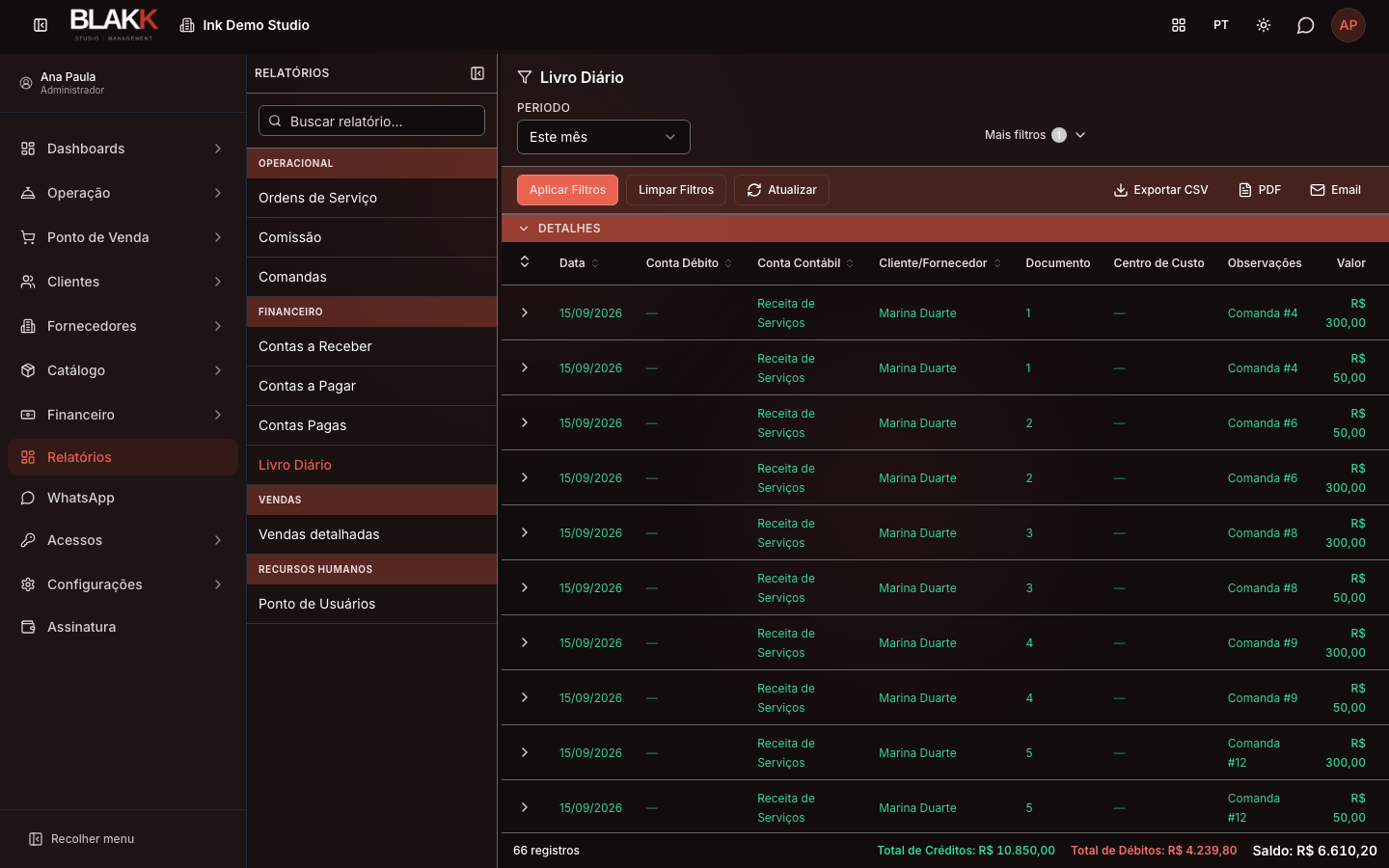
Section titled “Step 1 — View the list on a By Accrual basis”Under Reports, click Daily Journal. The report opens for Today. Change the Period (for example, to this month) to see more days. By default, Basis is set to By Accrual — this shows expenses and income by their due dates, whether they’ve been paid or not. The Debit Account column is always blank because no cash account is involved yet.
Step 2 — Switch to a By Payment basis
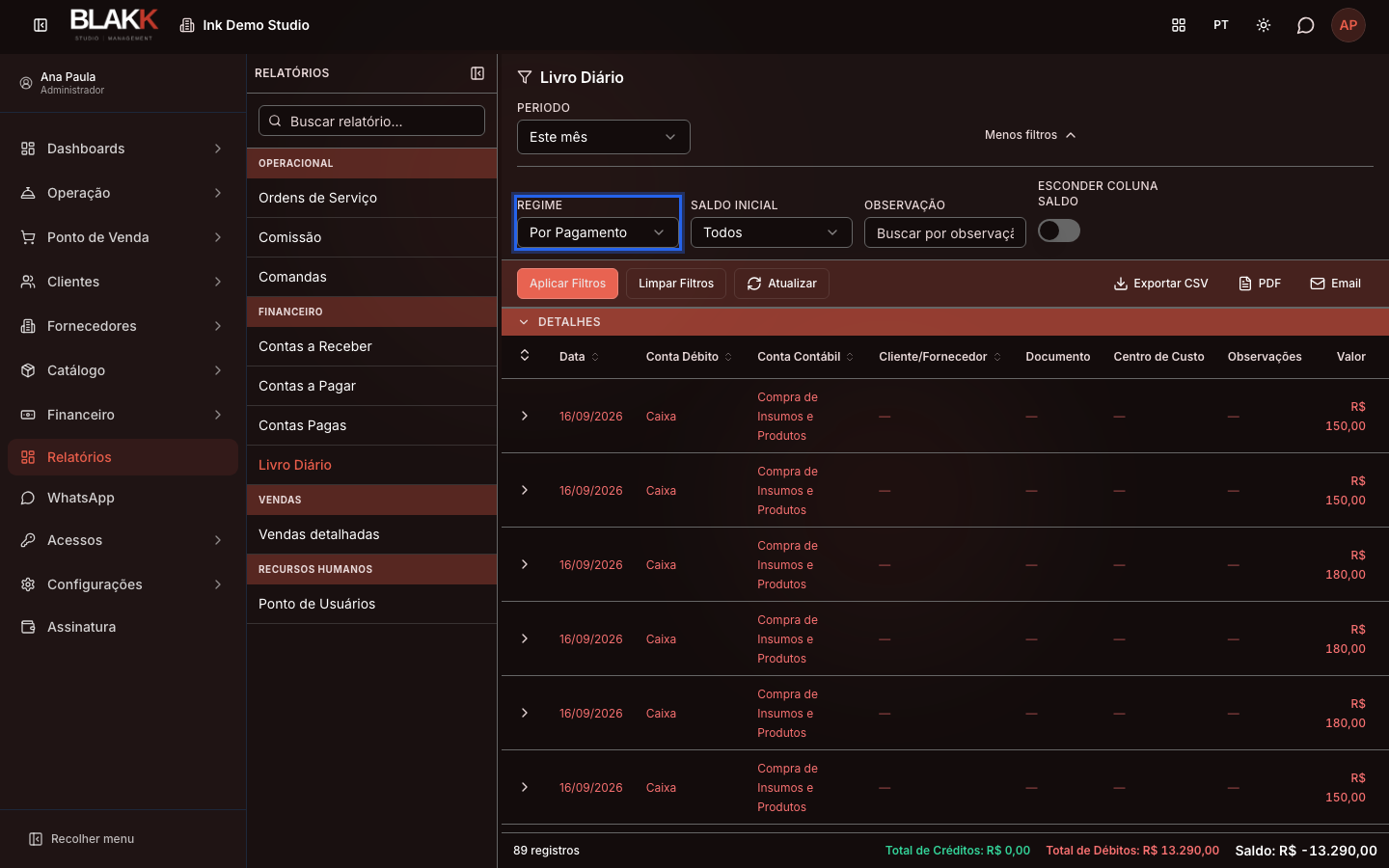
Section titled “Step 2 — Switch to a By Payment basis”Under More filters, change Basis to By Payment and click Apply Filters — the report now shows only items that have actually been paid or received. The Debit Account column is filled in with the cash or bank account that was actually used, and the Balance column shows the running balance after each row.
In the same panel, Initial Balance sets the starting balance: Start at Zero or Carry Previous Balance (which adds the balance from before the selected period). There’s also a Notes filter and a Hide Balance column toggle.
Step 3 — View a row’s details
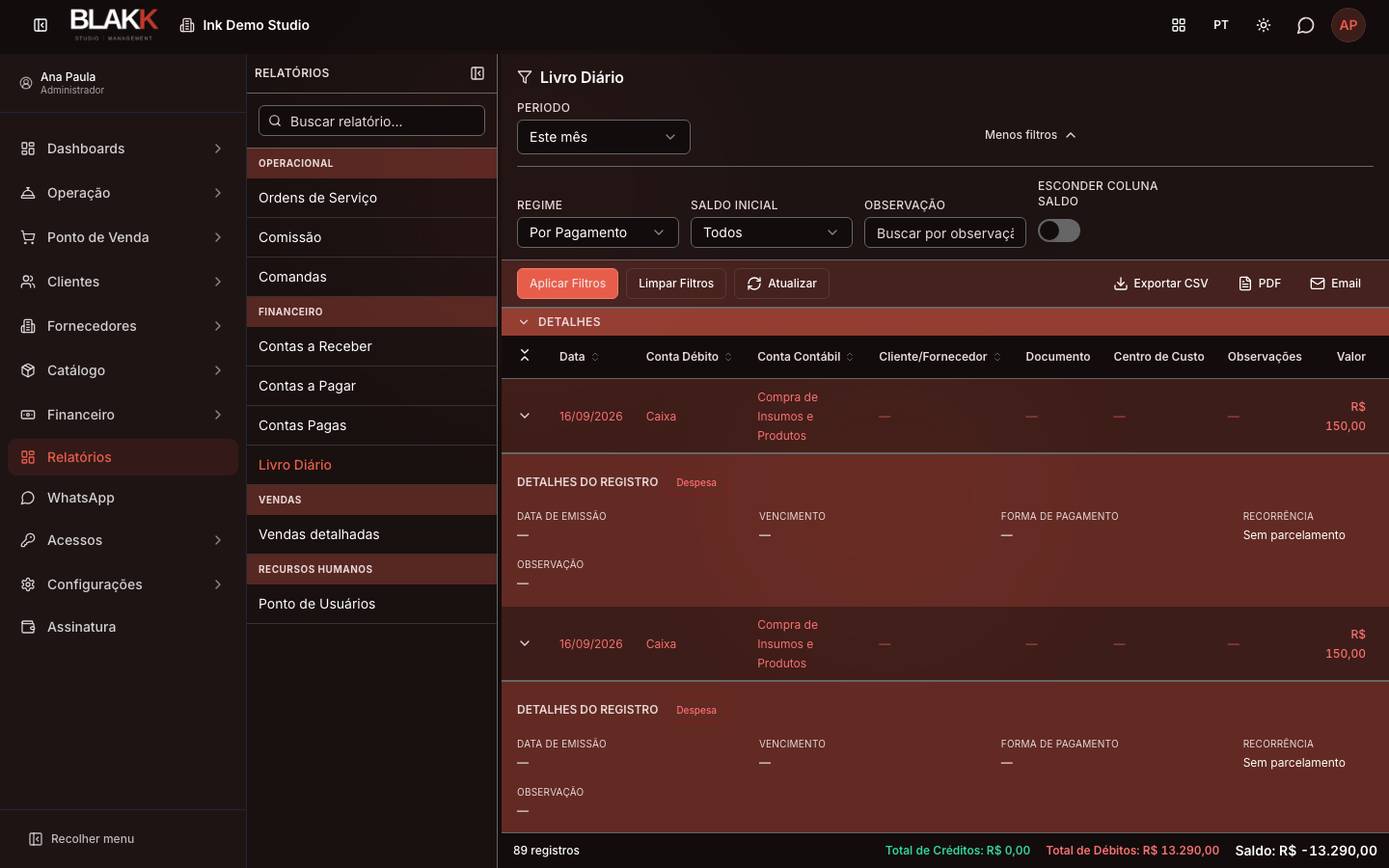
Section titled “Step 3 — View a row’s details”Click the arrow on a row to expand it and see more details, such as the issue date, due date, payment method, whether the expense is recurring, and the notes (including payment notes, if any).
Step 4 — Correct an expense right from the row
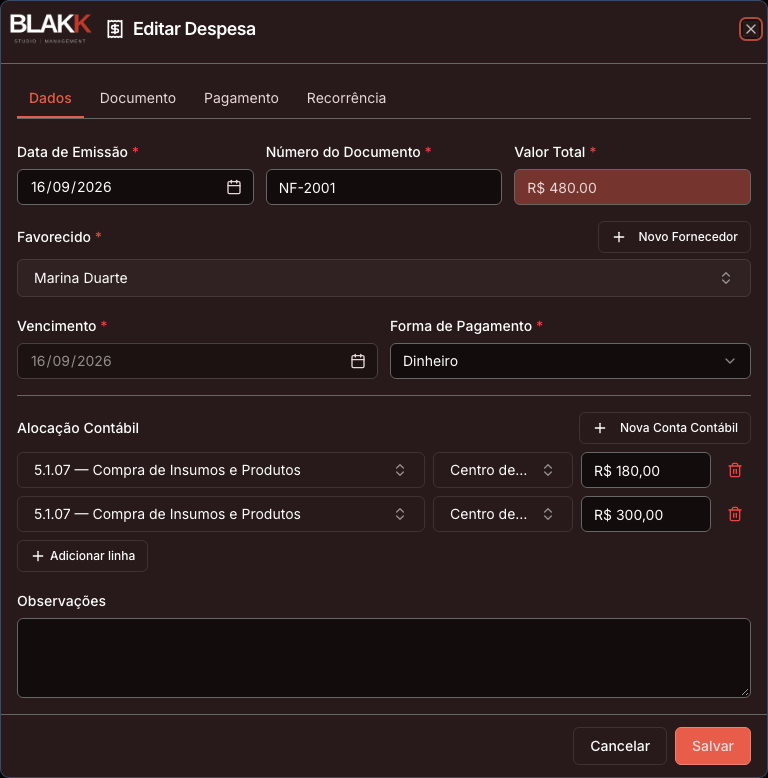
Section titled “Step 4 — Correct an expense right from the row”Click an expense row (not an income row — those aren’t clickable). On a By Accrual basis, the same editing window as the Expenses screen opens. On a By Payment basis, a window opens where you can correct that payment’s account, payment method, or amount. Make the changes you need and save.
What happens next
Section titled “What happens next”- Correcting a payment here is NOT the same as reversing it. Saving a correction changes the existing payment and accounting entry in place — nothing is deleted, and no audit record is created like the one generated by a reversal. Use this screen to fix a typo (amount, account, or payment method); use a reversal when you want to undo the payment entirely and keep a record of it.
- Only expense/payment rows are clickable. Sales and customer income rows don’t have their own editing screen in this report.
- Clicking an expense that’s already been fully paid (on a By Accrual basis) opens the same window for reference only — you can’t save any changes.
- The Balance is always calculated in chronological order, regardless of how the table is sorted. Sorting by another column doesn’t change the balance shown in each row.
Common mistakes and questions
Section titled “Common mistakes and questions”Q: What’s the difference between the Daily Journal and Accounting Entries? A: Accounting Entries is the full accounting ledger — every entry the system has ever posted, for reference only, with no running balance. The Daily Journal is your day-to-day cash flow, with a running balance, two basis options (paid vs. expected), and the ability to edit entries right in the row.
Q: Why is the “Debit Account” column blank in some rows? A: Because you’re using By Accrual — this shows expected expenses and income, with no actual cash or bank account transaction yet. Switch to By Payment to see which account was used for each completed payment.
Q: Does correcting a payment here create an audit record like a reversal in Paid Bills? A: No — correcting it here changes the payment and accounting entry in place, without keeping a record of the previous amount. If you need a history of what changed, undo the payment with a reversal and record it again instead of correcting it here.
Q: Why can’t I save after opening a row to edit it? A: There are two possibilities: the expense has already been fully paid (the By Accrual basis still shows it, but for reference only), or you don’t have editing access to the Expenses screen. The window opens even without that access, but the server won’t let you save.
Q: Can I click a sales or customer income row to edit it here? A: No — only expense/payment rows open an editing window. Sales and income rows don’t have their own editing screen in this report.
Q: I clicked a payment row (By Payment basis) and got an error message, but nothing opened. Why? A: Some rows on this basis appear clickable in the list, but the underlying payment can’t be found when you try to open it for editing. A warning appears and nothing opens. It’s not an error on your part; try another row, or switch to the By Accrual basis, where this issue doesn’t occur.