Chat with Heya on WhatsApp and Telegram
What it is
Section titled “What it is”Heya, Blakk’s assistant, is also available outside the system: on WhatsApp and Telegram. After linking your WhatsApp or Telegram to your user account on the Profile screen, you can ask questions from your phone just like you would in the chat on the screen—how much you sold, who’s scheduled today, how to do something in the system—and Heya will respond with the same permissions you have in your studio.
When to use it
Section titled “When to use it”- You’re away from the studio and want to check today’s sales or tomorrow’s schedule from your phone without opening the system.
- A client asked to reschedule, and you want to quickly check available time slots in the chat.
- You want to record an expense or add something simple by dictating it in a voice message, then confirm with one tap.
Before you start
Section titled “Before you start”- Heya must be enabled on the platform for WhatsApp and Telegram support: WhatsApp requires Heya’s phone number to be connected, and Telegram requires Heya’s bot to be configured. Until WhatsApp is enabled, the Profile screen displays “WhatsApp validation is not available right now.”; until Telegram is enabled, its section won’t appear.
- Heya chat must be enabled for your studio. Heya only responds about businesses you have active access to.
- For WhatsApp: the number saved in your Profile must be the WhatsApp number you plan to use.
- For Telegram: have the Telegram app installed on your phone or computer.
Step by step
Section titled “Step by step”Step 1 — Open the Profile screen
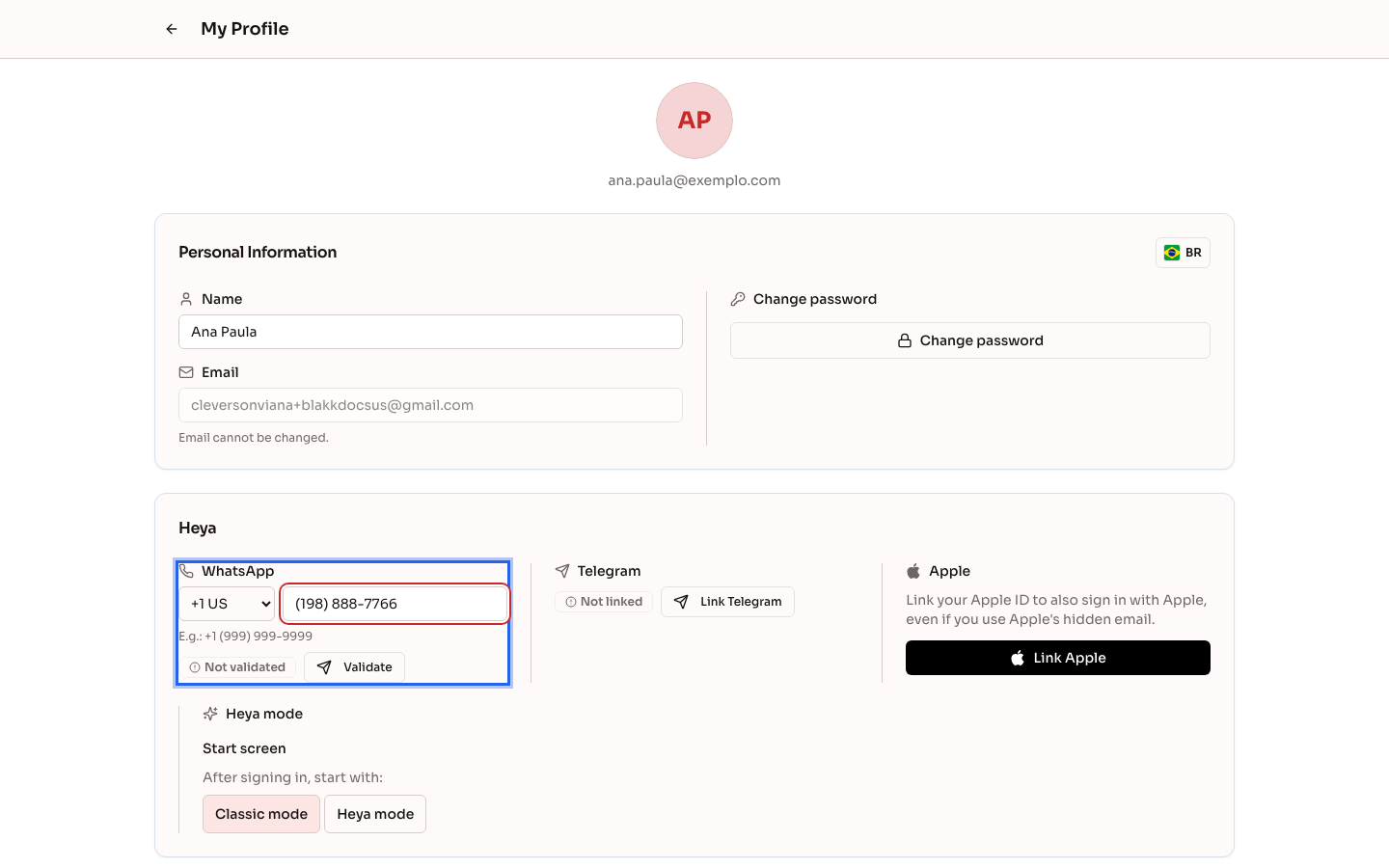
Section titled “Step 1 — Open the Profile screen”Click your user icon in the upper-right corner of the screen, then click Profile. Your WhatsApp and Telegram details are in the Heya section, side by side (one above the other on mobile). When a number is entered, WhatsApp shows whether it’s Validated or Not validated.
Step 2 — Verify your WhatsApp
Section titled “Step 2 — Verify your WhatsApp”Check your number in the WhatsApp field, then click Validate. The screen displays a message with a code. Tap Open in WhatsApp: a conversation with Heya opens with the message ready to send. Just send it. As soon as the message arrives, the number appears as Validated, and Heya welcomes you. The code only works if it’s sent from the number you entered.
Step 3 — Link Telegram
Section titled “Step 3 — Link Telegram”In the Heya section, under Telegram, click Link Telegram. Tap Open in Telegram (or scan the QR code with your phone), then tap Start in the conversation that opens. The link is valid for 10 minutes and can only be used once.
Step 4 — Confirm the link in your Profile
Section titled “Step 4 — Confirm the link in your Profile”Go back to the Profile screen. It shows the Telegram account that tapped Start, including the @username and name. If it’s you, click Confirm. If you don’t recognize the account, click It wasn’t me and generate a new link with Generate new link. The link only takes effect after you confirm it here while signed in. Anyone who takes a photo of the QR code can’t use your access.
Step 5 — Chat with Heya
Section titled “Step 5 — Chat with Heya”Send your question on WhatsApp or Telegram as text, a voice message up to 2 minutes long, or a photo. If you have access to more than one business, Heya asks which one you want to talk about. On Telegram, tap the business button. The selected business stays active until you ask to switch:
- businesses (on Telegram, /empresas): shows the list of businesses to switch to;
- which business (/qual): shows which business the conversation is about;
- new conversation (/nova): starts the conversation over;
- help (/ajuda): shows the list of commands.
When Heya is about to save something, such as an expense, it shows you a summary and waits for your confirmation. On Telegram, tap Confirm or Cancel; on WhatsApp, reply YES or NO. On Telegram, your tap is acknowledged right away: “Confirmed. Just a moment…” (or “Canceled.”) appears at the top of the screen, and the buttons disappear from the summary. The result arrives shortly after in a message.
The summary shows only what will change, with the previous and new values (for example, $80.00 → $120.00). Heya should change only what you asked for. If it fills in a field that was blank and you didn’t mention, such as the description, color, or photo, the system leaves that field blank and it won’t appear in the summary. Always review the summary before confirming.
When a request applies to multiple records at once, such as “increase the sale price of products in the car group by 50%,” Heya shows one summary and asks you to confirm just once. For up to 20 records, the summary lists each one by name and shows what will change. For more than 20 records (or when the list would be too long), it shows the number of records and what will change for all of them.
To change a photo for a product, service, or product group, send the image in the conversation and say what it should be used for, for example, “add this photo to Hair Botox.” Images can be sent as a photo or file in JPG, PNG, or WEBP format, up to 10 MB. The summary shows the photo as “Image sent in the conversation.” The image is sent to the system only after you confirm, using the same settings as the product screen: if Remove background by default is selected for the business, the background is removed. Heya keeps the last 5 images from the conversation for up to 1 hour of inactivity. After that, send the image again. In a list that includes photos, such as “products with name, price, and photo,” the table shows each item’s photo instead of a link; items whose photos can’t be opened appear with a gray box.
You can also request a PDF of a report, such as “PDF of September sales” or “PDF of this month’s commission.” Heya will tell you it’s generating the report, and the file will arrive in the same conversation shortly as a document with the report name and date range. Heya only generates reports that your profile has access to. If there are no records for the date range, it lets you know instead of sending an empty file.
Step 6 — Unlink whenever you want
Section titled “Step 6 — Unlink whenever you want”On the Profile screen, click Unlink in the Telegram section of the Heya group, then confirm. Heya will stop responding there right away. For WhatsApp, delete or change the number in your Profile and save.
What happens next
Section titled “What happens next”- Heya only responds about businesses you have active access to, and only does what your access profile allows. You always have to confirm before anything is saved.
- The first time you use Heya through one of these channels for a business, you’ll get a security notification by email. When you link a Telegram account, you’ll also get an email saying which account was linked.
- WhatsApp and Telegram conversations also appear in the on-screen chat (and in Heya Mode), along with on-screen conversations, each with a channel badge—in the business where it took place. Even so, each channel has its own conversation: if a summary is open on WhatsApp or Telegram, you must confirm it there (on the screen, it says “Reply on WhatsApp.” or “Reply on Telegram.”), and Heya doesn’t combine what was said on one channel with what was said on the other. Responses from these channels don’t have a thumbs-up button on the screen.
- Your Telegram link doesn’t expire. It’s removed when you unlink it in your Profile, block the bot on Telegram, or lose access to all businesses. WhatsApp validation expires after 90 days of inactivity. Just verify it again.
Common mistakes and questions
Section titled “Common mistakes and questions”Q: I don’t see the Telegram option (or it says WhatsApp validation isn’t available). Why? A: Support for that channel isn’t enabled on the platform you’re using: Telegram requires Heya’s bot to be configured, and WhatsApp requires Heya’s number to be connected. The option will appear in your Profile automatically as soon as it’s available.
Q: I tapped Start on Telegram, but Heya says I still need to confirm. What should I do? A: Go back to the Profile screen and click Confirm. The link only takes effect after you confirm it while signed in to the system.
Q: The screen says the link was used by more than one Telegram account. Is that dangerous? A: It means someone used your link before or at the same time as you—for example, someone who took a photo of the QR code. For security, confirmation is blocked. Click Generate new link and link your account again without showing the QR code to anyone.
Q: I was told my Telegram is already linked to another user. How do I fix this? A: A Telegram account can only be linked to one system user. Unlink it from the other user’s Profile, then link it to yours.
Q: How do I change which business Heya is talking about? A: Send businesses (on Telegram, /empresas) and choose a business from the list. If an action is waiting for confirmation, switching businesses cancels it so nothing is saved to the wrong business.
Q: I tapped Confirm on an old summary, and Heya said it was no longer valid. A: Each confirmation applies only to the action that’s currently waiting. Ask for what you need again and confirm the new summary.
Q: I asked Heya to change the prices of several products. Do I need to confirm each one? A: No. Heya combines everything in one summary, showing the number of products and what will change for each one. A single tap on Confirm saves all the changes. If you cancel, none of them are changed.
Q: I asked Heya to change only the price. Can it change another field too? A: Heya should only change what you asked for. A text field that was blank and that you didn’t mention (description, color, or photo) stays blank even if Heya tries to fill it in, and won’t appear in the summary. Similarly, a field with a value is only deleted or cleared if you explicitly ask for it, such as “delete the description” or “set the cost to zero.” Just mentioning the field, as in “list the name, price, and photo,” isn’t enough. Every field that will change appears in the summary with its previous and new values. If you see anything you didn’t ask for, tap Cancel.
Q: I sent an image and asked Heya to add it to a record, but Heya said it couldn’t. Why? A: In a conversation, an image can only be added as a photo for a product, service, or product group. Photos for clients, staff members, or option groups still need to be added from the record screen. Also check the file: it must be JPG, PNG, or WEBP and no larger than 10 MB. If you sent the image more than 1 hour ago, or have sent 5 other images since then, send it again.
Q: I tapped Confirm twice. Will Heya save it twice? A: No. Only the first tap counts. On the second tap, Telegram displays “I already got your response. Just a moment…” and nothing else is saved.
Q: I requested a PDF report, but the file hasn’t arrived. What should I do? A: The file takes a few seconds (longer for larger date ranges) and arrives in a separate message. If generation fails, you’ll get a notification instead of the file. Ask Heya again.
Q: If I unlink Telegram, will I lose anything in the system? A: No. You just won’t be able to chat with Heya there. You can link it again whenever you want using the same Link Telegram button.