Journal Entries: View the Ledger for Everything That Affects Your Accounts
What it is
Section titled “What it is”This is your studio’s accounting ledger: every debit and credit entry the system generates—sales, cost of goods sold, expense payments, register closings, inventory adjustments, and manual entries created in Account Adjustments—appears here in a single, chronological list. This screen is view-only: you can view and export entries, but you can’t create, edit, or delete them. To add or correct an entry manually, use the Account Adjustments screen.
When to use it
Section titled “When to use it”- Check both sides (debit and credit) of a specific sale, expense payment, or register closing.
- Close out the month and export the accounting ledger to PDF for your accountant.
- Quickly view entries for just one account type (for example, only Revenue or only Expenses), without mixing them in with the rest.
Before you start
Section titled “Before you start”This screen doesn’t have its own access controls: anyone with access to the menu (even Read access) can see the full list and export the PDF—there’s no restricted version of this screen.
Step by step
Section titled “Step by step”Step 1 — View the list for a period
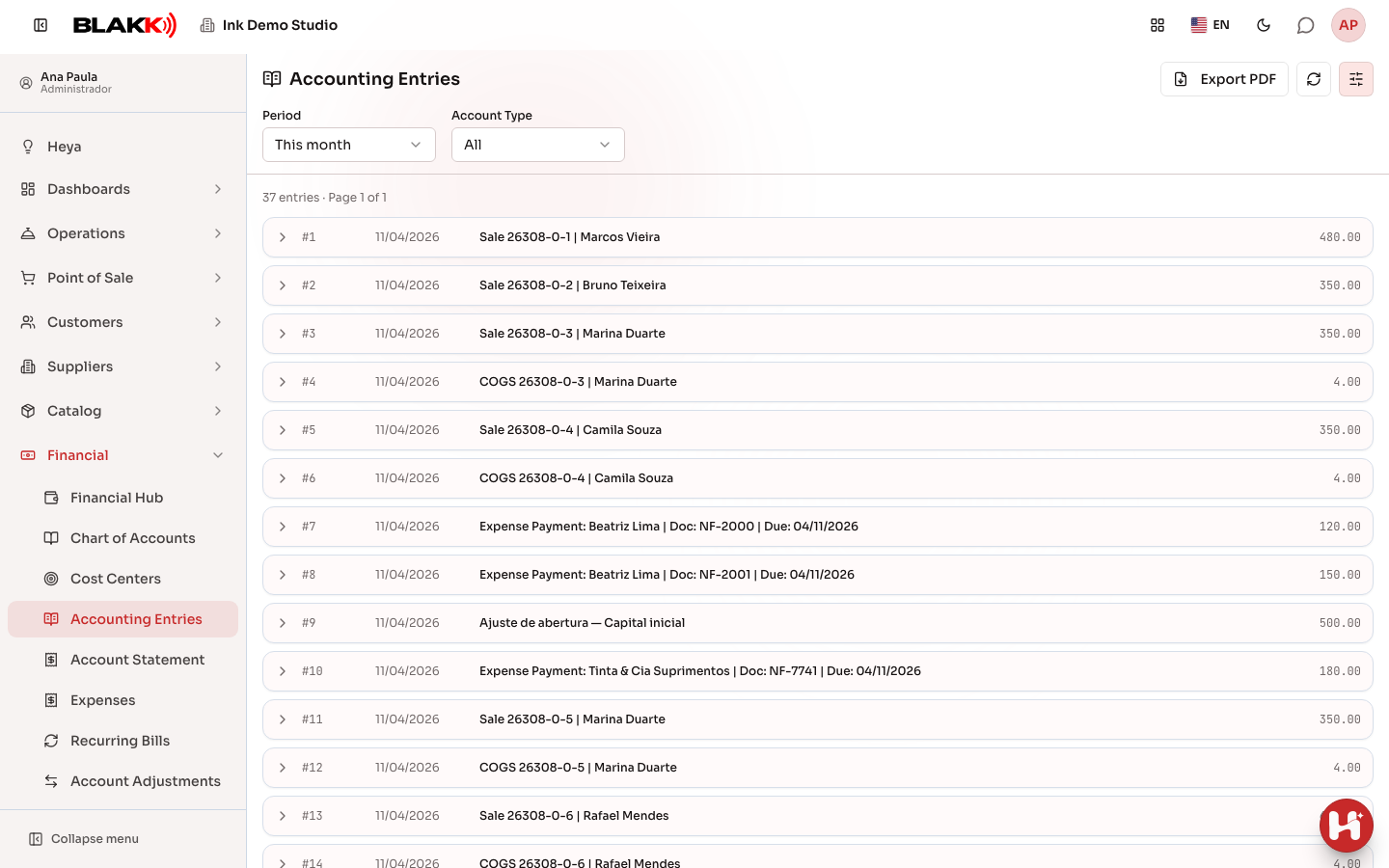
Section titled “Step 1 — View the list for a period”By default, the screen shows the current month. Each row displays the entry number, date, description (or type if there’s no description), and total amount. Set the period and account type in the panel opened with the Filters button (on desktop, it’s open by default). Select Export PDF at the top to download the current period as a PDF. If the period has many entries, the list is split into pages. Use Previous and Next at the bottom of the list to move between them.
Step 2 — Expand an entry to view the debit and credit lines
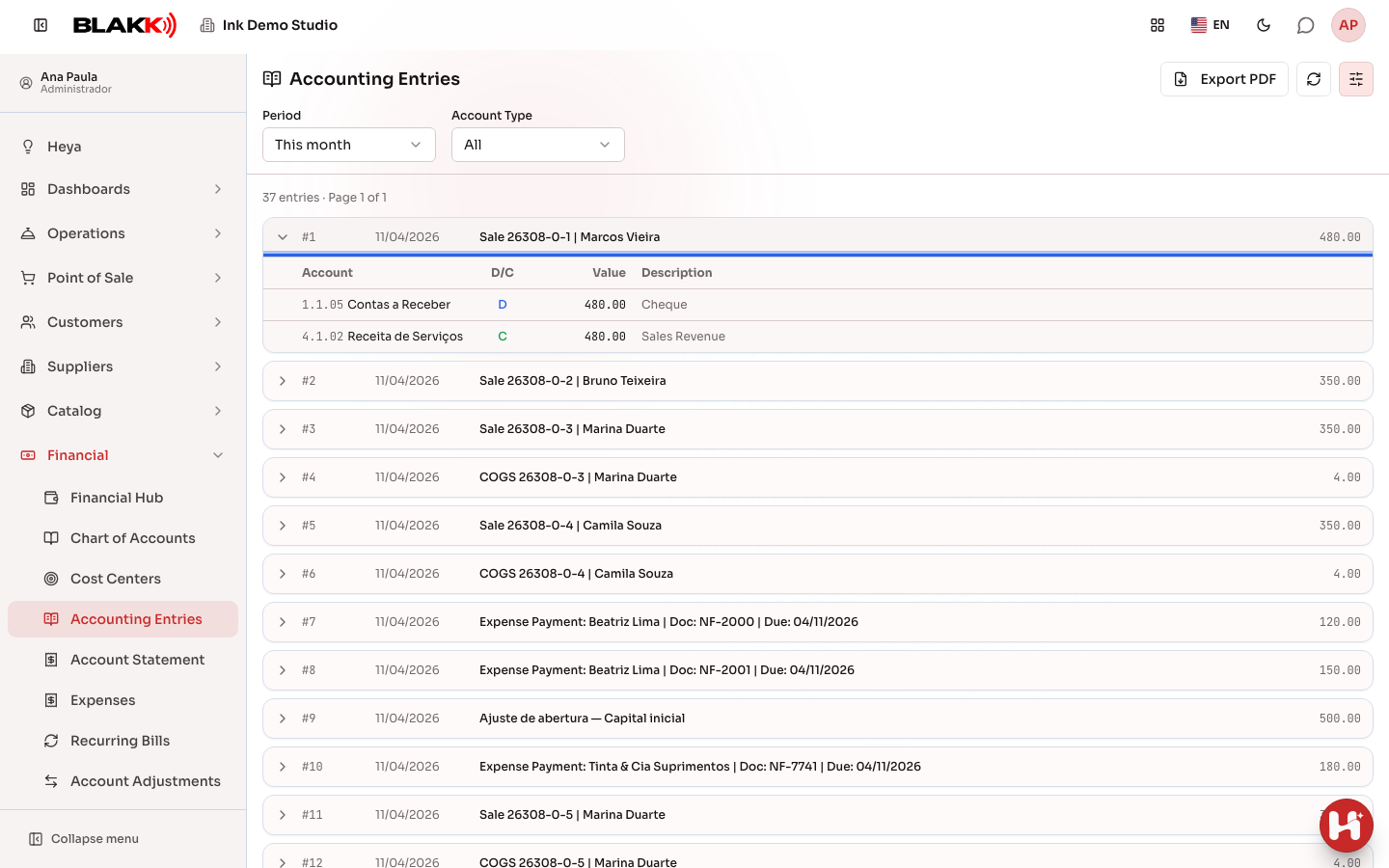
Section titled “Step 2 — Expand an entry to view the debit and credit lines”Select any row in the list to open its details. Each account involved appears with its code, whether it’s D (debit) or C (credit), the amount, and a description.
Step 3 — Filter by account type
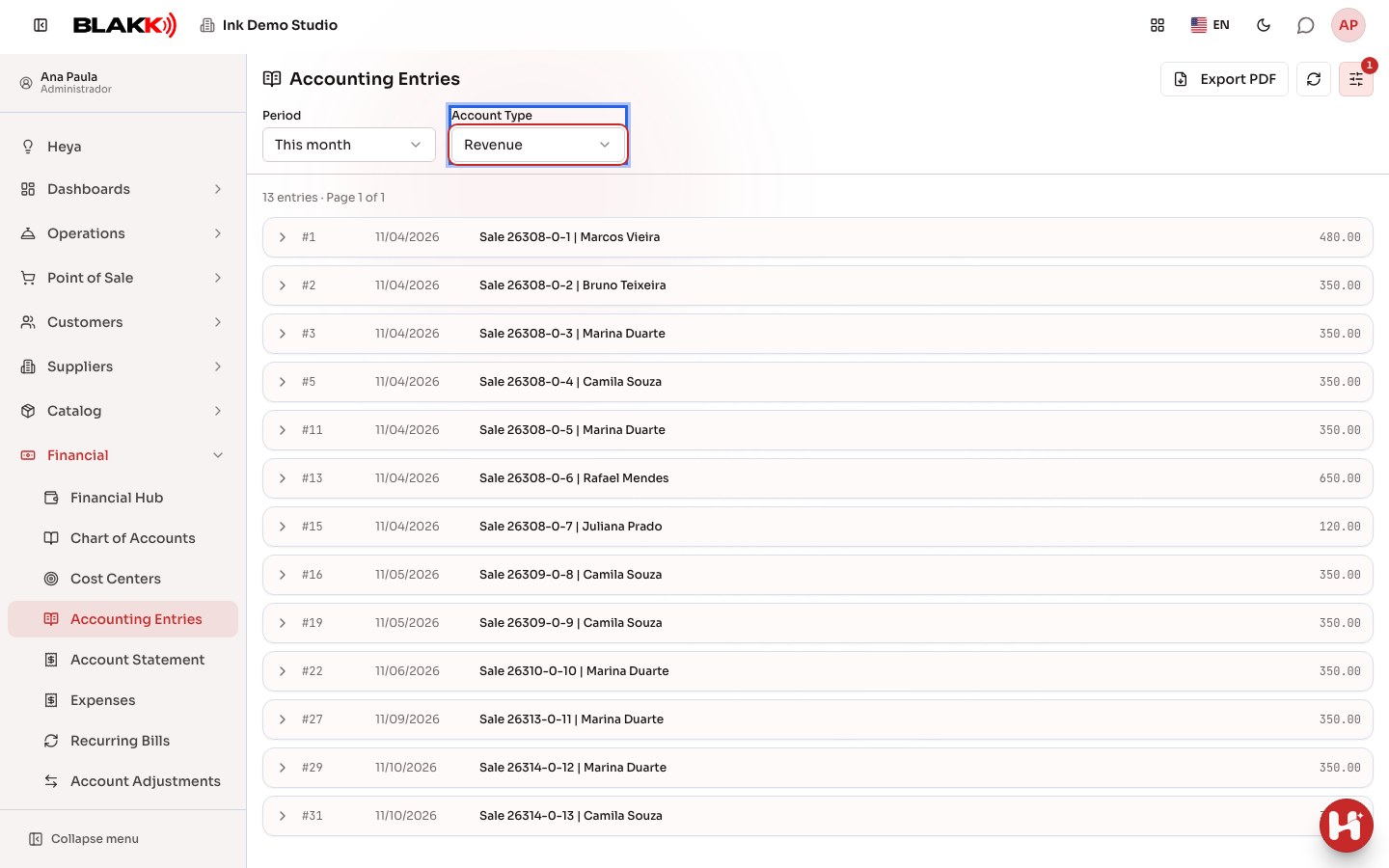
Section titled “Step 3 — Filter by account type”In the Filters panel, use Account Type to view only entries that include a line for a specific account type (Asset, Liability, Revenue, Expense, and so on). This is useful for isolating, for example, everything that affected Revenue accounts during the selected period.
What happens next
Section titled “What happens next”- Each entry has a source: a sale creates “Sales Revenue”; the cost of goods sold in a sale creates “Cost of Goods Sold”; paying an expense creates “Expense Payment”; closing the register creates “Register Closing”; an inventory adjustment creates “Inventory Adjustment”; and anything someone enters manually in Account Adjustments is labeled “Manual.”
- The debit and credit totals for each entry always match. The system never saves an unbalanced entry. This is ensured when the entry is created, not on this screen.
- Exporting the PDF uses the period and account type filter selected on the screen.
Common mistakes and questions
Section titled “Common mistakes and questions”Q: Why do I see “Sale Reversal” and “Cost of Sale Reversal” entries? Where do they come from? A: They’re created when a paid ticket is reversed. The reversal mirrors the original sale entries with the debit and credit sides swapped, using the same accounts and the reversal date. The original sale remains on its original date. The card processing fee isn’t mirrored because the payment processor doesn’t refund it.
Q: Why is one line marked with a blue “D” and another with a green “C”? A: These are visual indicators for debit (D, blue) and credit (C, green)—the same convention used in any ledger. An entry always has at least one line on each side, and both sides add up to the same amount.
Q: Can I edit or delete an entry here? A: No—this screen is for viewing and exporting only. You can edit or delete manual entries in Account Adjustments. Automatic entries (from a sale, expense, or register closing) can’t be edited on any screen because they reflect what already happened at the source.
Q: Does the “Account Type” filter show only entries where ALL the lines are that type? A: No—it shows any entry that has at least one line for that account type. For example, a sale entry has a Revenue line and an Asset line (the account that received the money), so it appears under both the “Revenue” and “Asset” filters.
Q: Why is the date in the list sometimes different from the date I paid an expense? A: The journal entry date is the official date of the event (the sale date, the date a bill was due and paid, or the register closing date)—not necessarily the exact time you used the screen.
Q: Do I need to use this screen for your studio’s day-to-day operations? A: No—it’s a tool for viewing and reviewing entries, useful mainly when closing out the month or when you (or your accountant) need to investigate a specific amount. Your studio’s regular day-to-day operations don’t take place here.
Related
Section titled “Related”- Account Adjustments: Create and edit manual journal entries
- Chart of Accounts: Organize your business’s accounts
- Cost Center: Organize expenses by business area
- Account Statement: Track an account’s running balance
- Finance Hub: Track and record payments and receipts
- General Journal: View daily cash flow and correct entries right in the row <<<END_RESPONSE>>>