Accounts Payable Report: Track What Your Studio Needs to Pay
What it is
Section titled “What it is”This is the main report for everything your studio still needs to pay—one-time, installment, or recurring expenses—with the due date and outstanding balance for each one.
When to use it
Section titled “When to use it”- See what’s coming due or overdue, grouped by how late it is.
- Record an expense payment directly from the report.
- Pay several expenses for the same payee in one transaction.
- Advance payment for a recurring expense that hasn’t even been generated yet.
Before you start
Section titled “Before you start”If you can’t access this report, ask the studio owner to grant you access under Access → Roles. Registering a payment requires a different permission—access to the Expenses screen—so you may be able to see the entire report and still be unable to mark anything as paid.
Step by step
Section titled “Step by step”Step 1 — View the list and due date cards
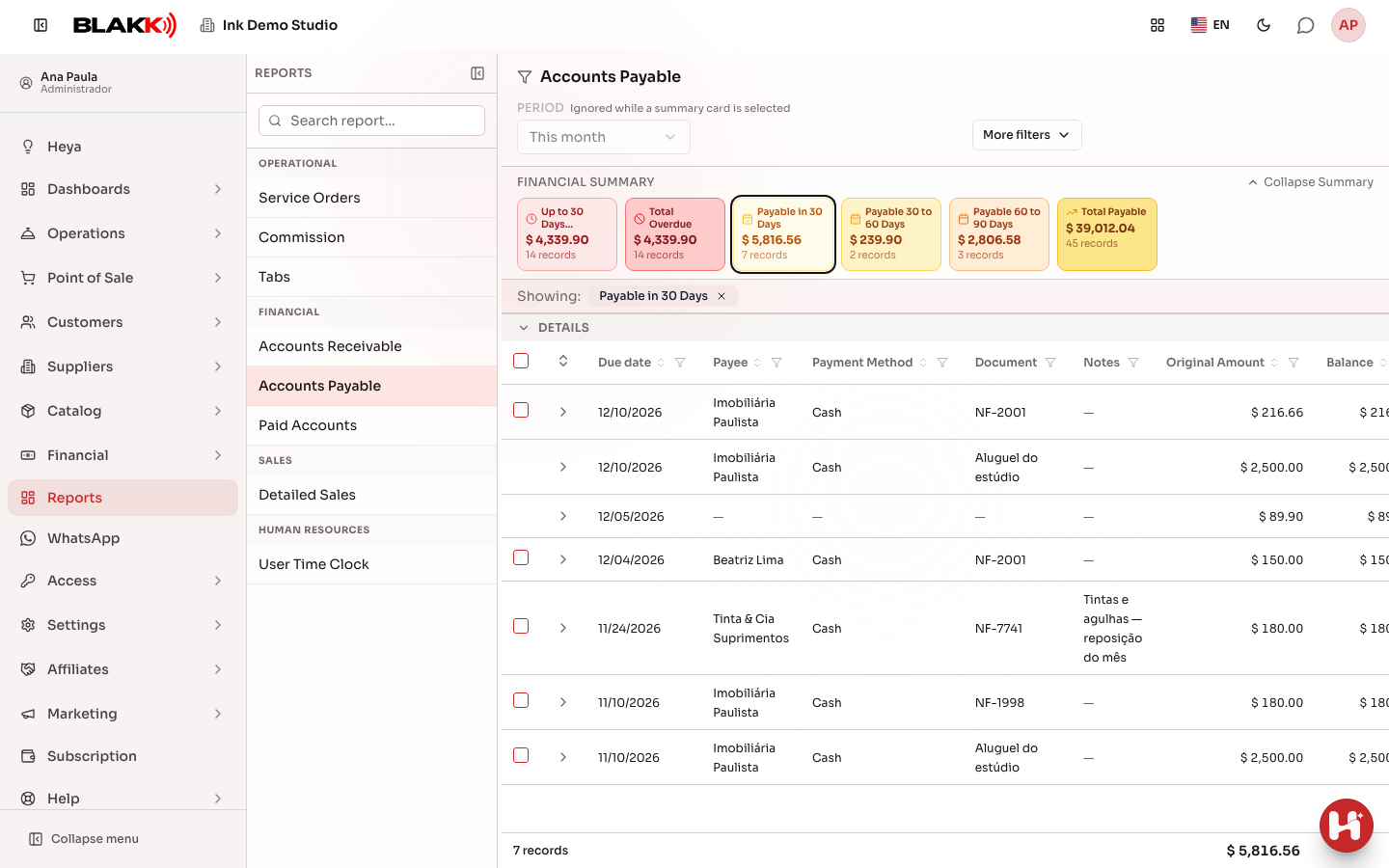
Section titled “Step 1 — View the list and due date cards”Under Reports, click Accounts Payable. The cards at the top group expenses by due date (due within 30 days, in 30 to 60 days, and in 60 to 90 days) and by overdue status (past due). Only cards with expenses appear, and the report automatically selects the first card that has expenses. On mobile, the cards appear in a carousel: swipe sideways to see the others. The dots below show which page you’re on. Click the arrow at the start of a row to see that installment’s payment history (who recorded it, when, from which account, and how much), including reversed payments.
Step 2 — Filter by a due date card
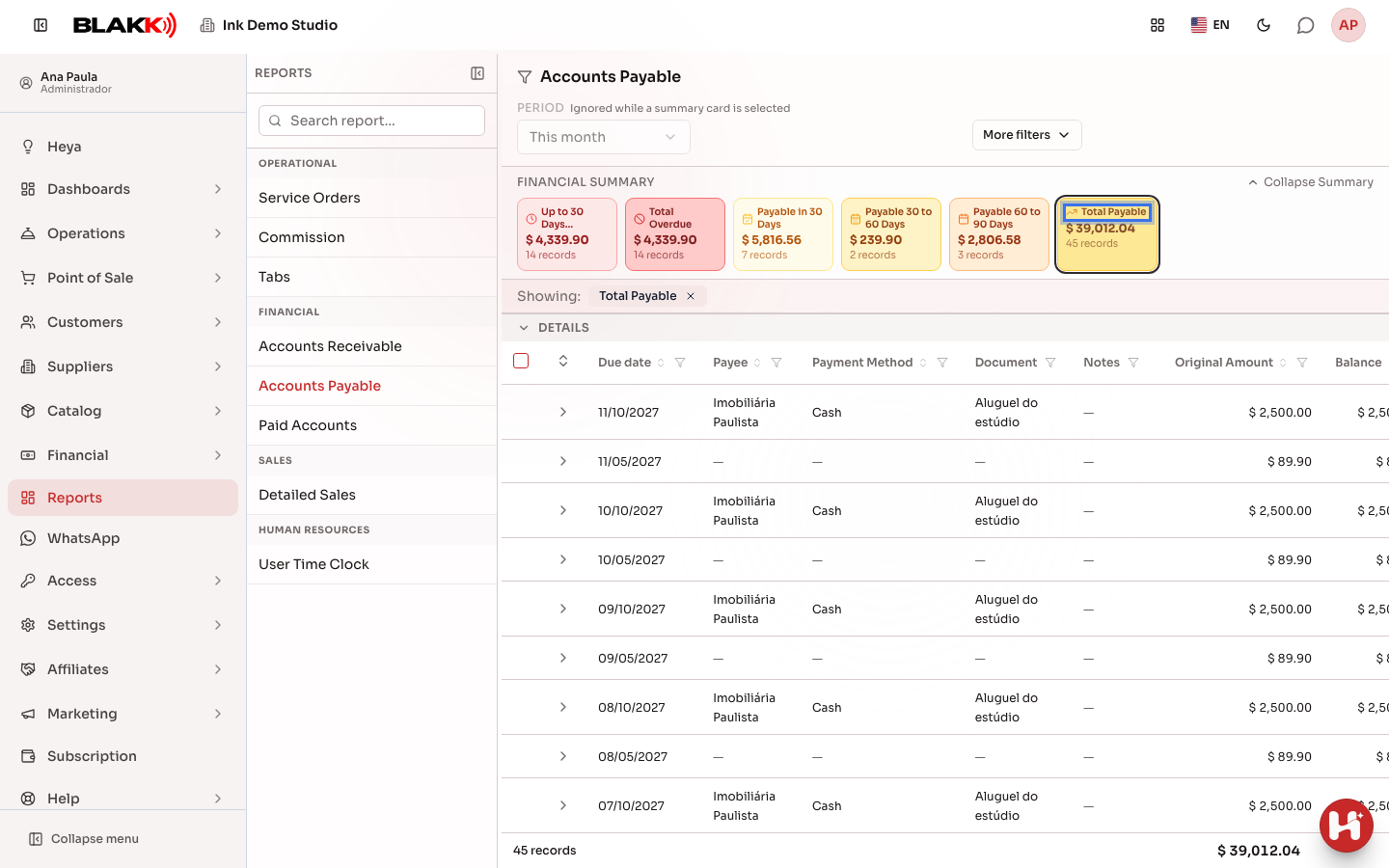
Section titled “Step 2 — Filter by a due date card”Click the Total Payable card to see everything with an outstanding balance. The Period field is disabled while the card is active. To use the date range again, click the × next to the card name under Showing. The Payee, **Payment Method, and Notes filters are under More filters.
Step 3 — Understand the “Forecast” label
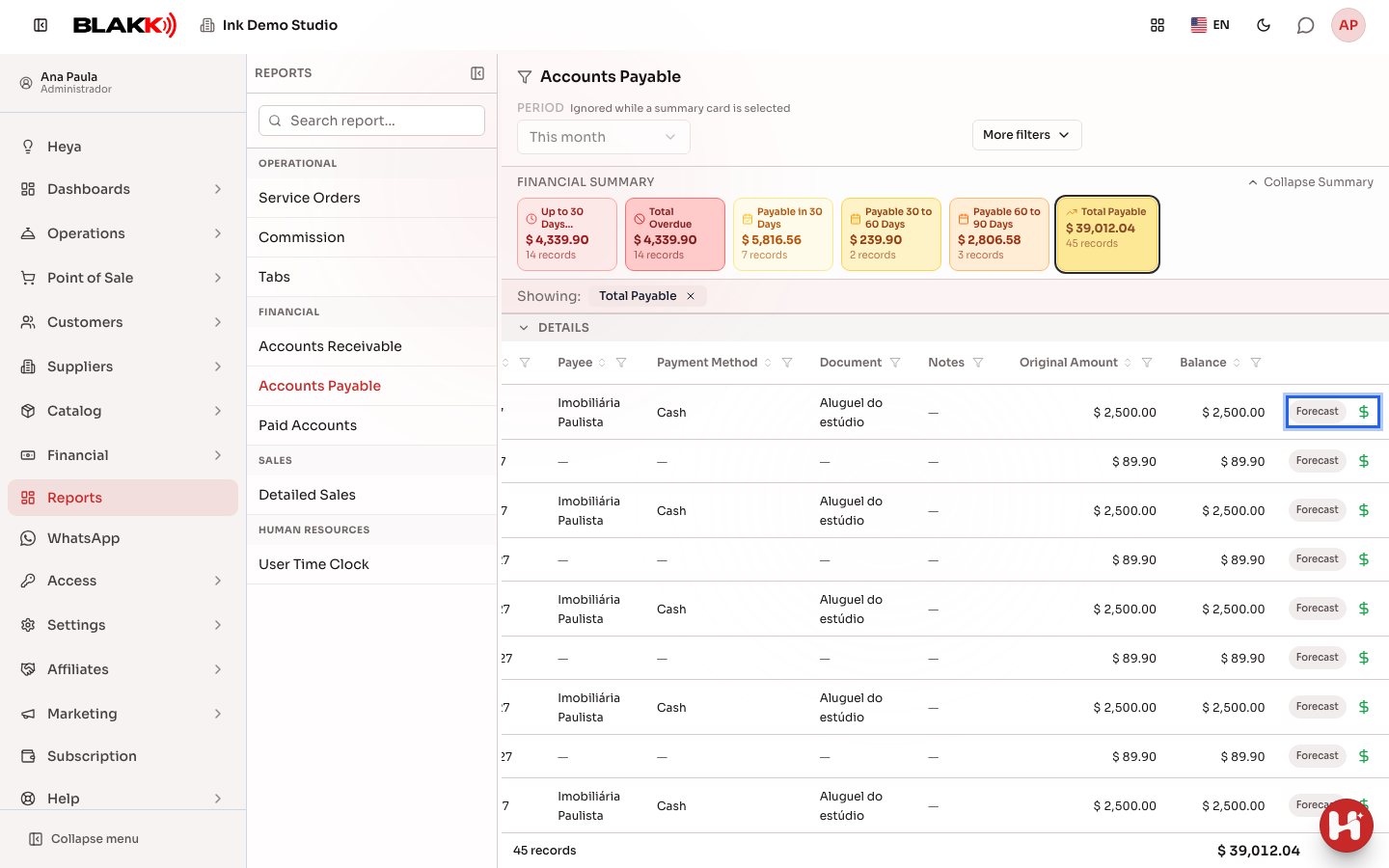
Section titled “Step 3 — Understand the “Forecast” label”A future month for a Recurring Account that hasn’t actually been generated yet has the Forecast label. You can still advance payment using the green button on the row. An occurrence that has already been generated and adjusted has the Recurring label instead.
Step 4 — Record an expense payment
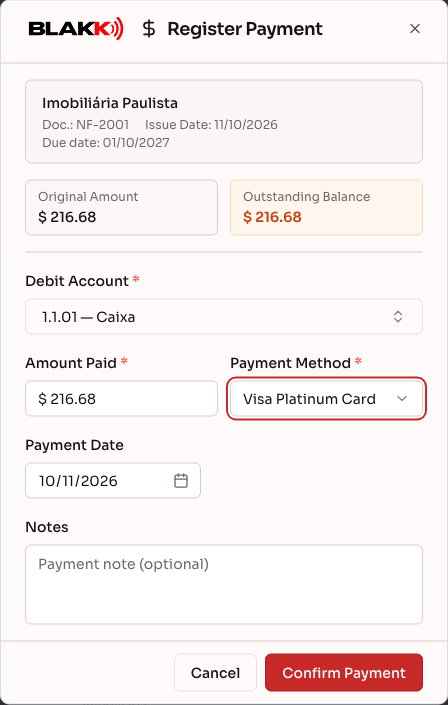
Section titled “Step 4 — Record an expense payment”Click the green dollar sign icon (Register Payment) and fill in the **Debit Account, **Payment Method, **Amount Paid, and Payment Date. Then click Confirm Payment.
Step 5 — Pay several expenses at once
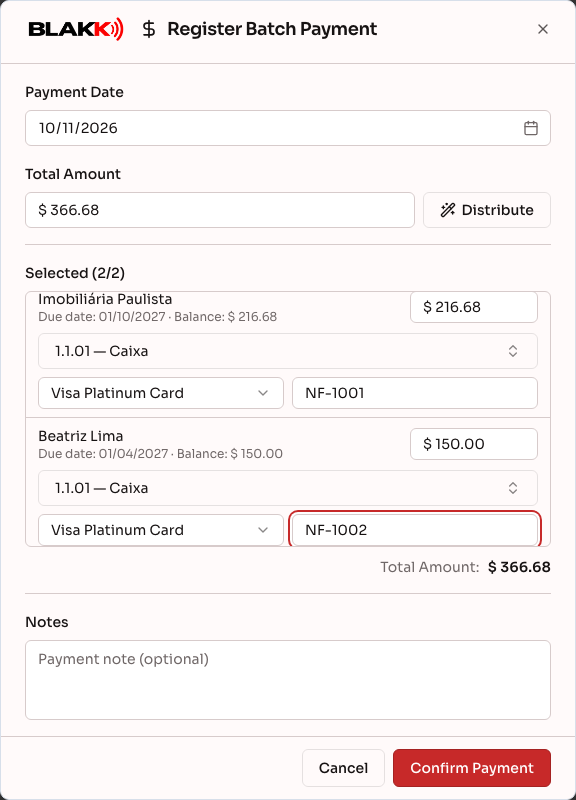
Section titled “Step 5 — Pay several expenses at once”Select multiple rows and click Batch Payment. The Distribute button splits a Total Amount among the selected expenses, starting with the oldest ones. Unlike batch payment for incoming payments, each expense has its own fields: **Debit Account, **Payment Method, and Document Number. All three are required for every row before you click Confirm Payment.
What happens next
Section titled “What happens next”- A card and a date range never work together—whenever a card is active, it controls the filtering on its own.
- You can pay only part of an expense—the expense stays on the list with a lower balance until it’s paid off.
- Advancing payment for a Forecast row generates that month’s expense and marks it as paid in one step.
- A Forecast row can’t be selected for batch payment. Pay it individually using the Advance Payment button because it doesn’t exist as an actual expense yet.
- There is no button on this screen to undo a confirmed payment. To reverse a payment, use the Paid Accounts report, the Financial Hub, or the Expenses screen.
Common mistakes and questions
Section titled “Common mistakes and questions”Q: Why is the date range field disabled? A: A due date card is active. While it’s selected, the card determines which expenses appear. Click the × next to the card name to use the date range again.
Q: What does the “Forecast” label mean? A: It appears on a recurring expense for a month that hasn’t actually been generated in the system yet—it’s only a projection. You can still click Advance Payment to pay it early. The system generates the expense and marks it as paid in the same step.
Q: I recorded a payment incorrectly. How do I undo it? A: You can’t reverse a payment directly from this report. Find the payment in the Paid Accounts report, the Financial Hub, or the expense itself on the Expenses screen. All of these have a button to reverse a payment.
Q: Can I include a “Forecast” row in a batch payment with other expenses? A: No. Forecast rows can’t be selected for batch payment because they aren’t actual expenses in the system yet. Pay them individually using the icon on the row.
Q: Is “Payee” the same as “Vendor”? A: In practice, yes. It refers to who the expense is being paid to, whether that’s a vendor, an employee, or anyone else listed as the expense’s payee.