Connect your AI: Ask Claude, ChatGPT, Gemini, and other AI tools about your studio
What it is
Section titled “What it is”Connect your AI lets the AI tools you already use (Claude, ChatGPT, Gemini, Grok, DeepSeek, and others compatible with the MCP standard) look up your studio’s data: sales, clients, schedule, finances, and reports. Ask a question in plain language (“How much did I sell this week?”), and the AI finds the answer in the system using your user permissions.
The connector is read-only: it can’t create, change, or delete anything.
When to use it
Section titled “When to use it”- You want to ask your AI about your studio’s activity without opening reports one by one, even from your phone.
- You want to combine system data with other things your AI already helps you with (spreadsheets, documents, emails).
- A business partner or accountant uses an AI tool and needs to look up studio figures with their own user account.
Before you start
Section titled “Before you start”Connect your AI is a paid feature. If the Connect your AI card doesn’t appear on the API Key tab, contact support to enable it.
The AI can see exactly what your user account can see. To give the AI less access than you have, connect it using a user account with a more limited role.
Step by step
Section titled “Step by step”Step 1 — Copy the connector address
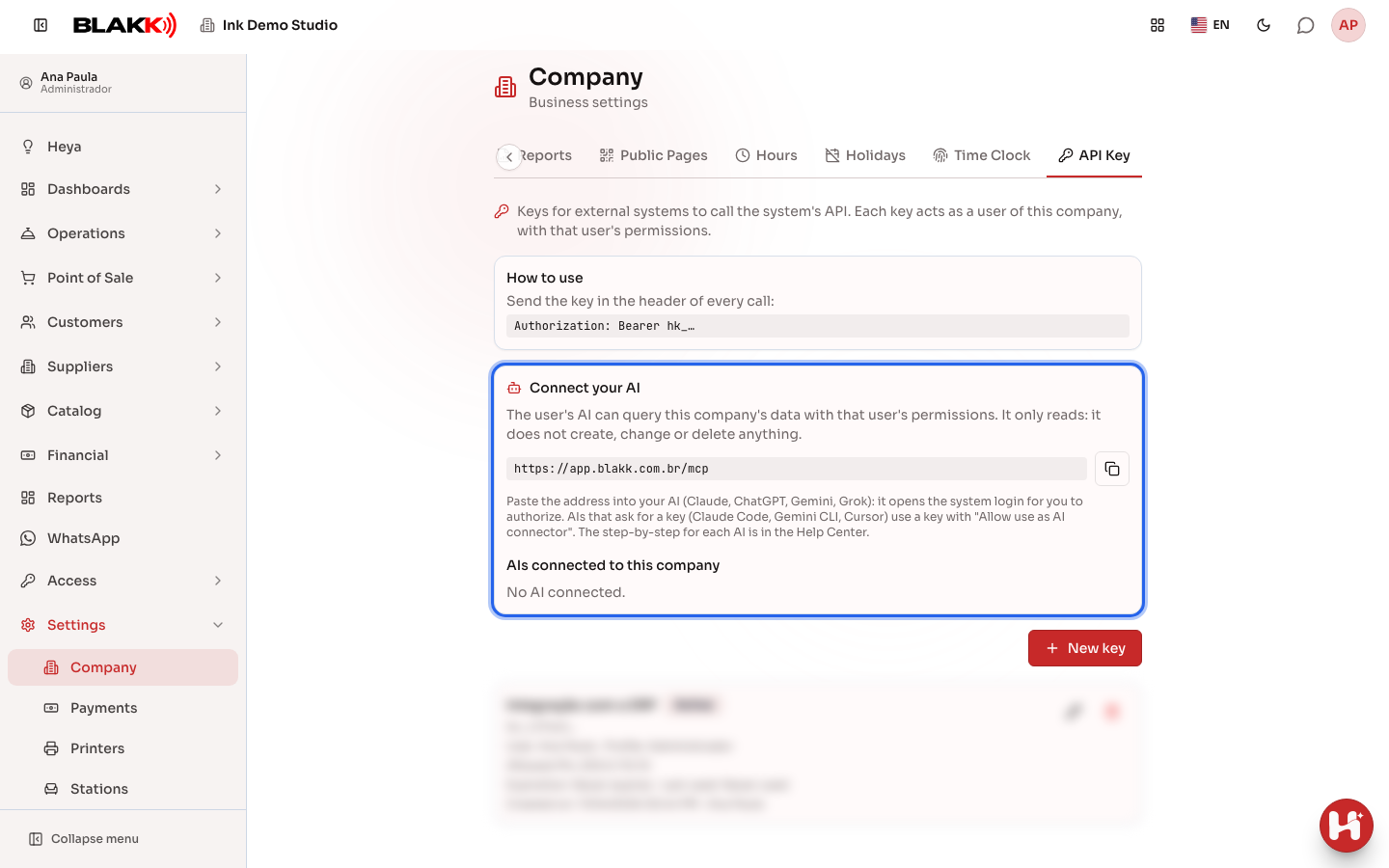
Section titled “Step 1 — Copy the connector address”Go to Settings → Company and open the API Key tab. On the Connect your AI card,
click Copy address. The address ends in /mcp.
Step 2 — Paste the address into your AI tool
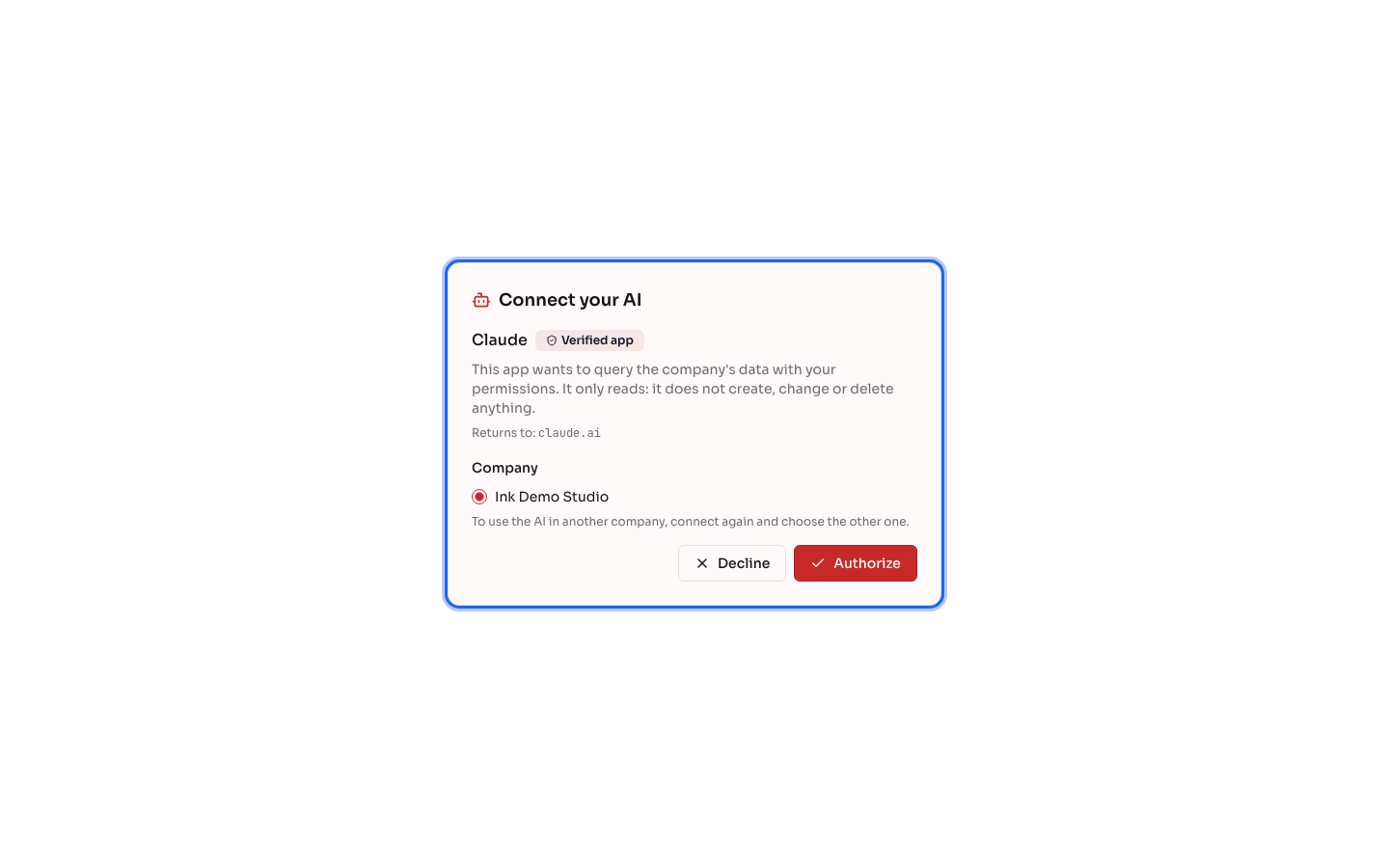
Section titled “Step 2 — Paste the address into your AI tool”Follow your AI tool’s instructions. For most tools, you paste the address, the AI opens the system login page, you sign in, select the Company, and click Authorize:
- Claude (browser, desktop, and mobile)
- ChatGPT (browser and mobile)
- Gemini (browser and mobile)
- Grok (browser and mobile)
- Claude Code and Gemini CLI, in the terminal
The authorization screen shows the AI’s name, the Company to select, and the Decline and Authorize buttons:
Step 3 — Use an API key (only for AI tools that require one)
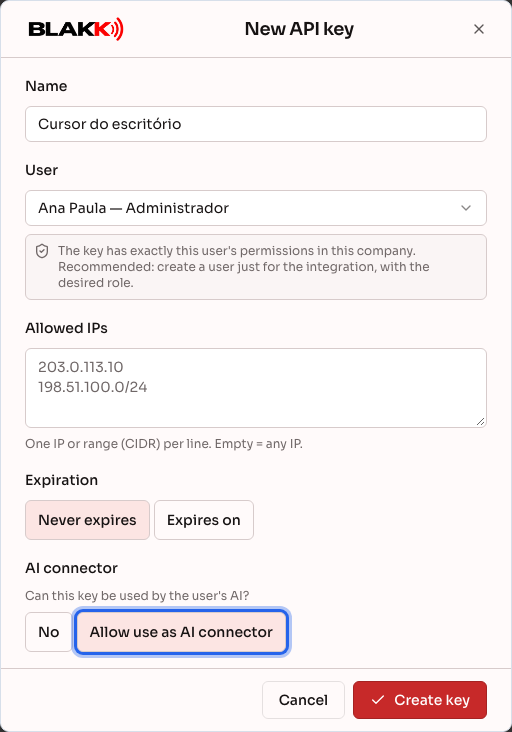
Section titled “Step 3 — Use an API key (only for AI tools that require one)”Some tools, such as Cursor and DeepSeek,
require a key instead of a login. Click New key, select the User, check
Allow use as AI connector and click Create key. Add the key to the Authorization header
in the format Bearer hk_.... Keys created without this option won’t work with the connector.
What happens next
Section titled “What happens next”- The AI gets three tools: view system areas, find the right query for your question, and run the query. If your studio has a Help Center, it can also search the articles.
- The AI can only access queries for screens the user can access (and the searches those screens need, such as client searches), and the system checks permissions again for every query.
- For security, some information is never shared through the connector: WhatsApp conversations, intake forms, service photos, digital account information, bank details, and Pix keys from the chart of accounts.
- Each connection is for ONE company and appears under Profile for the person who connected it, in Connected AIs. Anyone who manages the studio can see all connections under AIs connected to this company, on the API Key tab.
Common mistakes and questions
Section titled “Common mistakes and questions”Q: Can the AI record a sale or delete a client? A: No. The connector is read-only. Any changes must be made in the system.
Q: Why does the login screen say “No companies available”? A: Connect your AI isn’t enabled for the studio, or your user account isn’t a member of it. Contact the person who manages the system.
Q: How do I revoke an AI’s access? A: Under Profile, go to Connected AIs and click Disconnect AI. Anyone who manages the studio can also disconnect any AI on the API Key tab. To revoke an API key, revoke the key itself. The AI loses access within 30 seconds.
Q: The authorization screen says the name was provided by the app itself. What does that mean? A: The app isn’t one of the recognized tools (Claude, ChatGPT, or Gemini). Only authorize it if you recognize the return address shown on the screen and you requested the connection.
Q: Does the AI show a different time from mine? A: The connector provides the AI with the studio’s date and time, based on the time zone configured under Company. If the time is still incorrect, check the time zone under Settings → Company.