Company: studio details and general business rules
What it is
Section titled “What it is”This is your studio’s identity screen — name, contact information, logo, and registration data. It’s also where you’ll find some general rules that affect how the system works: when an accounting entry is created, whether you can complete a tab without an open cash register, and how the photo editor opens. This article covers the General tab under Settings → Company and the API Key tab, where you can create keys that let other systems integrate with your studio. The other tabs on this screen (Reports, Public Pages, Hours, Holidays, Time Clock) are covered in other articles.
The tabs appear at the top of the screen, and the open tab is underlined. On mobile, they appear as a grid of buttons. Tap a button to open its tab full-screen, with that tab’s Save button at the bottom.
When to use it
Section titled “When to use it”- Update your studio’s phone number, email, or logo.
- Choose whether a sale’s accounting entry is created right away or only when the cash register is closed.
- Create an API key so another system (such as an ERP, an automated spreadsheet, or a website) can read and write your studio’s data.
- Find out why a tab can’t be closed without an open cash register — or allow it to be closed without one.
Before you start
Section titled “Before you start”If you can’t edit the company information, ask the studio owner to grant you access under Access → Profiles.
Step by step
Section titled “Step by step”Step 1 — Edit your studio’s identifying information
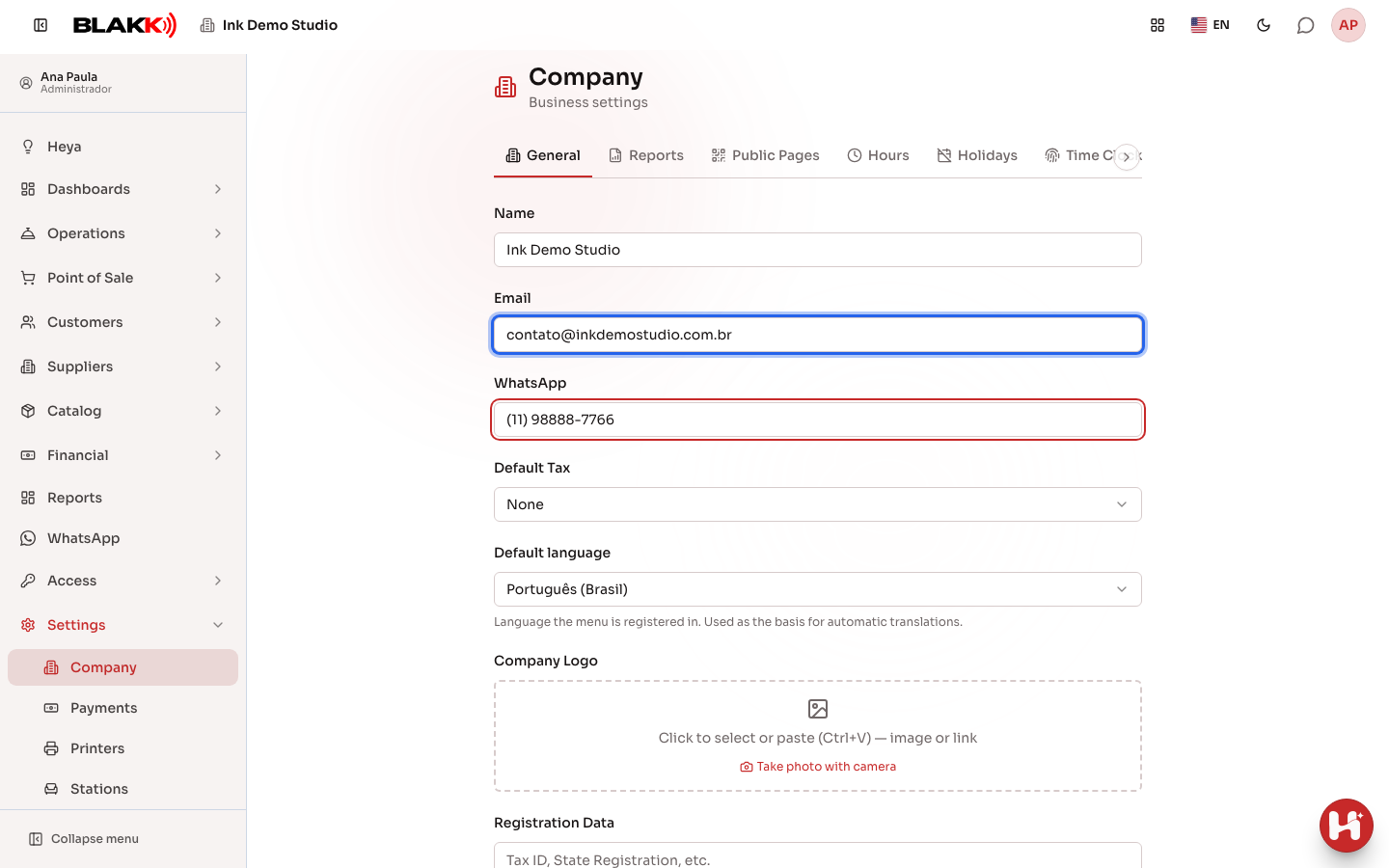
Section titled “Step 1 — Edit your studio’s identifying information”Enter the Name, Email, and contact WhatsApp number. Choose the Default language (the language used to enter your catalog, which serves as the basis for automatic translations), upload the Company Logo, and fill in the Registration Data (CNPJ, registration details, address — free-form text). When the company’s WhatsApp is connected, the Notify deleted items via WhatsApp option also appears.
Step 2 — Choose when accounting entries are created
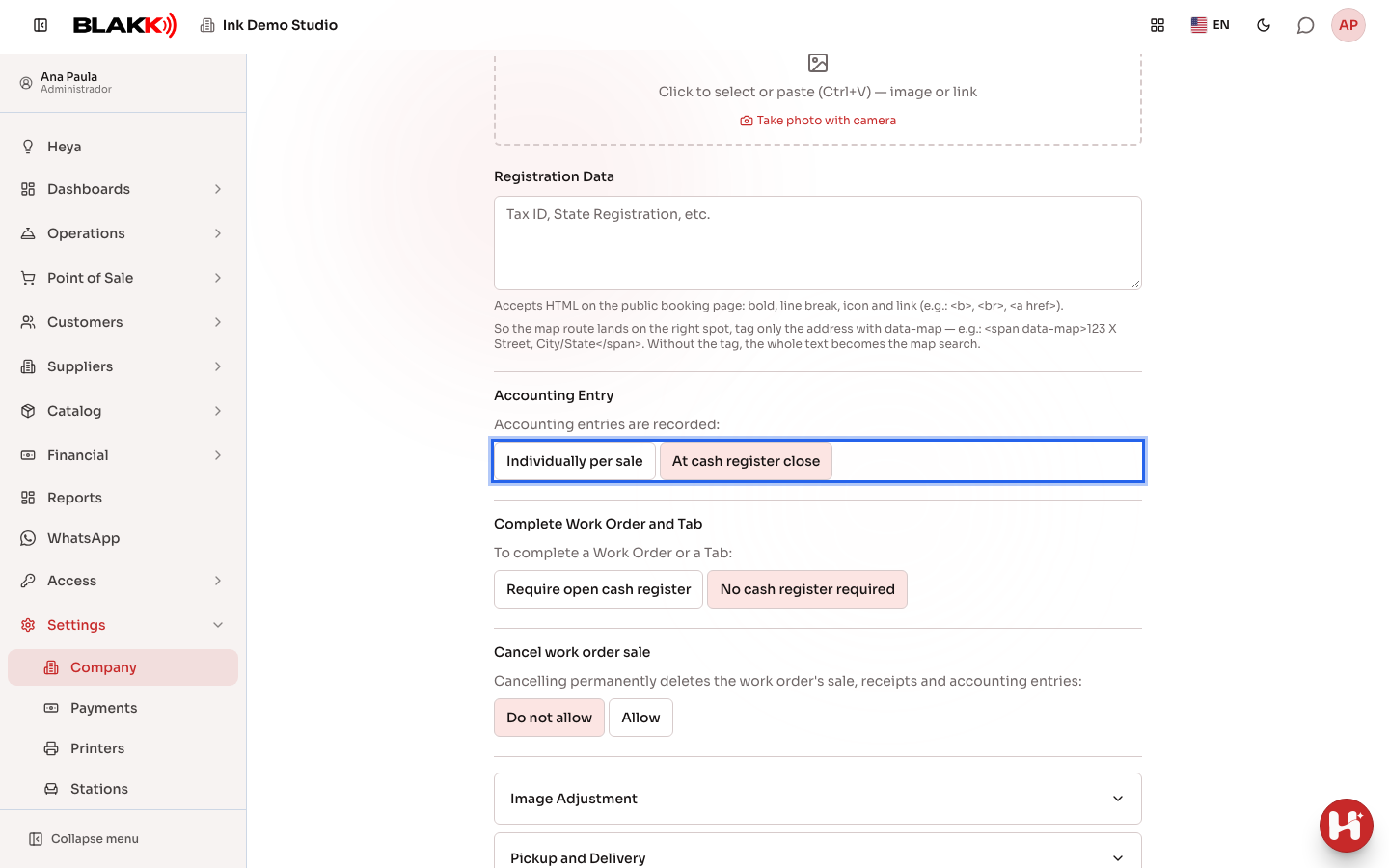
Section titled “Step 2 — Choose when accounting entries are created”Under Accounting Entry, choose whether each sale creates an accounting entry right away (Individually per sale) or whether all of the day’s entries are created together, at once, when the cash register is closed (At cash register close).
Step 3 — Decide whether tabs can be completed without an open cash register
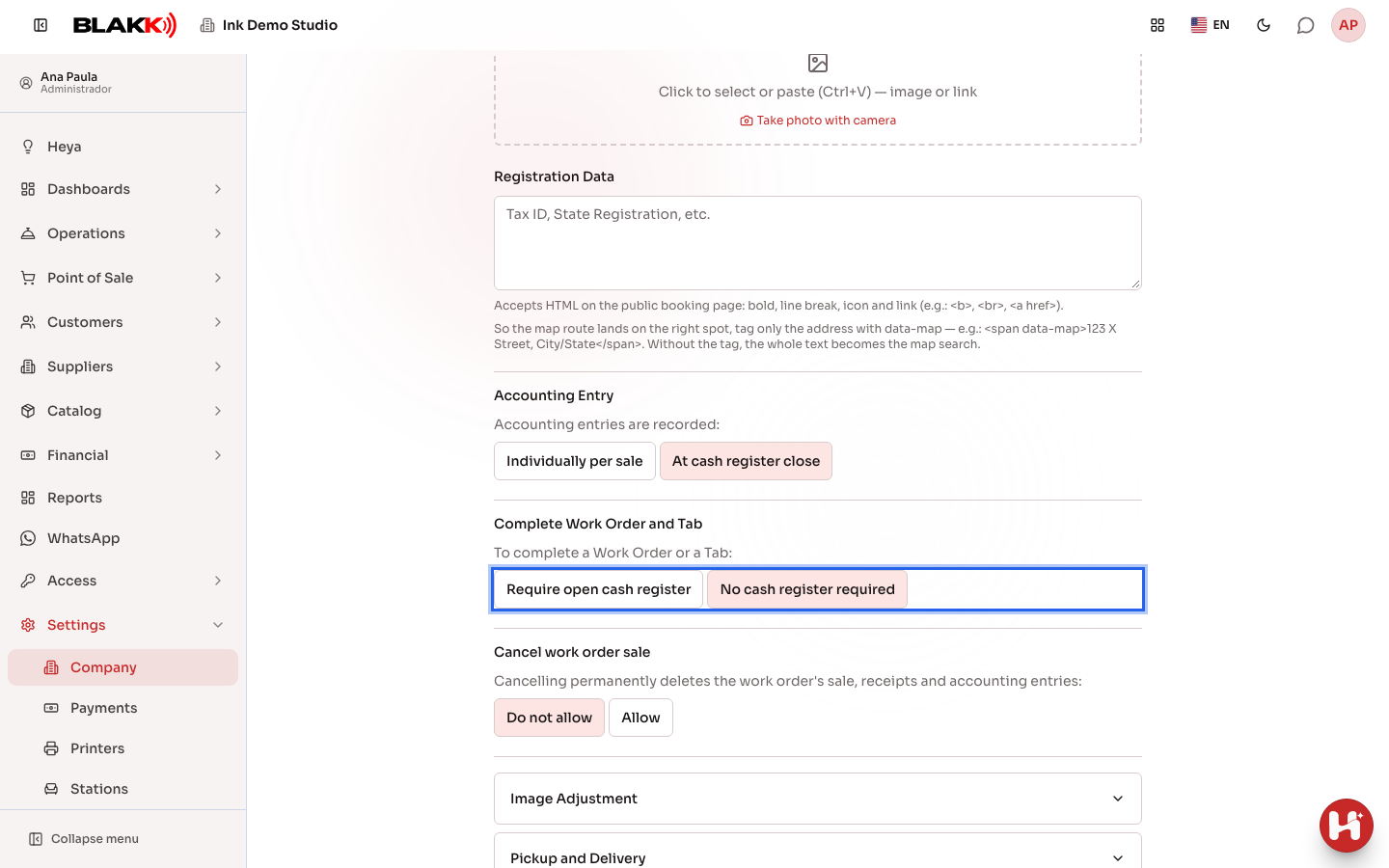
Section titled “Step 3 — Decide whether tabs can be completed without an open cash register”Under Complete Work Order and Tab, choose whether a cash register must be open to complete a tab (Require open cash register) or not (No cash register required). A studio created through sign-up is set to No cash register required by default: payments are recorded through the tab, without anyone needing to open a cash register first.
Step 4 — Adjust the image editor
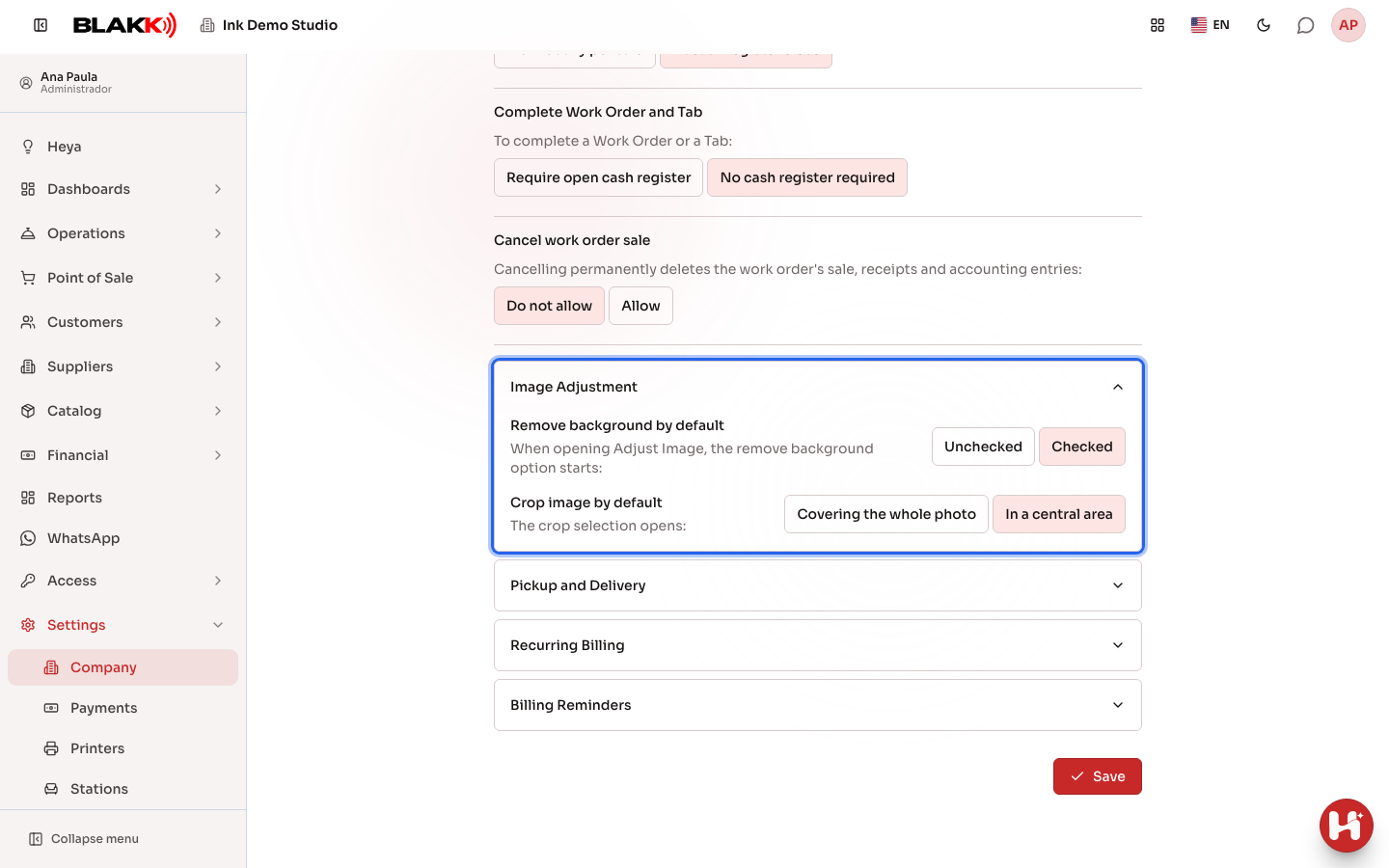
Section titled “Step 4 — Adjust the image editor”Open the Image Adjustment accordion to choose the initial settings for the photo editor used for products, services, and appointments: whether the remove-background option is already selected and whether the crop opens already limited to a central area of the photo.
The same list also includes other accordions for less common settings: Pickup and Delivery (Point of Sale pickup orders), Recurring Billing (suggested late fees, interest, discounts, and advance notice for recurring revenue, as well as bill payment instructions), Billing Reminders (email reminders before the due date and notices about overdue payments), and, for businesses in Brazil, the service invoice (NFS-e) settings.
Step 6 — Create an API key
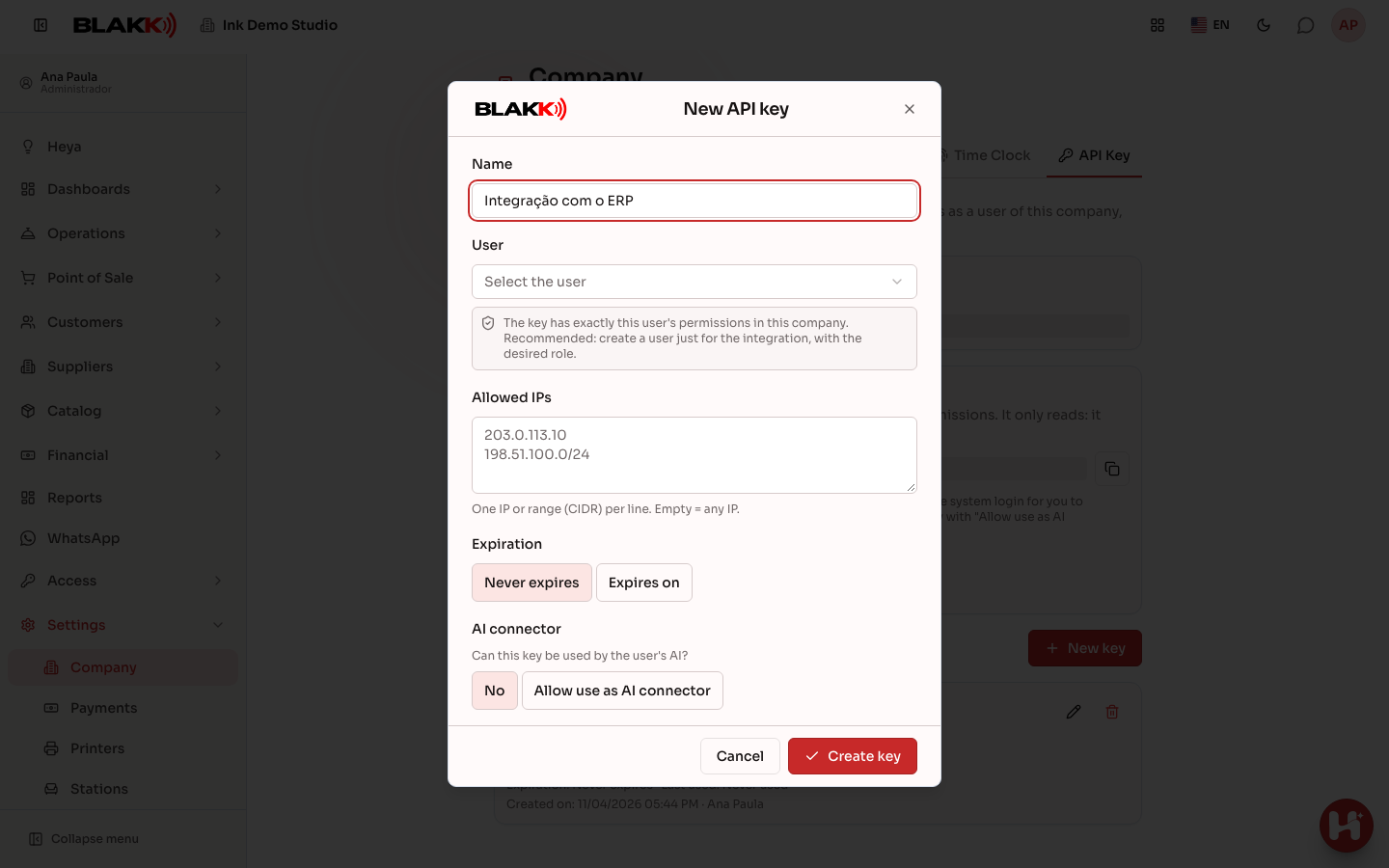
Section titled “Step 6 — Create an API key”On the API Key tab, click New key. Give the key a Name that describes what it’s for, choose the User, and, if you want, enter Allowed IPs (one per line; leave blank to allow any IP) and set the Expiration (Never expires or Expires on a date). Click Create key and copy the key right away: it won’t be displayed again.
If the key will be used by an AI tool (Claude Code, Gemini CLI, Cursor), also select Allow use as AI connector. See the AI Connector article.
The key acts as the selected user and has exactly the same permissions they have in the studio, based on
their profile under Access → Profiles. For this reason, we recommend creating a dedicated user for the
integration, with a profile that grants only the necessary permissions. The other system sends the key with
each request in the Authorization: Bearer header, followed by the key.
Only someone who administers the studio (with full access or permission to edit Profiles and Users) can create, edit, or revoke keys. Other users can view the list.
What happens next
Section titled “What happens next”-
Click Save at the bottom of the tab to save everything on the General tab, including settings inside the accordions. The other tabs on this screen (Reports, Public Pages, Hours…) have their own Save button.
-
Changing the Accounting Entry setting doesn’t reprocess entries that have already been created — it only changes how sales are handled from that point on.
-
An API key can be revoked at any time using the trash icon; the system using it will lose access within 30 seconds. The key also stops working automatically if its user is deactivated in the studio or when it expires. Changes made with a key appear in Audit with the source API key.
Common mistakes and questions
Section titled “Common mistakes and questions”Q: What’s the difference between “Individually per sale” and “At cash register close”? A: With the first option, each sale creates its accounting entry right away, so the Account Statement stays up to date throughout the day. With the second, all accounting entries for the day’s sales are created together, at once, when the cash register is closed. This means fewer individual entries, but the statement won’t reflect the day’s activity until the register is closed.
Q: What changes if I select “Require open cash register”? A: A tab can only be completed when a cash register is open. Without one, completion is blocked. With “No cash register required” (the studio’s default), the team can complete a tab at any time — useful if you don’t open and close the cash register as part of your daily routine.
Q: Where do I set up late fees, interest, and billing reminders? A: In the accordions on this same tab: Recurring Billing (suggested values when creating recurring revenue; existing contracts keep their own values) and Billing Reminders (automatic emails before and after the due date, which take effect right away). Both are saved with the tab’s Save button.
Q: Can an API key do everything in the system? A: No. It has the permissions of its user, and only in this studio. Some areas never accept API keys, even from a user with full access: logging in and switching companies, the API key screen itself, Heya, support, and platform screens. If the other system receives the message “This route can’t be used with an API key,” it’s one of these areas.
Q: I lost the key. Can I view it again? A: No. The system only stores a fingerprint of the key, never the key itself. Revoke the old key and create a new one.
Q: What can I enter under “Registration Data”?
A: Any text you like — CNPJ, State Registration, or whatever makes sense for your studio. The field
accepts basic HTML (bold, line breaks, links) because this text also appears on the public booking page.
To point the map to the right address, wrap only the address in <span data-map>...</span>.
Q: Do I need to fill in the Standard Fee? A: No — it’s optional (None by default). It’s only relevant to studios that use a specific type of fee or tax that’s applied automatically.
Related
Section titled “Related”- Financial Hub: track and record payments and receipts
- Accounting Entries: view the ledger for all account activity
- Payment Methods: add payment methods, configure accounts, and set fees
There are no published articles yet about the other tabs on this screen (Reports, Public Pages, Hours, Time Clock) — each will have its own article.