Calendar link: view your schedule in Google, Apple, Outlook, Yahoo, or Samsung
What it is
Section titled “What it is”A calendar link adds your Blakk appointments to the calendar app you already use: Google Calendar, Apple Calendar (iPhone, iPad, and Mac), Outlook, Yahoo, and Samsung Calendar. Generate the link once, subscribe to it in your app, and your appointments will appear there and update automatically. It works with any app that supports subscribing to a calendar over the internet (iCal format).
The link only displays your schedule: changes you make in your calendar app won’t sync back to Blakk.
When to use it
Section titled “When to use it”- You want to see the day’s appointments in your phone’s calendar alongside your personal commitments.
- You use Outlook or Apple Calendar instead of Google Calendar.
- Your front desk team wants to keep track of the whole team’s schedule in one calendar.
Before you start
Section titled “Before you start”You need access to Blakk’s Schedule. You don’t need Google integration: the link works on its own. If your studio has Google Calendar integration, it’s still available and updates faster (in real time, in both directions). See the difference in the questions below.
Step by step
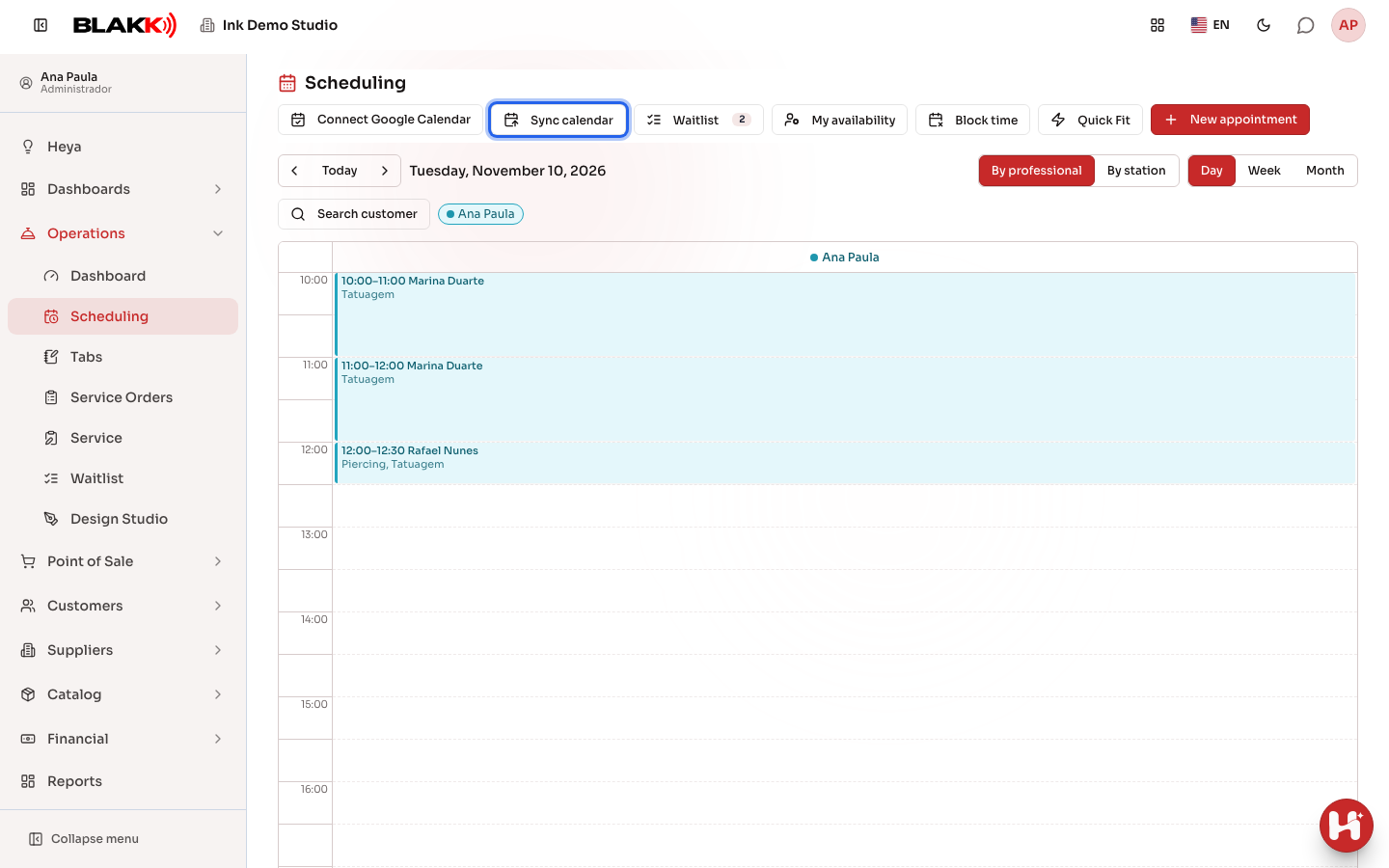
Section titled “Step by step”Step 1 — Open Sync calendar
Section titled “Step 1 — Open Sync calendar”In Schedule, click Sync calendar. The same button is in Profile, on the Calendar on your phone and computer card.
Step 2 — Choose whose appointments to include and generate the link
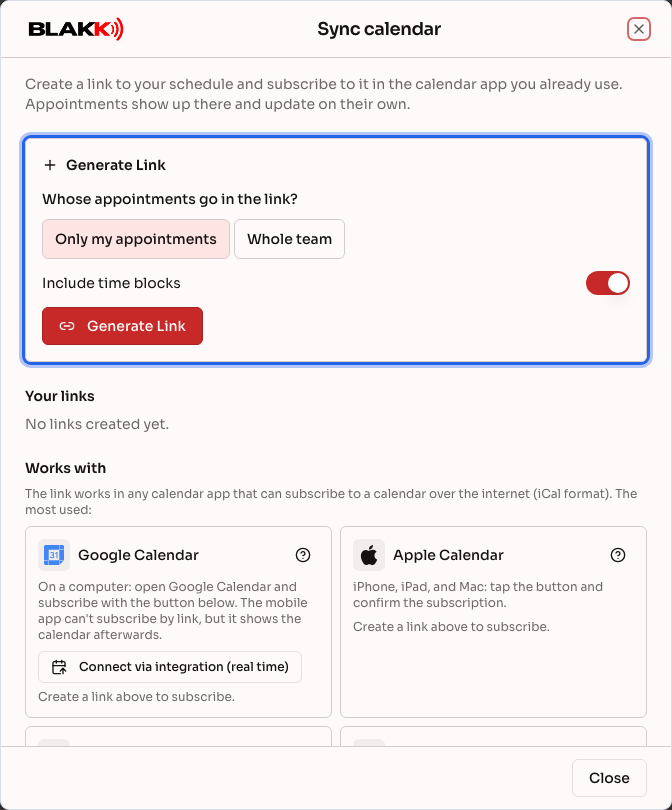
Section titled “Step 2 — Choose whose appointments to include and generate the link”Choose Only my appointments or Whole team. For the team, select the artists to include; if you don’t select anyone, the link includes everyone. Leave Include time blocks turned on to also see days off and blocked appointments. Click Generate Link.
Step 3 — Find the link under Your links
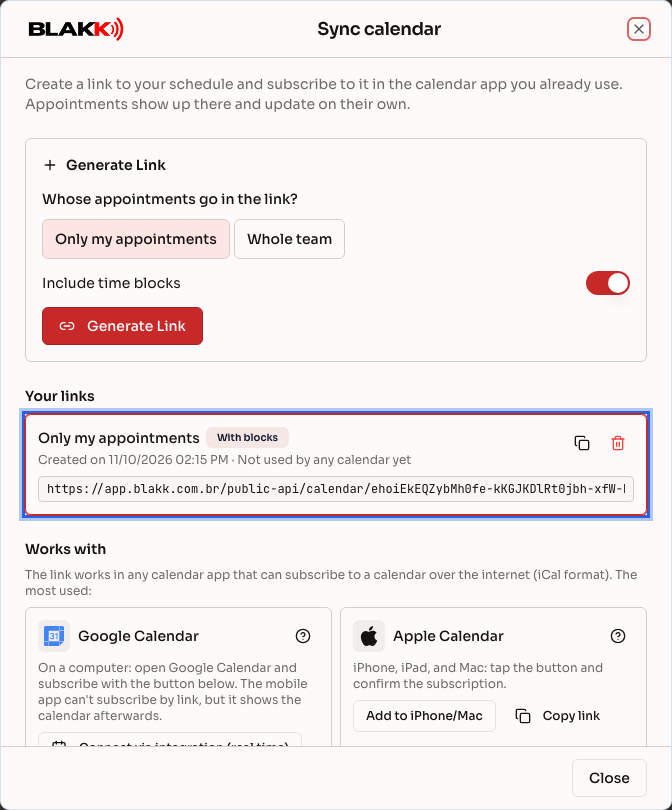
Section titled “Step 3 — Find the link under Your links”The link appears under Your links, along with the date it was generated and when a calendar last fetched it. Use Copy link to paste it on another device. You can have up to 10 links, for example, one for yourself and another for the team.
Step 4 — Subscribe in your calendar app
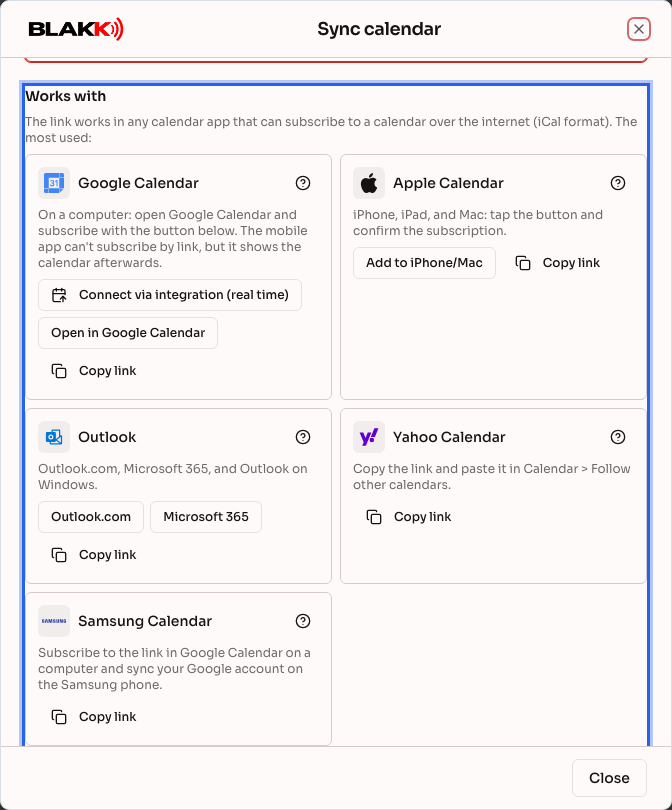
Section titled “Step 4 — Subscribe in your calendar app”Under Works with, each app has a card with a subscription shortcut and step-by-step instructions:
- Google Calendar
- Apple Calendar (iPhone, iPad, and Mac)
- Outlook (Outlook.com, Microsoft 365, and Windows)
- Yahoo Calendar
- Samsung Calendar
Step 5 — Open it from Profile (optional)
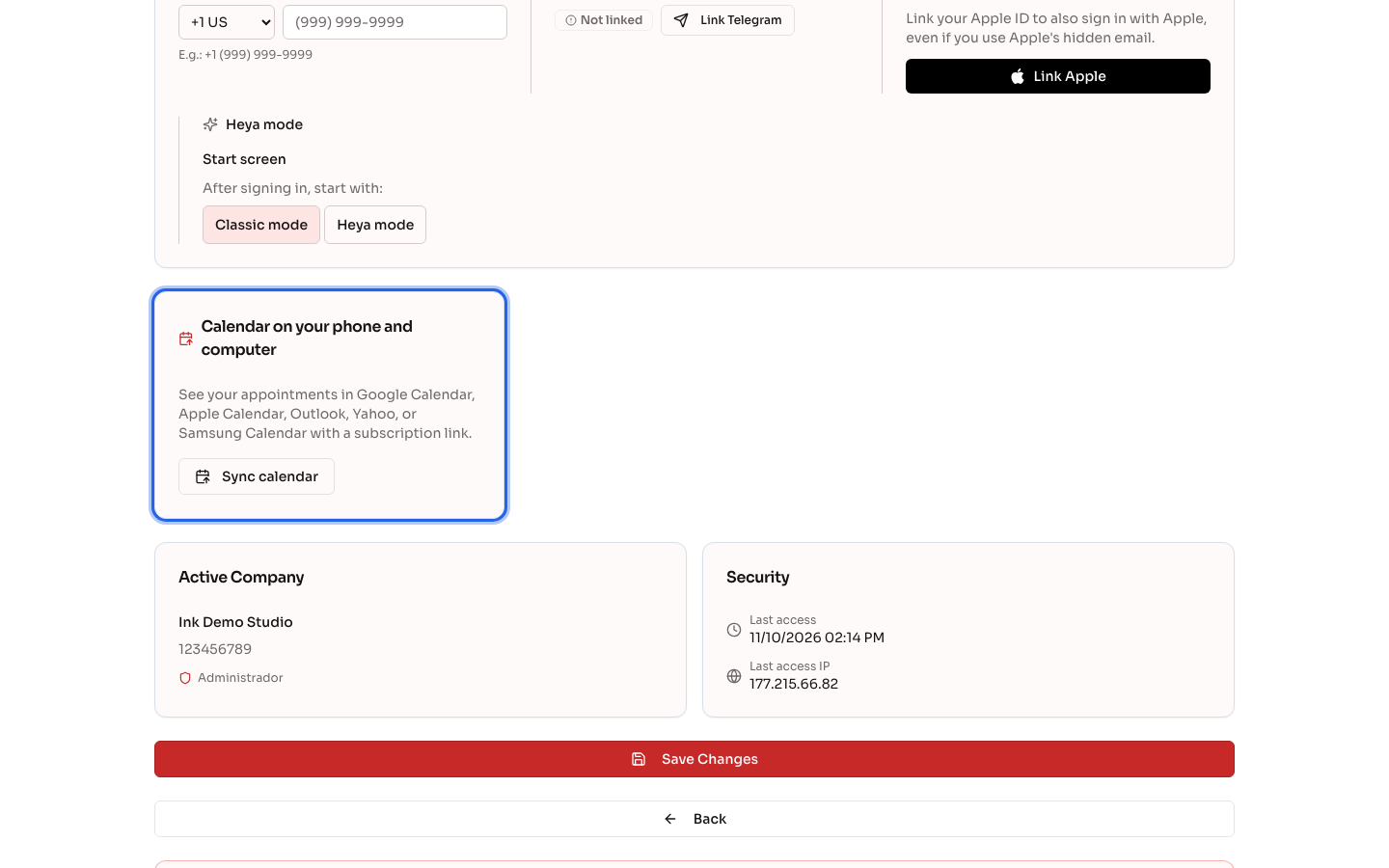
Section titled “Step 5 — Open it from Profile (optional)”In Profile, the Calendar on your phone and computer card opens the same screen, for anyone who doesn’t usually go to Schedule.
What happens next
Section titled “What happens next”- The calendar app shows appointments from the past 30 days and the next 6 months: the title includes the client and services, and the description shows the appointment status.
- Canceled appointments disappear from the calendar the next time it updates.
- Appointment times appear in your device’s time zone, converted from the studio’s time zone.
- If someone loses access to Schedule or leaves the studio, their links stop working automatically.
Common mistakes and questions
Section titled “Common mistakes and questions”Q: I added an appointment, but it still hasn’t appeared in my calendar. Why? A: Your calendar app decides when to fetch updates. Google can take up to 24 hours, Outlook can take a few hours, and Apple follows the update frequency set on your device. To see appointments right away, use Blakk Schedule or, with Google, Google Calendar integration.
Q: What’s the difference between the link and Google Calendar integration? A: Integration sends each appointment to Google right away and brings Google events into Schedule. The link works with any app, but only sends your schedule out and depends on how often each app updates. Don’t use both with the same Google account, or each appointment will appear twice.
Q: Can I send the link to someone else? A: Anyone with the link can see appointments, including client names and services. Only share it with people who are already allowed to see that schedule. If the link is exposed, click Revoke Link and generate a new one.
Q: How do I stop receiving the schedule in a calendar? A: Click Revoke Link on the link. Calendars subscribed to it will stop receiving updates. Then remove the subscription in the calendar app itself to delete the events that are already there.
Q: Can I edit or schedule an appointment in Google or Outlook? A: No. The link only displays your schedule. Scheduling, rescheduling, and canceling appointments are still done in Blakk Schedule.
Q: The Generate Link button is disabled. A: You already have 10 links. Revoke one you no longer use and generate another.