Apple Calendar Link (iPhone, iPad, and Mac)
What it is
Section titled “What it is”The calendar link adds Blakk appointments to Apple Calendar on your iPhone, iPad, and Mac. Subscribe right from your device with a single tap.
When to use it
Section titled “When to use it”- You use an iPhone or Mac and want to see appointments in your device’s calendar, with its reminders.
- You want to see your team’s schedule on the reception iPad.
Before you start
Section titled “Before you start”Generate the link under Sync calendar in the Schedule (see Calendar link). Follow these steps on the device where you want to see the schedule: open Blakk in a browser on your iPhone, iPad, or Mac.
Step by step
Section titled “Step by step”Step 1 — Tap Add to iPhone/Mac
Section titled “Step 1 — Tap Add to iPhone/Mac”On the Apple Calendar card, tap Add to iPhone/Mac. This button only appears on Apple devices. On another device, use Copy link and follow Step 3.
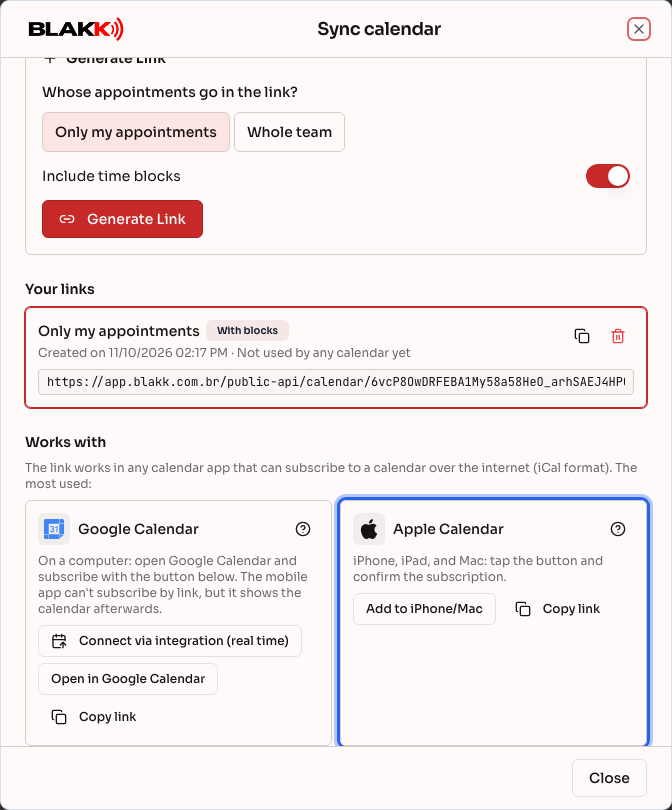
Step 2 — Confirm the subscription
Section titled “Step 2 — Confirm the subscription”Your device opens Calendar and asks if you want to subscribe. Tap Subscribe, then tap Add on the next screen. On a Mac, choose how often to check for updates under Auto-refresh (for example, every 15 minutes), then click OK.
Step 3 — Paste the link manually
Section titled “Step 3 — Paste the link manually”- iPhone and iPad: Settings → Calendar → Accounts → Add Account → Other → Add Subscribed Calendar, paste the link, and tap Next.
- Mac: In the Calendar app, choose File → New Calendar Subscription, paste the link, and click Subscribe.
Menu names may vary depending on your system version.
What happens next
Section titled “What happens next”- The Blakk schedule appears as a separate calendar that you can change the color of or hide.
- If you subscribe through iCloud, the calendar also appears on your other Apple devices signed in to the same account.
- Appointments canceled in Blakk disappear from the calendar the next time it updates.
Common mistakes and questions
Section titled “Common mistakes and questions”Q: I don’t see the Add to iPhone/Mac button. A: It only appears in a browser on an iPhone, iPad, or Mac. It won’t appear in the installed app. Use Copy link and follow Step 3.
Q: The schedule is slow to update on my iPhone. A: Go to Settings → Calendar → Accounts → Fetch New Data and choose a shorter interval. On a Mac, right-click the calendar, select Get Info, and change the Auto-refresh setting.
Q: How do I remove the calendar from my iPhone? A: Go to Settings → Calendar → Accounts → Subscribed Calendars, tap the calendar, then tap Delete Account. To revoke access completely, also revoke the link under Your links.
Q: My iPhone says it couldn’t verify the account. A: Check that you copied the entire link and that it hasn’t been revoked. Generate a new one if needed.
Q: Can I change an appointment time in my iPhone calendar? A: No. The subscribed calendar is read-only. Make changes in Blakk.