Connect Claude to Your Studio (Browser, Desktop, and Mobile)
What it is
Section titled “What it is”With the AI connector, Claude (claude.ai, the desktop app, and the mobile app) can look up your studio’s data when you ask about sales, customers, appointments, or finances. You only need to connect once by signing in to the system, and the connection works in all three places. Claude can only look up information; it can’t change anything in the system.
When to use it
Section titled “When to use it”- You already use Claude and want to ask, “How much did I sell this week?” without opening the system.
- You want Claude to summarize the month using your studio’s actual numbers, including on your phone.
Before you start
Section titled “Before you start”The AI connector must be enabled for your studio (see the AI Connector article). Copy the connector URL from Settings → Company → API Key, in the Connect your AI card, using the Copy address button. You don’t need to create an API key: Claude signs in with your account.
Claude’s free plan lets you add one custom connector; paid plans allow several. On Team and Enterprise plans, the organization’s administrator must add the connector in Claude.
Step by step
Section titled “Step by step”Step 1 — Add the connector in Claude
Section titled “Step 1 — Add the connector in Claude”On claude.ai (in a browser or the desktop app), open Customize → Connectors and click Add custom connector. Enter a name (for example, your studio’s name), paste the connector URL, and click Add. Menu names may vary depending on your version of Claude.
Step 2 — Sign in and authorize
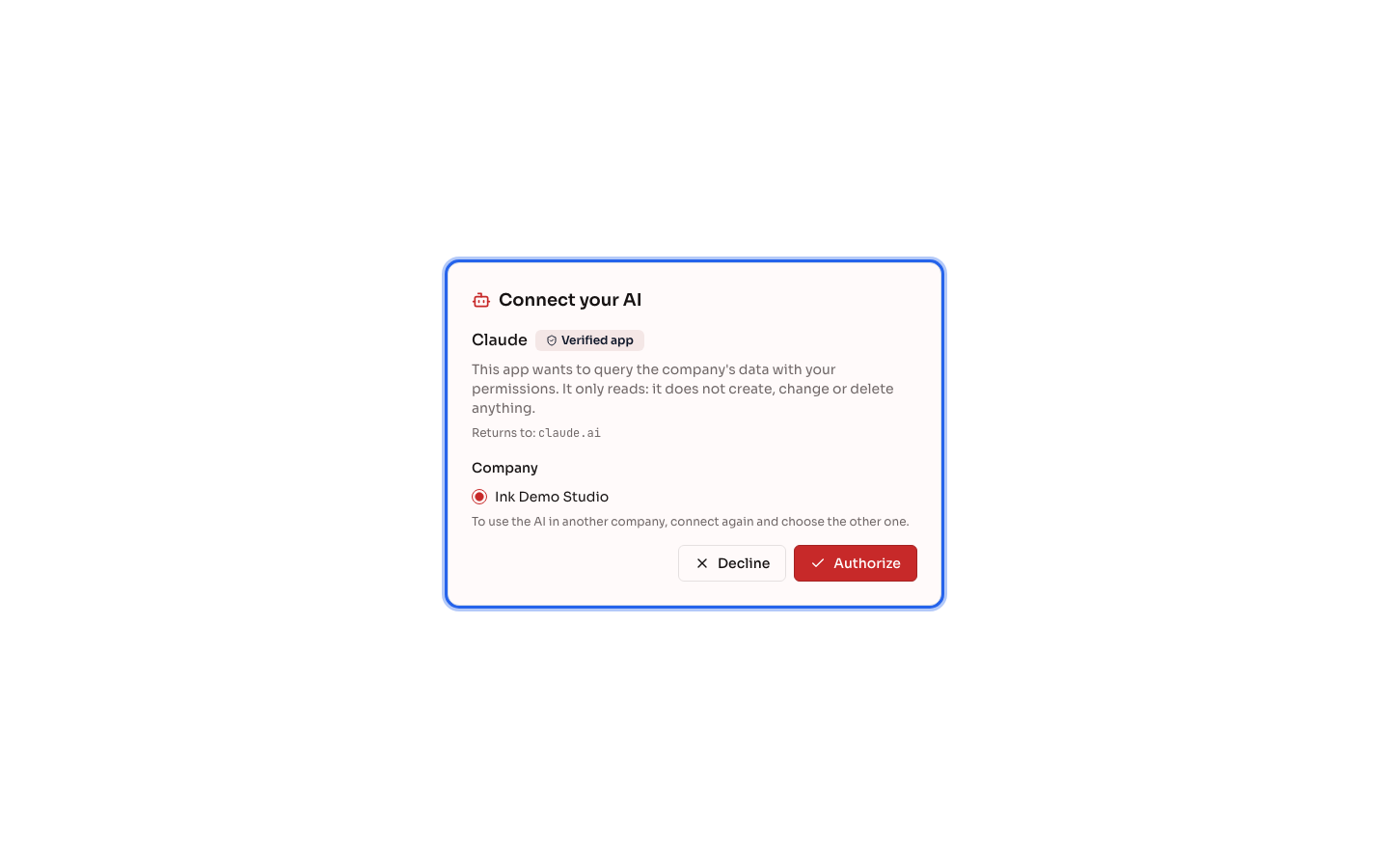
Section titled “Step 2 — Sign in and authorize”Click Connect. The system’s sign-in page opens: sign in with your username, select the Company, and click Authorize. The page shows Claude with the Verified app badge. After you authorize, you’ll return to Claude, connected.
Step 3 — Use it on desktop and mobile
Section titled “Step 3 — Use it on desktop and mobile”In a conversation, click + → Connectors and make sure the connector is turned on. For example, ask: “How much did I sell at the studio yesterday?” On your phone, open the Claude app with the same account: the connector you added in the browser will already appear there, with no extra setup.
What happens next
Section titled “What happens next”- Claude finds the right query, runs it, and responds with numbers from the system, based on your user’s permissions.
- The connection appears in your Profile, under Connected AIs, and on the studio’s API Key tab, for administrators.
- The connection applies to ONE company. To use another company, add the connector again and select the other company.
Common mistakes and questions
Section titled “Common mistakes and questions”Q: The sign-in page says there are no companies available. Why? A: The AI connector isn’t enabled for the studio, or your user isn’t a member of it. Contact the person who administers the system.
Q: I don’t see the option to add a custom connector. A: On Claude Team or Enterprise, only the organization’s administrator can add connectors. Ask them to add the URL; then each person can connect with their own sign-in.
Q: How do I disconnect Claude? A: In the system, open your Profile and click Disconnect AI next to the Claude connection. Claude loses access within 30 seconds. You can also remove the connector in Customize → Connectors in Claude.
Q: Can Claude change data in the system? A: No. The connector can only look up information. Make changes in the system.
Q: Claude asked me to sign in again. Is that normal? A: Yes, if the connection was disconnected or hasn’t been used for a long time. Sign in and authorize again.