Recurring Bills: Manage Expenses That Repeat Every Month
What it is
Section titled “What it is”This is where you manage the template for an expense that repeats every month—rent, a subscription, or any other fixed bill. Add the template once (payee, due date, amount, and payment method), and the system automatically creates a real expense from it each month. A template is also created when you turn on Recurring Expense in the Recurrence tab of a regular expense. It then appears in this list, and from that point on, you can only edit it here (the expense displays “This expense is part of a recurrence. To change the recurrence, use the Recurring Bills screen.”).
When to use it
Section titled “When to use it”- Add rent, a subscription, or any fixed expense that repeats every month, so you don’t have to enter it manually each time it’s due.
- Temporarily pause a recurrence (for example, while a contract is suspended) without losing the history of expenses already generated.
- Permanently end a recurrence that is no longer needed.
Before you start
Section titled “Before you start”If you can’t create, edit, or pause a recurring bill, ask the studio owner to grant you access under Access → Roles. Deleting a recurring bill requires a higher access level (Full) than creating, editing, or pausing one (Edit).
Step by step
Section titled “Step by step”Step 1 — View the list and monthly summary
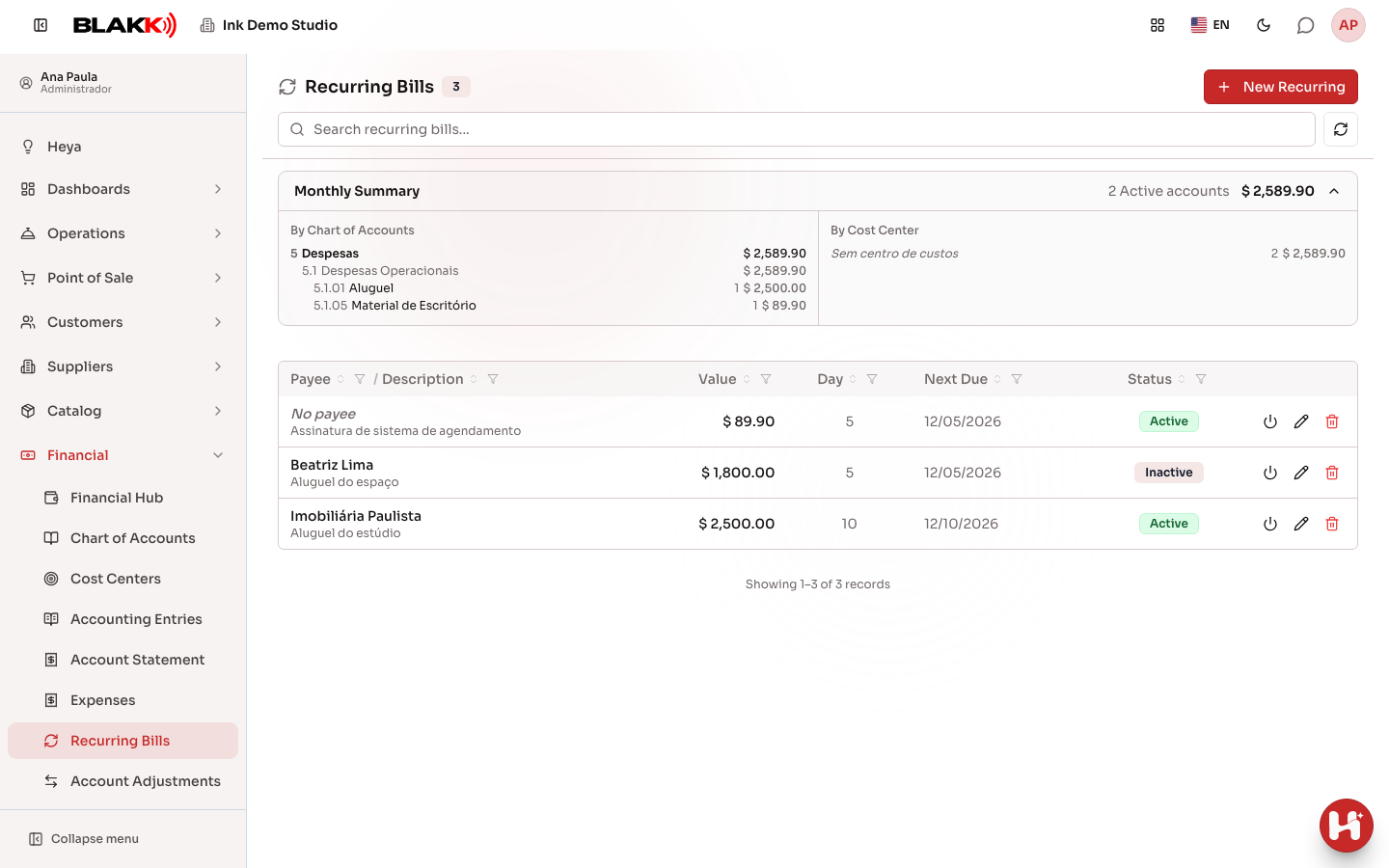
Section titled “Step 1 — View the list and monthly summary”The list shows each recurring bill’s payee, description, amount, due date, next due date, and status (Active/Inactive). Use Search recurring bills… to find one by payee or description. The Monthly Summary card at the top totals all active bills, grouped By Chart of Accounts and By Cost Center. Click the summary title to collapse it and make more room for the list. When collapsed, it still shows the number of active bills and the monthly total. The system remembers your choice in this browser.
Step 2 — Create a recurring bill
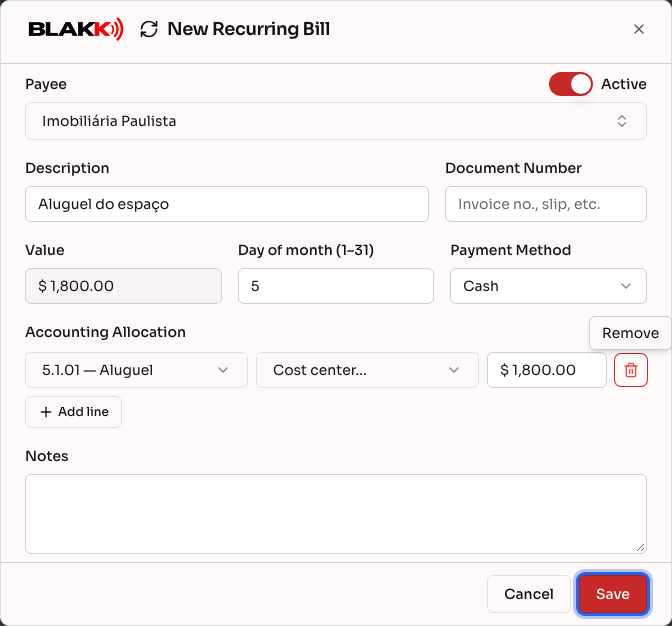
Section titled “Step 2 — Create a recurring bill”Click New Recurring, select the Payee, fill in the Description, the Document Number (optional), the Day of month (1–31) the bill is due, and the Payment Method. You can’t enter an amount directly in the Value field—it’s calculated from the Accounting Allocation. Click Add line, then enter the account, cost center (optional), and amount. Click Save.
Step 3 — Pause a recurring bill
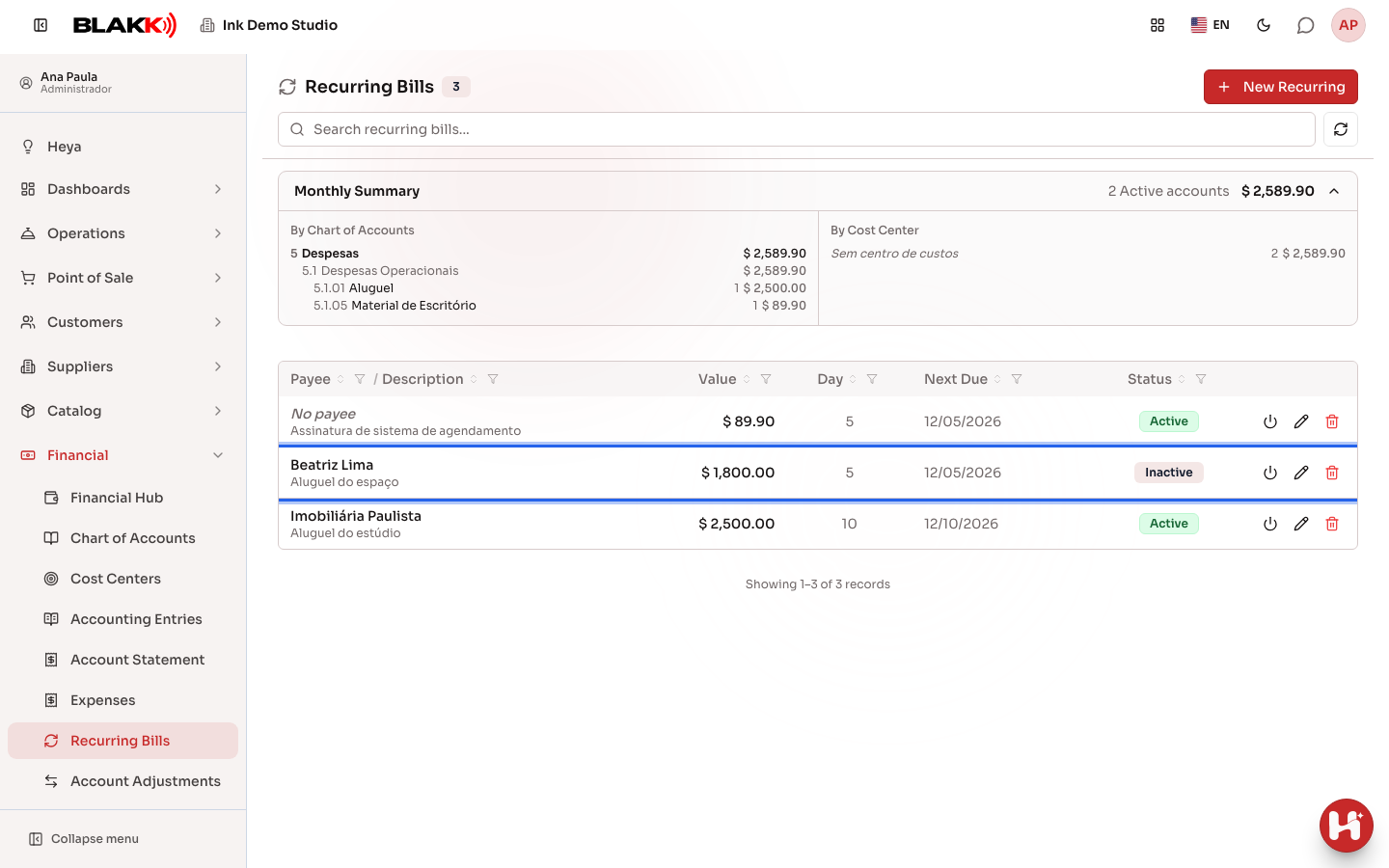
Section titled “Step 3 — Pause a recurring bill”Click the Deactivate icon on a row to pause the bill without deleting anything. An Inactive bill stops generating new expenses but doesn’t affect anything that was generated before. To start generating expenses again, click Activate on the same row.
Step 4 — Delete a recurring bill
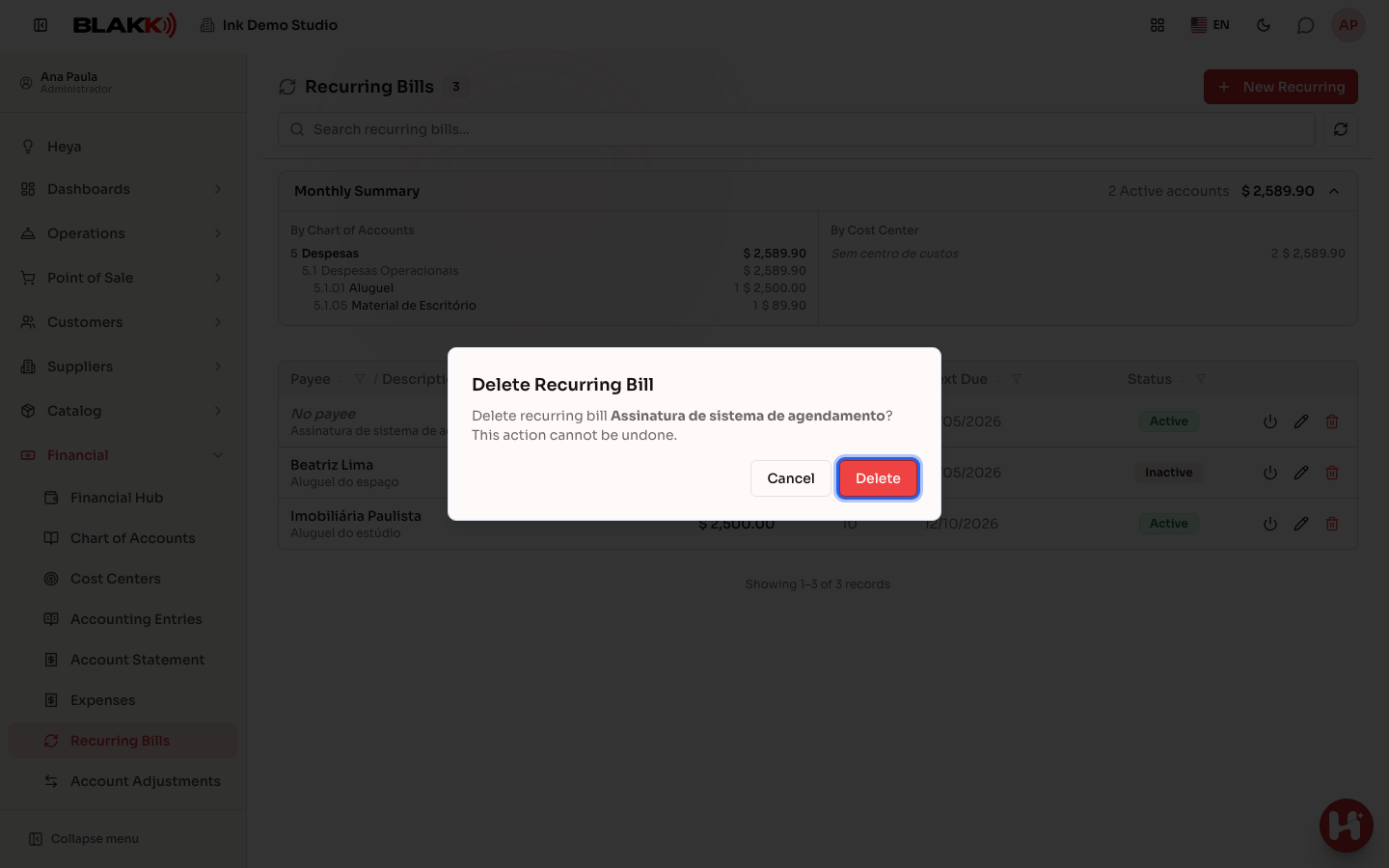
Section titled “Step 4 — Delete a recurring bill”Click the Delete icon and confirm. This icon only appears for users with Full access to Recurring Bills.
What happens next
Section titled “What happens next”- When you save a new recurring bill created from this screen, the first expense is created right away. It immediately appears in Expenses, without waiting for the due date. (This is different from marking an existing expense as recurring: in that case, the expense you were editing already counts as the first occurrence.)
- The next due date is calculated based on the current date in the company’s time zone. If a bill is due today, it remains due today even if you save it at night.
- The system automatically generates subsequent occurrences when the due date arrives (within a few hours, not at the exact time)—no one needs to open the screen. Before then, the occurrence appears in Expenses as a faded row with the Forecast label, for reference only.
- Deleting a recurring bill doesn’t delete any expenses already generated, whether paid or pending. They continue to exist as usual, but are no longer linked to the template (the “Recurring” label disappears). Only future occurrences that haven’t actually been created yet (those marked “Forecast”) stop appearing.
Common mistakes and questions
Section titled “Common mistakes and questions”Q: What’s the difference between pausing and deleting? A: Pausing (setting the bill to Inactive) only stops new expenses from being generated. The template still exists, and you can reactivate it later. Deleting permanently removes the template and can’t be undone.
Q: Can I set up a weekly or yearly recurrence instead of a monthly one? A: No. Recurrences are currently monthly only, on the day of the month you choose.
Q: I can’t find where to enter the amount for a recurring bill. A: The Value field is for display only. The Accounting Allocation determines the actual amount, using the same process as Expenses. Add up the amounts in all allocation rows to change the total.
Q: If I edit an expense that’s already been generated (for example, change the amount for a specific month), does that change the template for the following months? A: No. Editing an occurrence that’s already been generated never changes the template. The template only changes when you edit it directly here in Recurring Bills.
Q: When does the first expense appear after I create a recurring bill? A: Right away. As soon as you save the template from this screen, the first expense is created without waiting for the due date.