Payment Methods: Add, Configure Accounts and Fees
What it is
Section titled “What it is”This is where you set up the payment methods your studio accepts—Cash, Pix, Credit/Debit Card, Boleto—each with its own rules: whether it counts as physical cash when you close out the register, which accounting account receives the amount, which account records the fee expense, and (for card/Pix) the fee charged for each installment. Each payment method can also offer a discount to customers who use it, such as 10% off when paying with cash.
When to use it
Section titled “When to use it”- Add a new payment method (a specific card brand, a membership plan, etc.).
- Configure the fee the card processor charges for each installment.
- Link a payment method to the correct accounting account so your reports match your bank statement.
- Offer a discount to customers who pay with cash or Pix, such as 5% or 10%, without having to calculate the discount manually for every sale.
Before you start
Section titled “Before you start”If you can’t create or edit a payment method, ask the studio owner to grant you access under Access → Profiles. Deleting requires a higher access level (Full) than creating or editing (Edit): without Full access, the delete icon won’t appear. The Accounting and Fees tabs on the form also depend on your access to the Chart of Accounts page—without that access, they won’t appear.
Step by step
Section titled “Step by step”Step 1 — View the list of payment methods
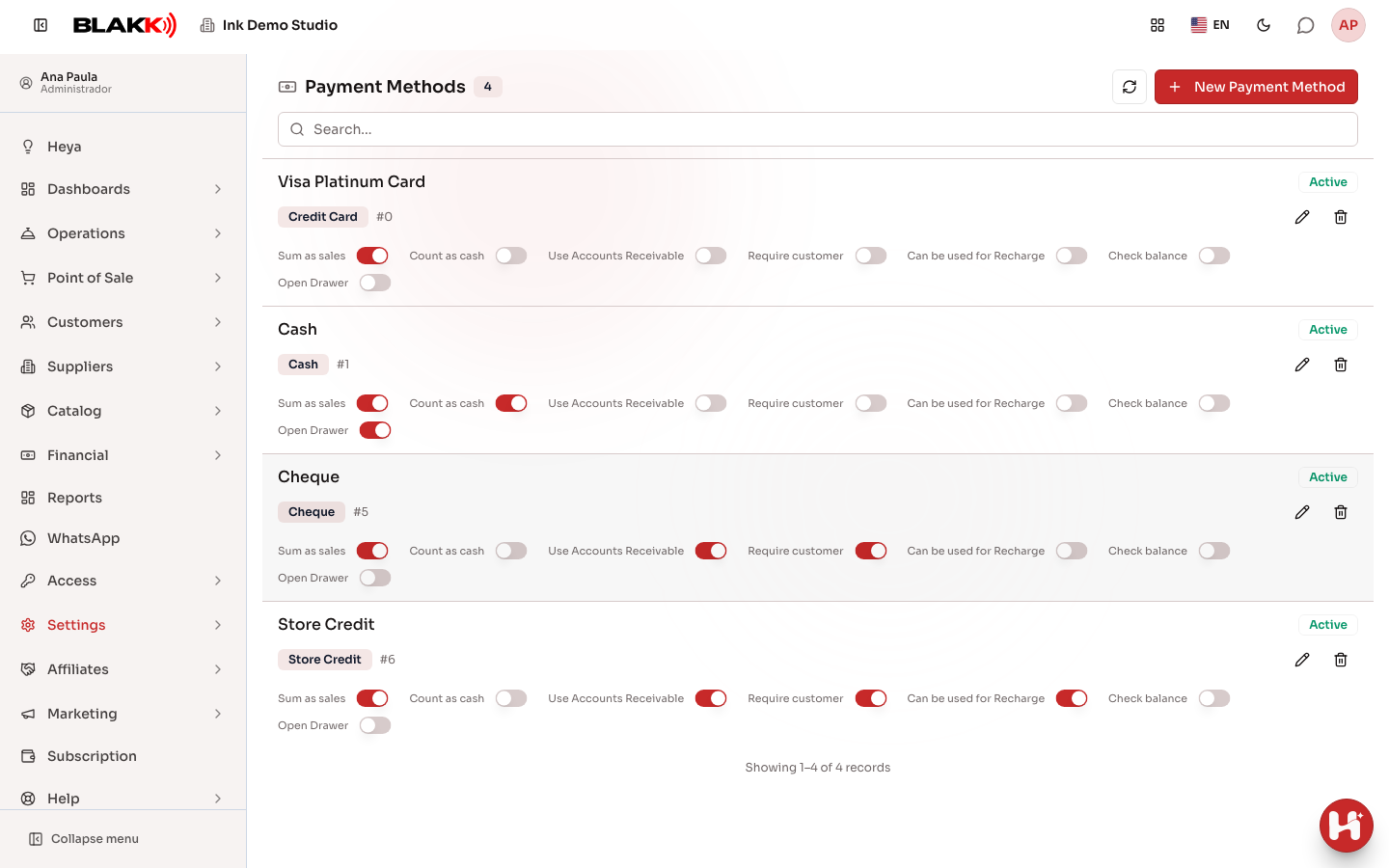
Section titled “Step 1 — View the list of payment methods”Go to Settings → Payments: the Payment methods page lists each method
with its status (Active or Inactive), type, number of receipt copies printed
(if more than one), display order (#N), and a summary of all its settings
(Sum as sales, Count as cash, Use Accounts Receivable…).
Click a row to open a payment method.
Step 2 — Add a payment method
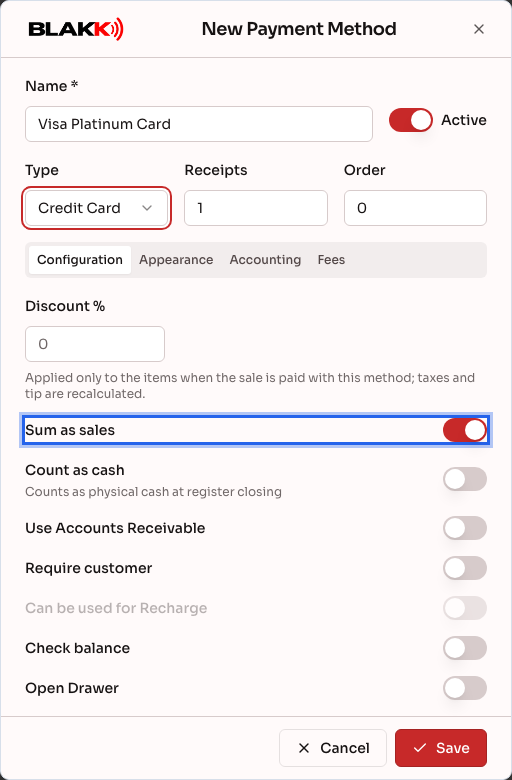
Section titled “Step 2 — Add a payment method”Click New Payment Method, enter the Name (required), and choose the Type. Set Receipts to the number of receipt copies to print, and Order to the method’s position in the selection list. The first field on the Configuration tab is Discount % (see the next step). Below that, choose whether to Sum as sales, whether it should Count as cash (count as physical cash when you close out the register), whether to Require customer, whether to Check balance, and whether to Open Drawer. On the Appearance tab, choose a Color or a photo for the payment method. Click Save.
Step 2b — Offer a discount for customers who use this payment method
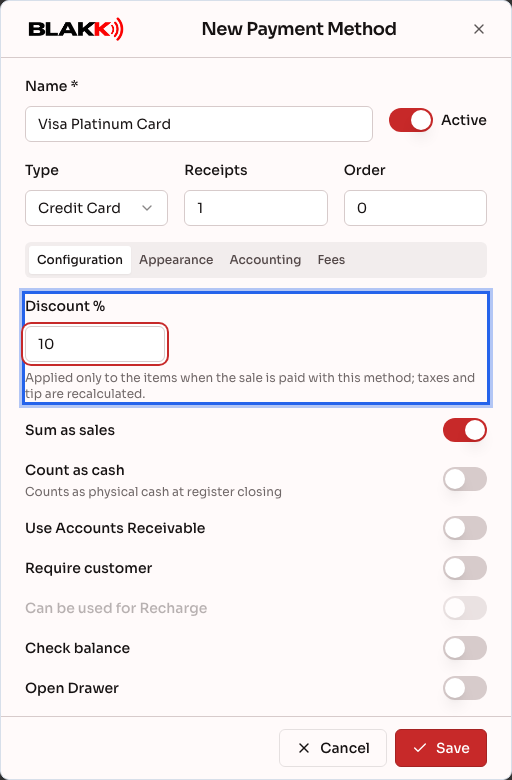
Section titled “Step 2b — Offer a discount for customers who use this payment method”At the top of the Configuration tab, enter the Discount %: from 0 to 99.99, with up to two decimal places. Leave it blank or enter 0 for no discount. As the note below the field explains, the discount applies only to the items when the sale is paid with this method, and taxes and the tip are recalculated based on the discounted amount. Click Save: the method will then show a discount badge (for example, −10%) next to its type in the list.
What the discount does and doesn’t apply to:
- Discount applies to: sale items, including paid add-ons and options.
- Recalculated based on the discounted amount: percentage-based taxes and the tip.
- Discount doesn’t apply to: fixed-amount taxes.
The discount is applied automatically when you collect payment: on the ticket payment screen, the button for the method shows the amount due with the discount already applied.
Step 3 — Link an accounting account
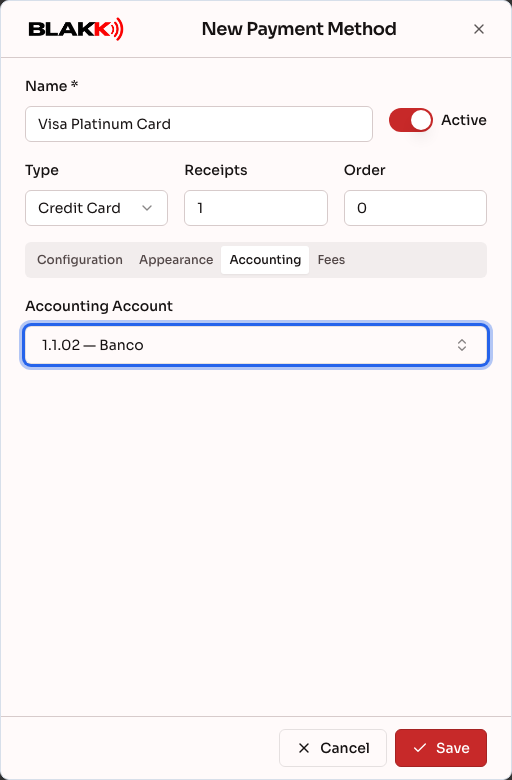
Section titled “Step 3 — Link an accounting account”On the Accounting tab, choose the Accounting Account—the amount received through this payment method is assigned to this account in accounting entries.
Step 4 — Configure fees by installment (card/Pix)
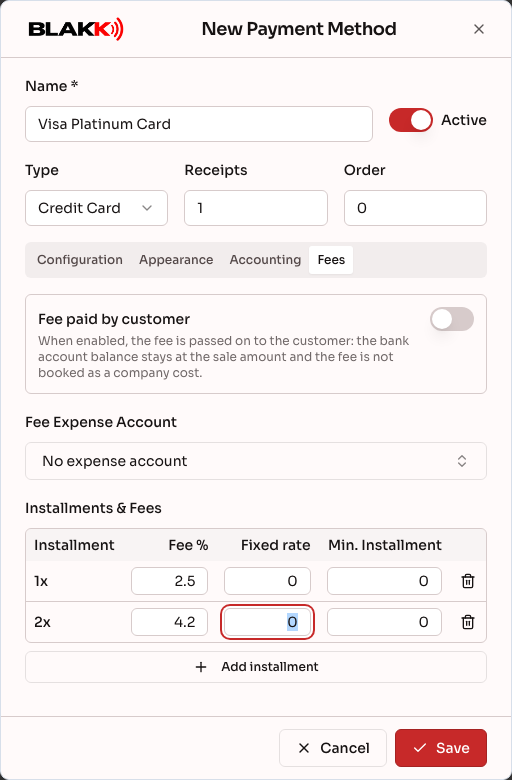
Section titled “Step 4 — Configure fees by installment (card/Pix)”For card or Pix payment types, the Fees tab includes:
- Fee paid by customer: turn this on if the fee is passed on to the customer;
- Fee Expense Account: the Chart of Accounts account where the processor’s fee is recorded as an expense;
- Installments & Fees: click Add installment for each number of installments and enter the Fee %, Fixed Fee, and Min. Installment.
For payment types with integrated charging (such as Boleto), the Fees tab only shows the Fee Expense Account, where the fee charged by the payment provider is recorded.
Step 5 — Why a payment method can’t be deleted
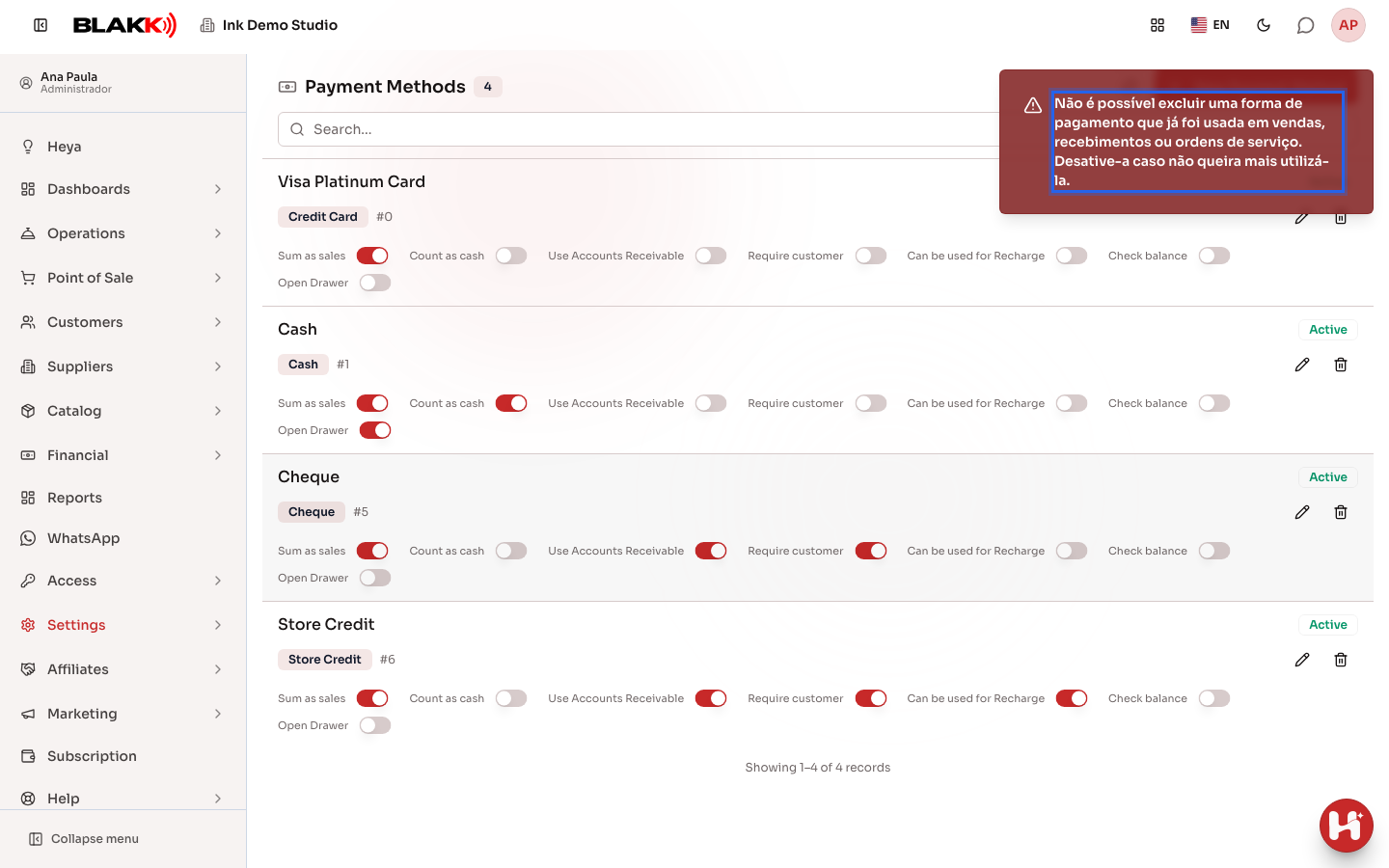
Section titled “Step 5 — Why a payment method can’t be deleted”Click the Delete icon for a payment method that has already been used in a sale, then confirm. The system will block the deletion and explain why.
What happens next
Section titled “What happens next”- Sum as sales determines whether the amount is included in sales totals in reports; Count as cash determines whether it’s counted as physical cash when you close out the register—the two settings are independent of each other.
- A payment method that has already been used (in a sale, a payment received, or a payment recorded on an open sale) can’t be deleted—turn off Active instead. It will no longer appear as an option on new screens, but its history will remain.
- When Fee paid by customer is turned on, it changes who absorbs the processor’s fee: the customer pays the fee, so it doesn’t become a studio expense. When it’s turned off, the fee comes out of your pocket and is recorded in the Fee Expense Account.
- When the selected type uses integrated charging, the Configuration tab displays This type uses integrated charging: screens that issue charges automatically (such as Recurring Revenue) generate the charge through the integration; sales entered manually can still be completed as usual.
- A sale paid with a method that has a Discount % appears in reports with the discount applied: the Sales Report has a Discount column, and the totals already reflect the discount.
- Changing the Discount % doesn’t affect past sales. If someone has the payment screen open when the change is made, the system will reject the payment and show the message “The discount for this payment method has changed. Refresh the screen.” Just refresh the screen and enter the payment again with the new discount.
Common mistakes and questions
Section titled “Common mistakes and questions”Q: Do I need to configure the Fees tab for “Cash”? A: No—the Fees tab only appears for card, Pix, or integrated charging types (such as Boleto). Payment methods without a fee (such as Cash) don’t show this tab.
Q: What’s the difference between “Sum as sales” and “Sum as cash”? A: “Sum as sales” is included in sales totals in reports. “Sum as cash” is for closing out the register: only methods that actually leave you with physical cash in the drawer (typically Cash only) should have this turned on—card and Pix are usually turned off here, even though they count as sales.
Q: What does “Use Accounts Receivable” mean? A: It creates an account receivable in the Financial Hub for this payment method instead of recording payment immediately. This is useful for methods like checks or boletos, where the money doesn’t actually arrive until later. Some types have this turned on by default and don’t let you turn it off.
Q: Why can’t I delete a payment method even though it hasn’t been used yet? A: Make sure you haven’t recorded any sales or payments received with it, or even a payment on a sale that’s still open—the system checks all of these. If the delete icon doesn’t appear at all, you need Full access: ask the studio owner to grant you access under Access → Profiles.
Q: How does the discount work when the customer pays part with a discounted payment method and part with another method? A: The discount is proportional to the share of the bill paid by each method. For example, if the bill is 100.00 and Cash has a 10% discount, paying half in Cash covers 50.00 of the bill and costs 45.00; the other 50.00 is paid by card, with no discount. The amount entered is always the amount charged using that method, and the remaining balance is still shown without a discount because each method applies its own discount.
Q: Does the discount apply to the tip and taxes too? A: Not directly: the discount applies only to items. Percentage-based taxes and the tip are recalculated based on the discounted item amount, so they’re reduced proportionally. Fixed-amount taxes don’t change.
Q: Why can’t I remove an item after collecting payment with a discounted payment method? A: After a discounted payment is recorded on the ticket, the system won’t let you reduce the bill. You’ll see the message “Delete the discounted payment from this bill first.” Delete the payment, make the correction, and record the payment again. You can still add items.
Q: Is the tattoo artist’s commission calculated using the payment method discount? A: Yes. The commission for each item is calculated based on the item’s price after applying the discount for the payment method used on the ticket.
Q: Does “Order” change how much the customer pays, or is it only for display? A: It’s only for display—it determines where this payment method appears in selection lists (such as in the POS). It doesn’t affect the amount, fee, or any calculations.
Q: Where do I choose the account for the boleto fee? A: On the Fees tab for the Boleto payment method, under Fee Expense Account. The provider’s fee is recorded as an expense in this account so the balance matches the bank statement. The tab only appears for users with access to the Chart of Accounts.