Affiliate Dashboard: Clicks, Sales, and Commissions for the Period
What it is
Section titled “What it is”This dashboard shows your affiliates’ results for a selected period: how many people clicked their links, how many appointments and sales came from them, how much commission each one earned, and their accumulated balance. Use it to see which affiliates are bringing in business and to settle up with each one.
When to use it
Section titled “When to use it”- At the end of the month, to find out how much to pay each affiliate and share their numbers with them.
- To compare affiliates and campaigns and decide where it’s worth continuing to promote.
- To get an affiliate’s link and QR Code to send to them.
Before you start
Section titled “Before you start”- You need to have affiliates set up (see Affiliates).
- If you can’t open the dashboard, ask the studio owner to grant you access under Access → Roles.
Step by step
Section titled “Step by step”Step 1 — Choose a period and affiliate
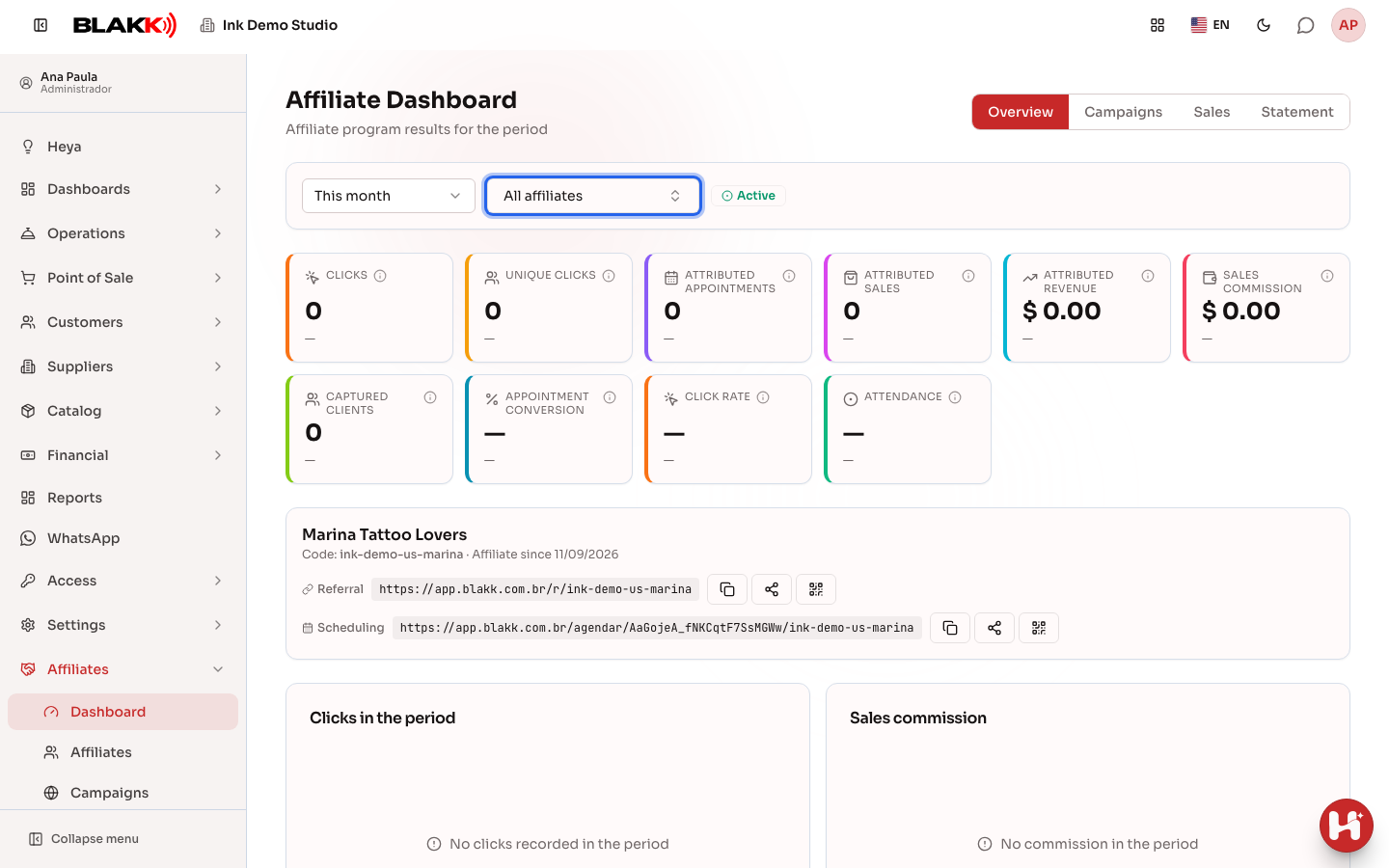
Section titled “Step 1 — Choose a period and affiliate”Open Dashboard from the Affiliates menu. The dashboard opens to this month: use the period selector to change it. Each number shows a comparison with the previous period. In the All affiliates field, choose an affiliate to see only their results.
Step 2 — View results in Overview
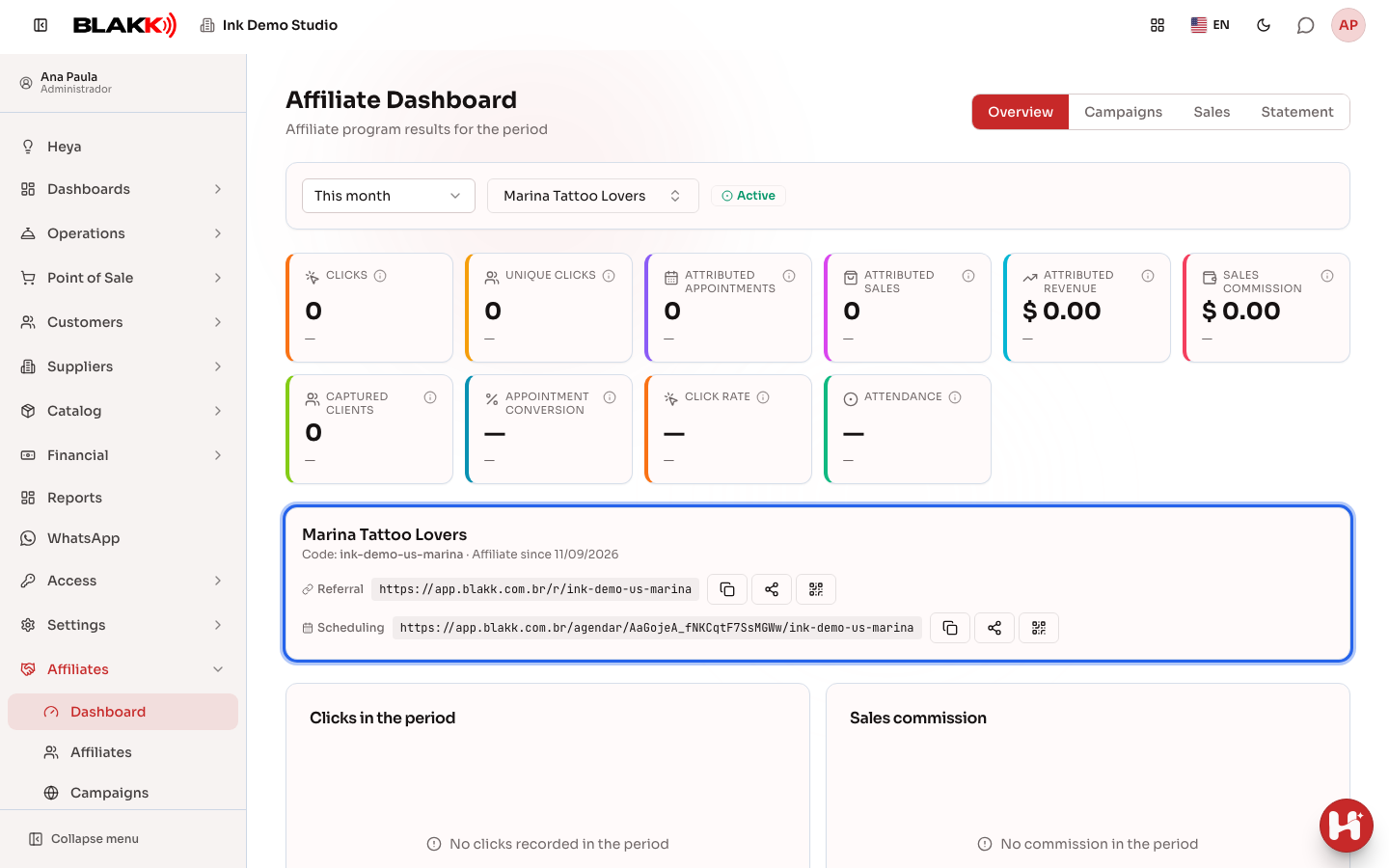
Section titled “Step 2 — View results in Overview”The Overview tab shows Clicks and Unique clicks, **Attributed appointments, **Attributed sales, **Attributed revenue, **Sales commission, and Captured clients. When All affiliates is selected and more than one affiliate is set up, you’ll see the Affiliate ranking, from the highest performer to the lowest. Hover over the icon next to any number to see how it’s calculated.
Step 3 — Get an affiliate’s link and QR Code
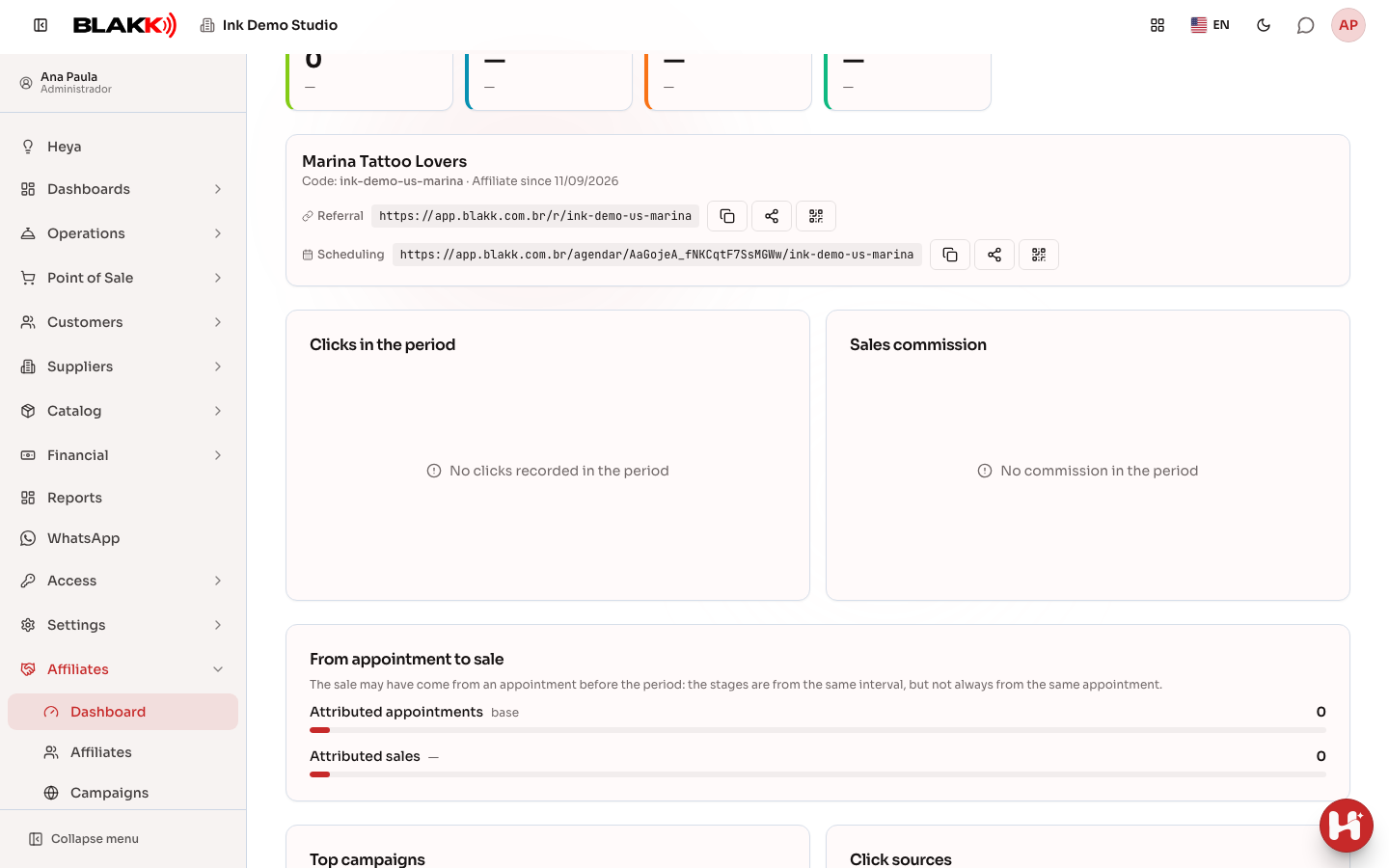
Section titled “Step 3 — Get an affiliate’s link and QR Code”When you select an affiliate (or if you only have one), Overview shows their card with their Code, the date they joined (Affiliate since), and their links, including the Scheduling link, which brings clients to your calendar. Next to each link are three buttons: copy, share (opens your phone’s sharing options), and Download QR Code.
Step 4 — Compare campaigns
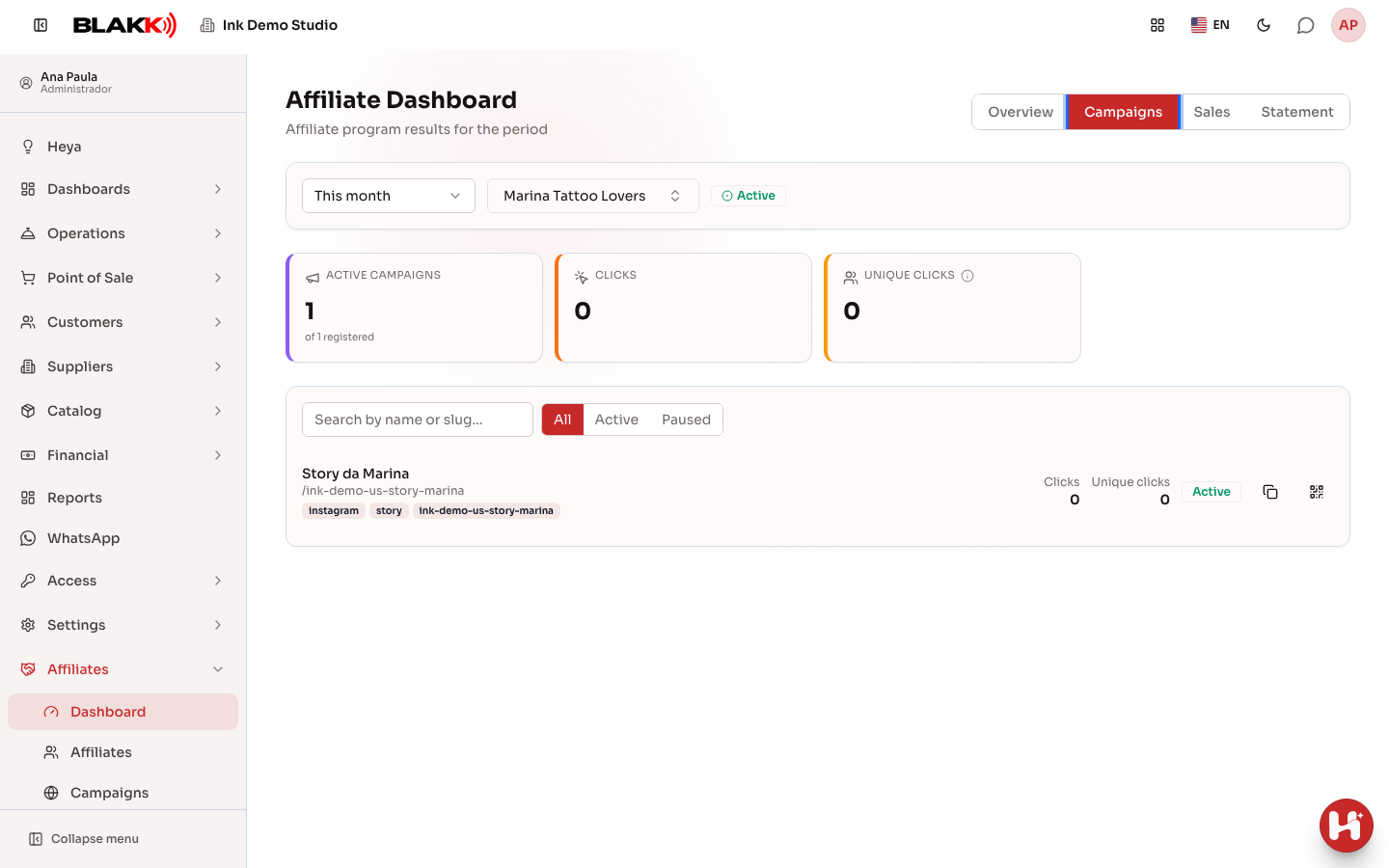
Section titled “Step 4 — Compare campaigns”The Campaigns tab shows **Active campaigns, **Best rate, **Commission per click, and a list of campaigns with their clicks for the period. Filter by **All, **Active, or **Paused, and use Copy campaign link to get a campaign’s link.
Step 5 — Review sales and the statement
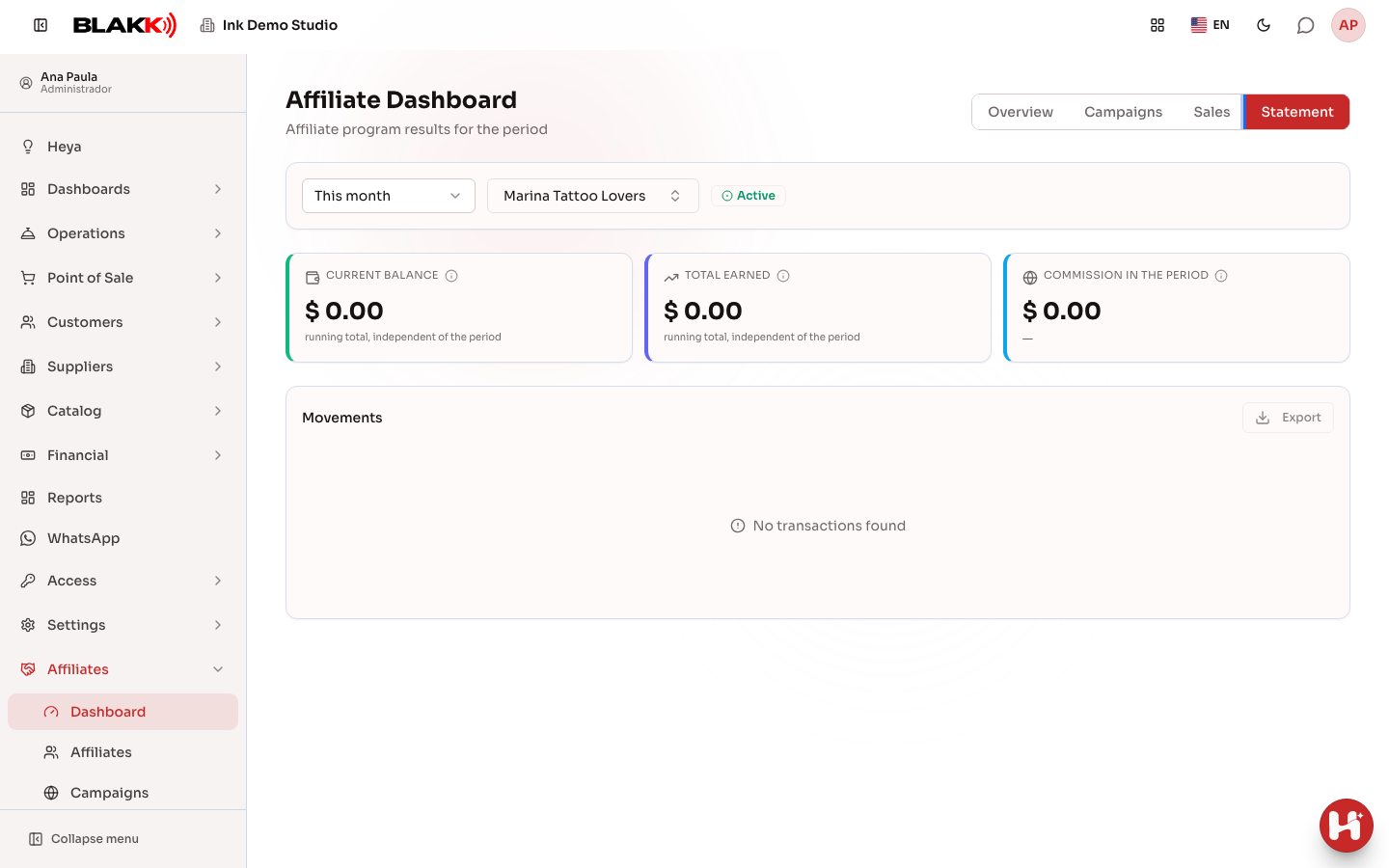
Section titled “Step 5 — Review sales and the statement”The Sales tab lists each sale attributed to an affiliate, along with the client, Calculation basis, and **Commission, as well as the Average Ticket and Clients served. The Statement tab shows the **Current Balance, **Total earned, **Commission in the period, and Movements. In both tabs, Export downloads the list as a spreadsheet so you can send it to the affiliate.
What happens next
Section titled “What happens next”- The dashboard is for viewing only: filtering or exporting doesn’t change affiliate numbers.
- Current Balance is the accumulated commission since the affiliate was added and isn’t affected by the selected period. The system doesn’t pay the affiliate or deduct from the balance; you settle up outside the system.
- Click details are stored for 90 days. Totals remain on the dashboard after that, and commissions aren’t affected.
Common mistakes and questions
Section titled “Common mistakes and questions”Q: The dashboard shows all zeros. What happened? A: Most likely, nobody used the links during the selected period. Expand the period using the selector, or check in Affiliates that the affiliate is promoting the correct link.
Q: The affiliate’s scheduling link isn’t counting clicks. Why? A: The scheduling link goes straight to the calendar and doesn’t track clicks. Appointments that come from it appear under Attributed appointments. To track clicks, promote a campaign (see Affiliate campaigns).
Q: Attributed revenue is higher than the commission calculation basis. Is that a mistake? A: No. Attributed revenue includes sales attributed to the affiliate that are no longer eligible for their commission (for example, sales beyond the agreed number). These sales don’t earn commission.
Q: Can the affiliate see this dashboard? A: No. Affiliates don’t have a login. Export the lists and send them to the affiliate.
Q: Why don’t clicks match the number of people? A: Clicks counts every visit; Unique clicks counts different people per day. Automated visits, such as WhatsApp link previews and search bots, aren’t included in either number.
Q: Why don’t I see clicks from three months ago? A: Details for each click are stored for 90 days. Daily totals and commissions remain on the dashboard.