Tabs Report: Track Open and Paid Tabs
What it is
Section titled “What it is”This is the central report for all tabs in a given period—open, closed, canceled, paid, or partially paid—with each tab’s total, amount already paid, and open balance. It also shows each tab’s cost (the products, materials, and supplies used), the payment method fee paid by the studio, profit, and profit percentage.
When to use it
Section titled “When to use it”- Check how many tabs are still open.
- Find partially paid tabs so you can collect the remaining balance from the customer.
- Reopen a specific tab directly from the report to edit it or record a payment.
- Check revenue by professional or station for a given period.
- See how much was left from each tab after paying for the materials and supplies used.
Before you start
Section titled “Before you start”If you can’t see this report, ask the studio owner to grant you access in Access → Profiles. The button to open a tab directly from the report also depends on your access to the Tab screen—if you don’t have access, the button won’t appear in the rows.
Step by step
Section titled “Step by step”Step 1 — View the list and summary cards
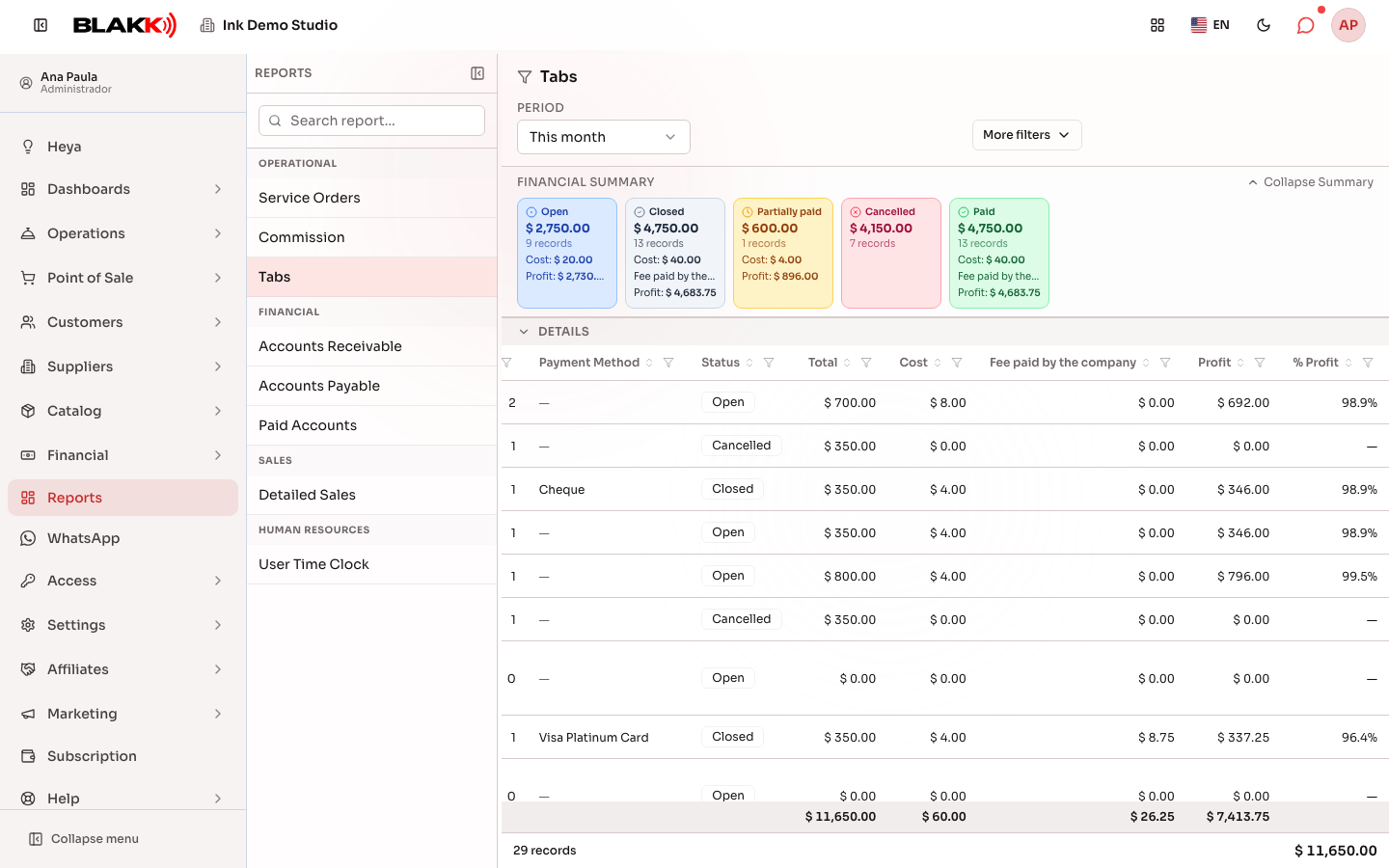
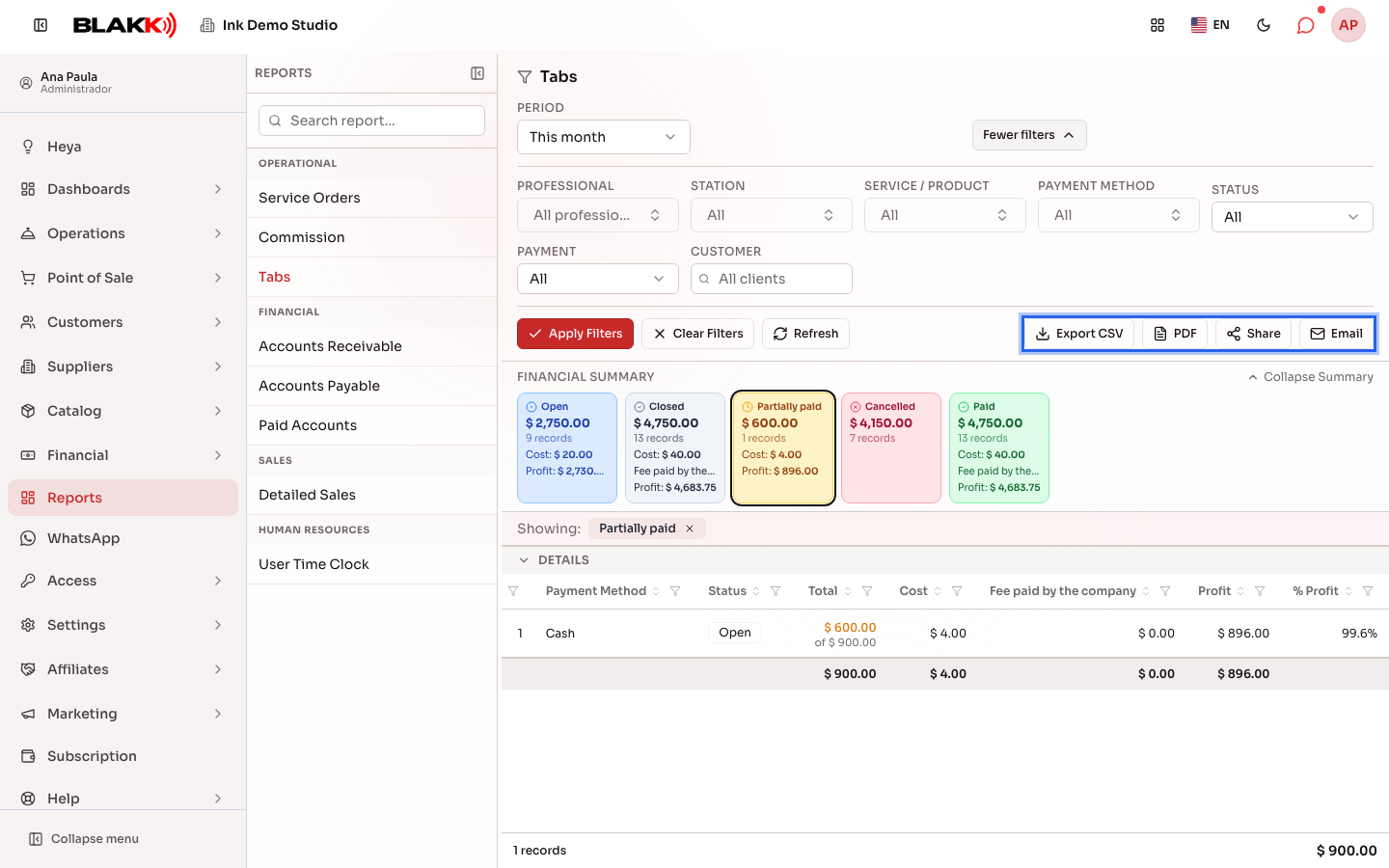
Section titled “Step 1 — View the list and summary cards”In Reports, click Tabs. The report opens to the this month period and shows all tabs for that period. The cards at the top show how many tabs have each status during the selected period: Open, Closed, Partially paid, Cancelled, and Paid. A status card only appears when there’s at least one tab with that status. The Partially paid card shows the balance still due, not the total amount of those tabs. Each card also shows the COST and Profit for tabs with that status and, when applicable, the Fee paid by the company. On mobile, the cards appear in a carousel: swipe sideways to see the others, and the dots below show which page you’re on.
In the list, the COST, Fee paid by the company, Profit, and % Profit columns next to Total show how much each tab cost and how much profit it made:
- COST adds up the cost of materials and supplies entered on the tab (the adjusted costs on the item or, if there’s no adjustment, the costs from the service setup) and the cost of products sold on the tab. Services don’t have their own cost—the cost comes from their supplies. The cost is based on the cost price set up for each product.
- Fee paid by the company is the payment method fee (for example, a fee for an installment credit card payment) that the studio pays. It’s included only when Fee paid by customer is turned off in the Fees tab of Payment Methods. When it’s turned on, the fee doesn’t appear here and isn’t deducted from profit.
- Profit is the tab amount before taxes and discounts, minus the cost and the fee paid by the company.
- % Profit is the profit divided by that amount.
The footer adds up the cost, fee, and profit for all tabs that match the filters. Canceled tabs have zero cost, fees, and profit, and their percentage appears as “—”. On mobile, COST, Profit, and % Profit appear on each tab’s card, and the fee is under See more.
Step 2 — Filter by a summary card
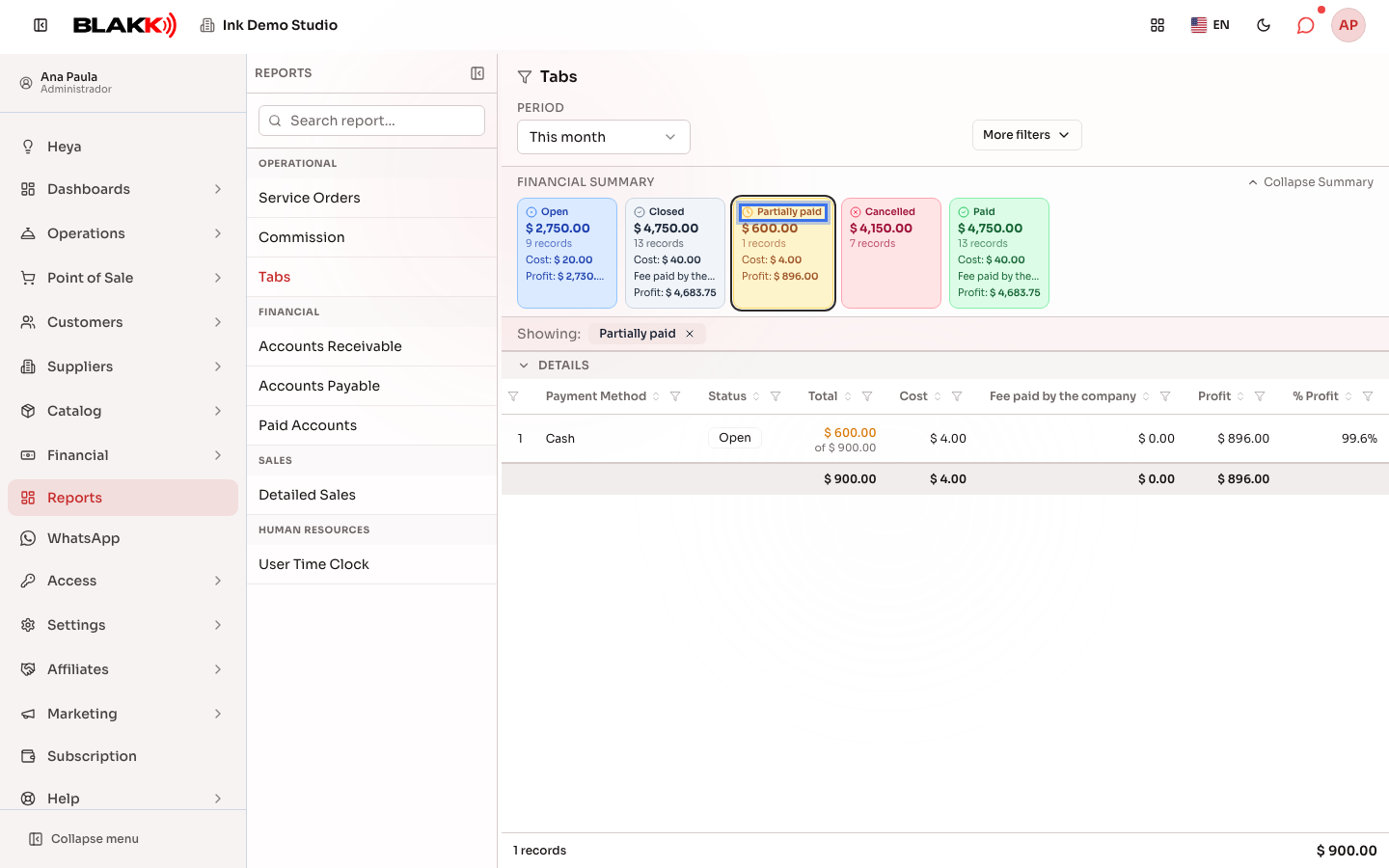
Section titled “Step 2 — Filter by a summary card”Click the Partially paid card to automatically filter the list to show only tabs with that status. For these tabs, the Total column highlights the remaining balance and shows the tab’s total just below (“of $…” ). Above the list, Showing appears with the card name; click the × next to it to clear the card filter.
For other filters, open More filters. You can filter by Professional, Station, Service / Product, Payment Method, Status, PAYMENT, and Customer. Once you’ve made your selections, click Apply Filters.
Step 3 — Open a tab directly from the report
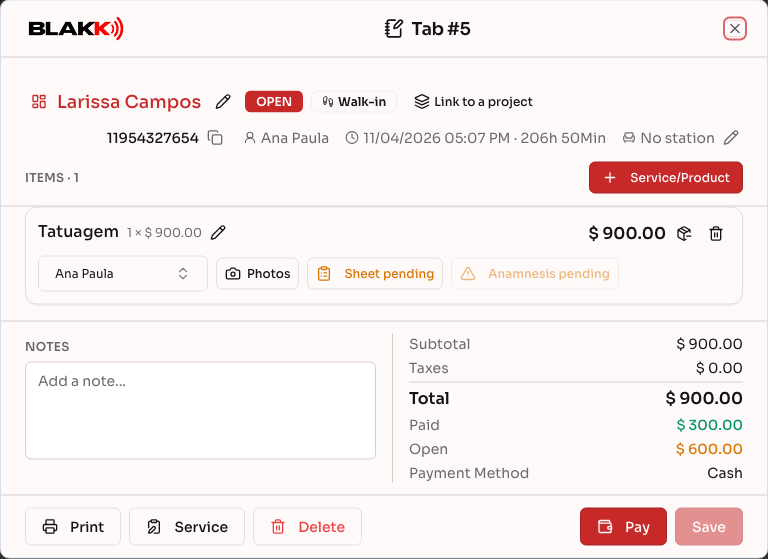
Section titled “Step 3 — Open a tab directly from the report”Click the Open tab icon in a row. The same tab window you use on the day-to-day screen opens, with all items, payments, and editing options.
Step 4 — Filter by a column
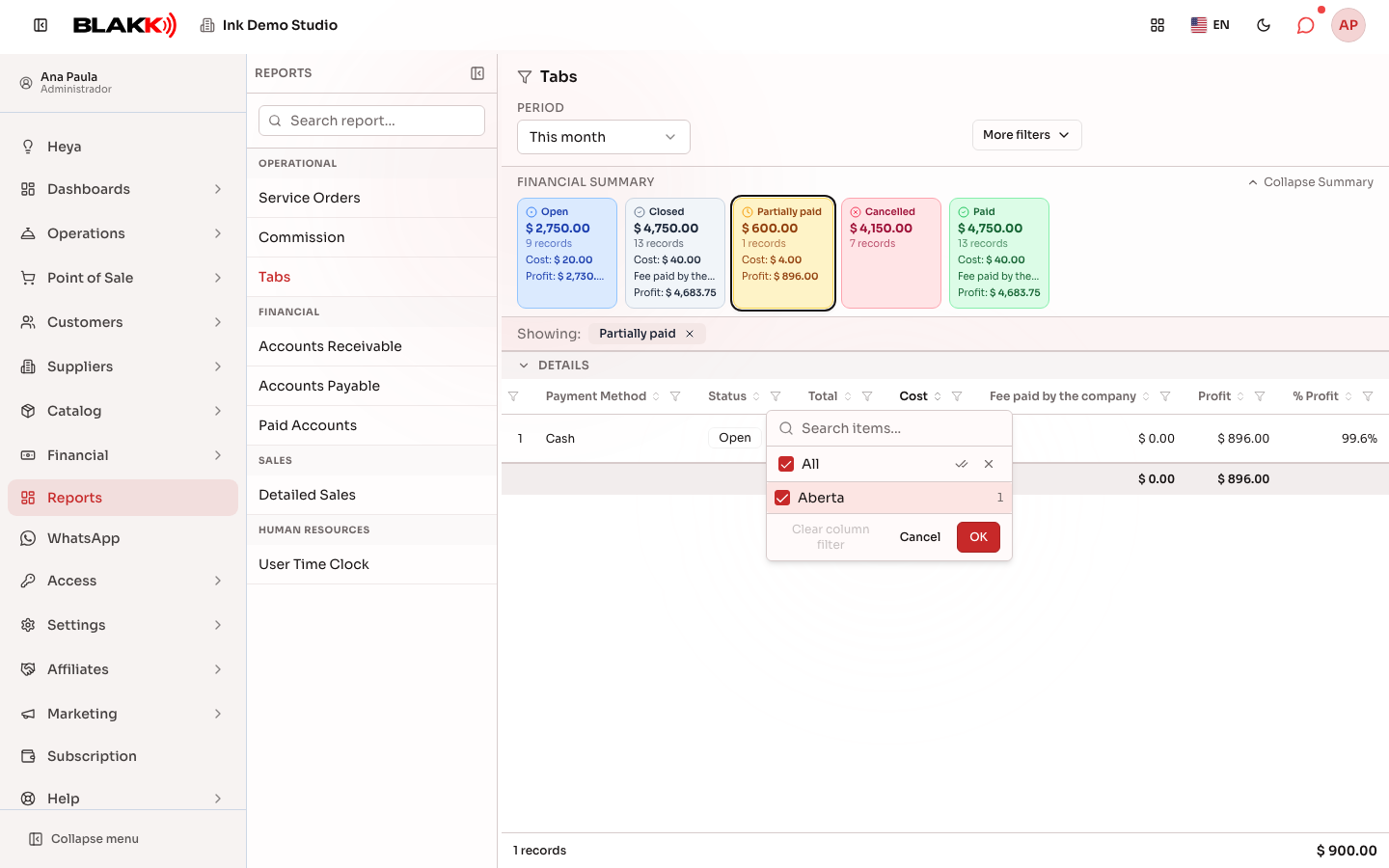
Section titled “Step 4 — Filter by a column”Click the funnel icon in a column header (for example, Status) to filter by the values in that column without changing the filters at the top.
Step 5 — Export the report
Section titled “Step 5 — Export the report”Use the Export CSV, PDF, Share, or Email buttons to export the report for the filtered period (the WhatsApp button also appears when the studio’s WhatsApp is connected). These buttons are inside More filters, just below the filters; on mobile, they appear as icons only. Share generates a PDF and opens your device’s sharing options. On a computer, the PDF downloads.
What happens next
Section titled “What happens next”- By default, the report includes tabs in all statuses (open, closed, and canceled together). To see only one status, use the Status filter or the matching card.
- Status (open/closed/canceled) and PAYMENT (unpaid/partially paid/ paid) are independent filters. For example, a tab can be open and partially paid at the same time.
- The Open Balance total in the footer adds up the balance for each tab individually (it can’t be negative). Change left over or an overpayment on one tab won’t reduce the balance on another.
- The cost of a paid tab is saved as it was on the day of payment. Changing a product’s cost price later won’t change that tab’s cost. An unpaid tab uses the current cost price, so its profit can change until payment.
- The fee is the one recorded for each payment when it was added. For an open or partially paid tab, it only includes payments already recorded, so profit changes with each payment.
- If Fee paid by customer is turned on or off for a payment method later, the report will also use the new setting for older tabs.
- A reversed tab still includes the fee: the card processor doesn’t refund the fee when a payment is reversed.
- Opening a tab from the report and editing something (a payment or item) automatically updates the row in the list when you close the window.
Common mistakes and questions
Section titled “Common mistakes and questions”Q: What does the “Reversed” status mean? A: It’s a tab that was paid and then reversed using the Reverse button on the tab. It has its own card and isn’t included in the Paid card. The refunded amount appears as a negative amount in the Sales Report on the date the payment was reversed.
Q: Does the report show only closed tabs, or open tabs too? A: It shows both, as well as canceled tabs. That’s why you can use it to check both closed revenue and what’s still open.
Q: What’s the difference between “Status” and “Payment” in the filters? A: Status is the status of the tab itself (open, closed, or canceled). PAYMENT is only about the money (unpaid, partially paid, or paid). For example, an open tab can already have a partial payment. The two filters answer different questions.
Q: Why don’t I see an “Open” or “Canceled” card at the top? A: Cards only appear when there’s at least one tab with that status during the selected period. If there are no tabs in any status, the entire card section disappears.
Q: Why doesn’t the “Station” column appear in my report? A: This column only appears for studios with the Stations module enabled. Without it, tabs aren’t assigned to a station, so the column isn’t relevant.
Q: Why doesn’t the button to open a tab appear in any row? A: This button depends on your access level for the Tab screen, which is separate from your access to this report. Ask the studio owner to grant you access to both in Access → Profiles.
Q: Do the report totals include only the tabs visible on the screen or the entire filtered period? A: The entire filtered period. The footer totals (Total, Cost, Fee paid by the company, Profit, Total Paid, Open Balance) add up all tabs that match the filters, not just the ones visible as you scroll.
Q: Why is a tab’s cost zero? A: Cost is based on the cost price entered for products. If materials and supplies used for a service don’t have a cost price in their setup, or the service doesn’t have any materials or supplies, the cost is zero and the tab’s entire amount is profit. Check the cost price for each supply in its setup.
Q: Why isn’t profit equal to Total minus Cost? A: Profit also subtracts taxes (which the studio doesn’t keep), the discount given by the payment method, and the payment method fee paid by the studio. Total shows the amount due, including taxes.
Q: Why didn’t the card fee appear on the tab? A: Check the payment method in Payment Methods → Fees. When Fee paid by customer is turned on, the studio doesn’t pay the fee, so it’s excluded from the report. If no fee is set up for the number of installments used, the payment was recorded with a zero fee.
Q: Why is the fee here different from the “Payment Fees” column in the Sales Report? A: The Sales Report adds up all fees, including those paid by the customer. This report only includes fees paid by the studio because those are the ones that reduce profit.
Q: Why doesn’t the footer add up the “% Profit” column? A: Adding percentages from different tabs doesn’t give you a meaningful number. The percentage for the entire period appears on the Dashboard, in the % Profit card.