Data migration: bring your records over from another system
What it is
Section titled “What it is”If you’re switching from another system or have your records in spreadsheets, you don’t need to enter everything again. Our support team handles the migration: send us your spreadsheets, and we’ll import the data into Blakk within 72 business hours of receiving them.
When to use it
Section titled “When to use it”- You’re getting started with Blakk and already have a list of customers, products, and services in another system or in a spreadsheet.
- You’ve opened a new studio location and want to use the catalog you already have.
- You’ve exported data from your old system and aren’t sure how to import it here.
Before you start
Section titled “Before you start”Export everything you have from your old system (or gather it in spreadsheets). You don’t need to rearrange the columns to match one of our templates — our support team will map them for you. Common examples include:
- Customers: name, phone number, email, CPF, date of birth, address, notes.
- Products and services: name, group/category, sale price, cost, duration (for services, such as Full Sleeve), code/SKU.
- Inventory: current quantity and minimum stock for each product.
- Tattoo artists and suppliers.
- Financial records: outstanding accounts payable and receivable, balances.
File format: send the files as exported from your old system: Excel (.xlsx or .xls), CSV, or a .zip containing multiple files. Ticket attachments accept any file type except programs and scripts (such as .exe, .bat, or .msi). Each file can be up to 25 MB, and each message can include up to 10 files.
Step by step
Section titled “Step by step”Step 1 — Open a support ticket
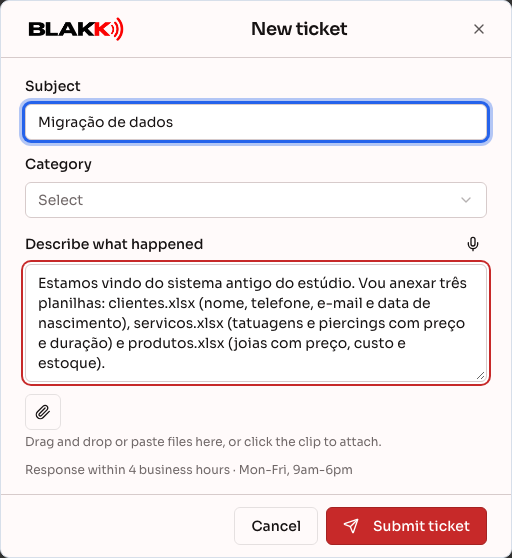
Section titled “Step 1 — Open a support ticket”Go to Help → Support and click New ticket. In Subject, enter something like “Data migration,” choose the closest matching Category, and in Describe what happened, tell us which system the data came from and what each spreadsheet contains.
If you don’t see the Support menu, contact the team using the chat icon at the top of the screen.
Step 2 — Attach your spreadsheets and submit
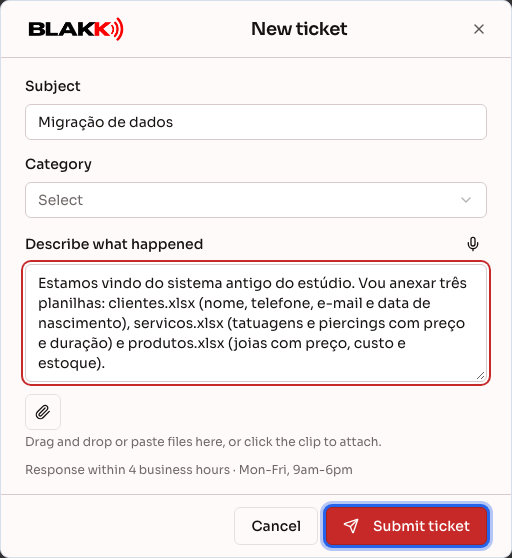
Section titled “Step 2 — Attach your spreadsheets and submit”Drag the spreadsheets into the window (or click the paperclip to select the files), then click Submit ticket. If you have more than 10 files, send the rest afterward as a reply in the same ticket.
Step 3 — Track your ticket
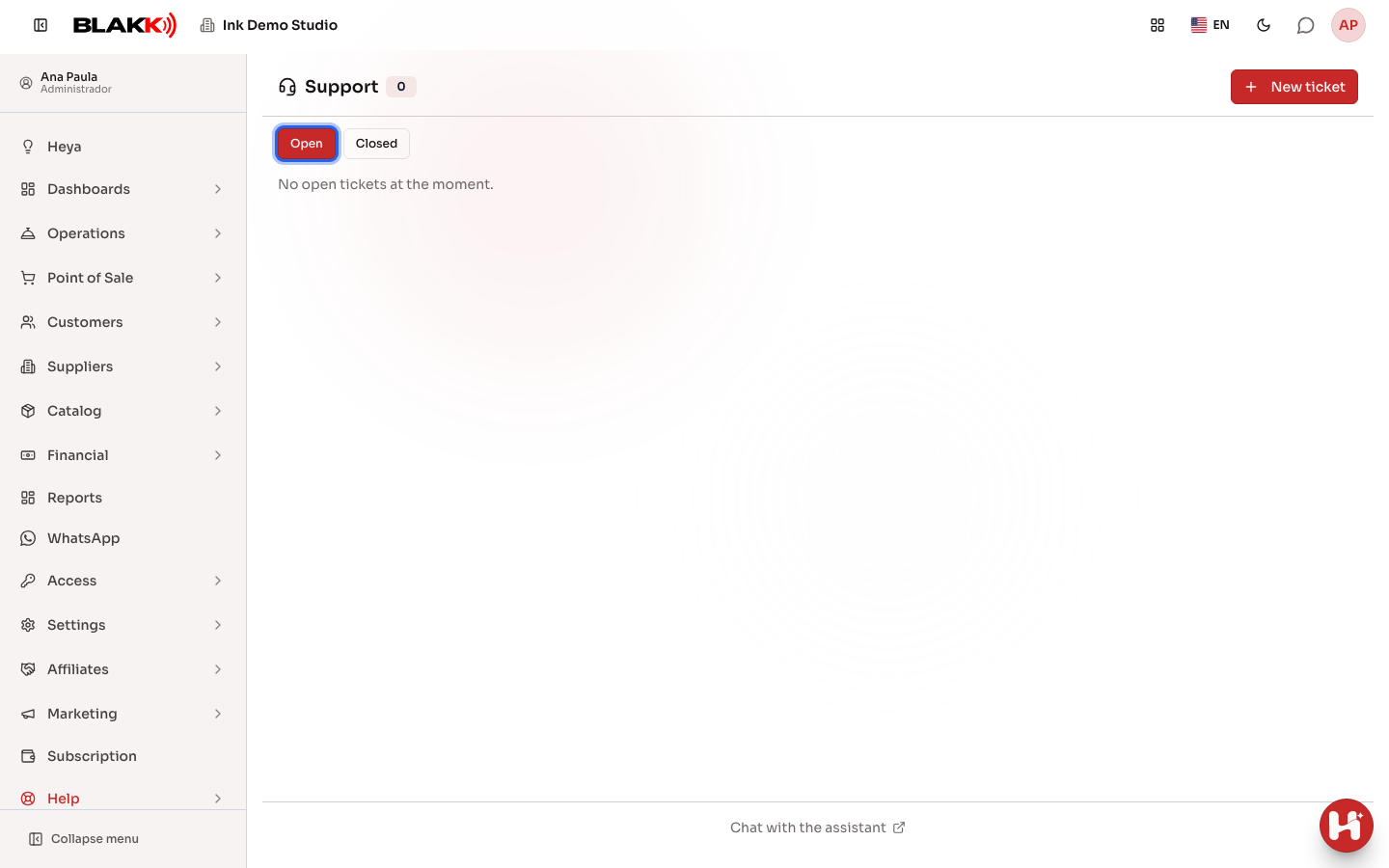
Section titled “Step 3 — Track your ticket”Your ticket appears in the Open tab on the Support screen. Its status changes as work progresses: New, Under review, In progress (with an Expected response), and Resolved. When you see Awaiting your reply, the team needs more information from you — open the ticket and reply in Write your reply…. The New reply badge lets you know there’s a new message from Support.
Each ticket shows the business it belongs to and the system it was submitted through, right below the subject. If you have access to more than one business, the list shows tickets for all of them: check the business before replying.
Step 4 — Check the imported data
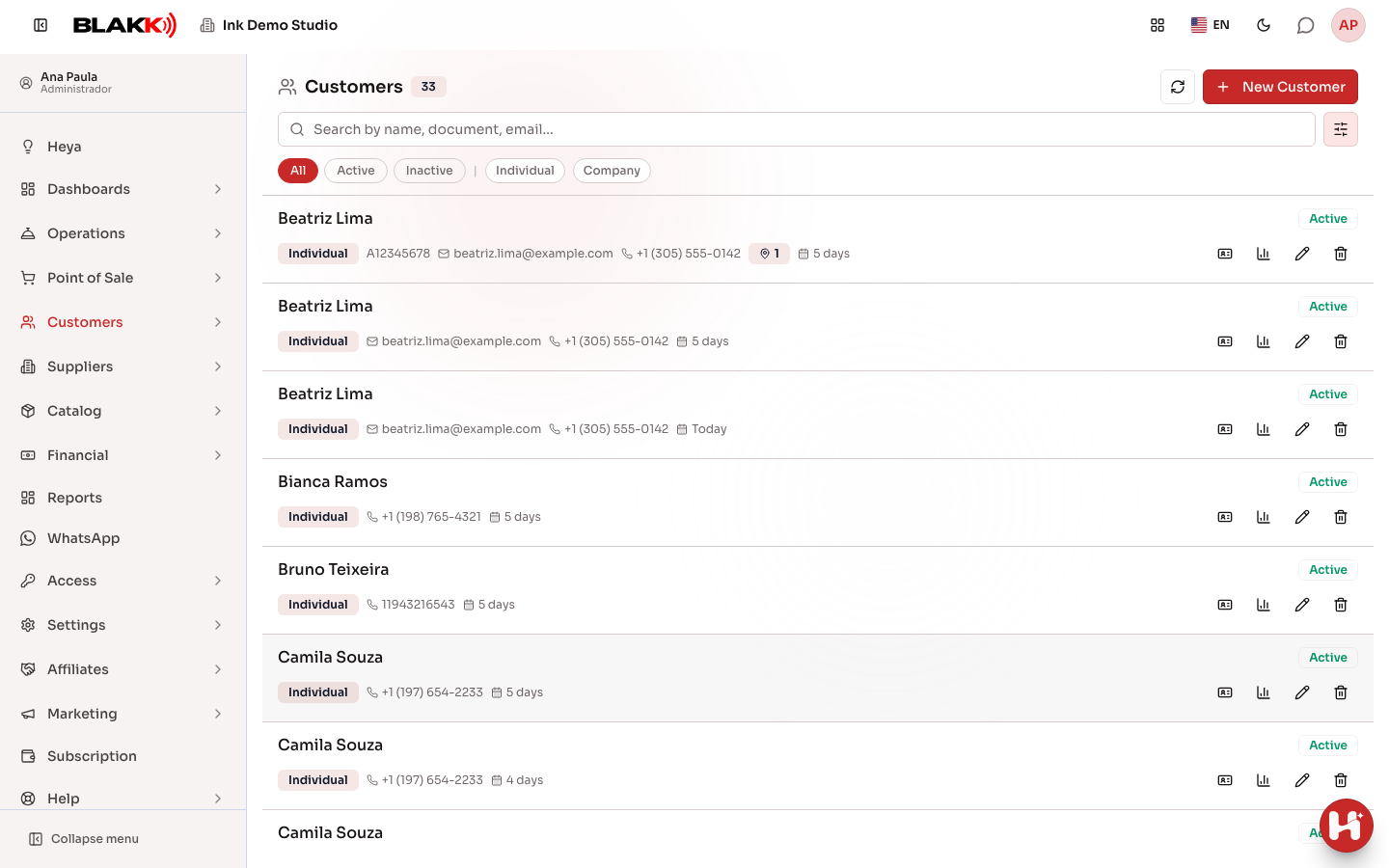
Section titled “Step 4 — Check the imported data”When Support lets you know the import is complete, spot-check a few records: some customers under Customers, some products under Catalog → Products (price, group, and inventory), and some services under Catalog → Services (price and duration). If anything looks wrong, reply in the same ticket.
What happens next
Section titled “What happens next”- Migration takes up to 72 business hours from the time we receive your spreadsheets. You should hear back from Support much sooner — within 4 business hours, Monday through Friday, from 9 AM to 6 PM.
- Imported data is treated as if it had been entered by hand: customers appear in the appointment book and service tickets, while products and services appear in the catalog, POS, and website.
- If information is missing or a spreadsheet is unreadable, the ticket will remain in Awaiting your reply until you reply.
Common mistakes and questions
Section titled “Common mistakes and questions”Q: Do I need to put my spreadsheets in a specific format? A: No. Send them as exported from your old system. Our support team will map the columns. It helps if you mention in the ticket what each file contains.
Q: My old system exports data as CSV. Can I send that? A: Yes. Ticket attachments accept CSV, Excel, and .zip files. Programs and scripts (such as .exe, .bat, or .msi) aren’t accepted.
Q: How long does it take? A: Up to 72 business hours from the time we receive the complete spreadsheets.
Q: Can I keep using the system while the migration is in progress? A: Yes. Just avoid manually adding the same customers and products that are in the spreadsheets, so you don’t end up with duplicates. If you need to add something urgently, let us know in the ticket.
Q: My spreadsheet is too large to attach. A: Each file can be up to 25 MB. Split it into multiple files (for example, customers A–M and N–Z) and send them as replies in the same ticket.
Q: I don’t see the Support menu. A: Use the chat icon at the top of the screen to contact the team. If you’re a studio team member and don’t see the menu, ask the studio owner to grant you access under Access → Profiles.