Sales Report: Track Everything You’ve Sold
What it is
Section titled “What it is”This is the main report for everything that’s been sold — each row is a completed sale, whether it came from the Point of Sale or from closing a ticket. Use it to check revenue for a given period, find a specific sale to reprint its receipt, and see how much came in through each payment method.
When to use it
Section titled “When to use it”- Check revenue for the day, week, or month.
- Find an old sale for a specific customer to reprint or resend the receipt.
- Check how much came in through cash, Pix, or card during a period, and compare it with your statement.
- Export sales for a given period for your accounting records or accountant.
Before you start
Section titled “Before you start”If you can’t view this report, ask the studio owner to grant you access under Access → Profiles. Unlike setup screens, this report is read-only — there are no “Edit” or “Full” access levels here, just access or no access.
Step by step
Section titled “Step by step”Step 1 — Open the report
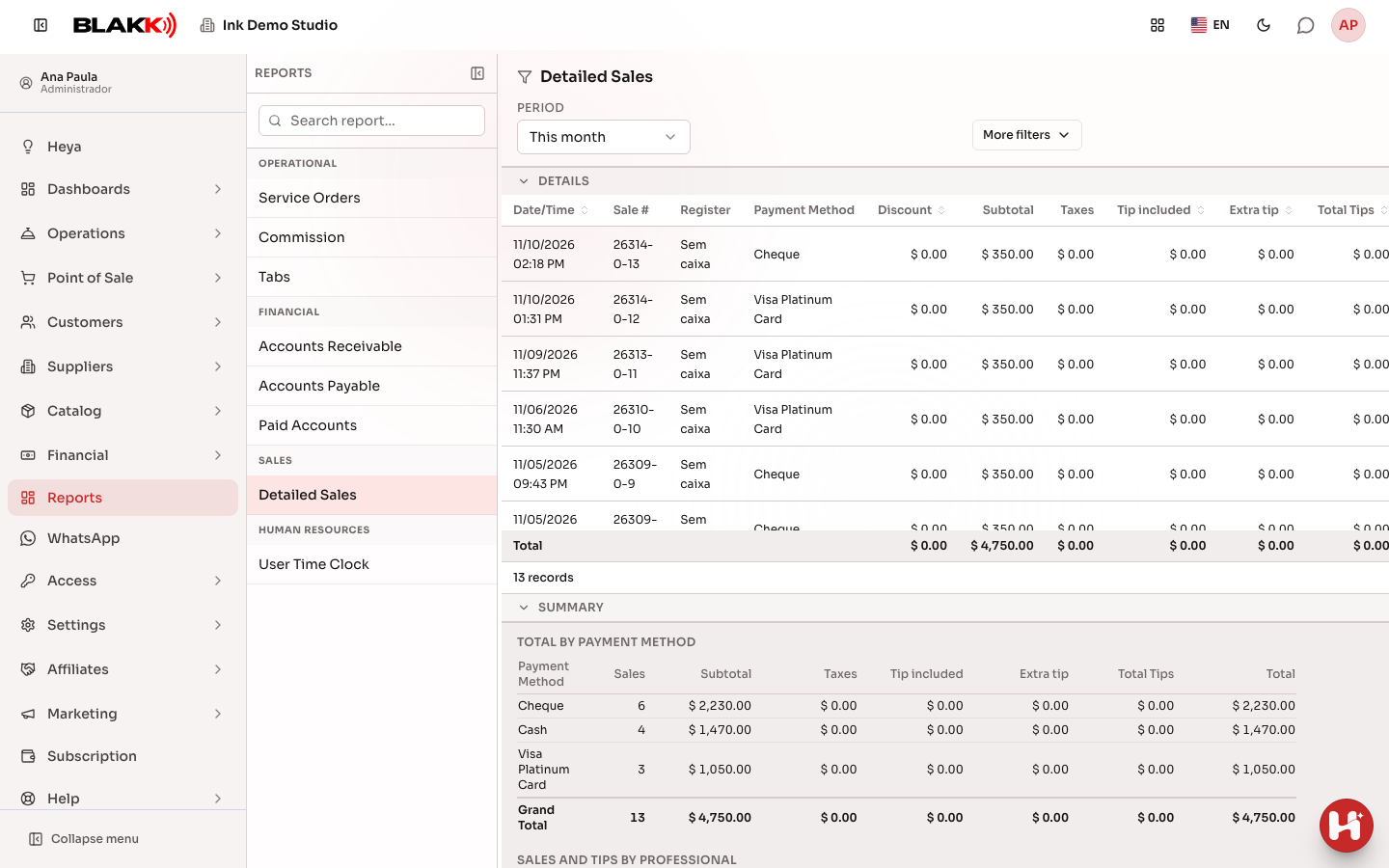
Section titled “Step 1 — Open the report”Under Reports, click Detailed Sales. The report opens with this month selected. To view sales for a specific time of day (for example, evening sales), select Custom for the period. In addition to the dates, you’ll see Start time and End time.
Step 2 — Filter by payment method
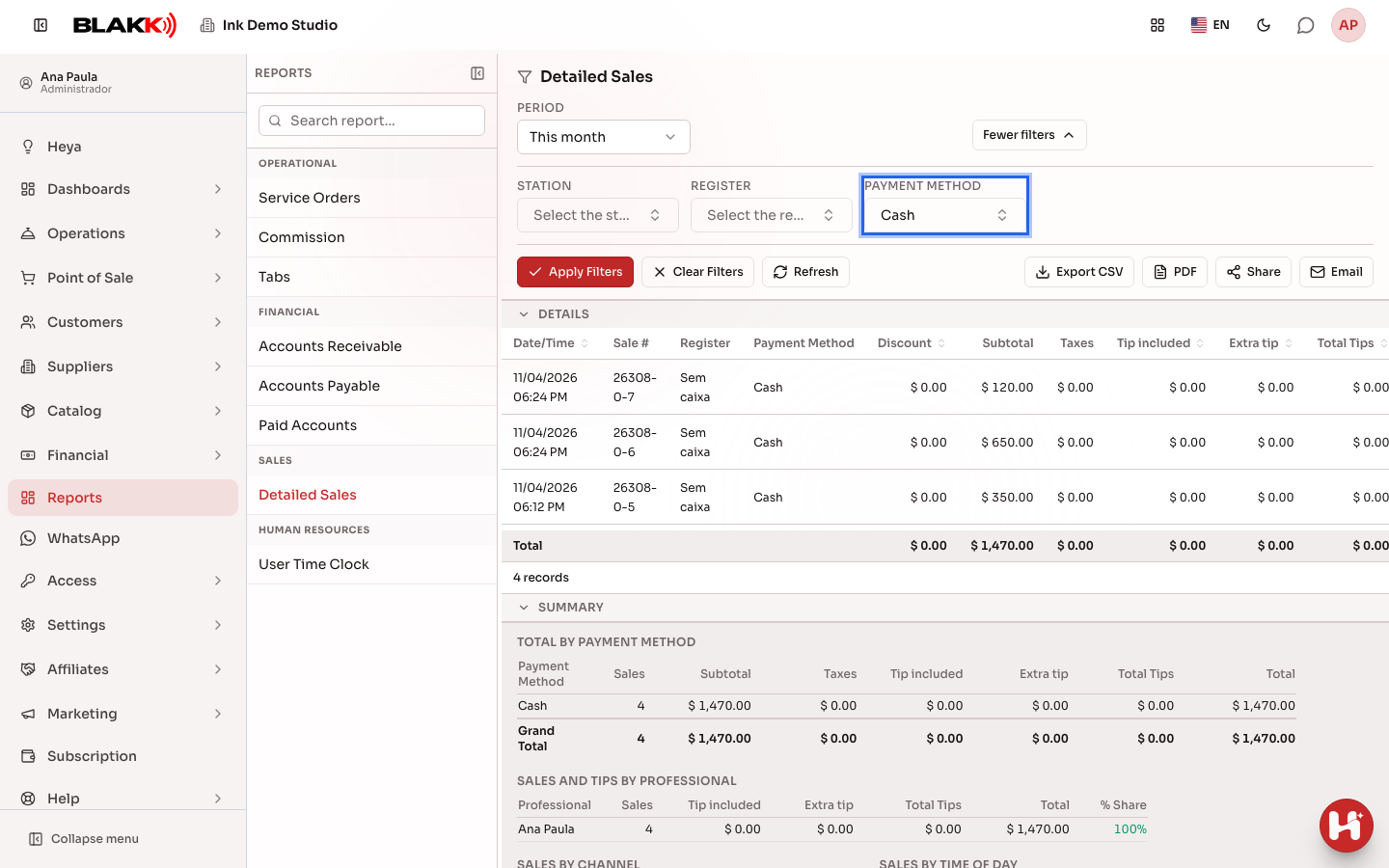
Section titled “Step 2 — Filter by payment method”Click More filters to show the Station, Cash, and Payment Method filters. Choose an option under Payment Method and click Apply Filters. The list will show only sales made with that payment method. Scroll sideways in the table to see an extra column showing how much each sale contributed to that method.
Step 3 — Check the total by payment method
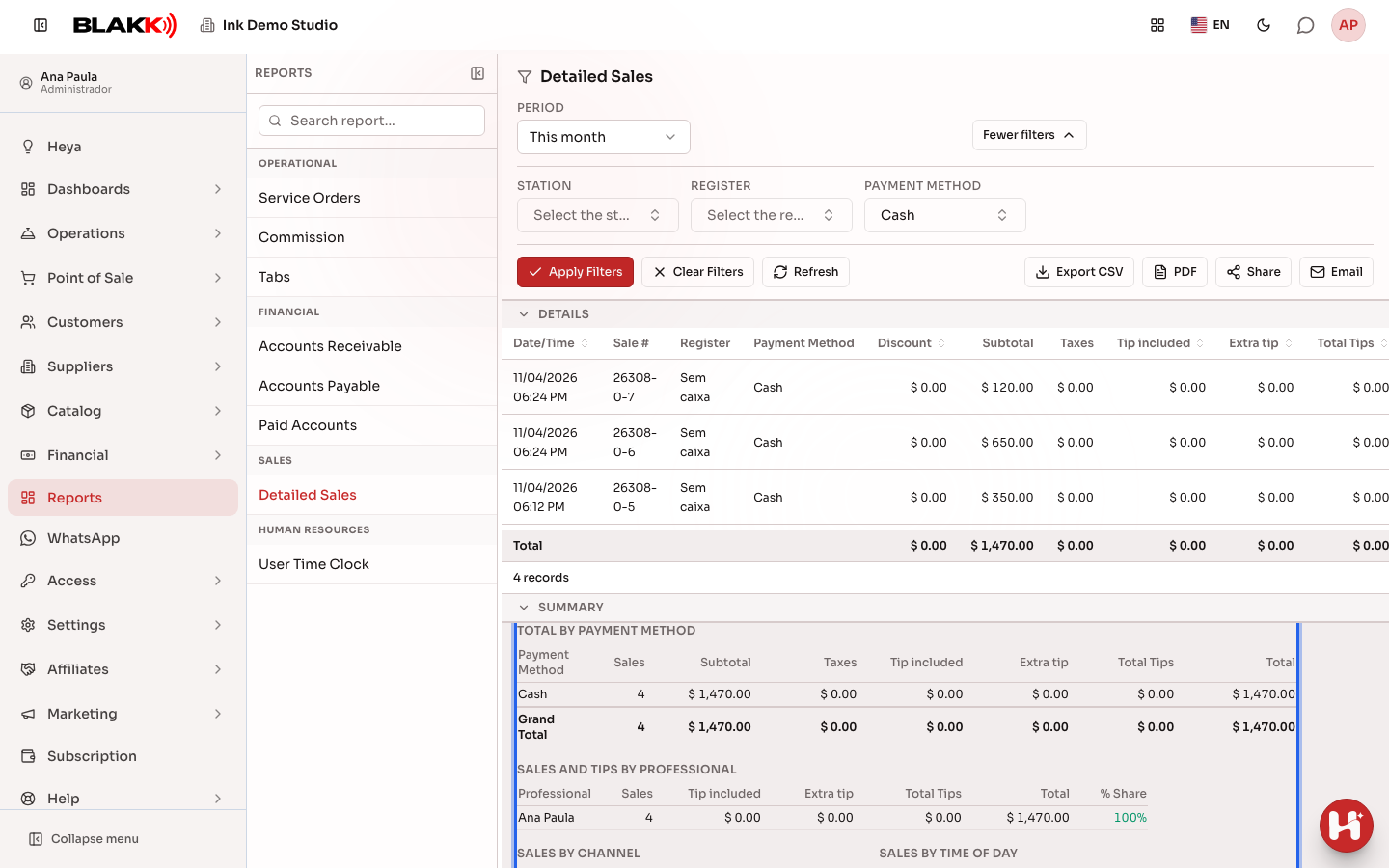
Section titled “Step 3 — Check the total by payment method”Scroll to the bottom of the list. The Total by Payment Method panel adds up the amount received through each payment method during the filtered period, matching the totals in the table above.
Step 4 — View a sales receipt
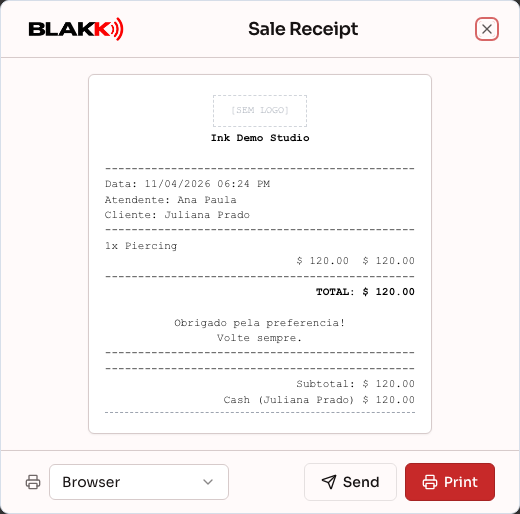
Section titled “Step 4 — View a sales receipt”Click the eye icon in a row (View Ticket) to open that sale’s receipt. At the bottom of the window, choose where to print it (Browser or a registered printer) and click Print, or click Send to send the receipt to the customer.
Step 5 — Export the report
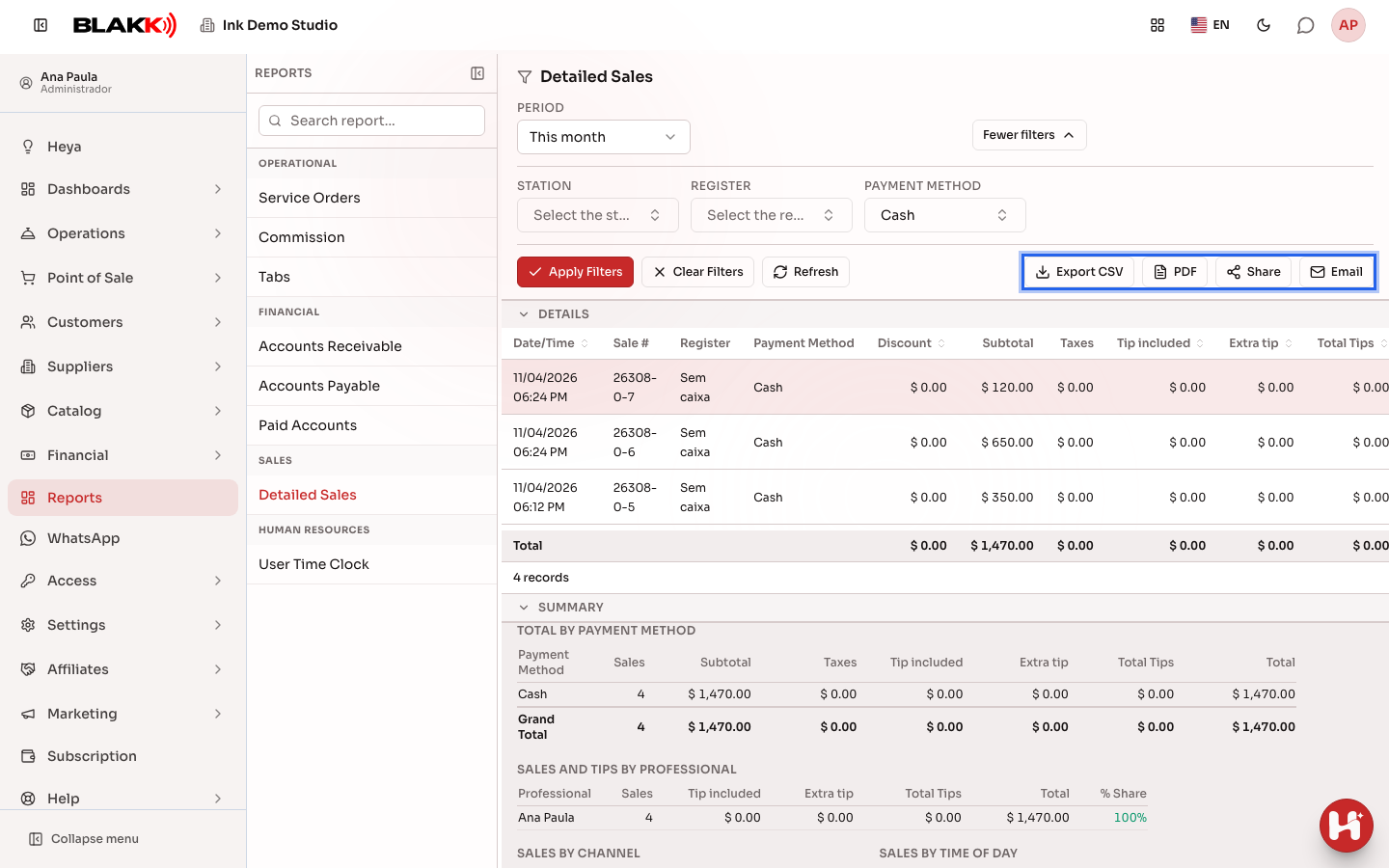
Section titled “Step 5 — Export the report”The export buttons are under More filters, just below the filters. On mobile, they appear as icons only.
- Export CSV downloads a spreadsheet;
- PDF downloads the report as a PDF;
- Share creates the same PDF and opens your device’s sharing options (WhatsApp, email, etc.). On a computer, where this option isn’t available, the PDF is downloaded;
- Email sends the report by email;
- WhatsApp appears only when the studio’s WhatsApp is connected and you have edit access to WhatsApp.
What happens next
Section titled “What happens next”- Only completed and paid sales appear here — there are no open sales or sales canceled before completion. A refund or cancellation of an already-paid sale appears as a separate row with a negative amount, which is included in the period total.
- Change from a cash sale is subtracted from the “Cash” total in the payment methods panel. The panel shows what actually remained in the cash register, not the gross amount received.
- Exports (CSV, PDF, Share, email, or WhatsApp) always include the entire filtered period, not just the rows currently visible on screen.
- A completed sale with no open cash register (for example, a ticket closed at a studio that doesn’t require an open cash register) has a blank Cash column, displayed as “No cash register” — this isn’t an error.
- A one-time customer debt or credit payment (from the Customer Payments screen, with no products) isn’t included in the report’s Subtotal, Taxes, or Tips totals — it isn’t a sale. It still appears separately in the Customer Payments panel at the bottom of the page, with the date, customer, payment method, amount, and — if applicable, for example, a tip added on the card terminal at the time of payment — the Tip column. For the same reason, that tip is also excluded from the main footer’s tip total.
Common mistakes and questions
Section titled “Common mistakes and questions”Q: Why does “No cash register” appear in the Cash column for a sale?
A: The sale was completed when no cash register was open — usually a ticket closed at a studio configured not to require an open cash register (the default for studios created during signup). The sale is valid and included in the totals as usual; it just isn’t associated with a cash register.
Q: Does a canceled or refunded sale disappear from the report?
A: No — it remains in the report as a regular sale, and the refund appears as a second row with a negative amount. The total of both rows reflects the net result.
Q: Why doesn’t the “Cash” total in the summary match the cash we gave the customer as change?
A: The panel already subtracts the change. It shows how much actually remained in the cash register for each payment method, not the gross amount the customer handed over before receiving change.
Q: How do I see how much each professional sold?
A: Scroll to the bottom of the page. The Sales and Tips by Professional panel shows the number of sales, tips, total sales, and each person’s share of the total (% Share) for everyone who recorded sales during the period.
Q: Does this report show only sales made through the Point of Sale, or does it include tickets too?
A: It shows both — any completed sale, whether made through the Point of Sale or by closing a Ticket, appears here as a regular row.
Q: How do I reprint a receipt for a sale from a day outside the period currently displayed?
A: Adjust the period filter (Period) to include the sale date, find the row, and click the eye icon (View Ticket). The receipt opens with the same print and resend options as a recent sale.
Q: I opened a sale ticket and saw “No active ticket template found,” and the Print button was disabled — what does this mean?
A: This studio doesn’t have an active receipt template (the layout used for printing). Without one, the preview won’t appear and you can’t print using Browser. The Send button will still be available, but sending also requires the same template. If you can’t find where to set up the template in your menu, contact support.
Q: Why doesn’t my “Subtotal” match what I calculate by adding Taxes and Tips?
A: First, check whether there was a one-time customer payment during the period (in the Customer Payments panel at the bottom of the page). It isn’t a product sale, so it’s intentionally excluded from Subtotal, Taxes, and Tips, even if the money really did come into the cash register that day.