Technical sheets: record how each service was performed
What it is
Section titled “What it is”The technical sheet is the tattoo artist’s “notebook” in the system: style, body placement, theme, colors, ink brand, needles, and number of sessions. It’s linked to the service added to the tab — each full sleeve or helix piercing a customer gets has its own sheet. On the customer’s next visit, you can pull up the sheet from last time instead of starting from scratch.
When to use it
Section titled “When to use it”- A customer comes back to continue a full sleeve: on the new session’s tab, open the sheet and click Repeat from last time to bring over the style, ink, and needles from the previous session, then update anything that has changed.
- A customer gets a helix piercing: the tattoo artist records the placement and jewelry used, so whoever handles a jewelry change knows exactly what was used.
- You start offering a new service (for example, micropigmentation) and want it to require a technical sheet on the tab: link a sheet to it in the service settings.
Before you start
Section titled “Before you start”Your studio’s technical sheets are already set up: Tattoo and Piercing. The suggested procedures you selected when setting up your account (Tattoo, Cover-up, Touch-up, Laser Removal, Piercing, Jewelry Change) already have the appropriate sheet linked. A service you created with a different name starts without a sheet — see Step 1 below.
You can’t create a new sheet type or change a sheet’s fields, options, or statuses from your account: this setup is managed by the Blakk team in the platform administration area. If you need a new field, contact Blakk Support.
If you can’t link a sheet to a service, ask the studio owner to grant you access to Services under Access → Roles. If you can’t fill out a sheet on a tab (the form opens as read-only), ask the studio owner to grant you edit access to Tabs under Access → Roles.
Step by step
Section titled “Step by step”Step 1 — Link a technical sheet to a service
Section titled “Step 1 — Link a technical sheet to a service”Go to Catalog → Services, open the service using Edit (or create one with New Service), then go to the Additional tab. Under Technical Sheet, select the sheet the tattoo artist should fill out when performing that service, then click Save. To remove the sheet from the service, select None.
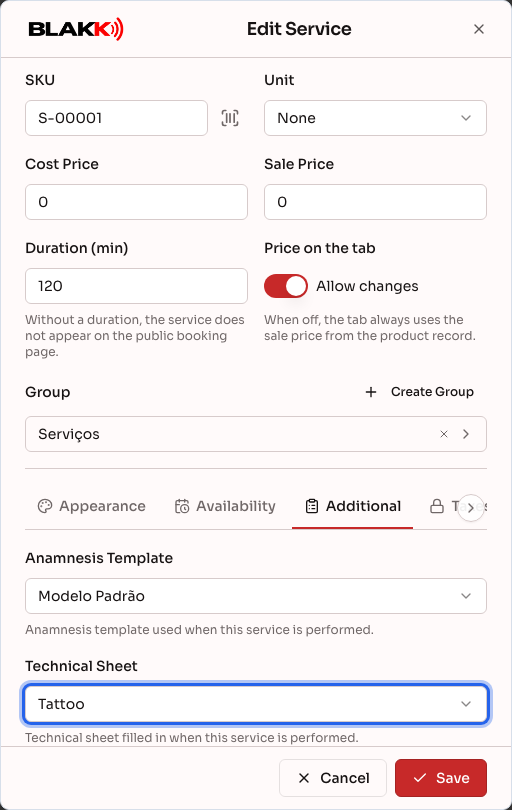
Technical sheets are only available for services — products don’t have this field.
Step 2 — Open the item’s pending sheet
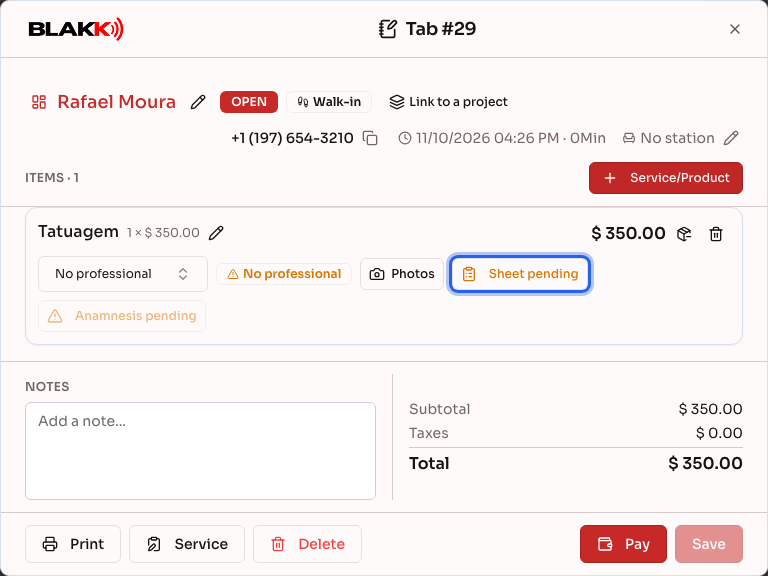
Section titled “Step 2 — Open the item’s pending sheet”With the tab open, click Service/Product and add the service. If a sheet is linked to it, the tab item will show the orange Sheet pending badge. Click it to open the sheet. The same badge appears when you open the tab from the Tab tab of a Service.
Step 3 — Fill out the sheet
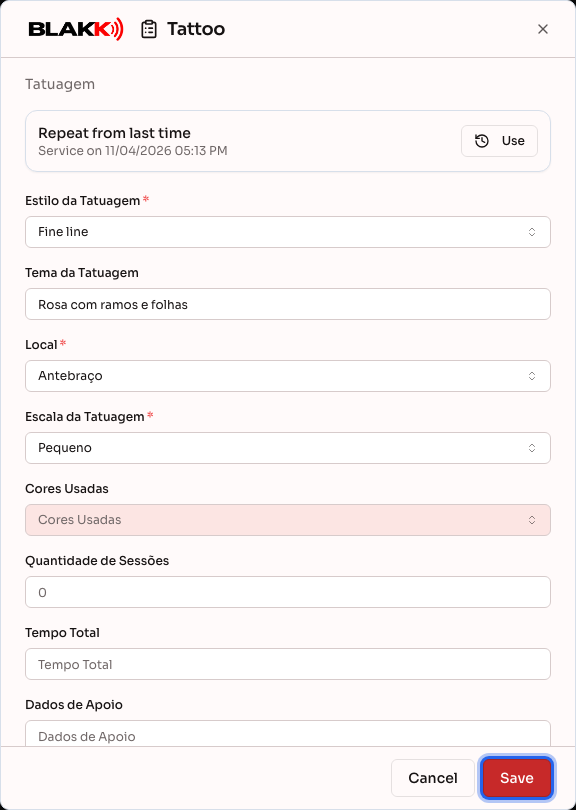
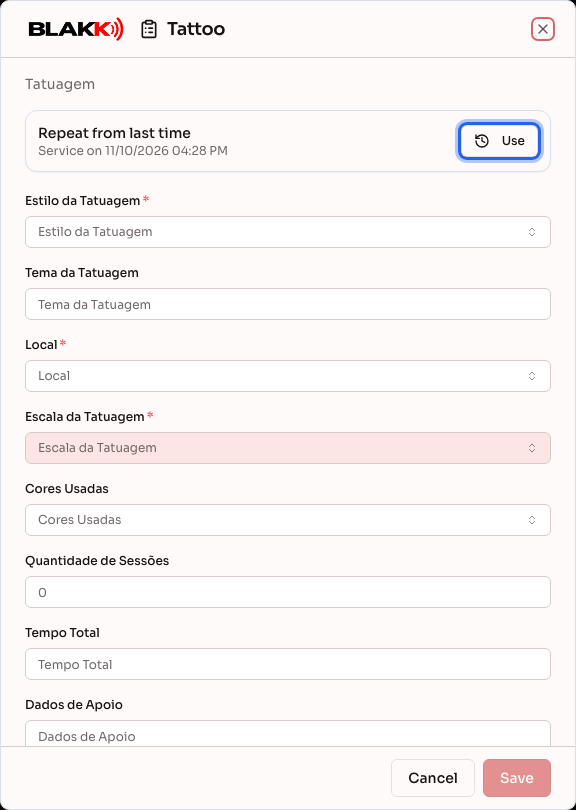
Section titled “Step 3 — Fill out the sheet”Fill in the fields and click Save. A red asterisk marks required fields (for example, tattoo style and placement; which fields are required depends on your studio’s sheet). If any required field is blank, the sheet won’t save, and you’ll see Fill in all required fields of the technical sheet. along with the names of the missing fields. A text field with a required format (for example, a license plate) that shows Invalid format will also prevent saving (Some fields in the technical sheet have an invalid format.). Yes/No fields are never considered blank: “No” is also an answer. In searchable list fields, such as style and placement, if the option you need isn’t available, enter its name in Search or add… and click Add. The new option will be available on future sheets at your studio.
Step 4 — Confirm the sheet was saved
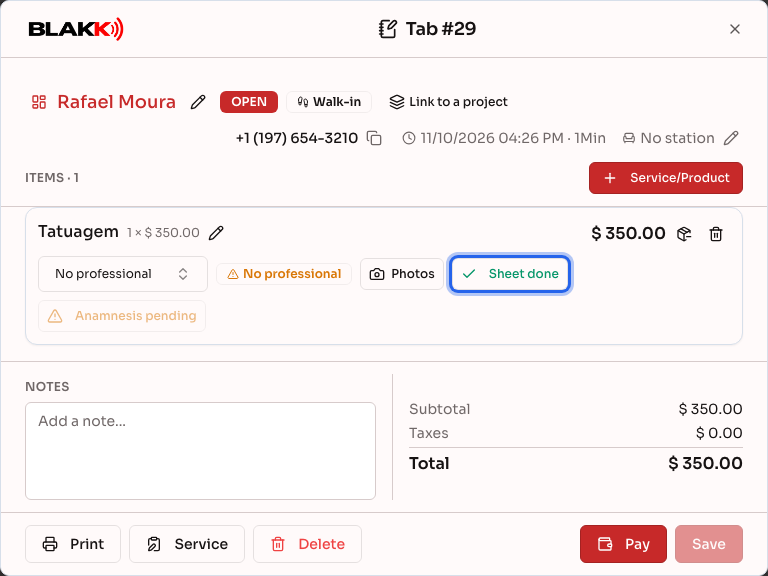
Section titled “Step 4 — Confirm the sheet was saved”After you save, you’ll see the Technical sheet saved message, and the item’s badge will turn green and change to Sheet done. Click Sheet done to reopen the sheet and review or correct it, as long as the tab is still open.
Step 5 — Reuse the sheet from last time
Section titled “Step 5 — Reuse the sheet from last time”If the customer has had the same service before, the new sheet will show the Repeat from last time section with the date of that service. Click Use to copy the previous sheet’s values to this one, update anything that has changed, and click Save. Nothing is saved until you click Save — if you change your mind, Cancel discards your changes.
What happens next
Section titled “What happens next”- One sheet for each service added. Each tab item has its own sheet. That’s what builds the customer’s history: three full sleeve sessions mean three sheets, and Repeat from last time always brings up the latest sheet for that same service.
- Closing the tab locks the sheet. After the tab is closed (or canceled), you can still open the sheet by clicking the Sheet done badge, but it will be read-only, without the Save button.
- A pending sheet won’t stop anything. The orange badge is a reminder: you can accept payment and close the tab even if the sheet hasn’t been filled out.
- Customer Summary. The service’s sheet type (Tattoo, Piercing) determines how the customer’s services are grouped by type in the Services rendered tab and how spending is grouped by category in the purchases tab. To review a sheet from an old session, open that tab from the purchases tab (a tab opened from a service opens that service in the Tab tab), then click Sheet done on the item.
- The tab’s sheet is different from the sheet in the customer profile. The customer profile (and Customer Summary) has tabs with the same names as sheet types, such as Tattoo. These are profile records stored separately: information you enter on a tab is not copied there, and information stored there doesn’t appear on the tab.
Common mistakes and questions
Section titled “Common mistakes and questions”Q: Why doesn’t the Technical Sheet field appear in the settings? A: It only appears in service settings (products don’t have sheets), and only when at least one sheet is available for your studio. If you’re editing a service and the field still doesn’t appear, contact Blakk Support.
Q: Can I create a new technical sheet or change the fields on the Tattoo sheet? A: Not from your account — sheets are configured in the platform administration area, including their fields, options, and statuses. Contact Blakk Support. You can add an option yourself to searchable list fields, such as style and placement, using the Add button (Step 3).
Q: Do I need to fill out the technical sheet to close the tab? A: No. Sheet pending is a reminder and doesn’t prevent you from accepting payment or closing the tab. But you can only fill out the sheet while the tab is open — after it’s closed, the sheet is read-only.
Q: Can I save the sheet without filling in a field marked with an asterisk? A: No. An asterisk marks a required field. If it’s blank, Save will show which fields are missing and won’t save the sheet. A sheet saved before this requirement was added may have blank fields; if you open and save it again, those fields must be filled in.
Q: Why doesn’t Repeat from last time appear? A: It only appears when the tab has a customer profile (a tab with only a name typed in has no history), the customer has a saved sheet for the same service on another item, and that previous sheet was saved. A Cover-up sheet won’t appear as the last one for a Tattoo service, even if both services use the same sheet.
Q: I removed the service from the tab. Is the sheet I filled out still saved? A: No — removing the item from the tab also deletes its sheet. Before removing an item with a completed sheet, make sure that’s what you want.
Q: I opened a completed sheet and saw “This sheet is shown with the form as it was when it was filled in.”. Is something wrong? A: No. Each sheet stores the form that existed when it was first saved. That way, if the Blakk team changes the sheet fields later, old sheets still show exactly what was filled out.
Q: I removed the sheet from a service (or replaced it with another one). What happens to tabs? A: The item’s badge always reflects the service’s current settings, including on tabs that were already created. If the service is set to None, the badge disappears from that service’s items, and sheets that were already filled out can no longer be opened from the tab — they aren’t deleted, and you can open them again if you link a sheet to the service.
Q: The service shows “(unavailable)” for the sheet. What should I do? A: This means the sheet was deactivated or is no longer available to your studio. The link remains saved until you choose another sheet (or None) and save. If the sheet should be active, contact Blakk Support.