My availability: set your hours, services, and blocks
What it is
Section titled “What it is”My availability is where each tattoo artist sets their own business days and hours, the services they offer (and on which days), one-time blocks (time off, an appointment, a class), and whether they want to work despite a company holiday. These settings determine which times show as available in the Schedule, Quick Fit, and public booking page — for that specific tattoo artist.
When to use it
Section titled “When to use it”- You’re new to the studio and haven’t set your hours yet — without them, no one can book a sleeve tattoo with you.
- You’ll be away on a specific day (an appointment, class, or trip) and want to block that time before anyone books it.
- You’ve started offering a new service, or you only offer helix piercings on certain days of the week.
Before you start
Section titled “Before you start”This article covers the My availability screen, which you can open using a button at the top of the Scheduling screen. If you don’t see Schedule in the menu, ask the studio owner to enable the Scheduling module for your type of business.
If you can’t open My availability, ask the studio owner to give you access to the Scheduling screen under Access → Profiles.
This only sets up YOUR own availability. If you’re the studio owner and need to set up another tattoo artist’s availability, do that from the Users screen, in the Availability tab of their profile.
Step by step
Section titled “Step by step”Step 1 — Open My availability
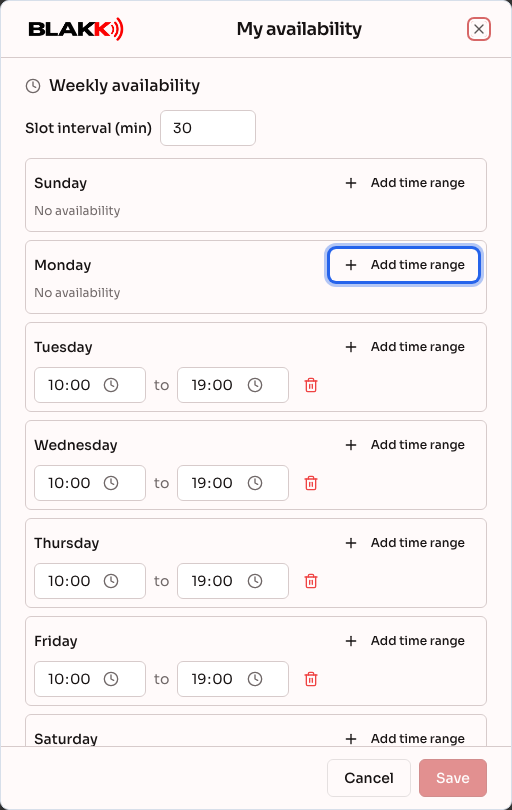
Section titled “Step 1 — Open My availability”On the Scheduling screen, click My availability. If you already have hours set up (for example, from the studio’s initial setup), they’ll already be filled in.
Step 2 — Set your business days and hours
Section titled “Step 2 — Set your business days and hours”For each day of the week, click Add time range and enter a start and end time. You can add more than one time range for the same day — for example, morning and afternoon with a break in between. A day with no time ranges shows as No availability, and no one can book an appointment with you that day.
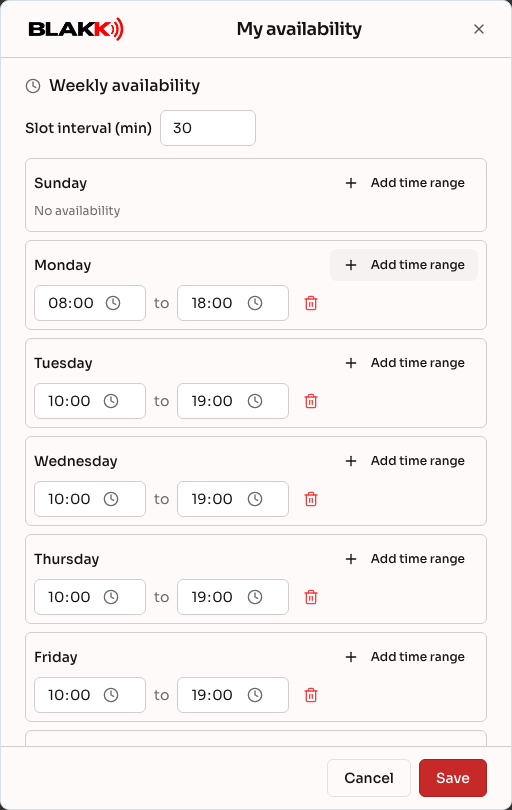
The Slot interval (min) field at the top sets how often the schedule offers you an appointment time — 15 minutes is the default. Increase it if it doesn’t make sense to offer times so close together.
Step 3 — Specify which services you offer
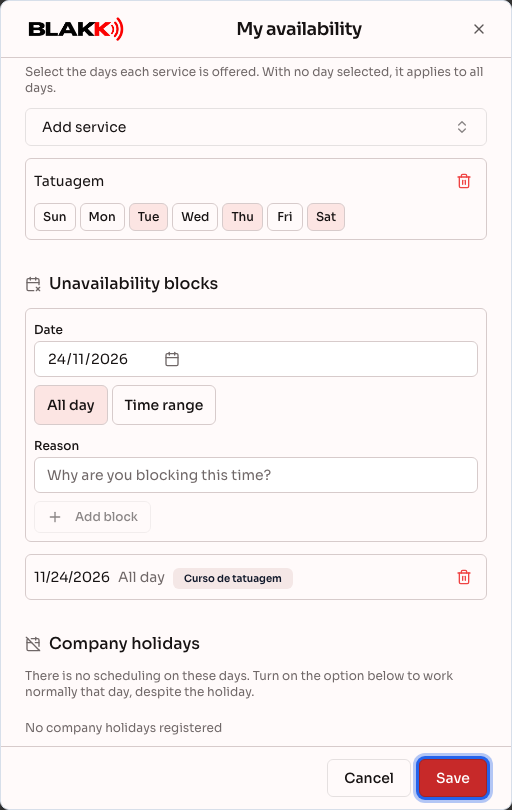
Section titled “Step 3 — Specify which services you offer”Under Services the user performs, click Add service and search for the service. Select the days you offer that specific service — if you don’t select any days, it applies to every day you’re available.
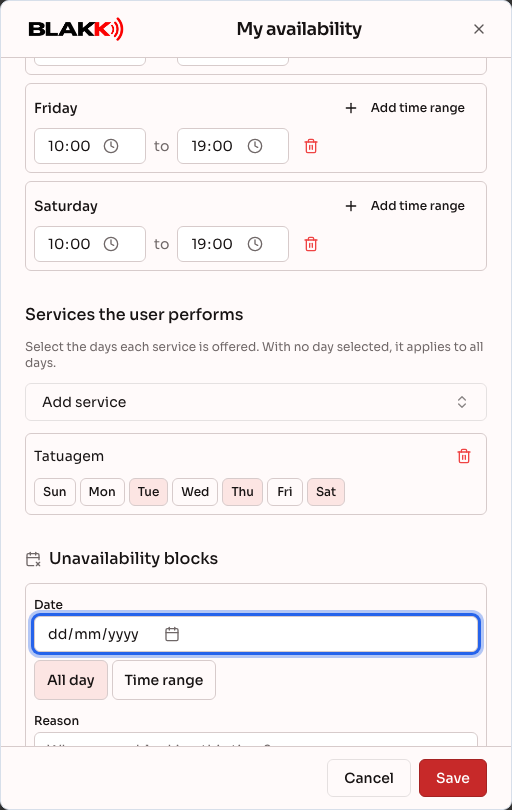
This list is optional: if you don’t set up any services here, you’ll appear available for any service offered at your studio on the days you’re available.
Step 4 — Block a day or time
Section titled “Step 4 — Block a day or time”Under Unavailability blocks, choose the date, select All day or a Time range, enter a reason (required), and click Add block. No one can book an appointment with you during an active block, and it appears on the Schedule as a striped bar with the reason.
If you already have an appointment booked during that time, the system won’t save the block and will show you the reason on screen. Reschedule or cancel those appointments first. To block several days at once, use the Block time button directly on the Schedule (see the Scheduling article under Related).
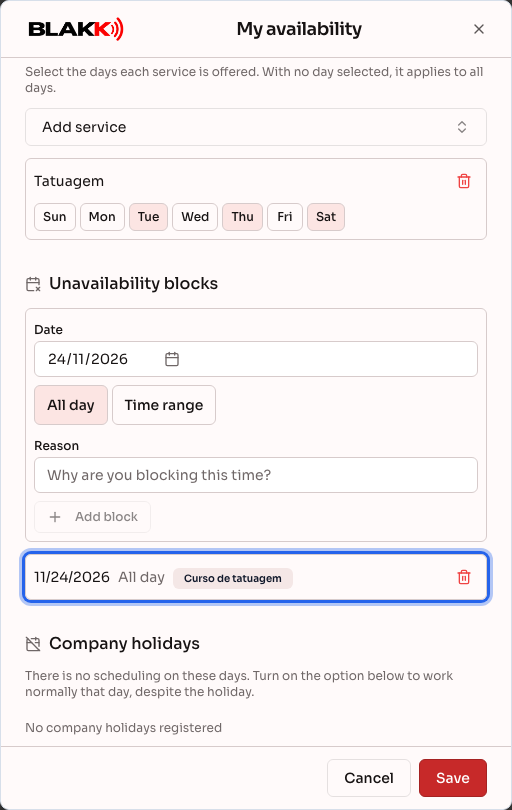
To remove a block, click the trash can beside it. The row will be crossed out until you save, and the Undo button will restore the block if you removed it by mistake.
Step 5 — Save everything at once
Section titled “Step 5 — Save everything at once”After making changes to any of the sections above, click Save at the bottom of the dialog. There’s one button for everything — you don’t have to save your hours, services, and blocks separately.
What happens next
Section titled “What happens next”- Once you save, all new time searches — on the Schedule, Quick Fit, Waitlist, and public booking page — will follow the hours, services, and blocks you set here. There’s no waiting and no need to notify anyone.
- In the Company holidays section at the bottom of this screen, each upcoming holiday added by the studio (under Settings → Company) appears with an I’ll be available toggle. Turn it on if you want to work as usual despite the holiday. If you leave it off, the holiday blocks your schedule just like any other day you’re unavailable. If the company has no holidays set up, the section shows No company holidays registered.
- Removing a time range won’t cancel appointments that were already booked — those appointments stay on the schedule. The change only applies to times that haven’t been booked yet.
- You can’t create a block over a booked appointment. The system will reject it and ask you to reschedule or cancel the appointment first. Completed appointments and no-shows don’t prevent you from creating a block.
Common mistakes and questions
Section titled “Common mistakes and questions”Q: I set my hours, but no availability is showing on the Schedule. Why? A: Make sure you clicked Save after adding the time ranges — otherwise, nothing is saved, even if the fields look filled in. Also check whether the service you’re trying to book is linked to you (Step 3), or whether you haven’t set up any services (which makes all services available).
Q: Do I need to specify which services I offer? Is it required? A: It’s optional. If you don’t set up any services in Step 3, you’ll appear available for any service offered at your studio on any day you’re available.
Q: Will a block I create cancel appointments that were already booked during that time? A: No — and the system won’t even let you create the block while there’s an appointment booked during that time. Reschedule or cancel those appointments first; then you can add the block.
Q: Why do I have to enter a reason for a block? A: Because the block appears on the Schedule for everyone who can access it, with the reason beside it. That way, the front desk knows why that time is blocked and can explain it to the client.
Q: Can I accidentally remove a time range and lose what I’ve already set up? A: The time range disappears from the screen right away, but it’s only saved when you click Save. If you click Cancel or close the dialog before saving, nothing changes.
Q: What happens if I don’t set up any hours? A: No appointment times will be available for you anywhere — not on the Schedule, in Quick Fit, or on the public booking page. It’ll be as if you’re unavailable.
Q: How can I work despite a company holiday? A: Turn on the I’ll be available toggle beside the holiday in the Company holidays section at the bottom of this screen, then click Save. Only upcoming holidays added by the studio appear there.
Q: Do my hours apply only to me, or do they affect other professionals? A: They apply only to you. Each tattoo artist has their own availability, independent of everyone else’s.