Google Calendar: Sync Your Appointments with Your Google Account
What it is
Section titled “What it is”Google Calendar lets each tattoo artist connect their own Google account so they can see Blakk appointments on their phone or computer—without opening the system to check the day’s schedule. The connection is personal: each tattoo artist connects their own account, and only their schedule syncs.
When to use it
Section titled “When to use it”- You already use Google Calendar to organize your life (personal appointments, other jobs) and want to see everything together in one place without switching between apps.
- You want to get the notifications and reminders Google Calendar already sends to your phone for appointments scheduled in Blakk.
Before you start
Section titled “Before you start”This article covers the Google Calendar integration. If you don’t see the connect button on the Scheduling screen, ask the studio owner to enable the module for your business type.
You need a Google account (Gmail or Google Workspace). Each tattoo artist connects their own account—the studio owner can’t connect someone else’s account for them.
To use a different calendar app (Apple, Outlook, Yahoo, Samsung), or if you don’t want to use the integration, generate a calendar link using Sync calendar. The link only sends your schedule to another app and updates more slowly; the integration syncs in real time and both ways.
Step by step
Section titled “Step by step”Step 1 — Connect your Google account
Section titled “Step 1 — Connect your Google account”On the Scheduling screen, click Connect Google Calendar. A Google window will open and ask you to choose an account and authorize access to your calendar. Once you authorize access, the window closes automatically, and the button displays the email address of the connected account.
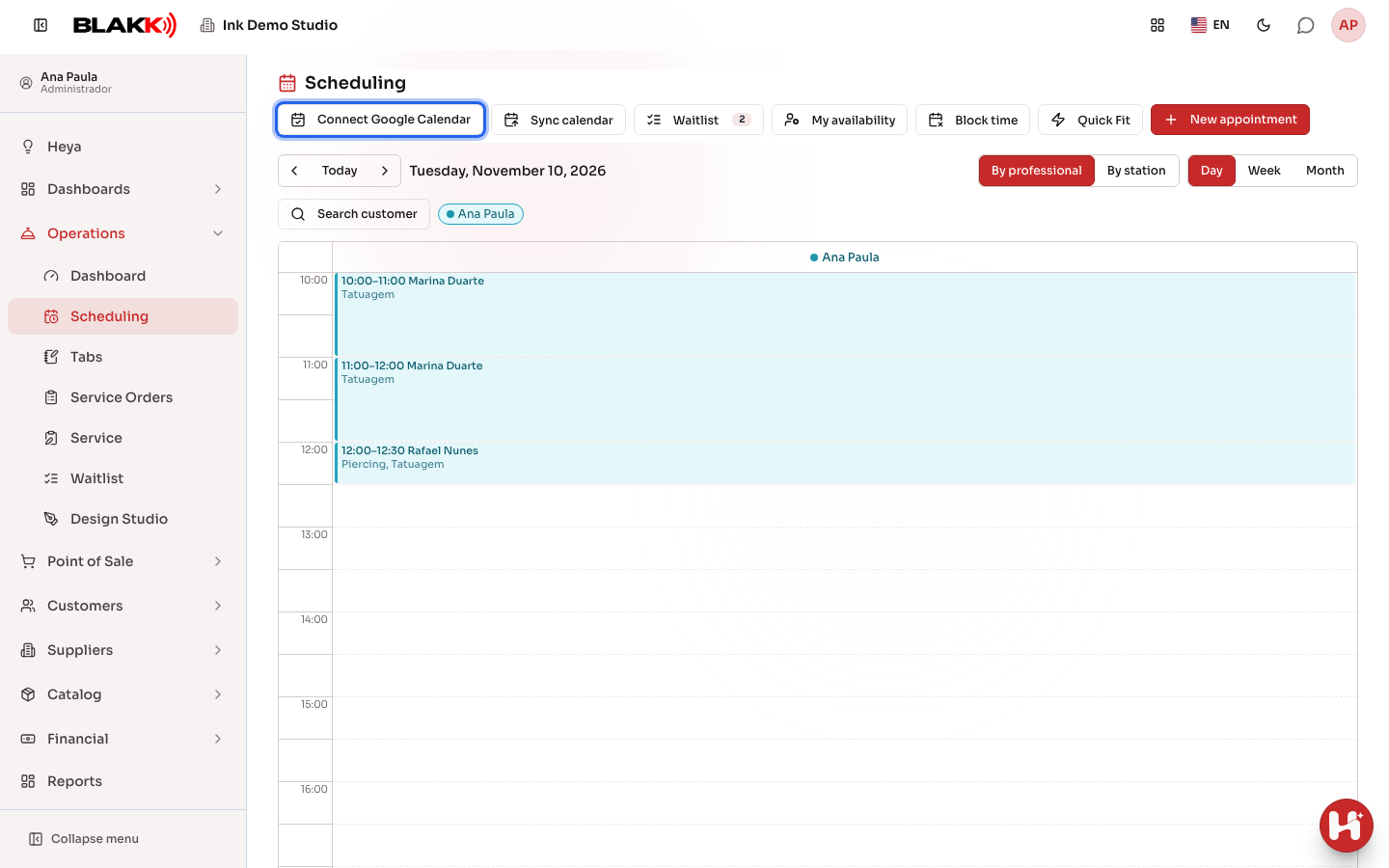
As soon as you connect, Blakk sends your existing future appointments to Google and imports events already in your Google Calendar—you don’t have to wait or do anything else.
Step 2 — Your appointments show up automatically in Google
Section titled “Step 2 — Your appointments show up automatically in Google”Once connected, every appointment scheduled with you in Blakk—whether created by the front desk, through Quick Booking, by confirming a Waitlist request, or directly by a client on the public page—automatically becomes an event in your Google Calendar with the client’s name and the service. Changing the time, changing the tattoo artist, or canceling the appointment also automatically updates the Google event.
Step 3 — Google events show up in the Blakk calendar for reference only
Section titled “Step 3 — Google events show up in the Blakk calendar for reference only”An event you create directly in Google Calendar (a consultation or personal appointment) also appears in the Blakk calendar grid, with “Google: “ before the title and a dashed style that distinguishes it from regular appointments. It’s for reference only—it doesn’t prevent anyone from booking a Blakk appointment over that time. If you blocked off that time in Google just as a reminder but are still available, you don’t need to do anything. If you’re actually unavailable then, also block the time using the Block time button in the calendar or under My availability (see the related articles)—that’s what actually prevents bookings.
Step 4 — Disconnect
Section titled “Step 4 — Disconnect”Clicking the button with the account’s email address on the Scheduling screen opens a panel showing the Account connected (the Google email address receiving your appointments) and the Disconnect button. You can disconnect at any time from there—or from your Profile page, which always shows the disconnect option, even if the module was later turned off for your studio. Disconnecting stops the sync and removes Google-imported events from the Blakk screen, but events Blakk already created in your Google Calendar will remain there; they aren’t deleted.
What happens next
Section titled “What happens next”- Google sync continues running in the background while your account is connected—there’s no “refresh now” button.
- If you revoke access directly from your Google account (outside Blakk), or if Google access expires, syncing simply stops working without a notification in the system. If you notice that appointments have stopped showing up in Google, disconnect and reconnect here.
- A temporary problem connecting to Google will never prevent you from saving an appointment in Blakk—sync happens separately and will try again after the next change.
- Blakk always uses the primary calendar in the connected Google account—you can’t choose a different calendar within the same account.
Common mistakes and questions
Section titled “Common mistakes and questions”Q: Do I need to connect my Google account to use the Blakk calendar? A: No—connecting to Google is completely optional. Without it, the Blakk calendar works as usual; it just won’t sync with anything outside the system.
Q: Does an event I created directly in Google Calendar block off that time in Blakk? A: No—it appears in the calendar grid for you to see, but it’s still possible to book a Blakk appointment over that time. To actually block the time, use the Block time button in the calendar or go to My availability.
Q: If I disconnect, will I lose the events that were already in my Google Calendar? A: No—events Blakk already created in your Google Calendar will stay there, even after you disconnect. Blakk will just stop creating or updating events.
Q: Does each professional connect their own account, or does the owner connect one account for everyone? A: Each tattoo artist connects their own account. There isn’t a single connection for your entire studio.
Q: How do I know which Google account is connected? A: On the Scheduling screen, click the Google Calendar button. The panel that opens shows the connected account’s email address. If you see a message saying the email address couldn’t be identified, the account was connected before Blakk started saving the email address. Disconnect and reconnect, and it will appear.
Q: I scheduled an appointment, but it didn’t show up in Google Calendar. Why? A: The event goes to the Google Calendar of the tattoo artist assigned to the appointment, not the person who scheduled it. If the appointment was booked in someone else’s column, it will only show up in their Google Calendar, and only if they’ve connected their own account. Also check that you’re looking at the primary calendar for the same account shown in the Google Calendar button’s panel.
Q: My appointments stopped showing up in Google Calendar. What happened? A: Access to your account may have expired or been revoked by Google. Go to the Scheduling screen (or your Profile), disconnect, and reconnect—that resolves most cases.
Q: Can I sync with a secondary calendar instead of my primary Google Calendar? A: No—Blakk always uses the primary calendar for the connected account.
Q: The “Connect Google Calendar” button doesn’t appear in the BLAKK mobile app. Why? A: Google doesn’t allow you to sign in to your Google account from inside apps like the BLAKK app. Connect through a browser (on your phone or computer) by following Step 1. Once connected, syncing also works in the app, where you can still see the connected account and disconnect.