Paid Accounts Report: payment history and how to reverse a payment
What it is
Section titled “What it is”This is a history of every expense payment made — one row per payment, filtered by the date the payment was made (not the expense due date). Use it to find an old payment to review or, if necessary, reverse.
When to use it
Section titled “When to use it”- Review all payments made during a period, by payee or payment method.
- Find a specific payment to see which expense it came from.
- Undo a payment recorded by mistake — the amount, account, or expense was wrong.
Before you start
Section titled “Before you start”If you can’t view this report, ask the studio owner to grant you access in Access → Profiles. Reversing a payment requires a different permission — the same edit permission used for the Expenses screen — so you may be able to view the entire report but still not see the reverse button on any row.
Step by step
Section titled “Step by step”Step 1 — View the payment list
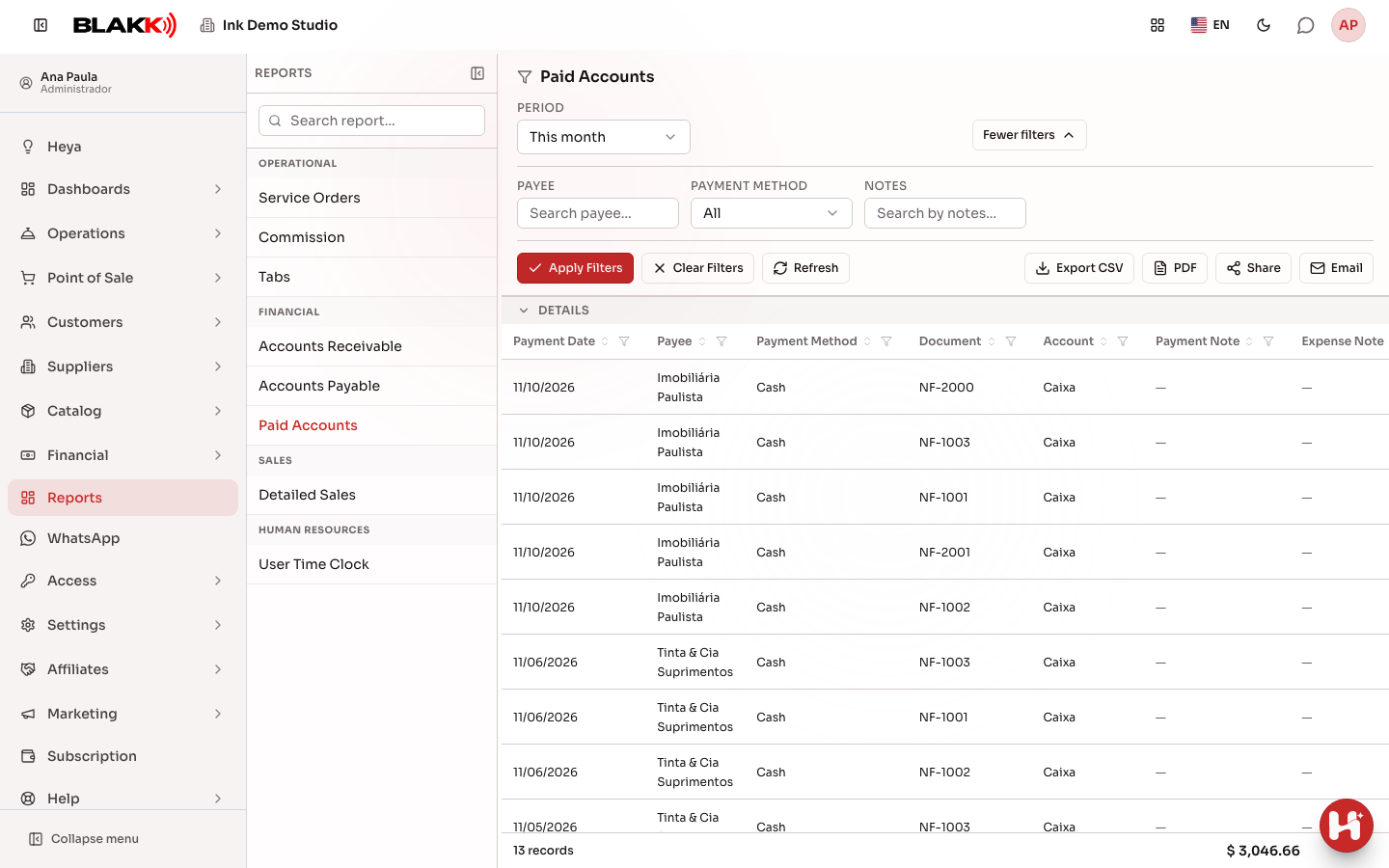
Section titled “Step 1 — View the payment list”Under Reports, click Paid Accounts. This report doesn’t load automatically: select the Period, open More filters, and click Apply Filters. Each row represents a payment — if the same expense was paid in two installments, it appears as two separate rows. Each row also shows the Account the money came from and who recorded the payment (Registered by).
Step 2 — Filter by payee
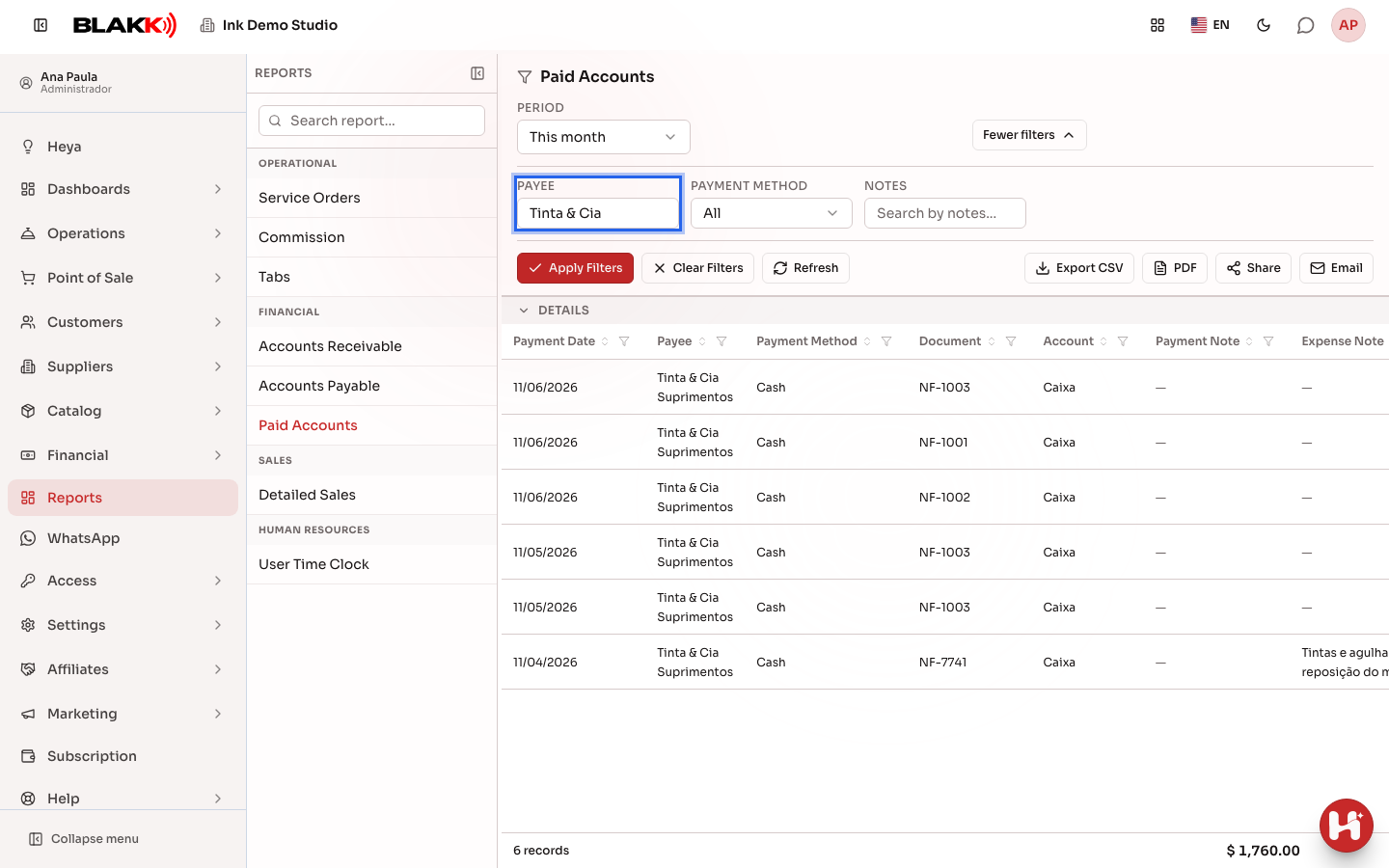
Section titled “Step 2 — Filter by payee”Click More filters, enter a Payee, and click Apply Filters to see only the payments made to that person or business. The same panel also includes Payment Method and Notes filters, and the funnel icon in each column header filters by that column’s values.
Step 3 — View the expense a payment came from
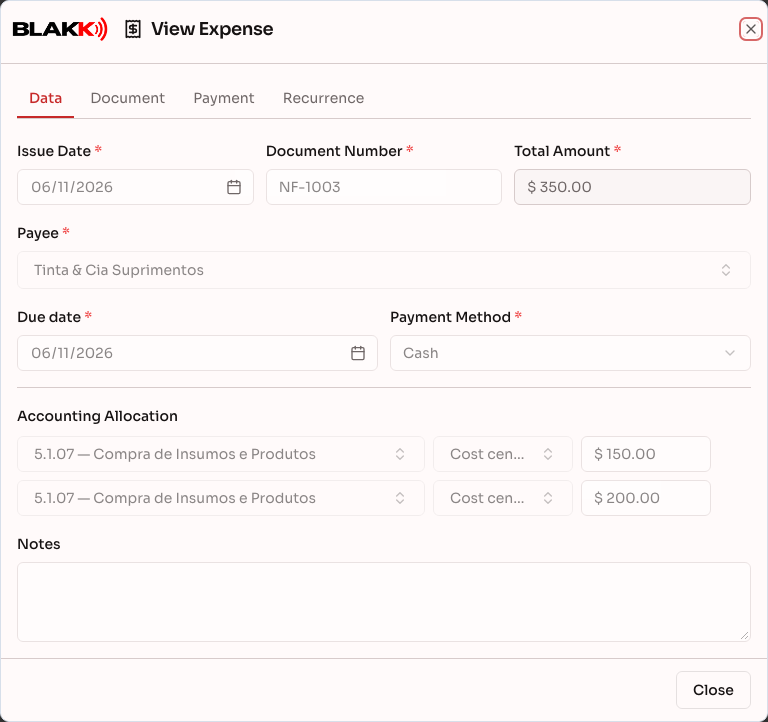
Section titled “Step 3 — View the expense a payment came from”Click a row to open the expense that generated the payment in read-only mode. You can click a row only if you have access to the Expenses screen.
Step 4 — Reverse a payment
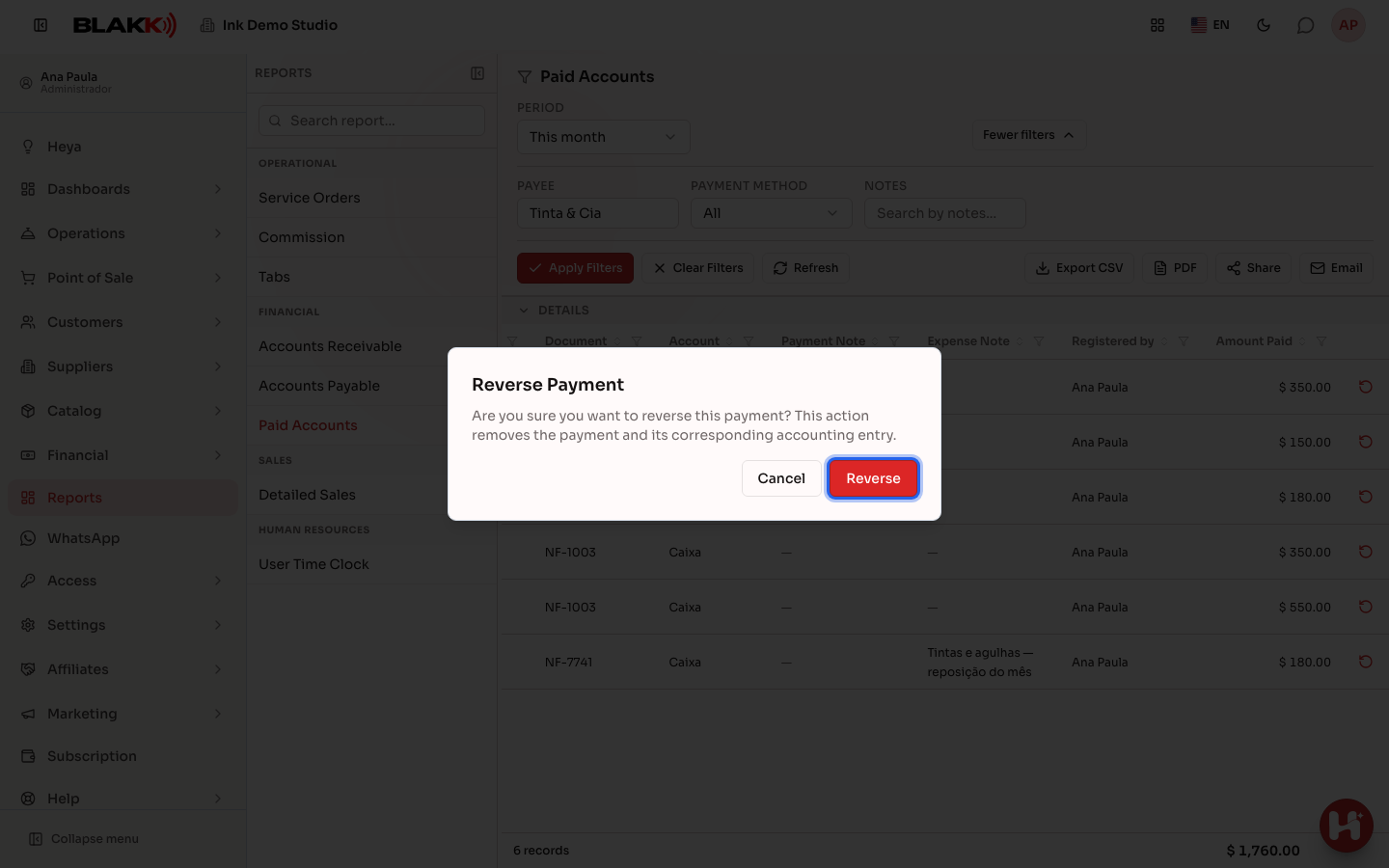
Section titled “Step 4 — Reverse a payment”Click the red Reverse Payment icon on a row, then confirm by clicking Reverse. The confirmation message is clear: Are you sure you want to reverse this payment? This action removes the payment and its corresponding accounting entry.
What happens next
Section titled “What happens next”- Reversing a payment removes the payment and its corresponding accounting entry. The installment has an outstanding balance again, as if the payment had never been made, and no longer appears in this report.
- There is no time limit or restriction on reversing a payment — anyone with the required permission can reverse any payment at any time.
- If you reverse the last remaining payment for an installment, its payment method is also cleared. When you pay it again, you can select a payment method from scratch.
- This report doesn’t have summary cards — that’s intentional. It’s only a history for reference, with no due-date overview (you can already find that in the Accounts Payable Report).
Common mistakes and questions
Section titled “Common mistakes and questions”Q: I reversed a payment by mistake — can I undo the reversal? A: There is no way to undo a reversal. But since reversing a payment simply returns the installment to an “open” state, you can just record the payment again on the Accounts Payable screen or directly on the expense.
Q: Why does an expense paid in 3 installments appear 3 times in this report? A: Each row represents a payment, not an expense. An expense with multiple installments paid separately has one row for each payment.
Q: The reverse button doesn’t appear on any row — why? A: It appears only for users with edit access to the Expenses screen, which is separate from access to this report. Ask the studio owner to grant you both permissions in Access → Profiles.
Q: What happens if another person and I try to reverse the same payment at the same time? A: Only the first attempt works. The second person sees a message that the payment has already been reversed, and the list updates automatically without an error.
Q: Why does this report filter by a date that’s different from the expense due date? A: This report filters by the date the payment was recorded, not the expense due date. The two dates can be very different — a payment can be made before, on, or after the due date.