Commission Report: Calculate and Pay Each Professional What They’re Owed
What it is
Section titled “What it is”Calculates how much commission each tattoo artist is owed on sales in Tabs — based on the rate set for each person. This is the same calculation used in the Team tab of the Dashboard, so the amount is always the same wherever you view it.
When to use it
Section titled “When to use it”-
At the end of the month, to review and pay each tattoo artist’s commission.
-
To generate a commission payment expense directly from the report, without entering it manually in Expenses.
Before you start
Section titled “Before you start”Ask the studio owner to grant you access in Access → Roles. Viewing this report requires one permission; opening a tab from the report requires another (access to Tabs); and generating the payment expense requires a third (editing access in Expenses)—so you may be able to see everything but still be unable to pay anyone.
Each tattoo artist’s rate is set in Users, on the Commission tab of their profile: a default rate that applies to everything, and product-specific rates that, when set, always override the default.
Step by step
Section titled “Step by step”Step 1 — View the commission list
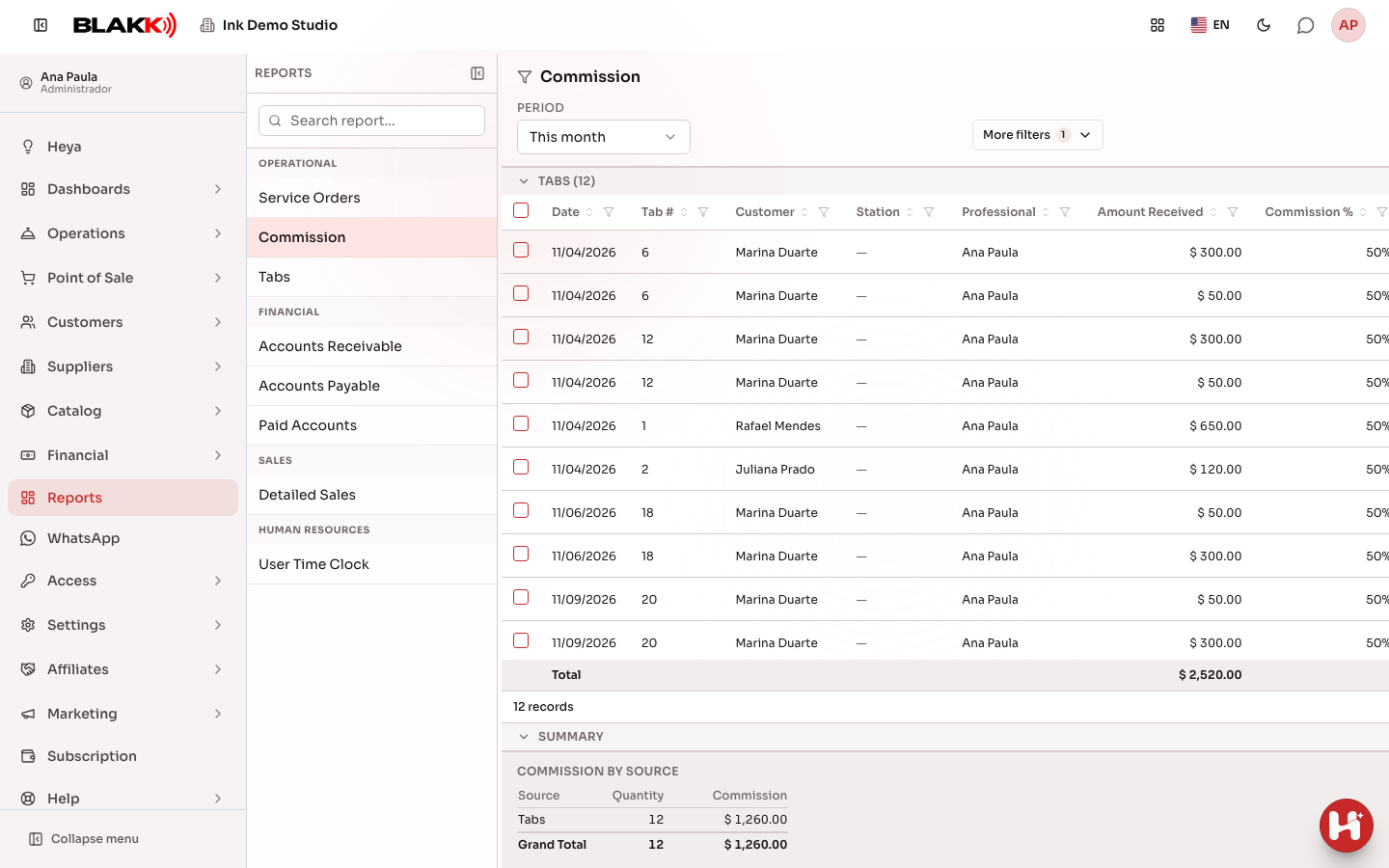
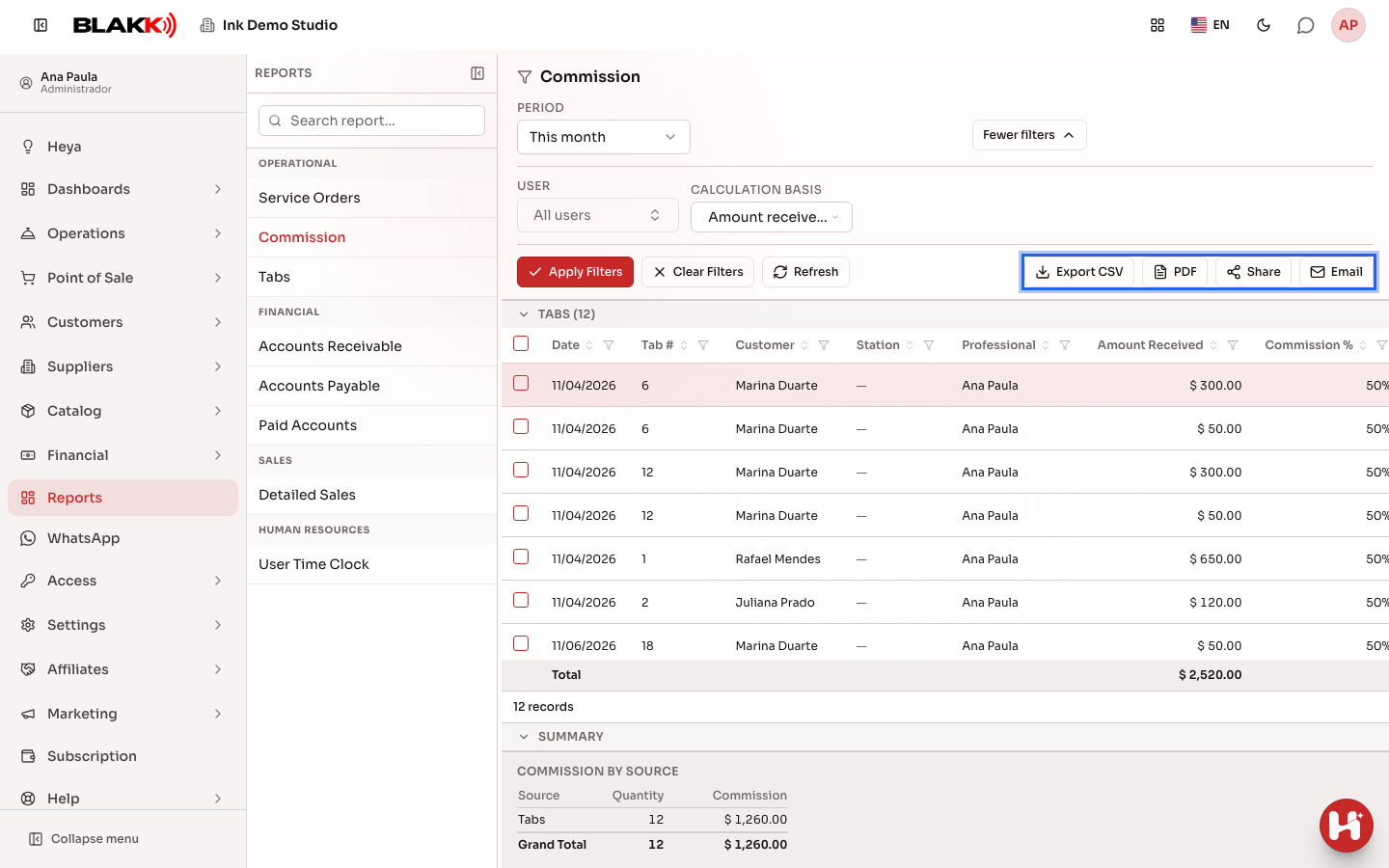
Section titled “Step 1 — View the commission list”In Reports, click Commission. The list opens with the default period already loaded and shows the Tabs section, including each tab’s number, the tattoo artist, the rate, and the status (Already paid or Unpaid). In the Tabs rows, the Open tab icon opens the tab itself. To view just one tattoo artist, use the User filter under More filters.
Step 2 — Choose the calculation basis
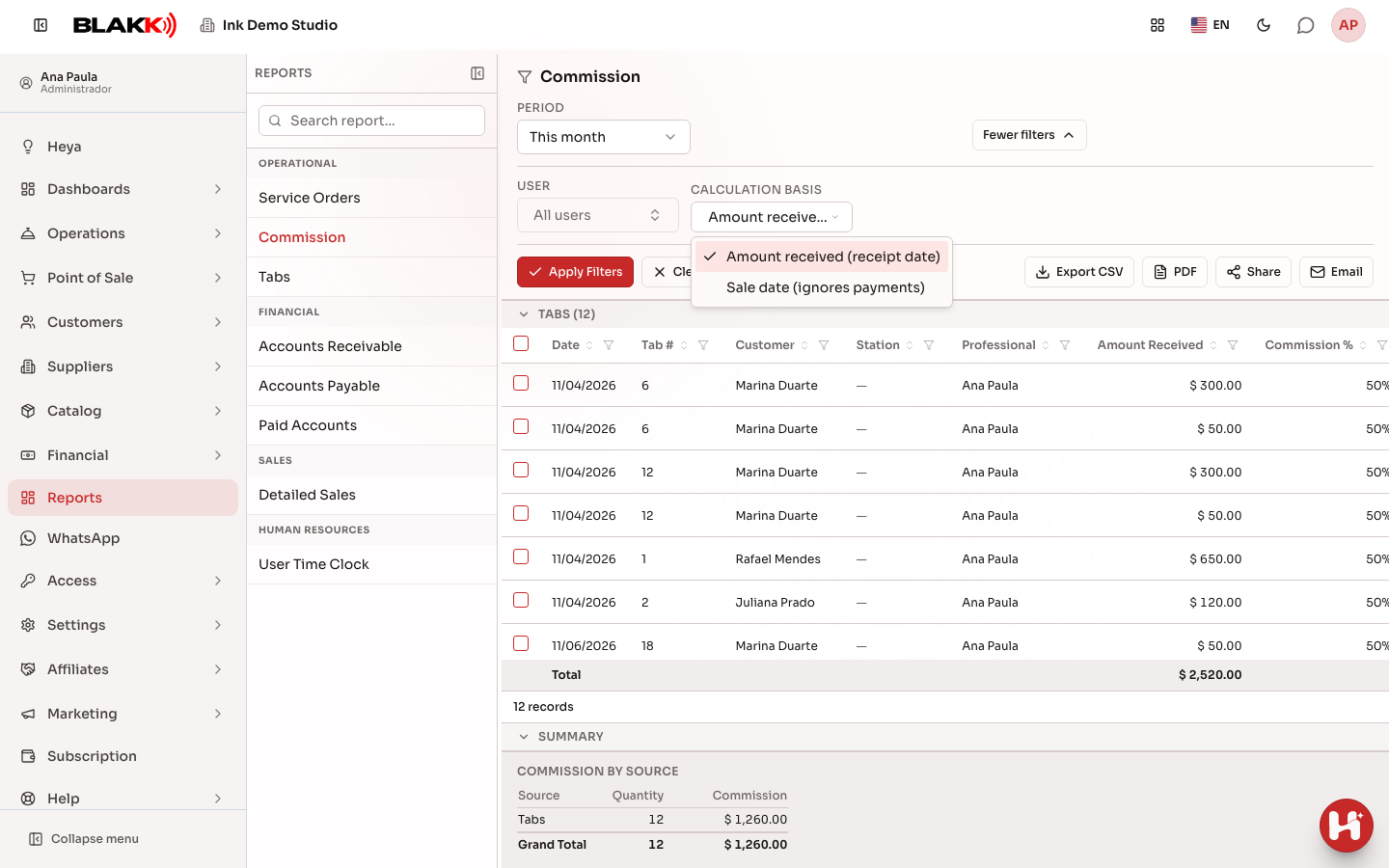
Section titled “Step 2 — Choose the calculation basis”The Calculation basis filter determines what counts as “in the period”: Amount received (receipt date) (default) calculates commission based on the date the customer actually paid, while Sale date (ignores payments) calculates the full commission on the sale date, whether or not payment has been received.
Step 3 — View totals by source
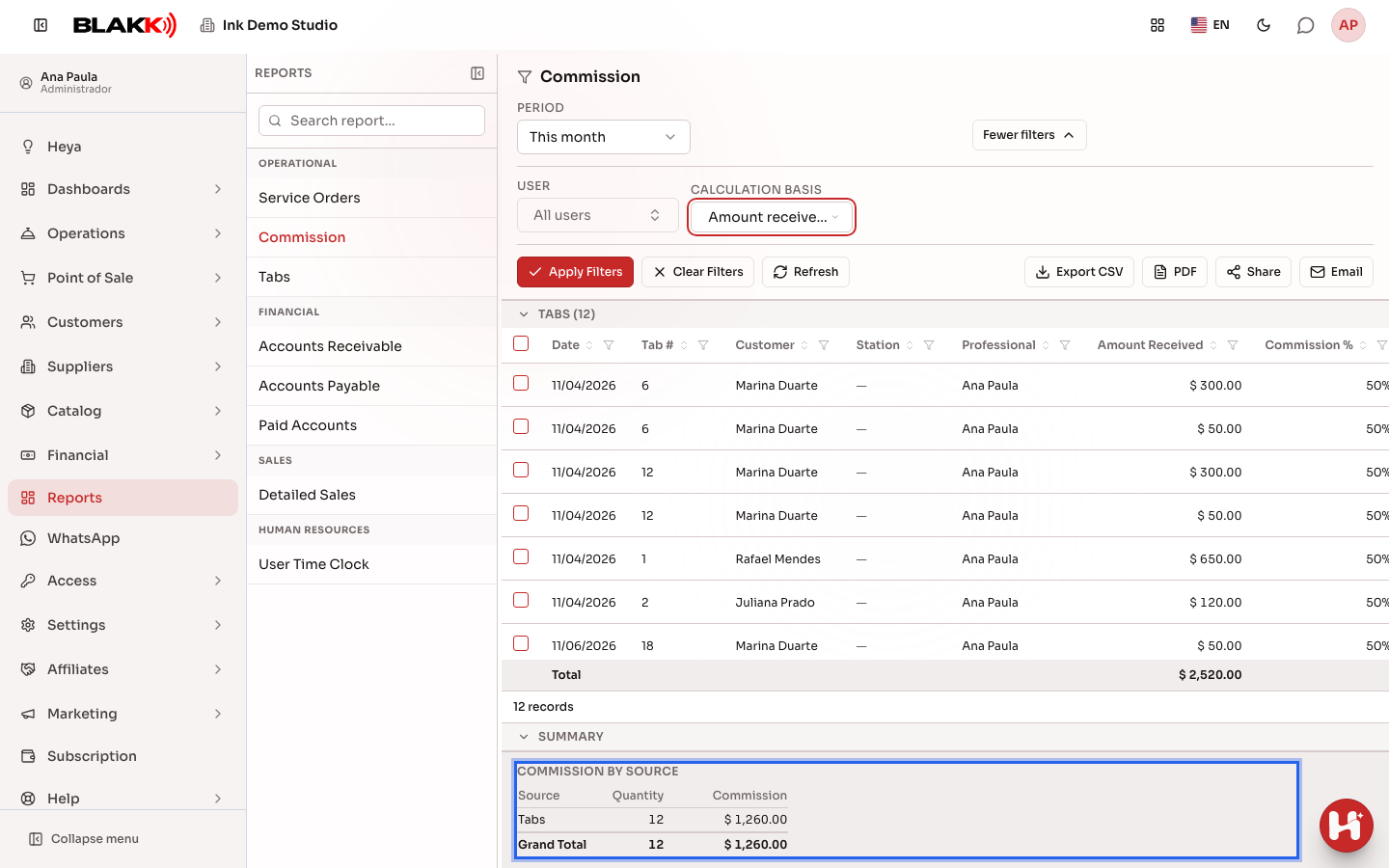
Section titled “Step 3 — View totals by source”At the bottom of the list, the Commission by source panel shows the commission total for tabs and the overall total for the period.
Step 4 — Generate the commission expense
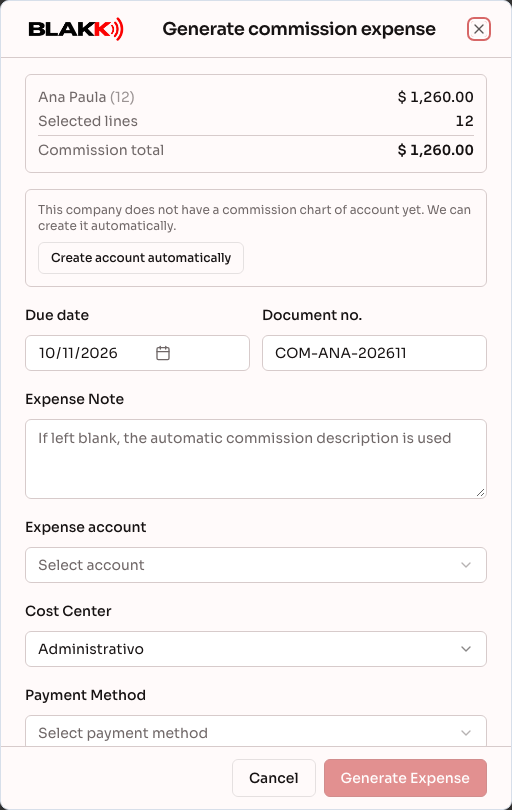
Section titled “Step 4 — Generate the commission expense”Select one or more rows marked Unpaid and click Generate Expense. In the Generate commission expense window, review the Selected lines and the Commission total, then choose the Expense account, Cost Center, Due date, and Payment Method. If you select Pay this expense now, the payment is recorded at the same time. If the business doesn’t have a commission expense account yet, the window offers Create account automatically.
Step 5 — Export the report
Section titled “Step 5 — Export the report”Under More filters, use Export CSV, PDF, Share, or Email (and WhatsApp, if the studio’s WhatsApp is connected) to share the commission report outside the system.
What happens next
Section titled “What happens next”-
Generating the expense creates an actual expense in Finance—one for each professional, even if your selection includes rows for different professionals.
-
A row marked Already paid won’t be included in the calculation again and can’t be selected to generate another expense.
-
Only closed tabs (which have become sales) are included. An open tab, even if it’s partially paid, won’t generate commission until it’s closed.
-
A tab item without an assigned professional doesn’t generate commission for anyone—and is omitted from the calculation. The only indication is a notice at the top of the report showing how many items are in this situation.
-
If a period is very long and includes many documents, the calculation may be cut off for safety. The report will show a notice, and the system will not allow you to generate the expense while this is happening. Shorten the period to enable expense generation.
Common mistakes and questions
Section titled “Common mistakes and questions”Q: Does commission include the full sale amount or only what the customer has already paid? A: It depends on the Calculation basis filter. By default, it includes only what’s already been received, allocated proportionally across payments. If you switch to “Sale date,” it includes the full amount on the sale date, whether or not it’s been paid.
Q: Why is the commission for a service showing as zero even though the correct professional is listed? A: That professional probably doesn’t have a commission rate set—either a default rate or one specific to that product. Check the Commission tab in their profile under Users.
Q: Does a tab item without an assigned professional generate commission for anyone? A: No—tab commission is calculated per item and assigned to the person who performed that specific item. Without an assigned professional, the item isn’t included in anyone’s commission.
Q: I can view the entire report, but I can’t open a tab or generate the expense. Why? A: These require three different permissions: viewing the report, opening a tab (access to Tabs), and generating the expense (editing access in Expenses). Ask the studio owner to update your access in Access → Roles.
Q: Could I accidentally pay the same commission twice? A: A row marked Already paid can’t be selected again. Just make sure you don’t change the Calculation basis between expense generations for the same period. Always use the same basis.
Q: The period I selected is long, and the report says the calculation was cut off. What should I do? A: Shorten the period. The numbers are incomplete, and the system won’t let you generate the expense while the notice is active to prevent you from paying based on partial data.