Account Statement: Track an Account’s Running Balance
What it is
Section titled “What it is”This is the statement for a single account in your studio’s books—like a bank statement, but for any account in the Chart of Accounts, not just bank accounts. Each row is a debit or credit posted to that account, with the running balance after each entry so you can track how the balance changed over the selected period.
When to use it
Section titled “When to use it”- Check how the Cash account balance (or any other account balance) changed over a period.
- Investigate a balance that looks wrong by reviewing each entry to see what came in and went out.
- Export an account statement as a PDF for your accountant or your records.
Before you start
Section titled “Before you start”This screen has no separate access controls: anyone with access to the menu (even with Read access) can view the full statement for any account and export the PDF.
Step by step
Section titled “Step by step”Step 1 — Choose an account
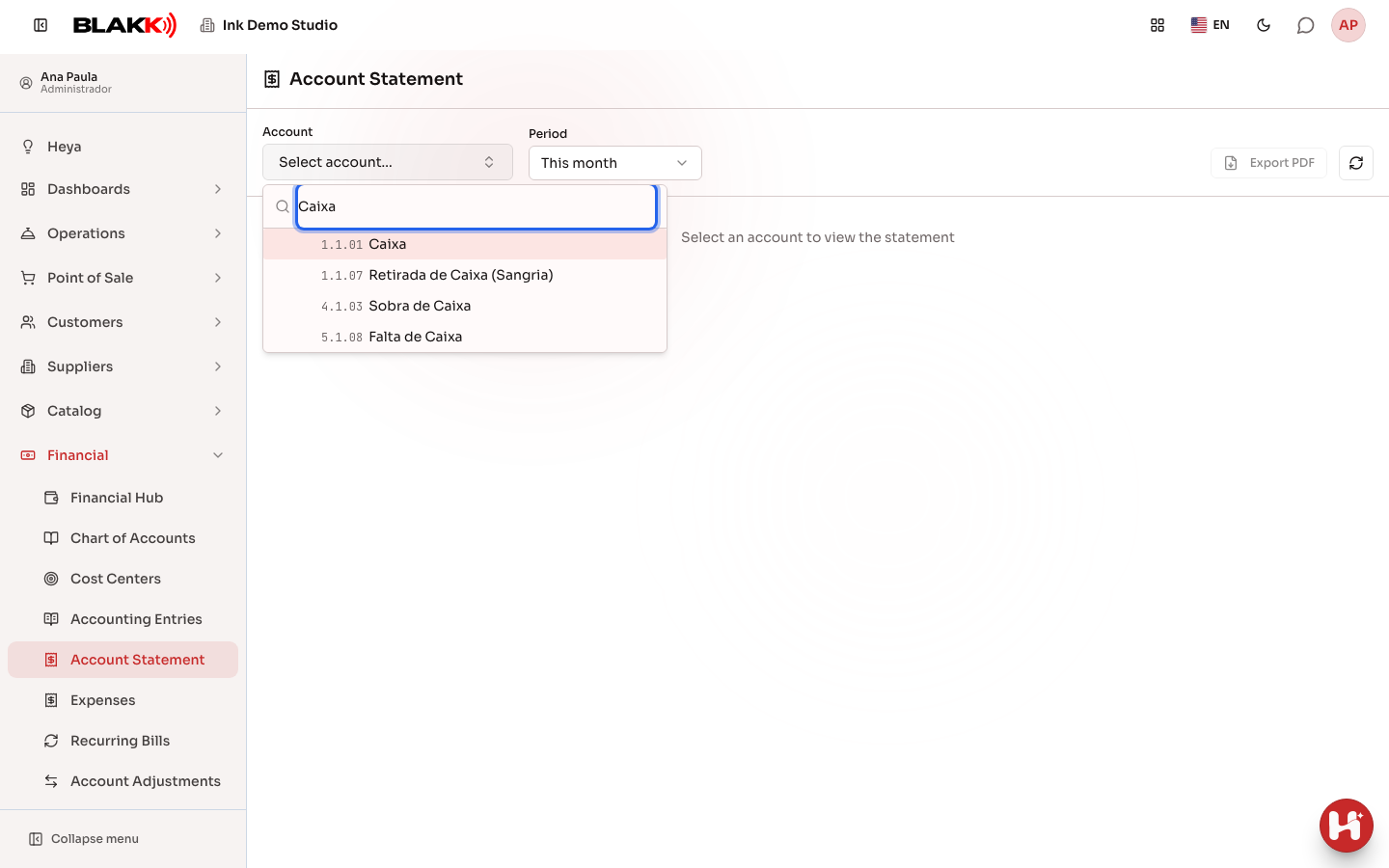
Section titled “Step 1 — Choose an account”When you open the screen, click the Account selector (Select account…) and search by account code or name. You can also open an account statement directly by clicking its View Statement icon on the Chart of Accounts screen—in that case, the account is already selected, and the Back button at the top takes you back to the Chart of Accounts.
Step 2 — View the statement and running balance
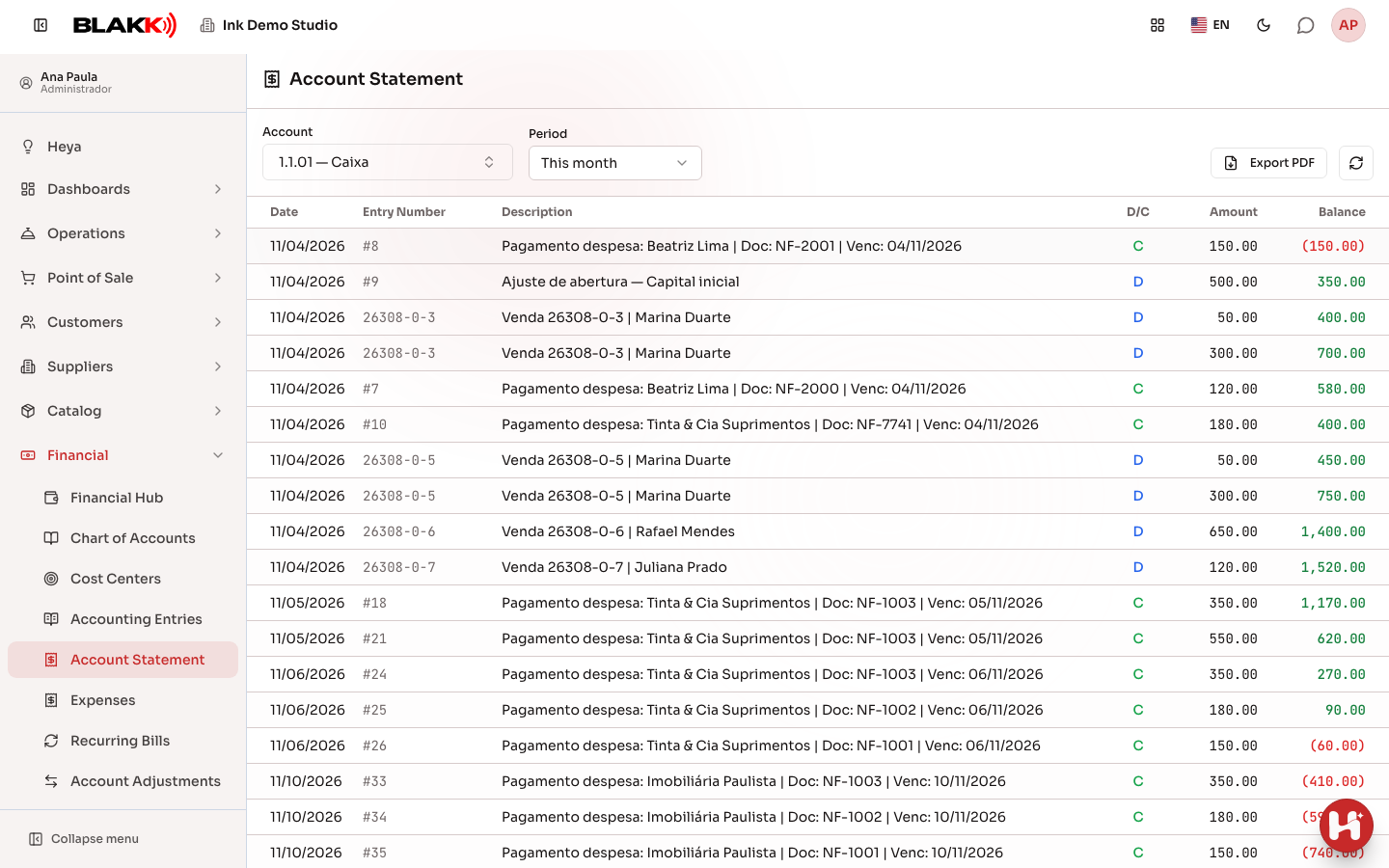
Section titled “Step 2 — View the statement and running balance”Each row shows the date, Entry Number, description, whether it’s a debit (D) or credit (C), the Amount, and the account’s Balance after that entry. The Export PDF button next to the date range downloads the statement. If there are many rows, use Previous and Next at the bottom of the list.
Step 3 — Filter by date range
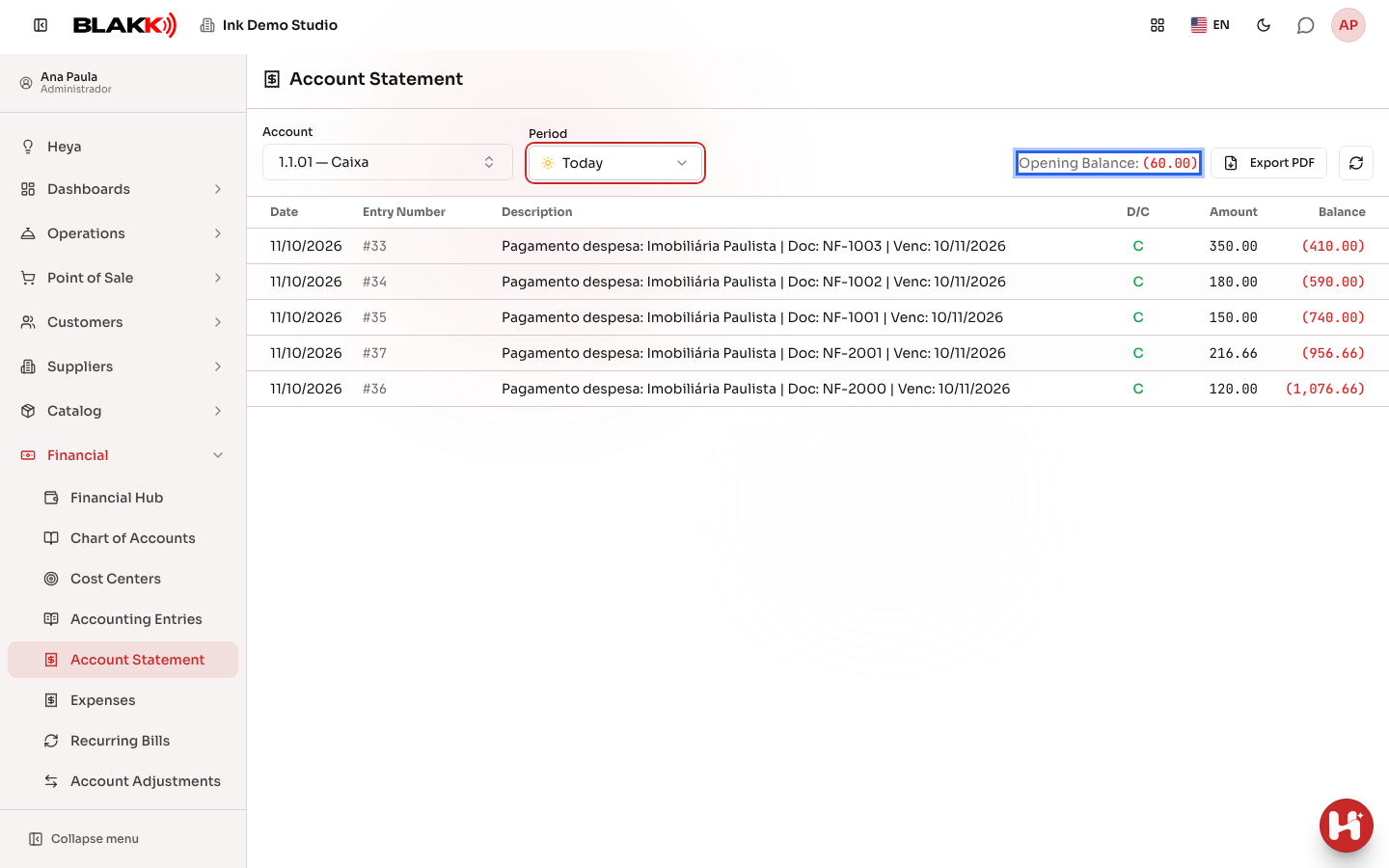
Section titled “Step 3 — Filter by date range”Use the date range selector (which defaults to “This Month”) to narrow down the statement. The Opening Balance appears at the top and shows the account balance before the first row displayed.
What happens next
Section titled “What happens next”- The Opening Balance only appears when it’s not zero. A new account with no entries before the selected period won’t show this field.
- A group account (which only organizes other accounts and doesn’t receive entries directly—see Chart of Accounts) shows a statement combining all its child accounts, with an extra column indicating which child account each row came from.
- Exporting the PDF always includes the full statement for the selected period, not just the page currently visible on screen.
Common mistakes and questions
Section titled “Common mistakes and questions”Q: What’s the difference between this screen and Journal Entries? A: Journal Entries shows all accounts together, one complete entry at a time (including all its rows). The Account Statement shows one account at a time over a period, with a running balance—the same format as a bank statement.
Q: Why do I sometimes see an extra column with another account’s name? A: This only happens when you select a group account (such as “Current Assets”). The statement combines activity from all its child accounts, and the extra column shows which child account each row came from.
Q: Does the statement show only what’s been paid or received, or does it include pending items too? A: It only shows items that have been posted as accounting entries. For example, an unpaid expense won’t appear here until the payment is recorded.
Q: Can I compare two accounts at the same time? A: No—the statement always shows one account at a time. To view multiple accounts together, use Journal Entries and filter by account type.
Q: Is the running balance on this screen the same as the balance shown in the Chart of Accounts? A: Yes—it’s the same amount. Here, you can see how it was built up entry by entry, rather than just seeing the current total.