Subscription: AI usage, changing plans, and canceling
What it is
Section titled “What it is”This screen shows your studio’s plan, how much AI you’ve used this month, and your billing history. You can also switch plans (monthly or yearly), compare how much you save with each one, and request a cancellation when you need to.
When to use it
Section titled “When to use it”- In the middle of the month, to see whether your AI usage is close to your plan limit before you reach it.
- When your studio has grown and Heya is responding to more customers: compare plans and see how much cheaper each 1,000 tokens is on the next plan up.
- When you decide to close your account: the cancellation notice shows how long the system will keep working and how long you have to come back.
Before you start
Section titled “Before you start”You can find this screen in the Subscription menu. If you can’t open the screen, change your plan, or cancel it, ask the studio owner to give you access under Access → Profiles.
Automatic billing from this screen isn’t available yet: changing or canceling a plan only records your choice and sends a confirmation email to the person who took the action.
Step by step
Section titled “Step by step”Step 1 — Check this month’s usage
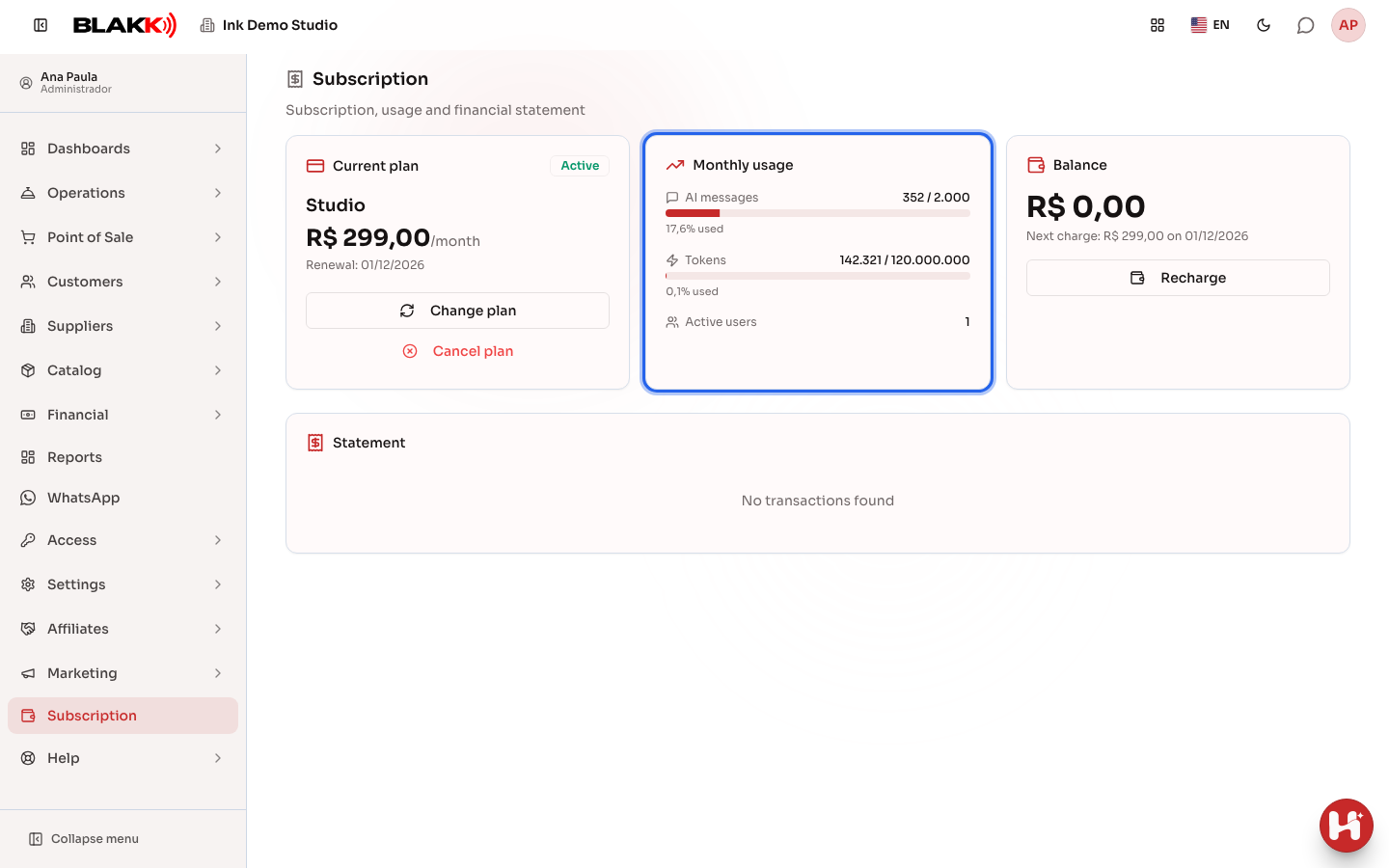
Section titled “Step 1 — Check this month’s usage”The Monthly usage card shows:
- AI messages: how many messages your team sent to Heya (in the system chat, on WhatsApp, and on Telegram), to the website builder assistant, and to the AI assistant for Marketing posts, compared with your plan limit.
- Tokens: the amount of text AI has read and written across the system: Heya, automated WhatsApp support, AI flows, the website, and translations.
- Active users: how many people have active access to the business. There’s no user limit.
The bar and percentage show how much of your limit you’ve used. If you go over 100%, the number turns red. The month is based on your business’s time zone.
Step 2 — Compare plans
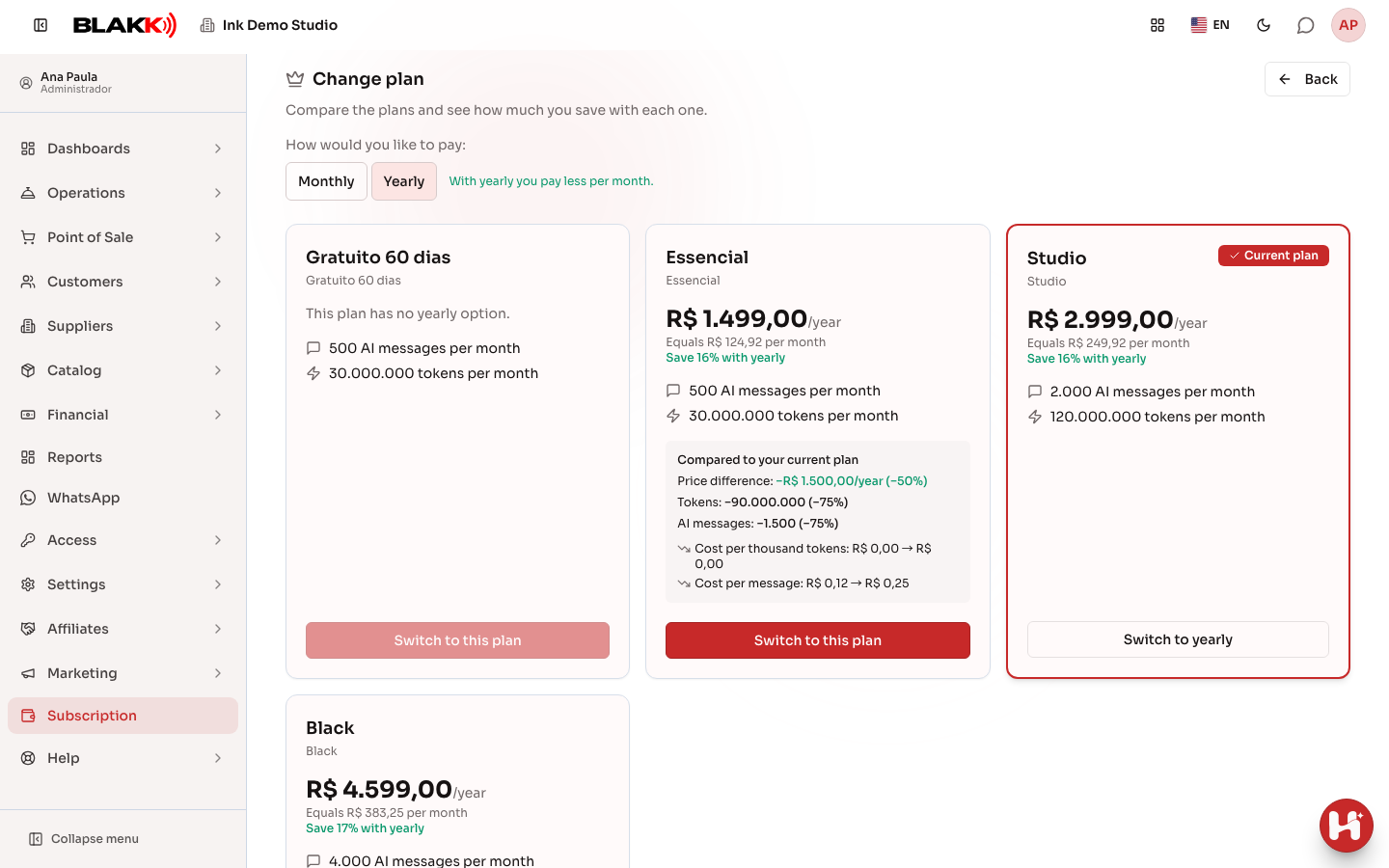
Section titled “Step 2 — Compare plans”Click Change plan. Choose Monthly or Yearly: prices and comparisons update to match the billing cycle you select. Your plan is highlighted with the Current plan badge. For each other plan, you’ll see:
- the plan’s regular price (for yearly plans, the annual total and its monthly equivalent);
- the price difference from your current plan, as an amount and percentage;
- how many more (or fewer) tokens and messages it includes;
- the cost per 1,000 tokens and per message, and how much cheaper it is.
Step 3 — Change your plan
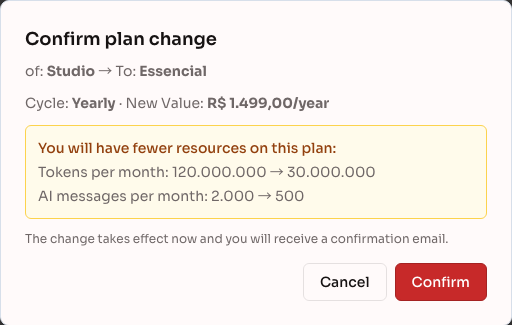
Section titled “Step 3 — Change your plan”Click Switch to this plan on the plan you want. To change only the billing cycle for your current plan, its button appears as Switch to yearly or Switch to monthly. The confirmation shows your current and new plans, the billing cycle, and the new price. If the new plan includes fewer tokens or messages, it shows what you’ll lose and warns you if this month’s usage is already over the new limit. Click Confirm.
Step 4 — Cancel your plan
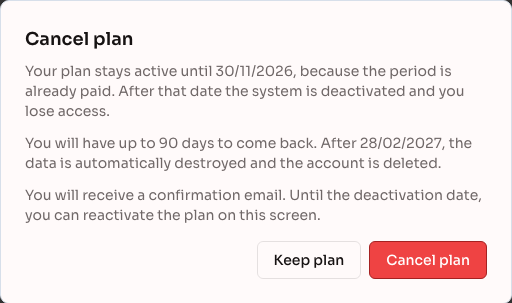
Section titled “Step 4 — Cancel your plan”On the plan card, click Cancel plan. The notice shows how long your plan will stay active (through the end of the month for monthly plans, or through the end of the contracted year for yearly plans). After that date, the system is deactivated and you lose access. You then have 90 days to come back; after that, your data is automatically deleted and your account is removed. To continue, click Cancel plan again; to change your mind, click Keep plan.
Step 5 — Undo the cancellation
Section titled “Step 5 — Undo the cancellation”Once your plan is canceled, the card shows the Cancelled badge and the deactivation and data deletion dates. Before the deactivation date, click Reactivate plan to keep your plan as it was. Changing your plan also undoes the cancellation.
What happens next
Section titled “What happens next”- Changing your plan takes effect immediately: the new message and token limits appear on the usage card. When you switch to a yearly plan, the contracted year starts on the day you make the change.
- Canceling doesn’t change anything until the deactivation date: the system continues to work as usual.
- Every plan change, cancellation, or reactivation sends a confirmation email to the person who took the action.
Common mistakes and questions
Section titled “Common mistakes and questions”Q: What counts as an AI message?
A: Each message someone on your team sends to Heya (in the system, on WhatsApp, or on Telegram), to the website builder assistant, or to the AI assistant for Marketing posts. Each AI-generated image in posts counts as 50 messages (images generated before this rule still count as 1). Automatic replies to your customers on WhatsApp don’t count as messages, only as tokens.
Q: What is a token?
A: It measures the amount of text AI reads and writes. Long questions, extended conversations, and translations use more tokens.
Q: Why can’t I choose a yearly plan?
A: Some plans don’t have a yearly option. For those plans, the card shows “This plan doesn’t have a yearly option.” and the button is disabled.
Q: Can I switch back to a lower plan?
A: Yes. The confirmation shows how the limits will change and warns you if this month’s usage is already over the lower plan’s limit.
Q: I canceled and want to come back after the deactivation date. What can I do?
A: The reactivation button disappears after that date, but you can still come back within 90 days: go to Change plan, choose a plan, or click Reactivate this plan on your plan.
Q: I didn’t receive the confirmation email. Did the change go through?
A: Yes. The email goes to the person who took the action and may land in spam; the screen will show the new plan either way.
Q: Why don’t I see prices or a button to change my plan in the BLAKK mobile app?
A: Due to App Store and Google Play rules, the app doesn’t show plan prices or let you change, reactivate, or reload your plan. Heya also doesn’t discuss prices or offer these options in the app. In the app, you can still see your plan name, usage, and billing history, and you can cancel your plan.