Connect Gemini to Your Studio (Browser and Mobile)
What it is
Section titled “What it is”With the AI connector, Gemini can look up your studio’s data when you ask about sales, customers, appointments, or finances. You only need to connect once by signing in to the system through Gemini in your browser. The connection will then also work in the mobile app. Gemini can only look things up; it can’t change anything in the system.
When to use it
Section titled “When to use it”- You already use Gemini every day and want to ask about your studio’s activity.
- You want to combine system data with what Gemini already does for you in Google.
Before you start
Section titled “Before you start”The AI connector needs to be enabled for your studio (see the AI connector article). Copy the connector address from Settings → Company → API Key, in the Connect your AI card, using the Copy address button. You don’t need to create an API key.
⚠️ Google still limits custom Gemini apps to personal Google accounts (not work or school accounts), users 18 or older, located in the United States, with Gemini set to English and Activity turned on. If you don’t meet these requirements, the option won’t appear. If that’s the case, use the Gemini CLI, which doesn’t have this limitation.
Step by step
Section titled “Step by step”Step 1 — Add the custom app
Section titled “Step 1 — Add the custom app”In Gemini in your browser (gemini.google.com), open Settings → Connected apps (in some accounts, open Personal Intelligence first). Under Custom apps, add an app, paste the connector address, and click Next.
Step 2 — Sign in and authorize
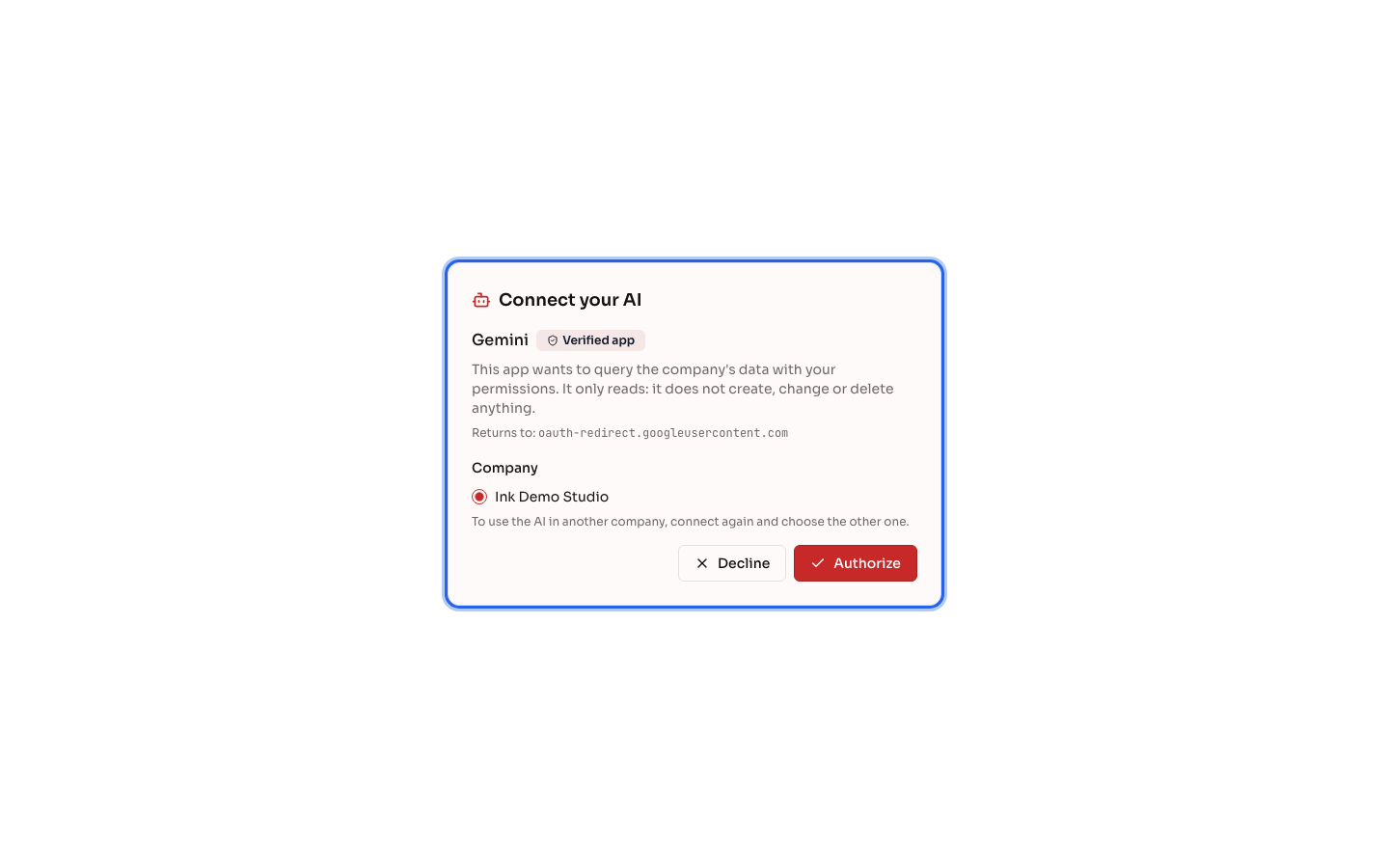
Section titled “Step 2 — Sign in and authorize”The system’s sign-in screen opens. Sign in with your username, choose your Company, and click Authorize. The screen shows Gemini with the Verified app badge. Once you authorize, you’ll return to Gemini, connected.
Step 3 — Use Gemini in your browser and on your phone
Section titled “Step 3 — Use Gemini in your browser and on your phone”For example, ask: “What were my sales yesterday at the studio?” On your phone, the custom app you added in your browser will also appear in the Gemini app for the same account.
What happens next
Section titled “What happens next”- Gemini finds the right query, runs it, and responds with data from the system, based on your user permissions.
- The connection appears in your Profile, under Connected AIs, and in the studio’s API Key tab for administrators.
- The connection applies to ONE company. To use another company, add the app again and choose that company.
Common mistakes and questions
Section titled “Common mistakes and questions”Q: I don’t see “Custom apps” in Gemini. A: Google restricts this feature to personal accounts, users 18 or older, people in the United States, and Gemini set to English with Activity turned on. Use the Gemini CLI, which works with an API key.
Q: Can I add the app from my phone? A: You need to add it in Gemini in your browser. After that, it will also work in the app.
Q: Why does the sign-in screen say there are no companies available? A: The AI connector isn’t enabled for your studio, or your user isn’t a member of it. Contact your system administrator.
Q: How do I disconnect Gemini? A: In the system, open your Profile and click Disconnect AI for the Gemini connection. Gemini will lose access within 30 seconds.
Q: Can Gemini change system data? A: No. The connector can only look up data. Make changes in the system.