User Time Clock Report: Track Your Team's Clock-Ins and Clock-Outs
What it is
Section titled “What it is”This report shows all of your team’s time entries. Each row is a clock-in and its corresponding clock-out, with the total hours worked per day and per person.
When to use it
Section titled “When to use it”- Check an employee’s clock-in and clock-out times for a specific period.
- See the total hours worked by each person to verify payroll.
- Correct a time entry or add one manually when someone forgets to clock in.
Before you start
Section titled “Before you start”If you can’t see this report, ask the studio owner to grant you access under Access → Profiles. Correcting, deleting, or manually adding a time entry requires a higher access level (Edit) than viewing it (View)—and this access is separate from the permission that lets someone clock in and out.
Step by step
Section titled “Step by step”Step 1 — View the list of time entries
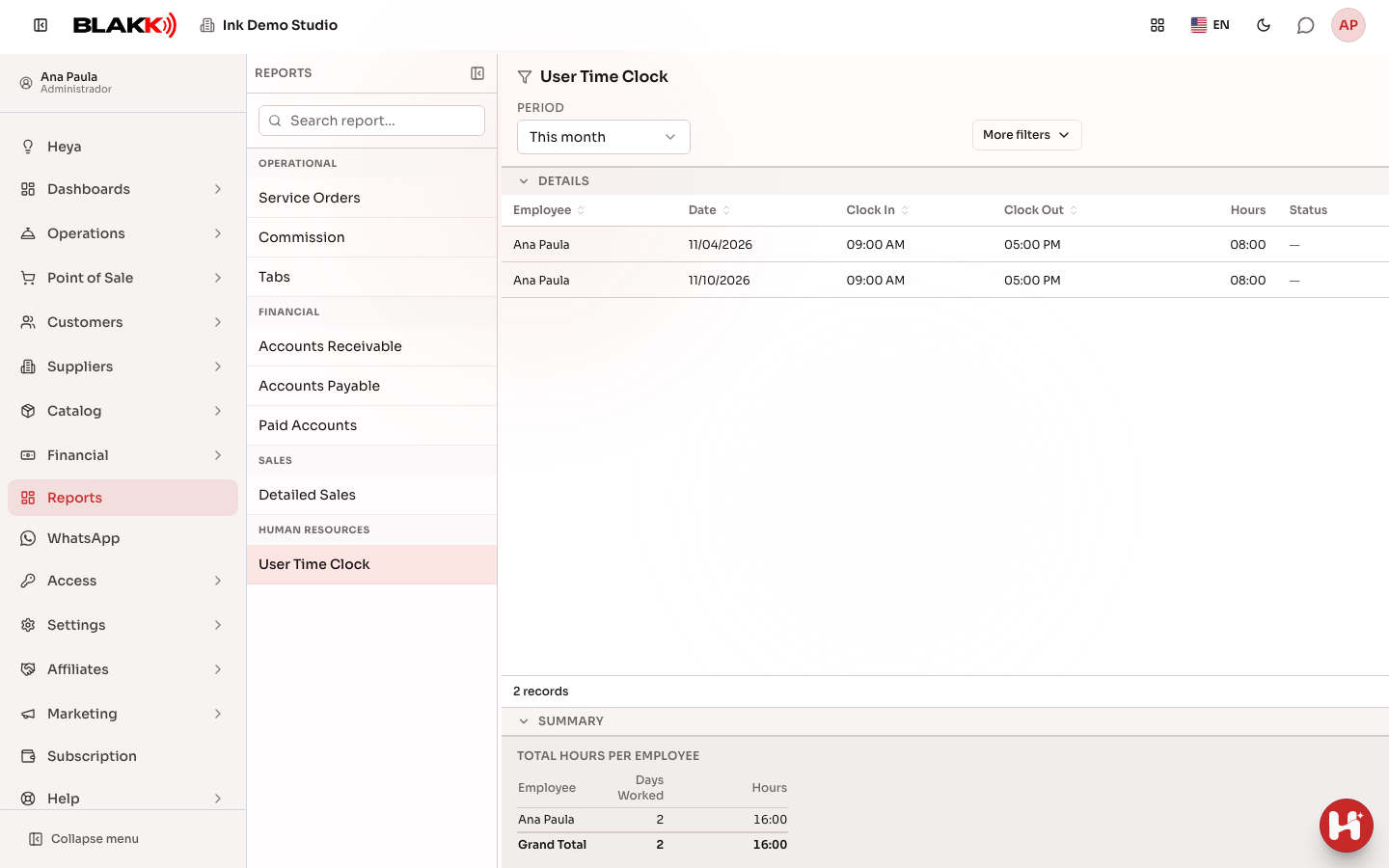
Section titled “Step 1 — View the list of time entries”Under Reports, click User Time Clock. Each row shows the Employee, Date, Clock In, Clock Out, Hours, and Status. At the bottom, the Total Hours per Employee table totals each person’s workdays and hours for the selected period.
Step 2 — Filter by employee
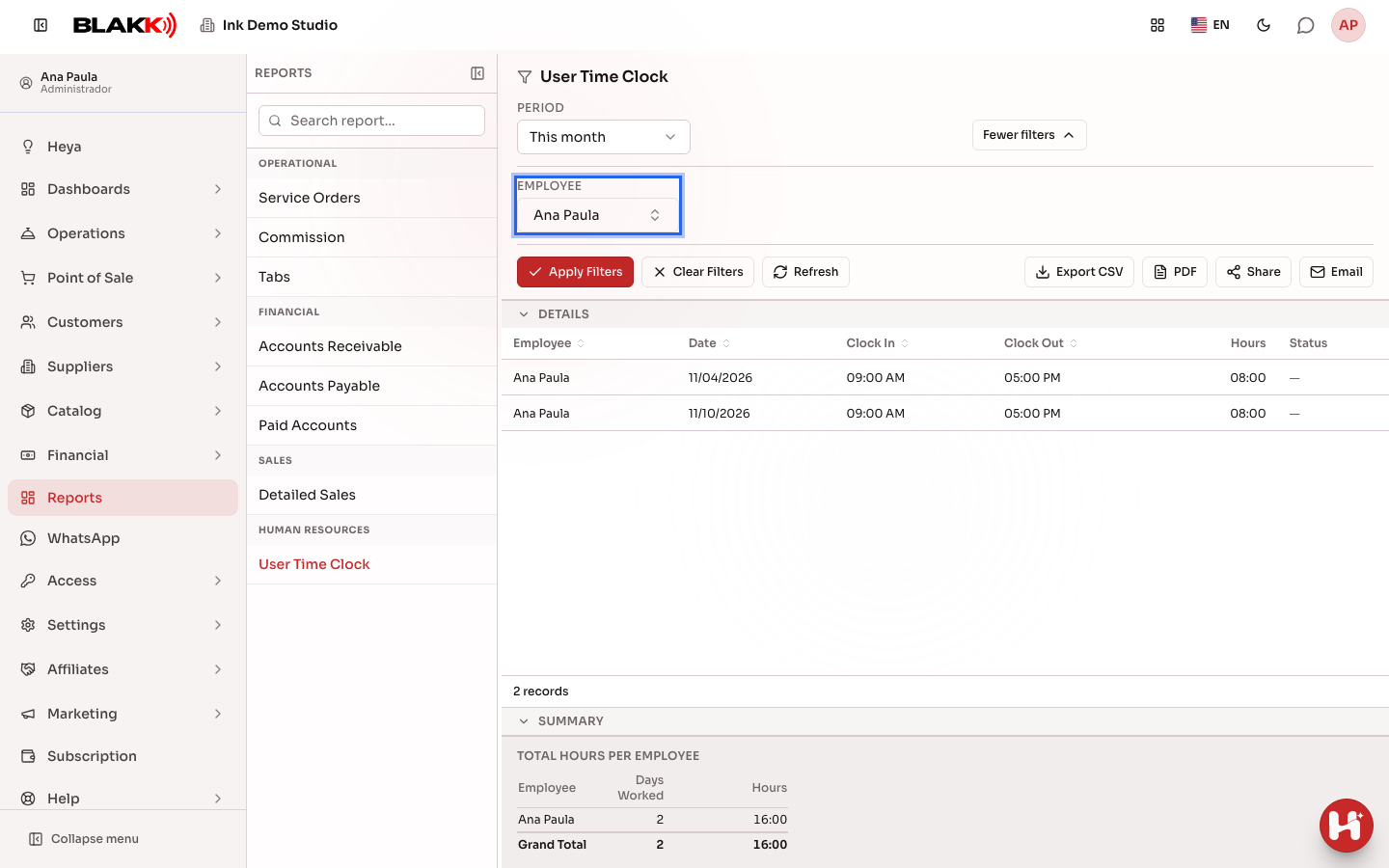
Section titled “Step 2 — Filter by employee”Open More filters, select a name under Employee, and click Apply Filters to see only that person’s time entries.
Step 3 — Correct a time entry
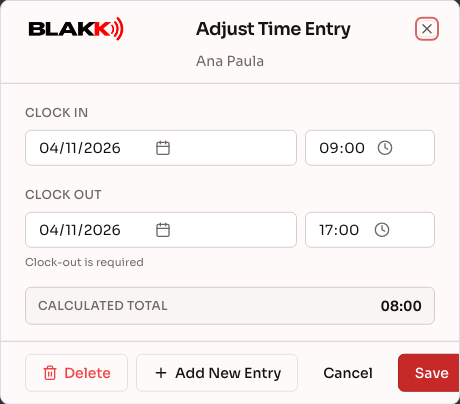
Section titled “Step 3 — Correct a time entry”Click a row to open the Adjust Time Entry window and edit the Clock In or Clock Out time. The Calculated Total updates as you type. Click Save. Rows are clickable only for users with Edit access to this report.
To add a time entry someone forgot to record, click Add New Entry in the same window. New Time Entry opens for the same employee, where you can enter the clock-in and clock-out times.
Step 4 — Delete a time entry
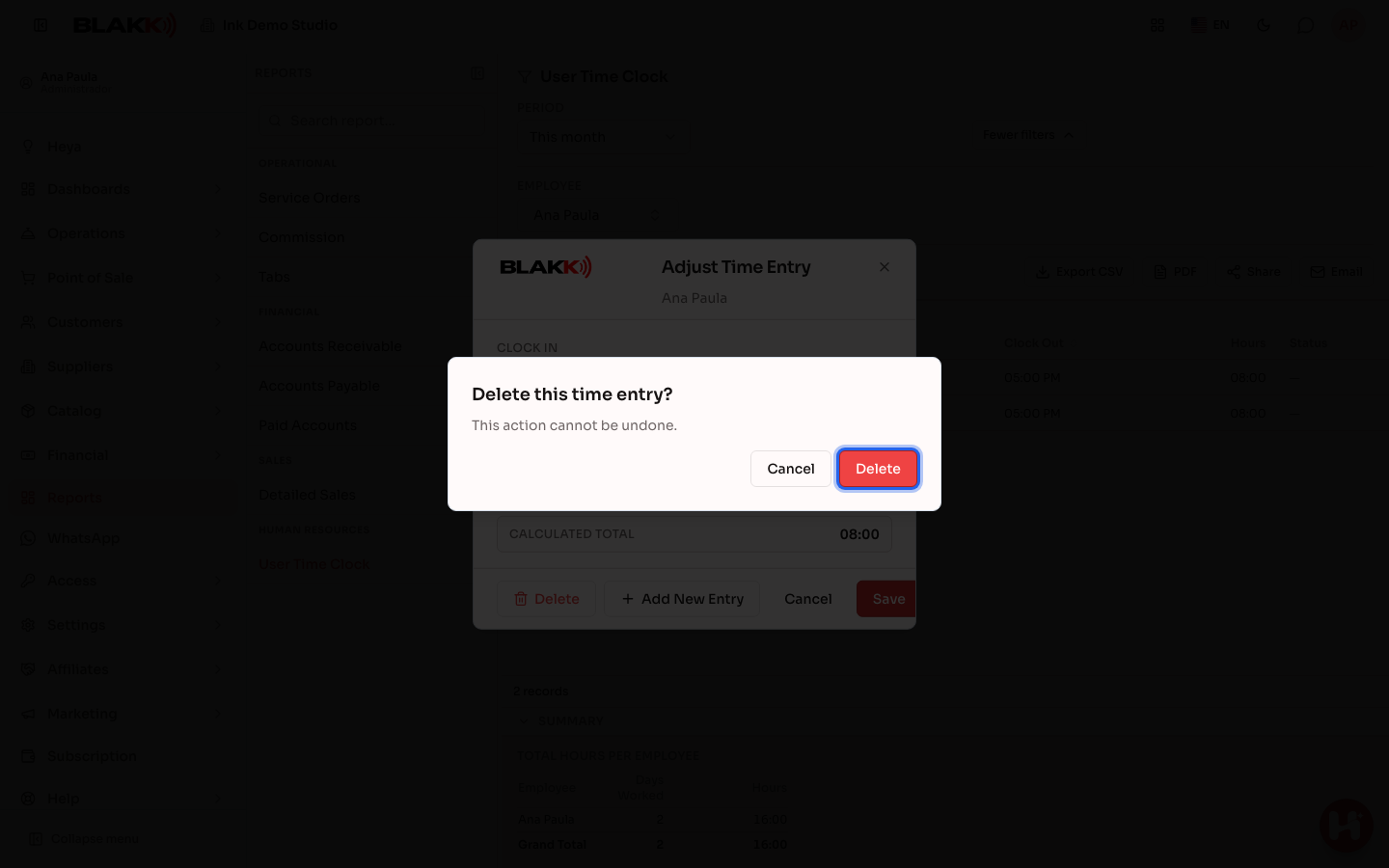
Section titled “Step 4 — Delete a time entry”In the same window, click Delete and confirm. The prompt is clear: Delete this time entry? This action cannot be undone.
What happens next
Section titled “What happens next”- A closed time entry (with a clock-in and clock-out) can’t be reopened—only edited (to change the times) or deleted. If you really need to reopen it, delete it and add a new entry manually.
- When you add a time entry manually, Clock Out is required. Unlike an actual clock-in, a manual entry can’t stay open until the person clocks out.
- An “Open” entry may be an active shift or a missed clock-out that the system closes automatically after many hours. The report can’t tell the difference, so open the entry to check.
- The duration (Hours) is calculated independently of the displayed time zone, so it remains accurate even for a shift that spans the daylight saving time change.
Common mistakes and questions
Section titled “Common mistakes and questions”Q: A time entry has been “Open” for several days. What happened? A: The person probably forgot to clock out. The system doesn’t close the entry right away—it only does so after many hours, and without filling in an actual clock-out time. Open the entry and correct the clock-out time manually.
Q: Can I reopen an entry that already has a clock-in and clock-out? A: No—a closed entry can only be edited (to change the times) or deleted. There is no “reopen” option.
Q: Why do I have to enter a clock-out time when adding a time entry manually, but not when editing an open one? A: A manual entry without a clock-out would be marked as “open” and eventually closed automatically by the person’s next actual time entry, disrupting your records. You can still edit a genuinely open entry without entering a clock-out time.
Q: Who can correct someone else’s time entry? A: Only someone with Edit access to this specific report. This is separate from the permission that lets someone clock in and out. A person can have permission to clock in and out without having any permission to edit time entries—not even their own.
Q: Does the report show where each time entry came from (PIN screen, kiosk, or manual entry)? A: No—the report only shows the clock-in time, clock-out time, and duration. You can’t tell from this screen whether an entry came from a kiosk, the PIN screen, or a manual entry.