Account Adjustments: Create and Edit Manual Journal Entries
What it is
Section titled “What it is”This is where you manually enter a debit and credit that don’t come from a sale, expense payment, or cash closeout—for example, an opening balance entry or a one-time correction that doesn’t fit anywhere else. Every entry must have at least two lines, and the total debits must be exactly equal to the total credits before you can save. This is the same form opened by the New Adjustment shortcut in the Financial Hub.
When to use it
Section titled “When to use it”- Enter an account’s opening balance when you start using the Financial module.
- Correct a previous manual entry that was entered incorrectly.
- Repeat an adjustment similar to one that already exists without setting up the lines again.
- Record a one-time accounting adjustment that isn’t an expense, sale, or cash closeout.
Before you start
Section titled “Before you start”If you can’t create or edit an adjustment, ask the business owner to grant you access under Access → Roles. Deleting an adjustment requires a higher access level (Full) than creating or editing one (Edit).
Step by step
Section titled “Step by step”Step 1 — View the adjustment list
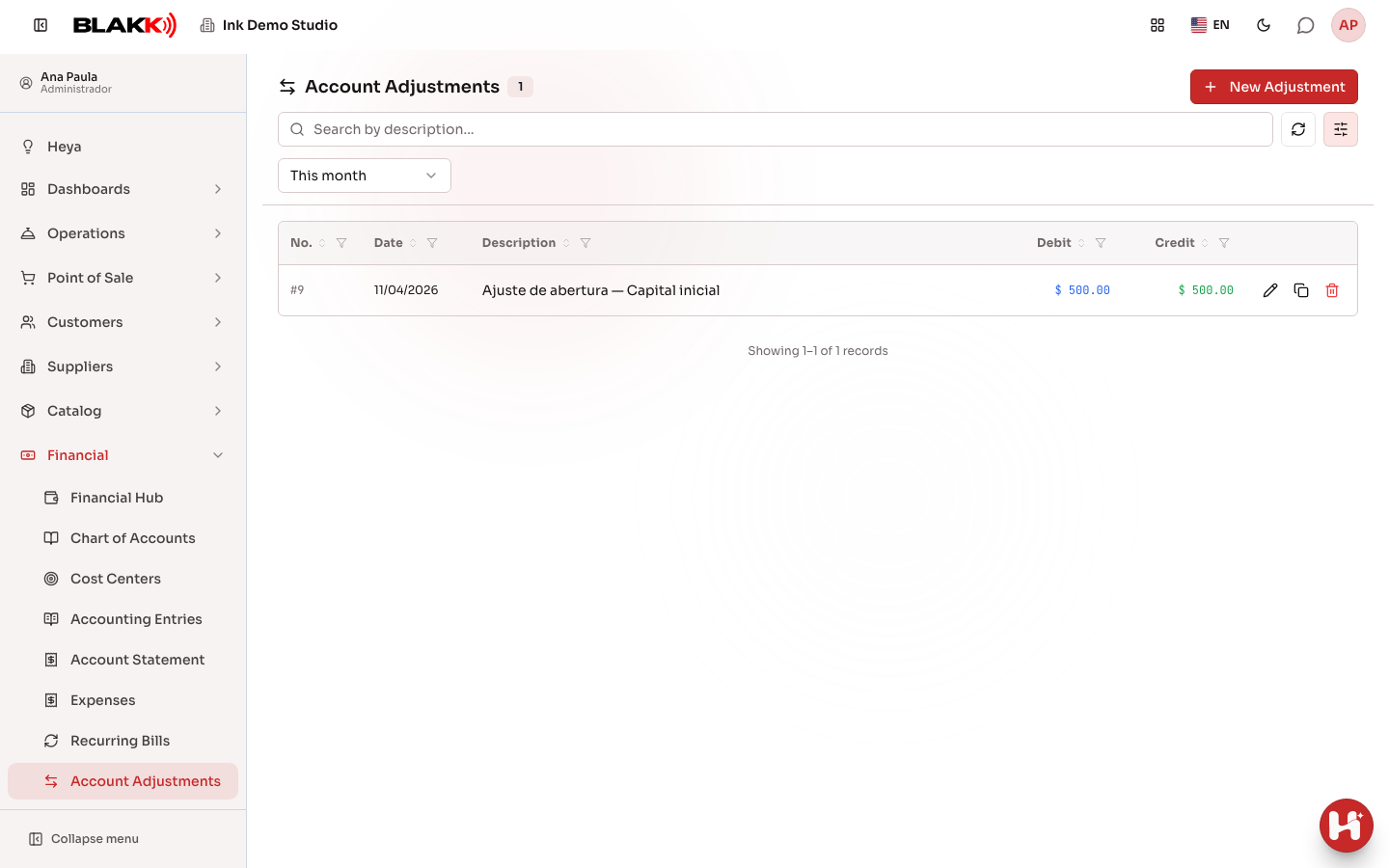
Section titled “Step 1 — View the adjustment list”The list shows only manual entries for the selected period (not sales, expenses, or cash closeouts—those appear only in Journal Entries). Use the search (Search by description…), the date range (in the panel opened by the Filters button, which defaults to “This month”), or the column filters to find a specific adjustment.
Step 2 — Create a new adjustment
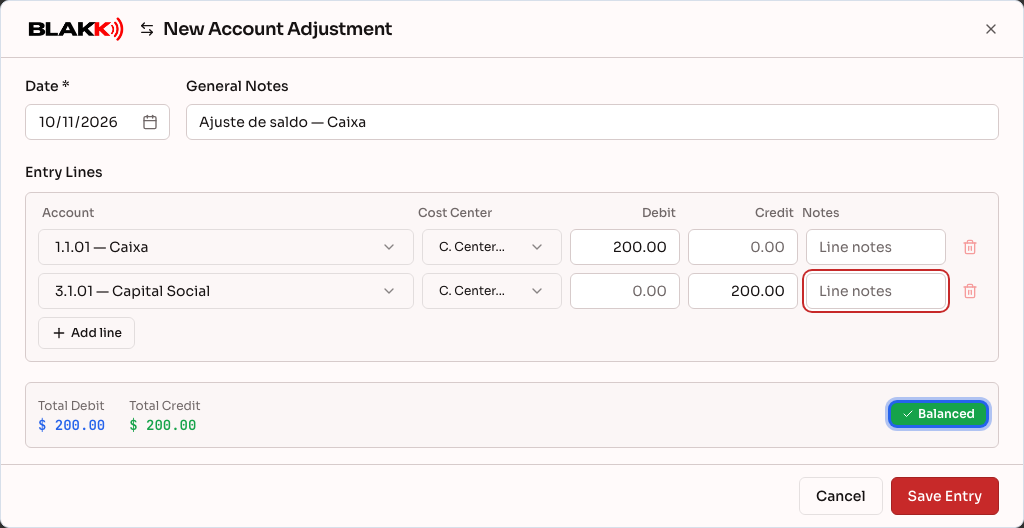
Section titled “Step 2 — Create a new adjustment”Click New Adjustment, choose the Date, enter General Notes (optional), and fill in the Entry Lines: for each line, choose the Account, select a Cost Center if needed, and enter an amount under Debit or Credit (never both on the same line). Use Add line to add more than two lines. The summary at the bottom shows the Total Debit, the Total Credit, and a Balanced/Debit ≠ Credit status. The Save Entry button is enabled only when the two totals match.
Step 3 — Delete an adjustment
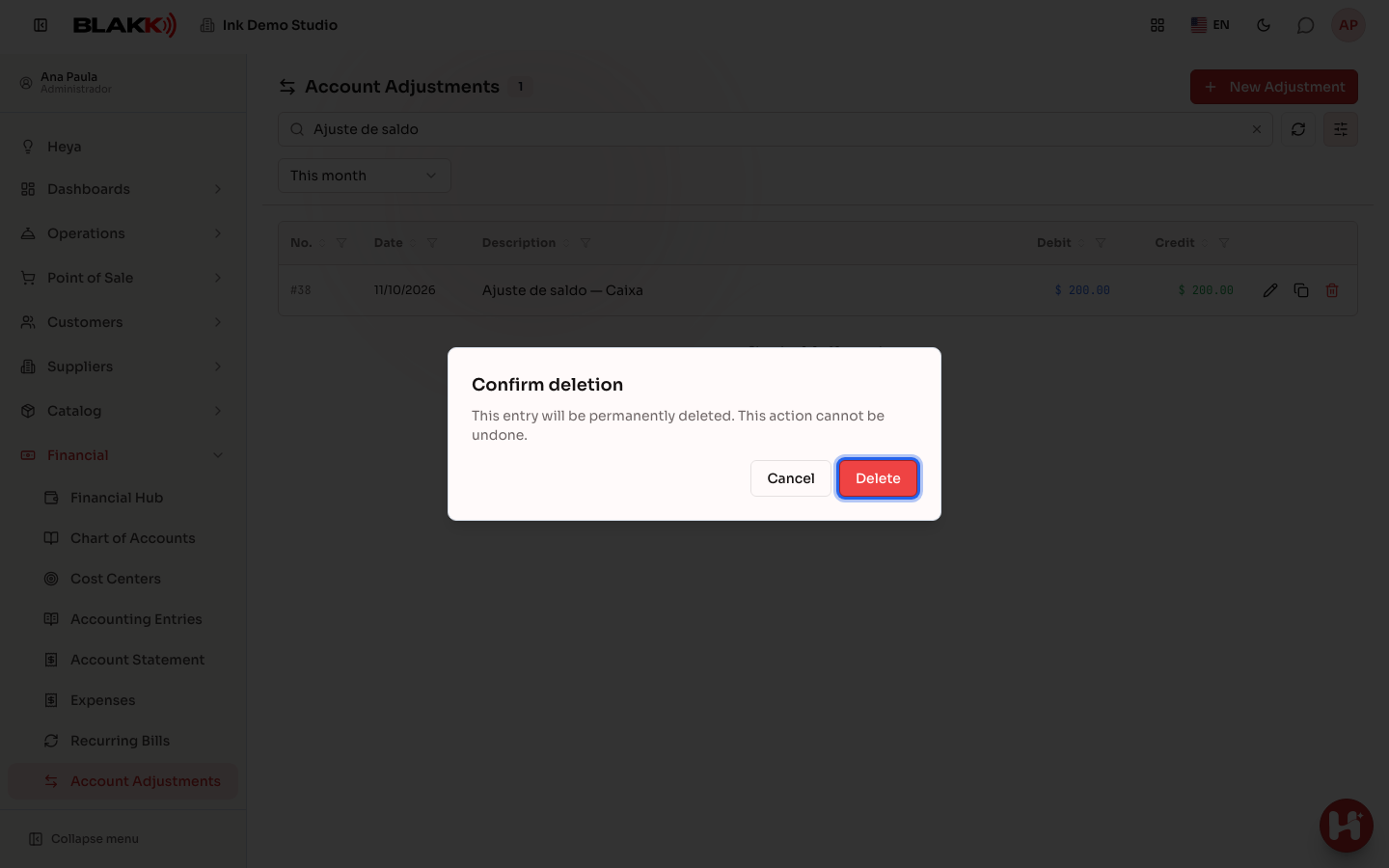
Section titled “Step 3 — Delete an adjustment”Click the Delete icon and confirm. This icon appears only for users with Full access to Account Adjustments—and only for entries created on this screen, never for entries generated by another module (see “What happens next”).
Step 4 — Clone a similar adjustment
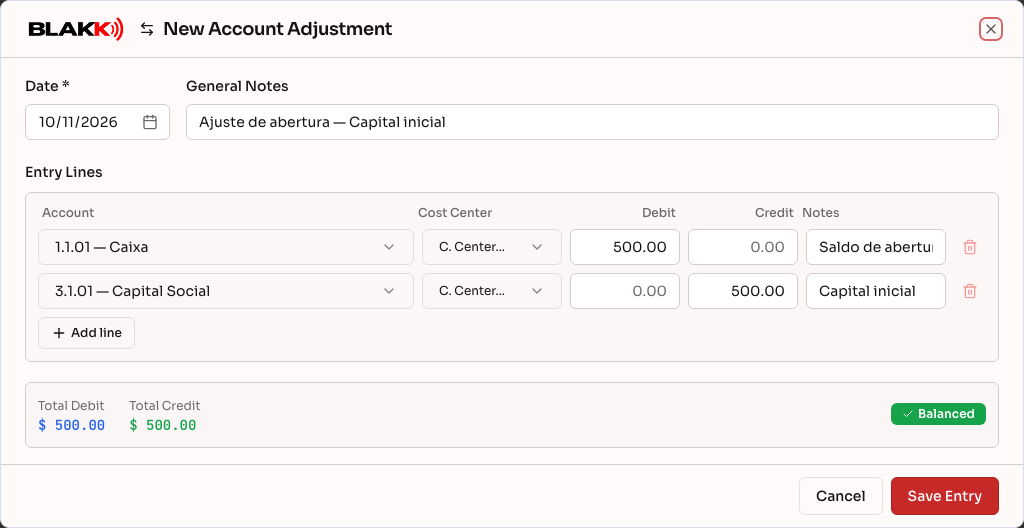
Section titled “Step 4 — Clone a similar adjustment”To repeat an existing adjustment, click the Clone icon on its row. A New Account Adjustment form opens with the same notes and lines (accounts, cost centers, and amounts) as the original entry, and today’s date. Make any needed changes and click Save Entry. The original entry stays unchanged. You can even clone an entry generated by another module: the clone is created as a regular manual adjustment that you can edit.
What happens next
Section titled “What happens next”- An entry saved here appears immediately in Journal Entries, along with all the others.
- Not every Manual entry was entered by someone on this screen: a cash drop or cash replenishment with a selected offset account, and a reversal of another entry, are also marked as “Manual.” But these entries are locked, with only an eye icon (View (generated by another module)) instead of edit/delete options, and the message “This entry was generated by another module and cannot be changed here.” appears when you open one.
- Deleting an adjustment is permanent—there’s no trash or history of deleted adjustments.
Common mistakes and questions
Section titled “Common mistakes and questions”Q: What’s the difference between this screen and Journal Entries? A: Here, you can create, edit, and delete entries—but you can only see manual entries. In Journal Entries, you can only view entries, but you can see everything (sales, expenses, cash closeouts, and manual adjustments together).
Q: Why do some entries only show an eye icon, with no option to edit or delete? A: Because those entries weren’t entered manually—they came from another operation (a cash drop or replenishment, for example, or a reversal of another entry). They’re locked to avoid disrupting what already happened in the original operation; the eye icon lets you view the details.
Q: Why is the Save button still disabled even though I’ve filled everything in? A: The total debit still doesn’t match the total credit. Check the status at the bottom of the form: as long as it says Debit ≠ Credit, saving will remain disabled. You can’t save an unbalanced entry, even by mistake.
Q: Can an entry have just one line? A: No—the minimum is two lines (one debit and one credit). The remove-line icon is disabled when only two lines remain.
Q: Do I have to choose a Cost Center for every line? A: No—it’s optional for each line. A line without a cost center is still recorded normally; it just won’t be included in reports grouped by cost center.